
Guide navigation 5 of 42
What this page helps you accomplish
For an App using GitHub source mode, link its canonical repository and verify branch, synchronization, integrity, and delivery ownership.
Scope and authority
An active Batoi Build app in the intended workspace The selected App explicitly declares GitHub as its canonical source mode
Integration
For an App using GitHub source mode, link its canonical repository and verify branch, synchronization, integrity, and delivery ownership.
Observable business result
The GitHub-canonical App points to the approved repository and branch, reports honest synchronization and integrity, and has clear delivery ownership without an ambiguous second source.
The expected record or action is missing.
Recommended recovery: Return to the intended context and ask an Owner or Admin to confirm access. Do not use another person’s account.Who should use this article
This article is for Workspace Admins and Builders who are authorized to complete or review this task. A consequential decision remains with the accountable person.
Before you begin
- An active Batoi Build app in the intended workspace
- The selected App explicitly declares GitHub as its canonical source mode
- Access to the approved GitHub organization and repository
- Authority to assign repository synchronization and delivery ownership
- Use approved sample or operational information only. Never enter a password, token, private key, or unnecessary personal information.
Open repository settings
- Open the selected app in Build.
- Open Source and confirm the canonical mode is GitHub.
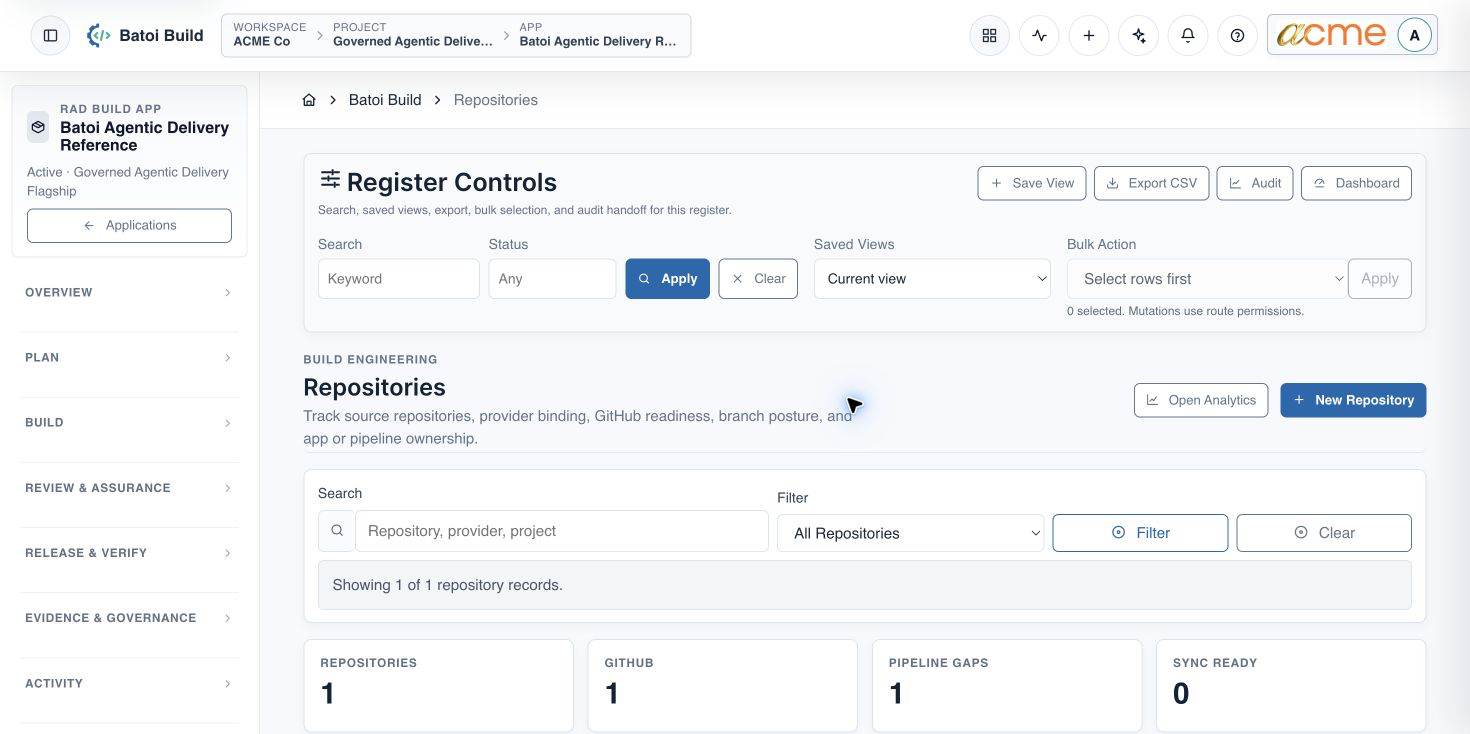
- Use Manage Source or the app-scoped repository action to connect and verify the repository.
Connect the repository
- Confirm the approved GitHub organization and repository already exist or create them through the authorized organization workflow.
- Select GitHub as the provider and enter or choose the canonical repository.
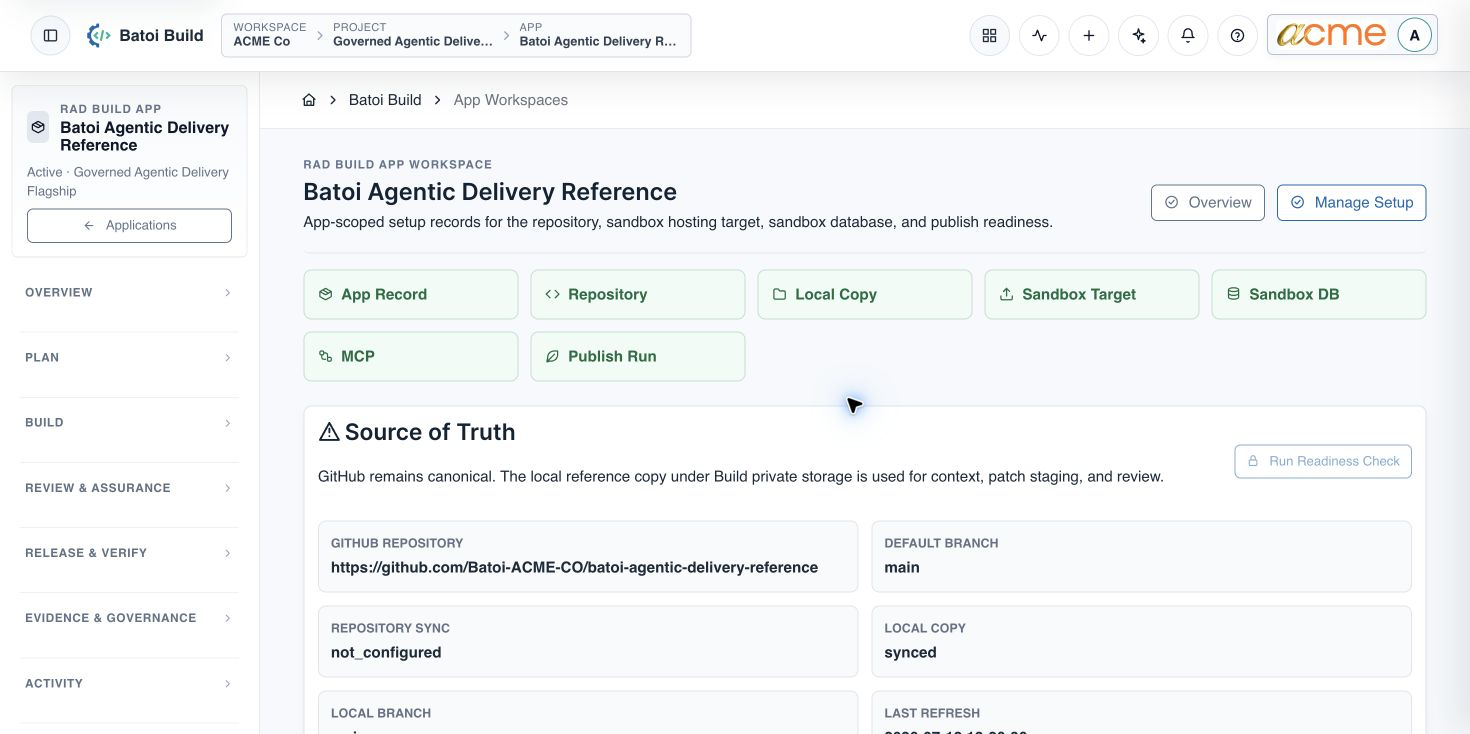
- Set the default branch to the repository standard, such as main.
- Save the app-scoped repository record.
- Open the repository at GitHub to verify visibility and organization policy; the Build register may not display visibility.
Verify the operational connection
- The repository belongs to the intended organization and app.
- The default branch matches GitHub.
- App Source identifies GitHub as the source of truth.
- Repository synchronization has an honest configured or setup-needed state.
- A CI/CD pipeline owner is assigned before automated delivery is relied upon.
- The connected repository remains the approved source for the App, with no ambiguous second publishing authority.
Continue with Prepare a Sandbox Environment in Batoi Build.
Troubleshooting and recovery
| What you see | What to check | Safe next action |
|---|---|---|
| The expected record or action is missing. | Workspace, project/app context, role, status filters, and prerequisites. | Return to the intended context and ask an Owner or Admin to confirm access. Do not use another person’s account. |
| The status remains incomplete or needs review. | Required fields, evidence, approvals, source connections, checks, and owners. | Record the missing item and owner. Do not mark the task complete until it can be independently verified. |
| The result conflicts with policy or evidence. | Scope, source recency, exception authority, decision conditions, and reviewer independence. | Do not bypass the control. Return the item for correction or escalate it through the authorized route. |
Safety and governance
Final verification
Next step
Continue with the next verified article in this Product Guide, or return to the Batoi Platform Product Guide.