
Guide navigation 4 of 42
What this page helps you accomplish
Create the stable App record, creation profile, source intent, owner, and optional Core Project coordination used by Batoi Build.
Scope and authority
Access to the intended authenticated workspace through My Batoi Authority to create or manage the App and optionally assign its coordinating Core Project
Getting Started
Create the stable App record, creation profile, source intent, owner, and optional Core Project coordination used by Batoi Build.
Observable business result
The Build App has a stable identity, creation profile, source intent, accountable owner, optional coordinating Project, and explicit readiness gaps for every connection not yet configured.
The expected record or action is missing.
Recommended recovery: Return to the intended context and ask an Owner or Admin to confirm access. Do not use another person’s account.Who should use this article
This article is for Workspace Owners, Workspace Admins, and Builders who are authorized to complete or review this task. A consequential decision remains with the accountable person.
Before you begin
- Access to the intended authenticated workspace through My Batoi
- Authority to create or manage the App and, when needed, assign its coordinating Core Project
- Use approved sample or operational information only. Never enter a password, token, private key, or unnecessary personal information.
Open the app setup
- Enter the authorized workspace through My Batoi.
- Open Build and choose Applications.
- Create an app or open the intended app, then use App Overview and App Settings to review its identity.
Complete the App Record
- Enter a distinct business-facing App Name and stable lowercase App Key.
- Choose the applicable creation profile: RAD App, Bring Your Stack, Website, or use the separate Micro Apps workspace for a focused Form or Report.
- For RAD and Bring Your Stack Apps, choose the delivery App Type, implementation Language, and actual Runtime Stack. For Websites, choose the runtime-specific Website mode.
- Declare the intended version-controlled source and publishing responsibility. Setup can remain incomplete until the approved connection is verified.
- Assign the accountable Owner.
- Set Status to Active only when the identity and ownership are correct.
Assign a coordinating project when needed
- Leave the App unassigned when it does not yet need project tasks, reporting, member sharing, or a shared business outcome.
- When project coordination is required, select the intended Core Project.
- Open the Core Project Overview and Build Project Overview, then confirm both identify the same App and Project.
- If a source, data service, environment, or deployment connection is not ready, keep the setup-needed state until the correct App connection is verified.
Completion check
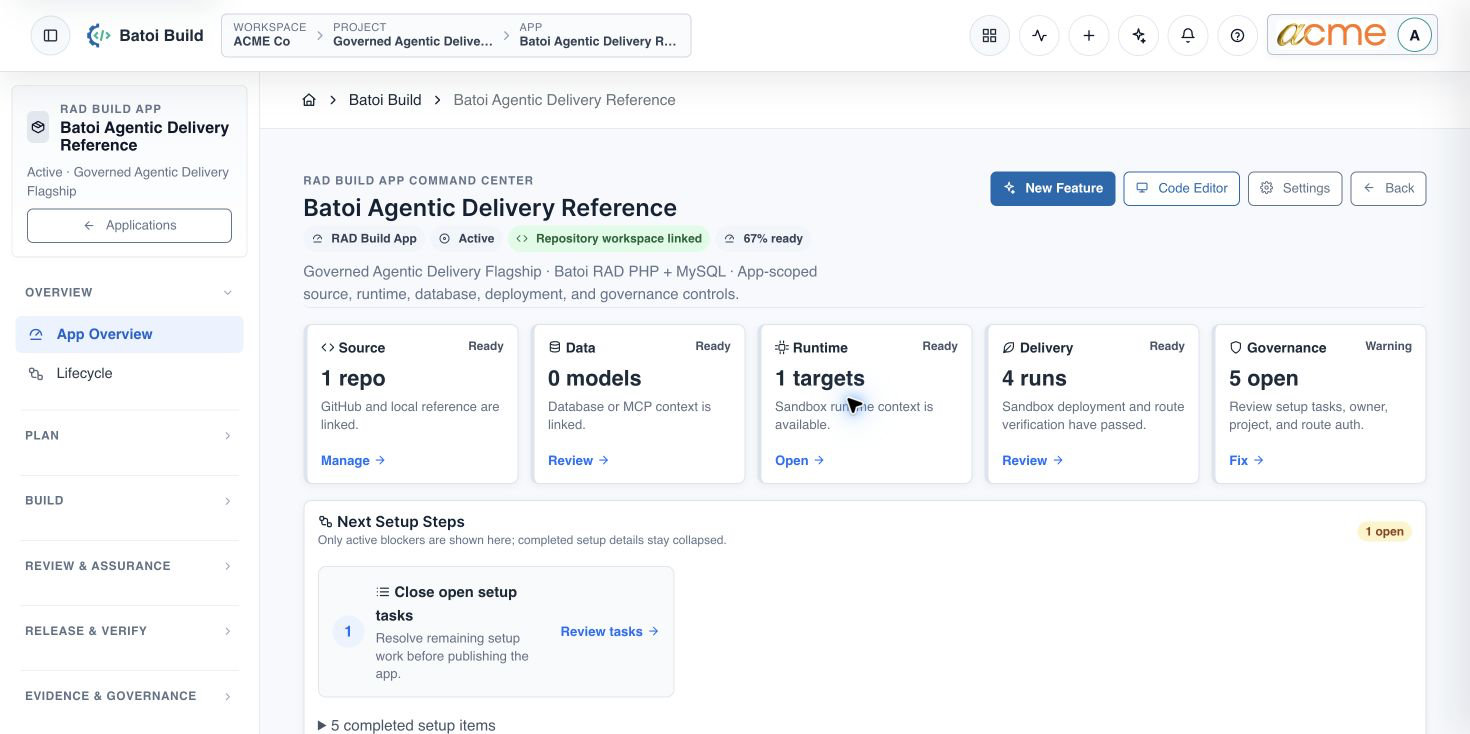
- The workspace, App, owner, creation profile, source intent, and runtime are correct.
- The Project is either deliberately unassigned or correctly linked for coordination.
- The selected-app navigation appears and remains in the intended app context.
- App Overview shows honest setup-needed states instead of unrelated fallback data.
- No credential, private path, or unnecessary personal information appears in the app description or screenshots.
Continue with Connect a Source Repository to Batoi Build.
Troubleshooting and recovery
| What you see | What to check | Safe next action |
|---|---|---|
| The expected record or action is missing. | Workspace, project/app context, role, status filters, and prerequisites. | Return to the intended context and ask an Owner or Admin to confirm access. Do not use another person’s account. |
| The status remains incomplete or needs review. | Required fields, evidence, approvals, source connections, checks, and owners. | Record the missing item and owner. Do not mark the task complete until it can be independently verified. |
| The result conflicts with policy or evidence. | Scope, source recency, exception authority, decision conditions, and reviewer independence. | Do not bypass the control. Return the item for correction or escalate it through the authorized route. |
Safety and governance
Final verification
Next step
Continue with the next verified article in this Product Guide, or return to the Batoi Platform Product Guide.