
Guide navigation 41 of 44
What this page helps you accomplish
Connect services, active stylists, bookings, the dated service queue, completion totals, and operating reports.
Scope and authority
An active Flex workspace Configured services, staff availability, pricing, and operating responsibilities
Service Operations
Connect services, active stylists, bookings, the dated service queue, completion totals, and operating reports.
Observable business result
Salon managers can see current setup, upcoming bookings, service progress, and completed revenue in one operational context.
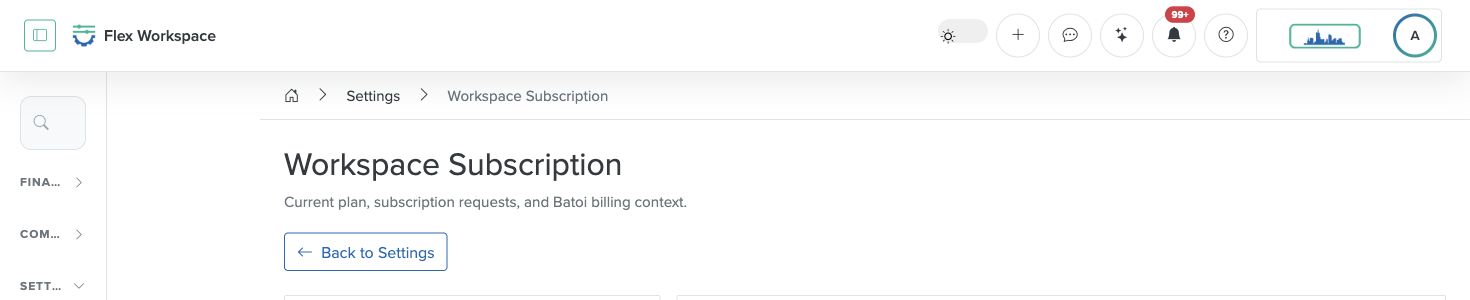
Salon routes open Workspace Subscription or the Salon menu is unavailable.
Recommended recovery: Ask an authorized Owner to review entitlement or subscription status. Do not submit or change a plan without the organization’s approval.Who should use this article
This article is for salon managers who are authorized to complete or review the task in the intended workspace. The person making a consequential operational, commercial, academic, care, access, or compliance decision remains accountable for the result.
Before you begin
- An active Flex workspace
- Configured services, staff availability, pricing, and operating responsibilities
- Use a sanitized demonstration record for practice and confirm the intended workspace, role, scope, and responsible owner before changing operational records.
- Do not place passwords, connection secrets, personal data, regulated information, private documents, or payment details in notes, prompts, screenshots, or exports.
Workflow overview
Read the Salon dashboard
The current dashboard is an operating summary, not a substitute for the underlying booking and service records. Read its four headline measures together:
The number of service records available to the workspace. Open Services to verify duration, price, and active status.
The stylist directory used for booking assignment. Confirm that the selected stylist is active before assigning work.
Bookings scheduled for the current day. Use the booking register or POS queue to review their individual status.
Future bookings requiring operational readiness. Review date, time, client, service, stylist, and status before delivery.
Complete the workflow
- Confirm the workspace and responsibility. Enter the authorized workspace through My Batoi. Confirm the workspace name, your current role, the record or review period, and the person accountable for the result.
- Open the current product area. Confirm that the Salon Industry Pack is available, then open its dashboard and review services, stylists, bookings, current work, and checkout readiness.
- Check prerequisites and source records. Make sure the required capability, connection, status, relationship, approval, and safe information boundary are ready. Search before creating a new record.
- Perform the task. Move to Services, Stylists, Bookings, or POS for the task, preserve canonical client and billing links, and update the service state as work progresses.
- Review the result. Check service duration and price, stylist active status, client context, booking date and time, booking state, recorded amount, and the dated POS queue.
- Verify and retain the outcome. The dashboard and related records agree on the current booking, service, stylist, completion state, completed revenue, and next action. Record every exception and follow-up with an owner and review date.
Verify the result
- The workspace, role, record, period, and Industry Pack still match the intended scope.
- Salon managers can see current setup, upcoming bookings, service progress, and completed revenue in one operational context.
- The visible status, source evidence, owner, exception, and next action agree with the completed work.
- An authorized reviewer can understand the result without relying on hidden assumptions or information outside Flex.
Troubleshooting and recovery
| What you see | What to check | Safe next action |
|---|---|---|
| Salon routes open Workspace Subscription or the Salon menu is unavailable. | Workspace, role, entitlement, source record, status, ownership, required fields, and approval evidence. | Ask an authorized Owner to review entitlement or subscription status. Do not submit or change a plan without the organization’s approval. |
| The expected page or action is missing. | Current role, team scope, Industry Pack availability, workspace subscription, record state, and prerequisite setup. | Stop and ask an authorized Owner or Admin to review access. Do not use another person’s account or bypass the control. |
| The result conflicts with evidence or another register. | Source ownership, date range, status definitions, duplicate records, latest update, and correction history. | Do not mark the task complete. Return it for correction or escalate it to the accountable owner. |
Safety and governance
Do not copy authenticated page addresses, record identifiers, connection details, browser notifications, account information, or unrelated workspace content into public documentation or external communication.
Use Batoi Intelligence safely
Next step
Continue with the next verified article in this Product Guide, or return to the Batoi Flex Product Guide.