View Participant Submissions
Understand how to review participant submissions, including their marks and detailed responses to specific program questions.
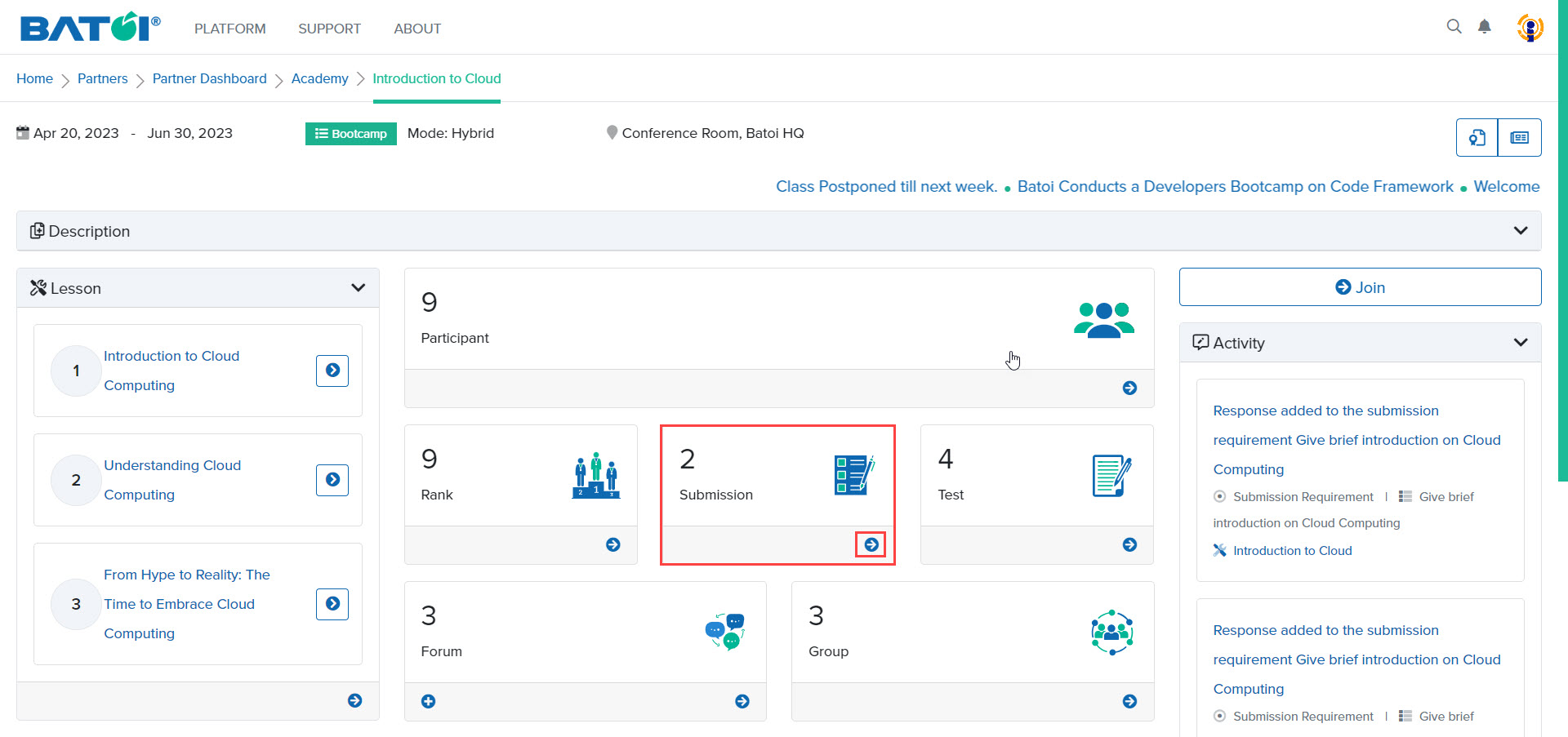
In the submission section, 2 represents the number of submissions done for the program. To view all submissions, click on the View All button in the submission section, as illustrated in Figure 1.
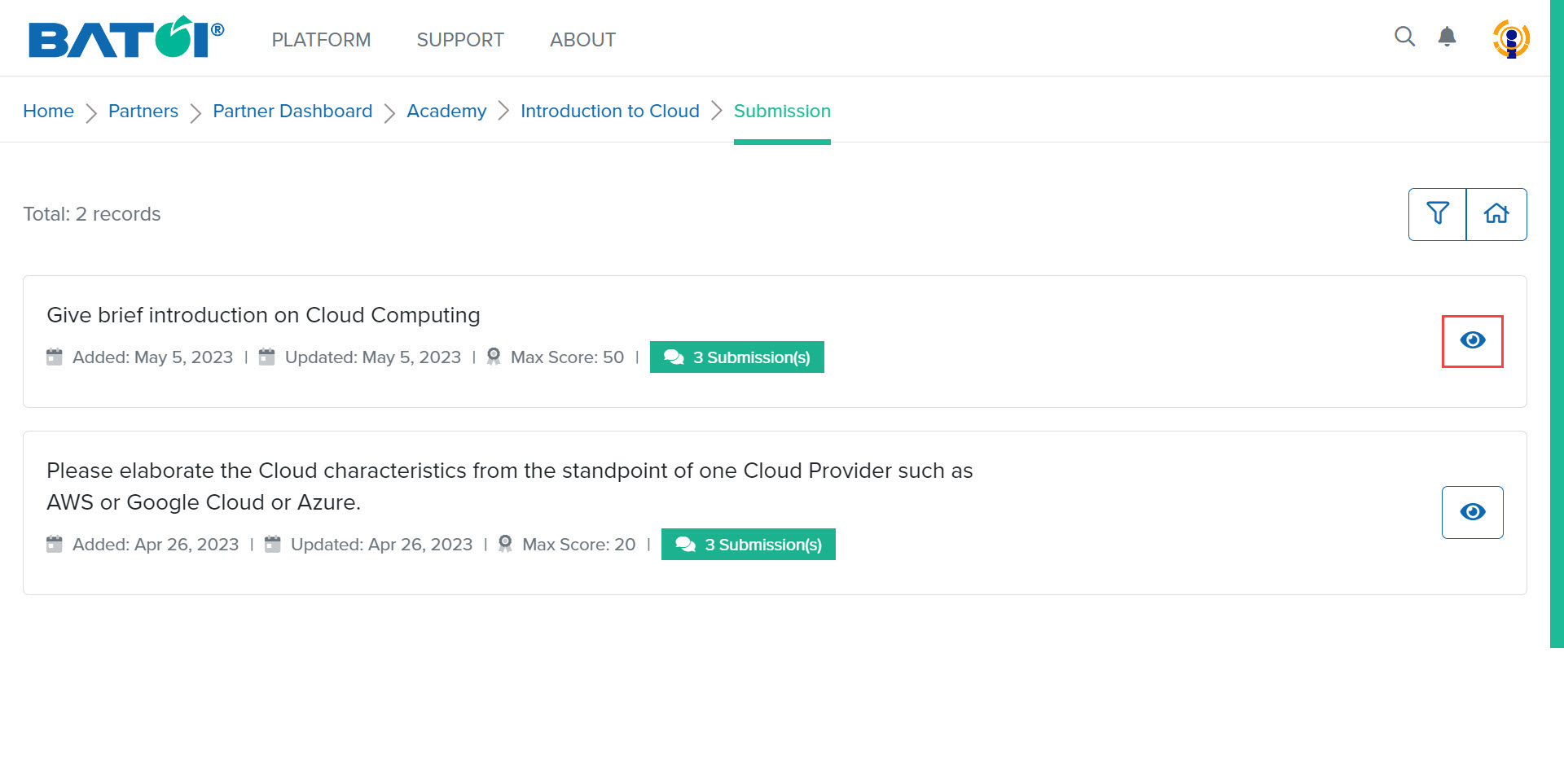
The submissions list page will open. To view the submissions, click on the View button, as illustrated in Figure 2.
You can view the number of submissions made by the participants, the status of the submission final (Y/N) by the expert, and the score (Max Score: 50), as illustrated in Figure 3.
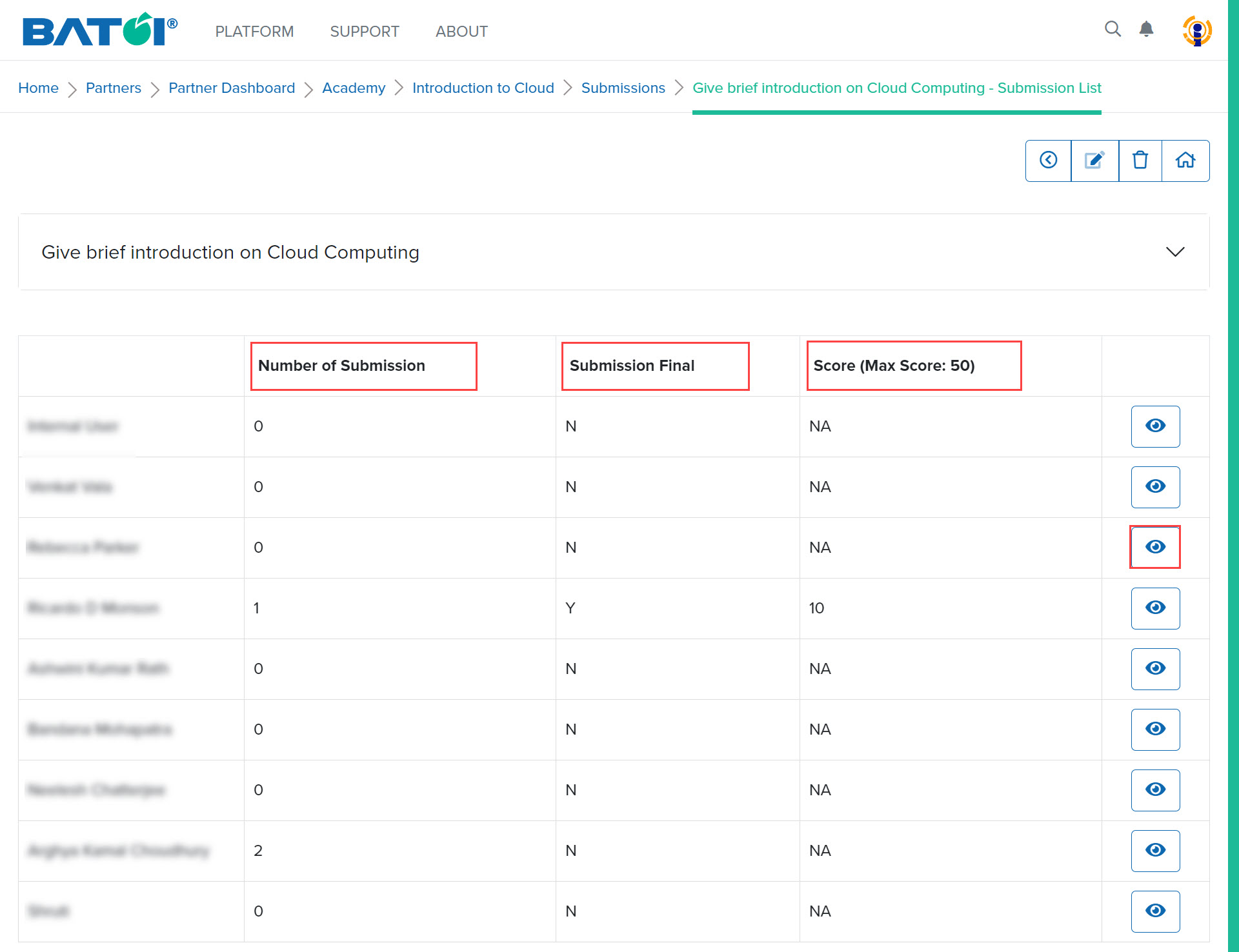
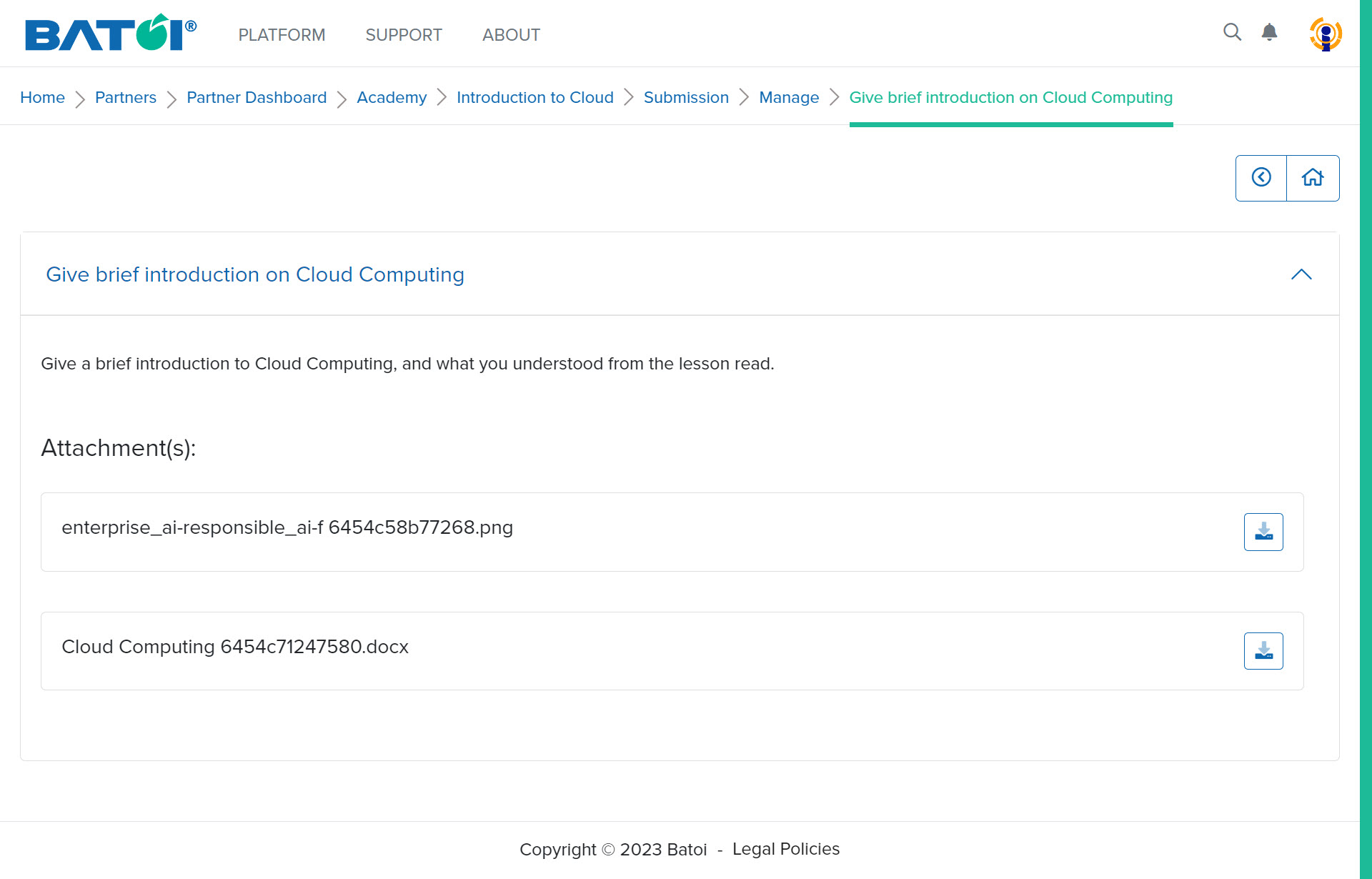
To view a submission in detail, click on the View Submission button for a participant and you will get all the responses provided by the participant, as illustrated in Figure 4.
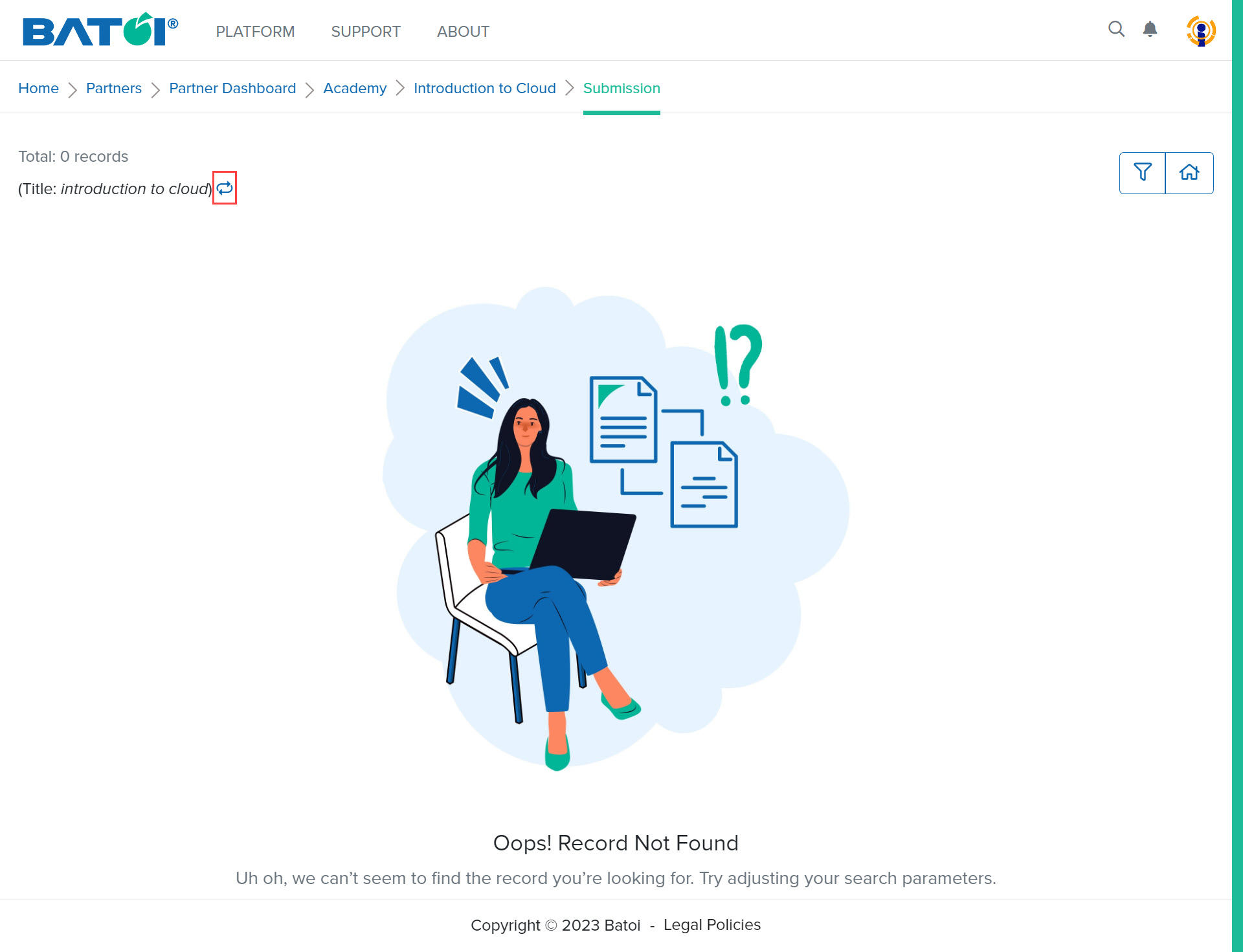
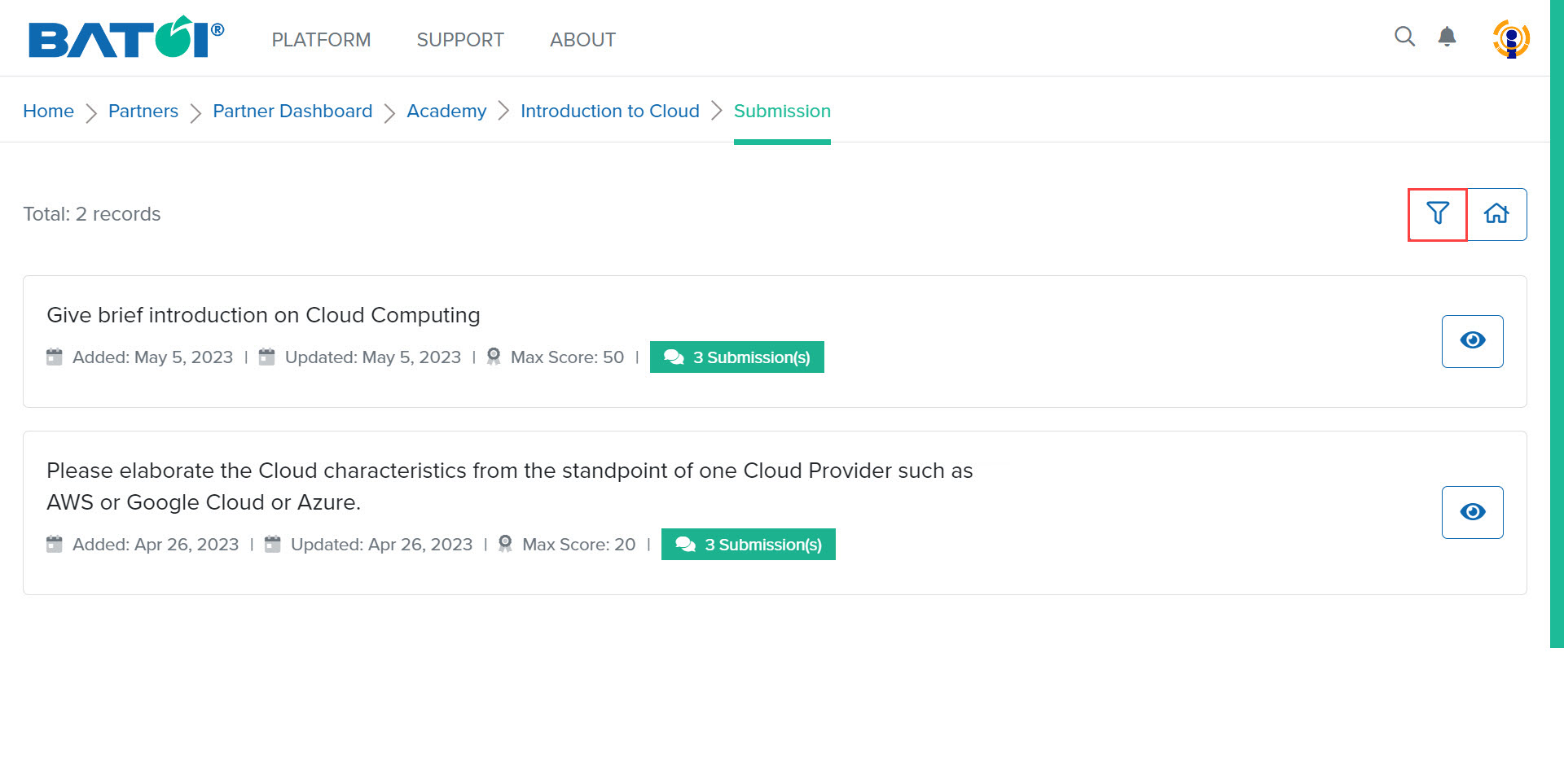
On the submission list page, click on the Filter button to search for any submission, as illustrated in Figure 5.
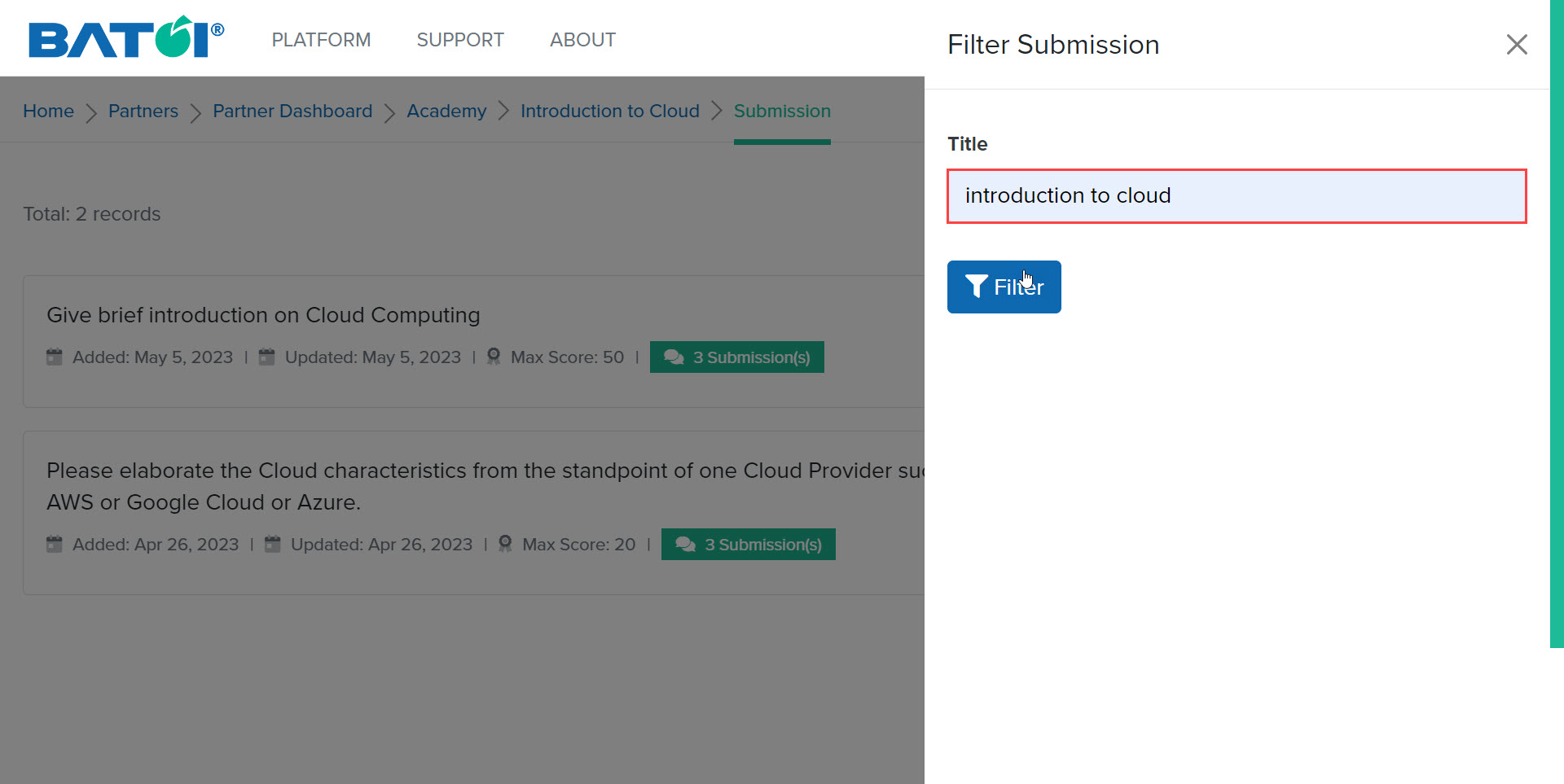
Enter the title of the submission, and click on the Filter button, as illustrated in Figure 6.
The filtered submission will be displayed on the screen. To go back to the submissions list page, click on the Reset button, as illustrated in Figure 7.