News
Understand how to use the News button to stay updated with your program's latest notifications, updates, and essential information.
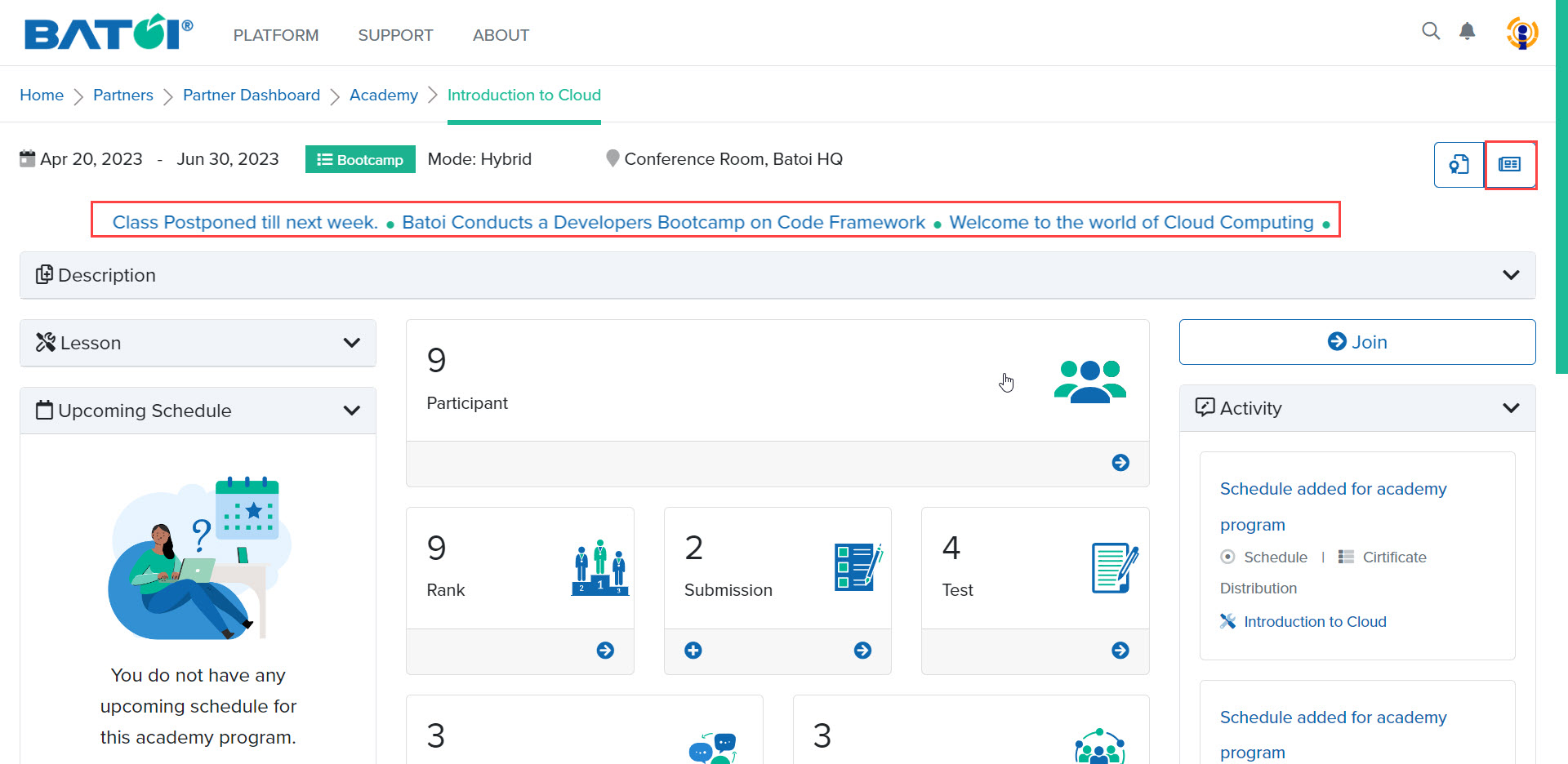
The latest news is displayed in an auto-scroll view on the program dashboard. To view all news associated with the program, click on the News button, as illustrated in Figure 1.
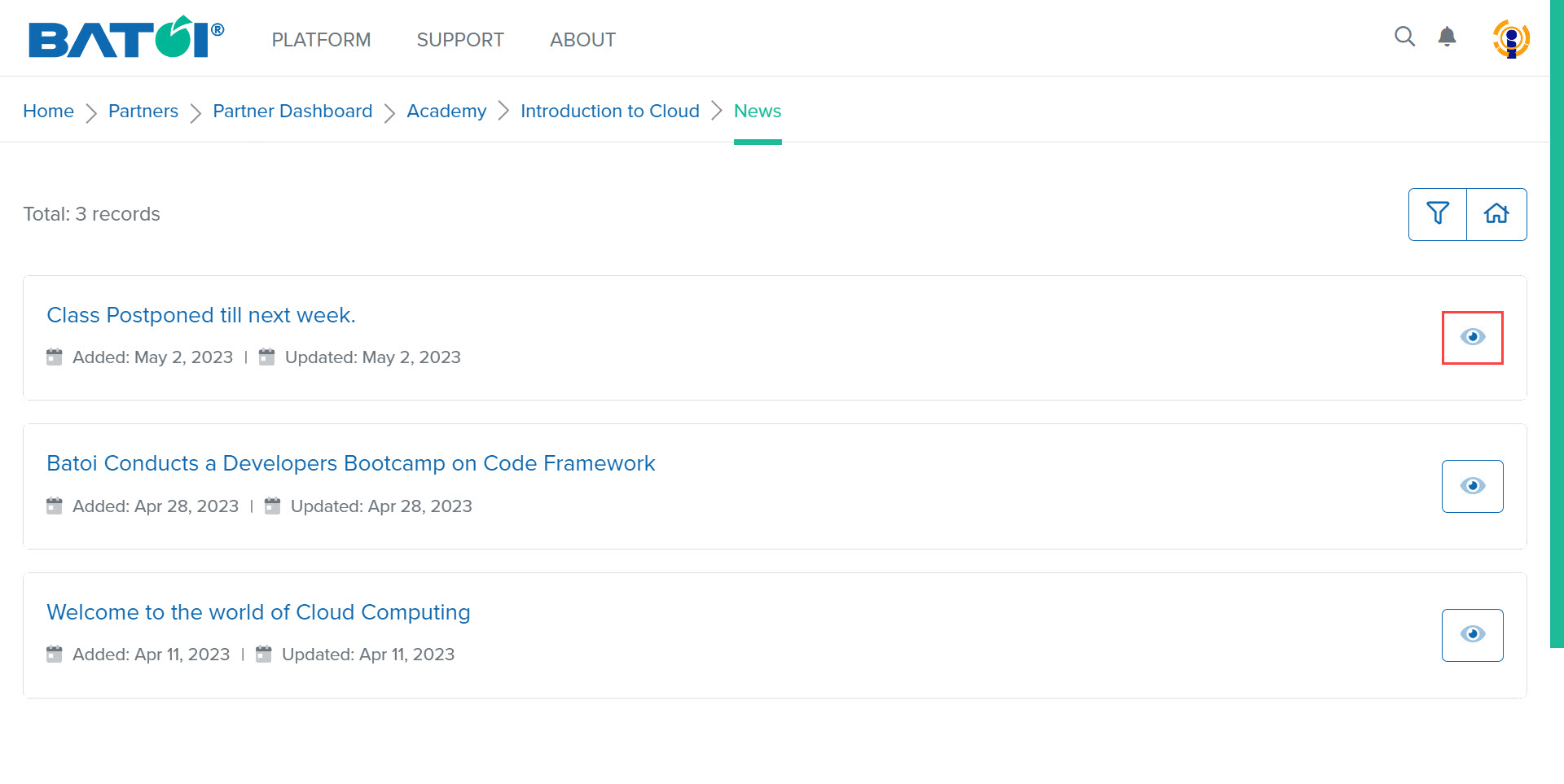
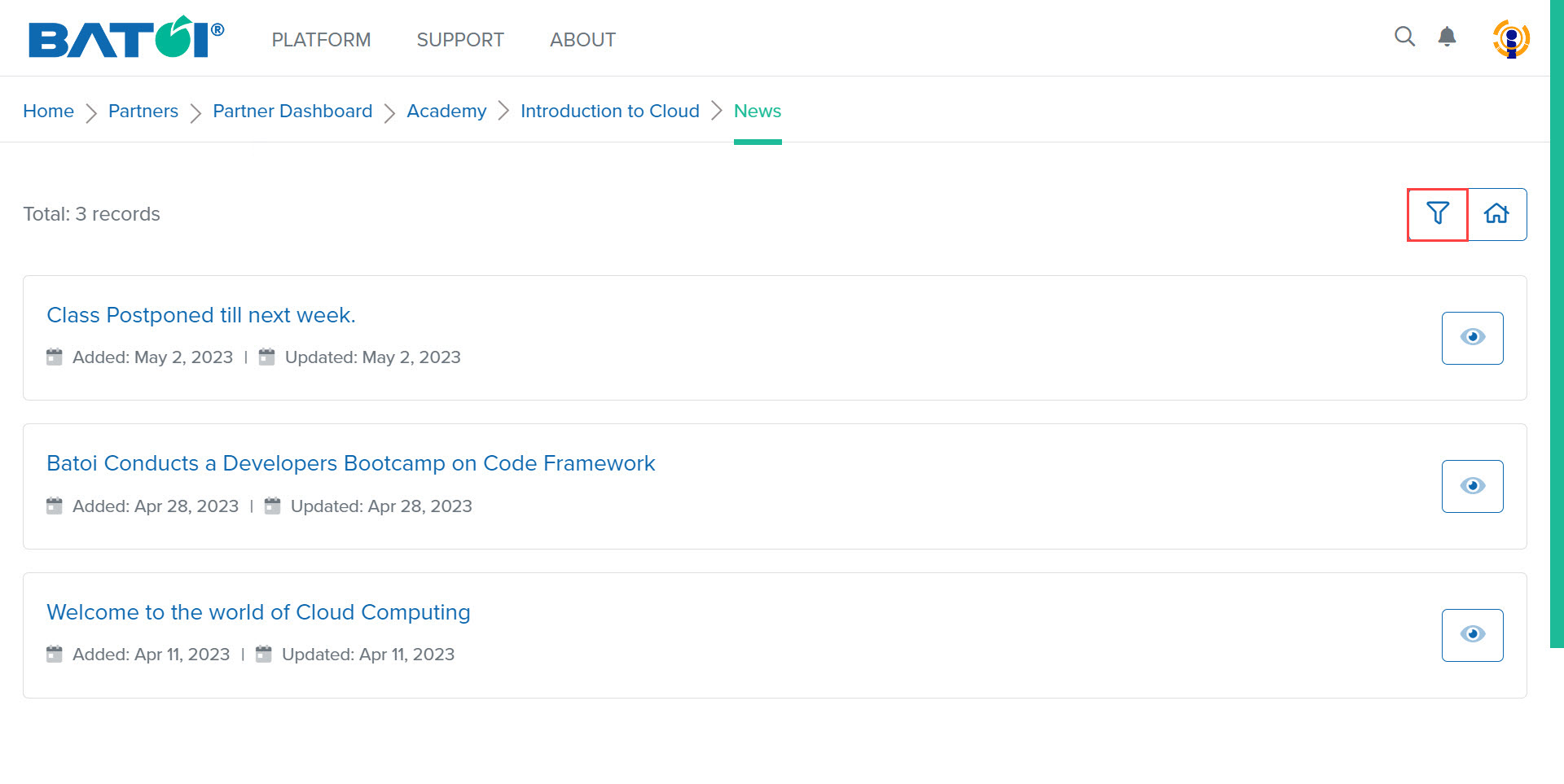
Now, you can view the list of news, as illustrated in Figure 2.
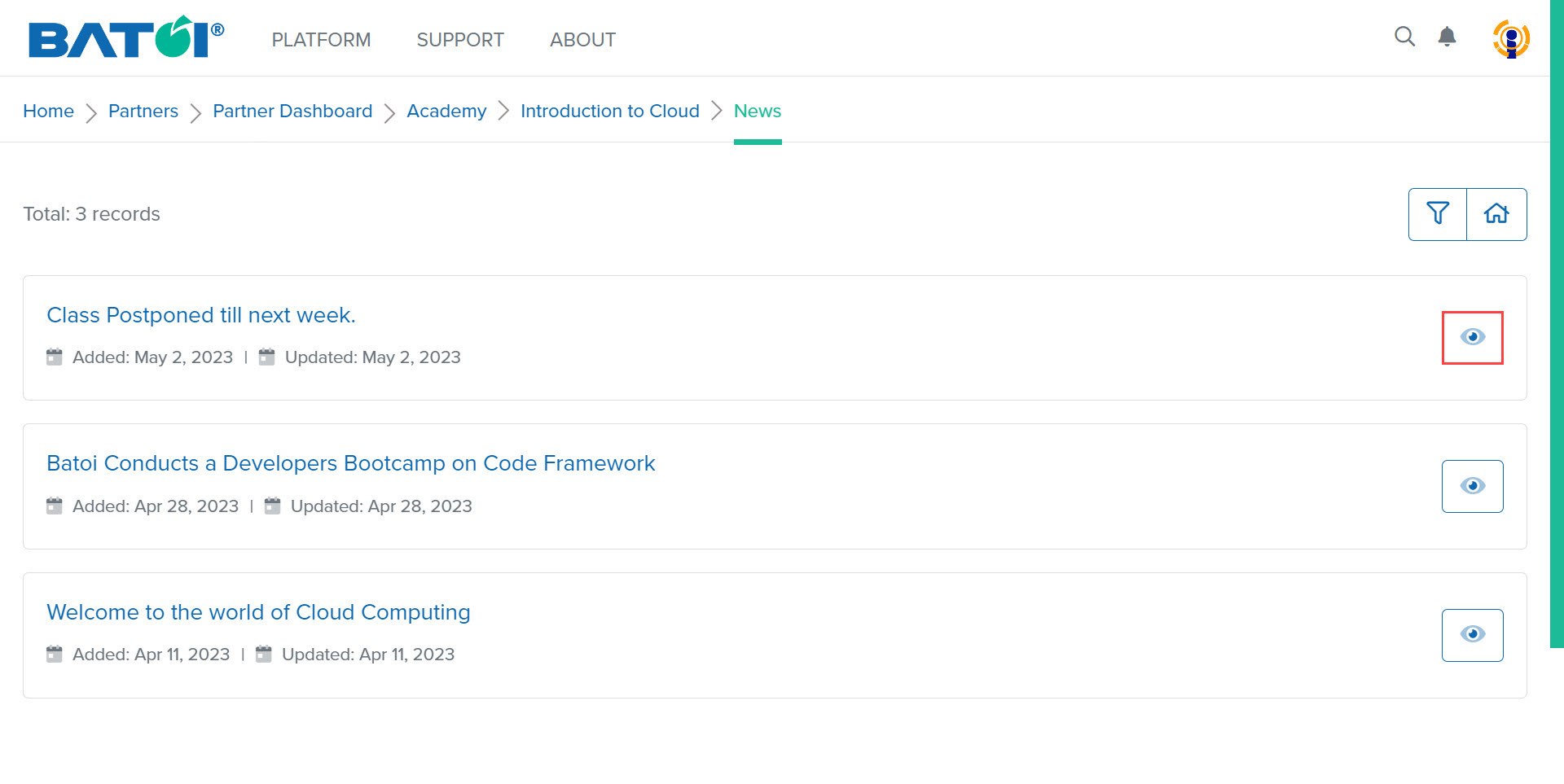
To view the details of a news item, click on the View button, as illustrated in Figure 3.
To filter news items, click on the Filter button, as illustrated in Figure 4.
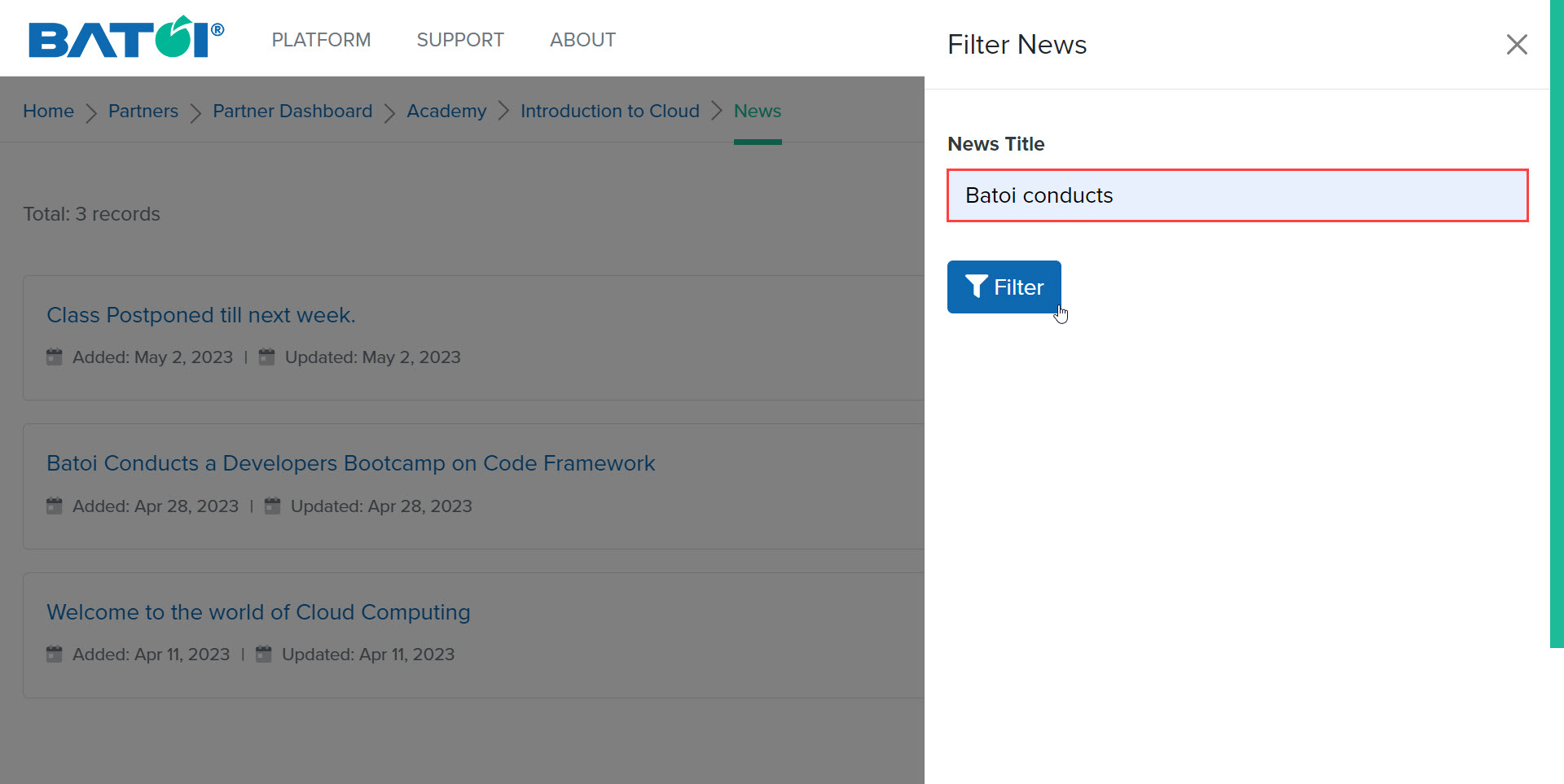
Enter the title of the news item that you want to search and click on the Filter button as illustrated in Figure 5.
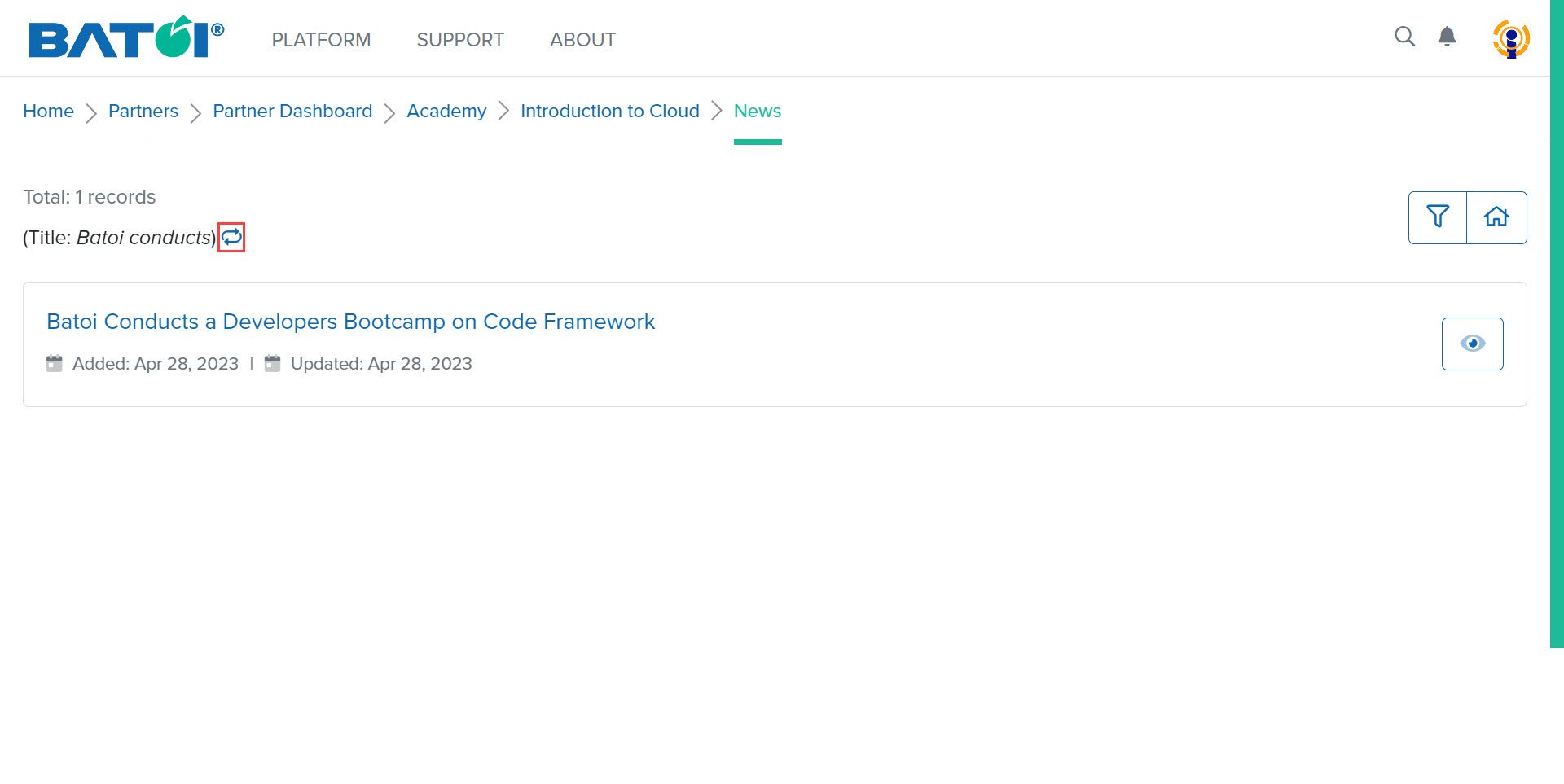
The result will be displayed. Click on the Reset button as illustrated in Figure 6 to go back to the news list page.