
Guide navigation 31 of 42
What this page helps you accomplish
Use the private mastery portfolio, understand every workspace role in Learn, and delegate teaching through scoped Instructor, Supervisor, or Reviewer duties.
Scope and authority
Learner or Learning Manager access to the intended Batoi Learn workspace Completed or in-progress activities that can produce mastery evidence
Learning Management
Use the private mastery portfolio, understand every workspace role in Learn, and delegate teaching through scoped Instructor, Supervisor, or Reviewer duties.
Observable business result
Understand the Learn workspace-role matrix, use scoped teaching duties correctly, and review the private mastery portfolio without expanding access.
The expected record or action is missing.
Recommended recovery: Return to the intended context and ask an Owner or Admin to confirm access. Do not use another person’s account.Batoi Learn turns completed lab work into a record of demonstrated capability. Learners can review their private mastery portfolio, while authorised workspace managers can guide participation and monitor outcomes.
Who should use this article
This article is for learners, educators, reviewers, operators, and workspace administrators who need to understand learning records or decide how Learn responsibilities should be assigned. A consequential decision remains with the accountable person.
Before you begin
- Access to the intended Batoi workspace and the role required for the task
- An approved purpose, accountable owner, and safe information boundary
- The source records or sample information needed to verify the result
- Use approved sample or operational information only. Never enter a password, token, private key, or unnecessary personal information.
Review your mastery portfolio
- Open Learn in your workspace.
- Open your portfolio or mastery view.
- Review completed evidence, assessment outcomes, reflections, and capability progress.
- Open an item when you need to revisit its learning path or supporting evidence.
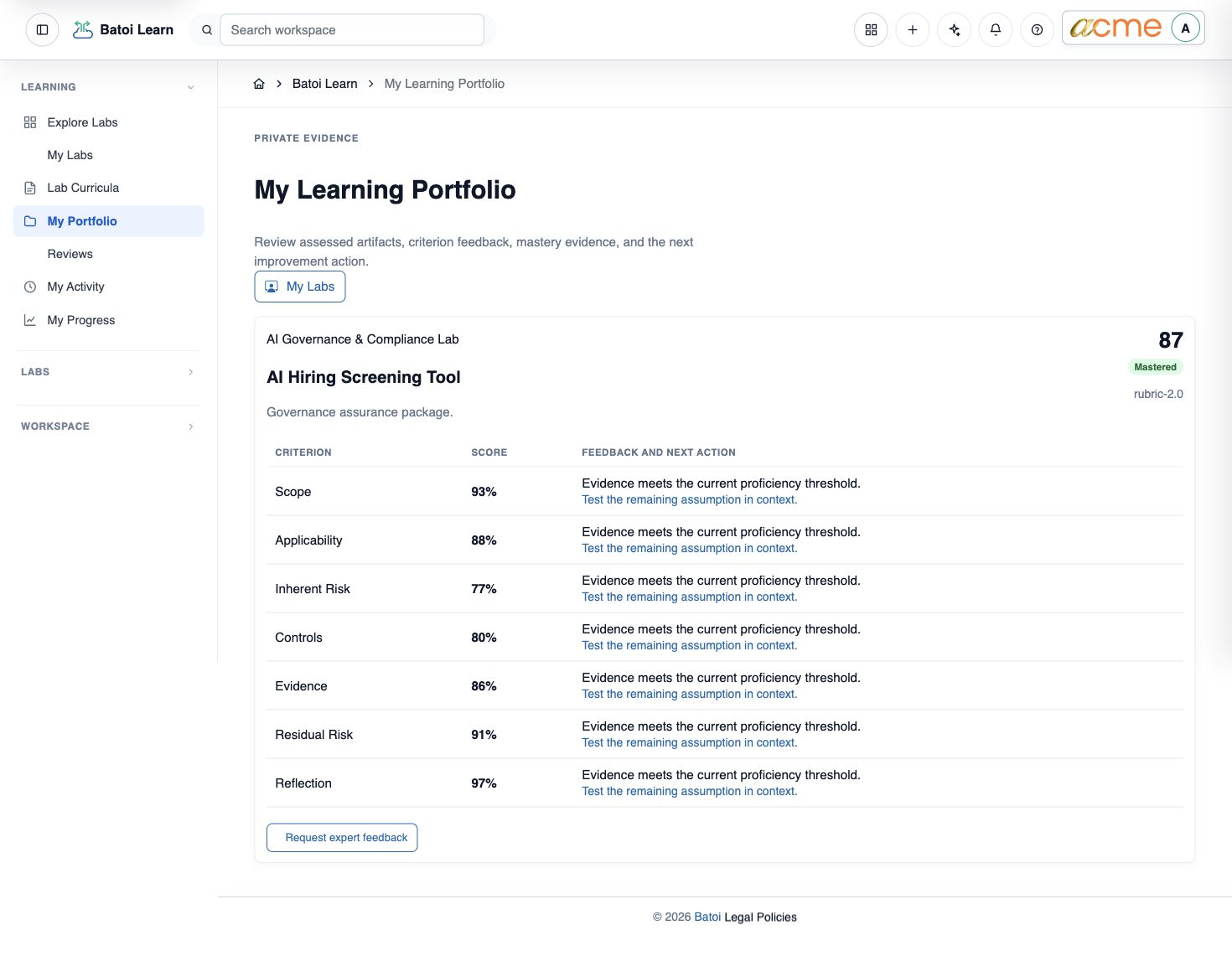
Use the portfolio constructively
The portfolio is a learning record, not merely a list of scores. Use it to identify strengths, select the next useful lab, prepare for a coaching conversation, or show how a capability was applied. Keep reflections concise and evidence-based.
Manage learning in a workspace
Owners and Admins can use Learn's management areas to organise curriculum, prepare assignments, review requests, and monitor learning activity. Depending on workspace policy, other operational roles may receive specific management capabilities.
- Publish or select the curriculum and training scenarios appropriate for the workspace.
- Assign a learning path with a clear audience, purpose, and due date.
- Monitor participation, completion, mastery, and areas where learners need support.
- Review human-review requests and record a clear decision with useful feedback.
- Use aggregate insights for coaching and programme improvement; avoid treating a single score as a complete performance judgement.
Choose the right workspace role for Learn
A workspace role represents continuing authority across the workspace. Choose the least-privileged role that fits the person's normal responsibility.
| Workspace role | What it does in Learn | How to use it | Important boundary |
|---|---|---|---|
| Owner (2) | Accountable Learn governance | Use for the person accountable for learning policy, publication, readiness, access decisions, and material handoffs. | Keep consequential decisions attributable and use an independent reviewer when separation is required. |
| Admin (3) | Delegated Learn administration | Use for trusted administrators who run curricula, assignments, teaching, Exercises, analytics, and governed publication. | Cannot bypass consent, evidence, privacy, budget, environment, or separation-of-duty checks. |
| Operator (4) | Learning delivery and Exercise operations | Use for facilitators and coordinators who assign approved learning, operate scheduled Exercises, and monitor delivery. | Does not author or publish governed definitions, change readiness policy, or approve gated access. |
| Builder (5) | Technical practice and bounded range operation | Use for developers and technical practitioners who complete Labs, join rostered Exercises, operate exact bound ranges, and propose handoffs. | Does not grant broad analytics, facilitation, review of other learners, publication, or approval. |
| Analyst (6) | Independent evidence review and analysis | Use for reviewers and analysts who inspect explicitly assigned evidence and privacy-safe aggregate readiness. | Does not grant blanket access to raw learner content, authoring, facilitation, range operation, or approval. |
| Viewer (10) | Published read-only observation | Use for stakeholders who need published catalog, disclosure, and permitted summary views without participating. | Cannot start Labs, join assessed runs, submit evidence, export learner evidence, review, or change records. |
| Member (11) | External/member workspace access | Use for Workspace Members who work through the dedicated Member workspace. | Has no Learn access; do not use this role as a shortcut for external Exercise participation. |
Separate workspace roles from Learn duties
Do not promote someone to Owner or Admin only so they can teach, supervise, or review one learning scope. Owners and Admins can delegate a narrower Learn duty:
| Learn duty | What it does | When to use it | Boundary |
|---|---|---|---|
| Instructor | Delivers assigned learning and supports learners in an exact workspace, curriculum, cohort, or Assignment. | Use when a faculty member or trainer needs teaching responsibility without workspace-wide administration. | Time-bound and scope-bound; no authority in another product or unrelated Learn record. |
| Supervisor | Monitors progress, intervenes, and coordinates support in an exact delegated scope. | Use for learner oversight or escalation within a program, cohort, or Assignment. | No access to unrelated private evidence and no workspace policy or publication authority. |
| Reviewer | Reviews an explicitly assigned submission or evidence set when visibility and independence rules permit. | Use for a subject-matter expert who provides independent human assessment. | No blanket learner access, no self-review where independence is required, and no workspace-role upgrade. |
Apply the three access layers
- Assign the workspace role for the person's continuing authority.
- Add an Instructor, Supervisor, or Reviewer duty for exact teaching work.
- Add the person to an Exercise roster with the participant type and scenario role required for that run.
- Use a Lab access exception only when one Lab needs different availability.
- Set expiry dates for temporary duties and exceptions, then remove them when the work ends.
An Exercise roster or teaching duty never upgrades a workspace role. A Lab access exception changes only whether that Lab is available; it cannot grant authoring, analytics, review, Range operation, publication, or approval.
Troubleshooting and recovery
| What you see | What to check | Safe next action |
|---|---|---|
| The expected record or action is missing. | Workspace, project/app context, role, status filters, and prerequisites. | Return to the intended context and ask an Owner or Admin to confirm access. Do not use another person’s account. |
| The status remains incomplete or needs review. | Required fields, evidence, approvals, source connections, checks, and owners. | Record the missing item and owner. Do not mark the task complete until it can be independently verified. |
| The result conflicts with policy or evidence. | Scope, source recency, exception authority, decision conditions, and reviewer independence. | Do not bypass the control. Return the item for correction or escalate it through the authorized route. |
Safety and governance
Final verification
Next step
Continue with the next verified article in this Product Guide, or return to the Batoi Platform Product Guide.