
Guide navigation 10 of 44
Before you begin
- A Batoi Flex workspace on the Scale plan with Quotations available
- A workspace role authorized to view, manage, approve, or use quotation BOMs
- Confirmed component quantities, units, costs, pricing method, currency, and customer-safe descriptions
What this page helps you accomplish
Create, cost, approve, revise, and use reusable quotation Bills of Materials in a Batoi Flex Scale workspace.
Scope and authority
A Batoi Flex workspace on the Scale plan with Quotations available A workspace role authorized to view, manage, approve, or use quotation BOMs
Quotation Management
Create, cost, approve, revise, and use reusable quotation Bills of Materials in a Batoi Flex Scale workspace.
Observable business result
An approved, effective BOM revision can be selected in a quotation with reviewed cost, price, margin, customer presentation, and immutable component traceability.
Quotation BOMs is not in the Finance menu.
Recommended recovery: Ask an authorized Owner or Admin to confirm the subscription and role. Do not bypass the control with another account.What this guide covers
Use this guide to:
- create and cost a BOM draft;
- add catalog-linked or free-form components;
- choose a pricing method and customer presentation;
- approve and revise a BOM;
- select an approved BOM in a quotation; and
- understand snapshot, invoice, and analytics behavior.
Availability
Quotation BOM management is available with the Scale plan.
The workspace must also have access to Quotations. If the menu or quotation picker is unavailable, confirm the workspace subscription and your workspace role.
Who can do what
| Role | View | Prepare and revise | Approve or retire | Select in quotations |
|---|---|---|---|---|
| Owner or Admin | BOMs, components, cost, and margin | Yes | Yes | Yes |
| Finance | BOMs, components, cost, and margin | Yes | No | Yes |
| Sales | Approved BOMs | No | No | Yes |
| Delivery | Definitions and allowed component quantities, without internal cost or margin | No | No | No |
Finance users prepare and cost definitions, while approval remains with the Owner or Admin.
Workflow overview
Open the BOM library
- Open your workspace.
- Expand Finance.
- Select Quotation BOMs.
The library shows the BOM name and number, revision, status, component count, suggested price, usage, and—when your role permits—cost and margin. Use the search and filters to narrow the list.
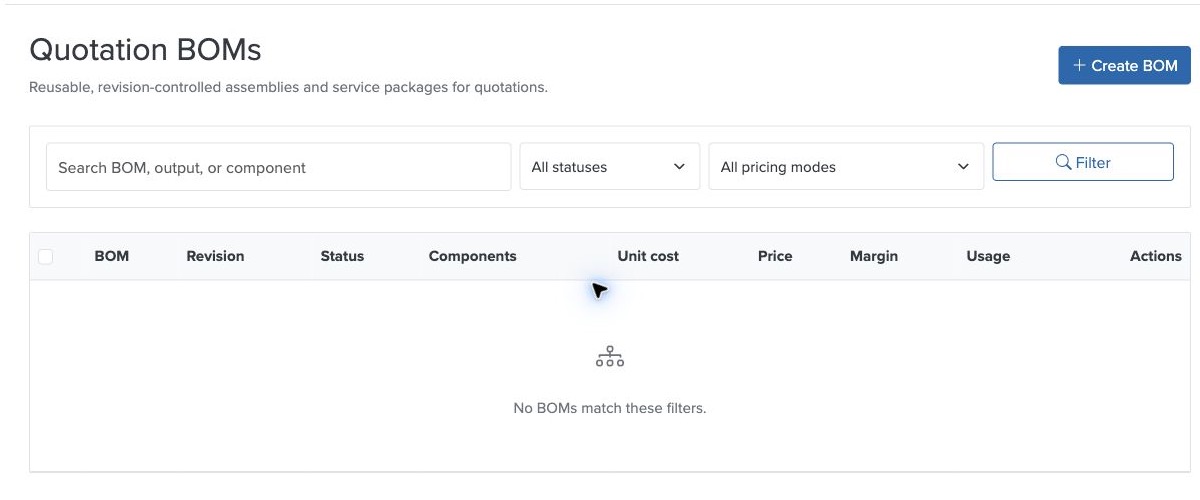
If the library is empty, select Create BOM to prepare the first draft.
Create a BOM draft
- Open Finance → Quotation BOMs.
- Select Create BOM.
- Review the generated BOM number.
- Enter a clear name for the package or assembly.
- Optionally select an output catalog item.
- Enter a customer-safe description.
- Confirm the effective dates.
- Choose the customer presentation.
- Confirm the currency.
- Choose a pricing mode.
- Add and review the components.
- Add internal notes when needed.
- Select Save Draft.
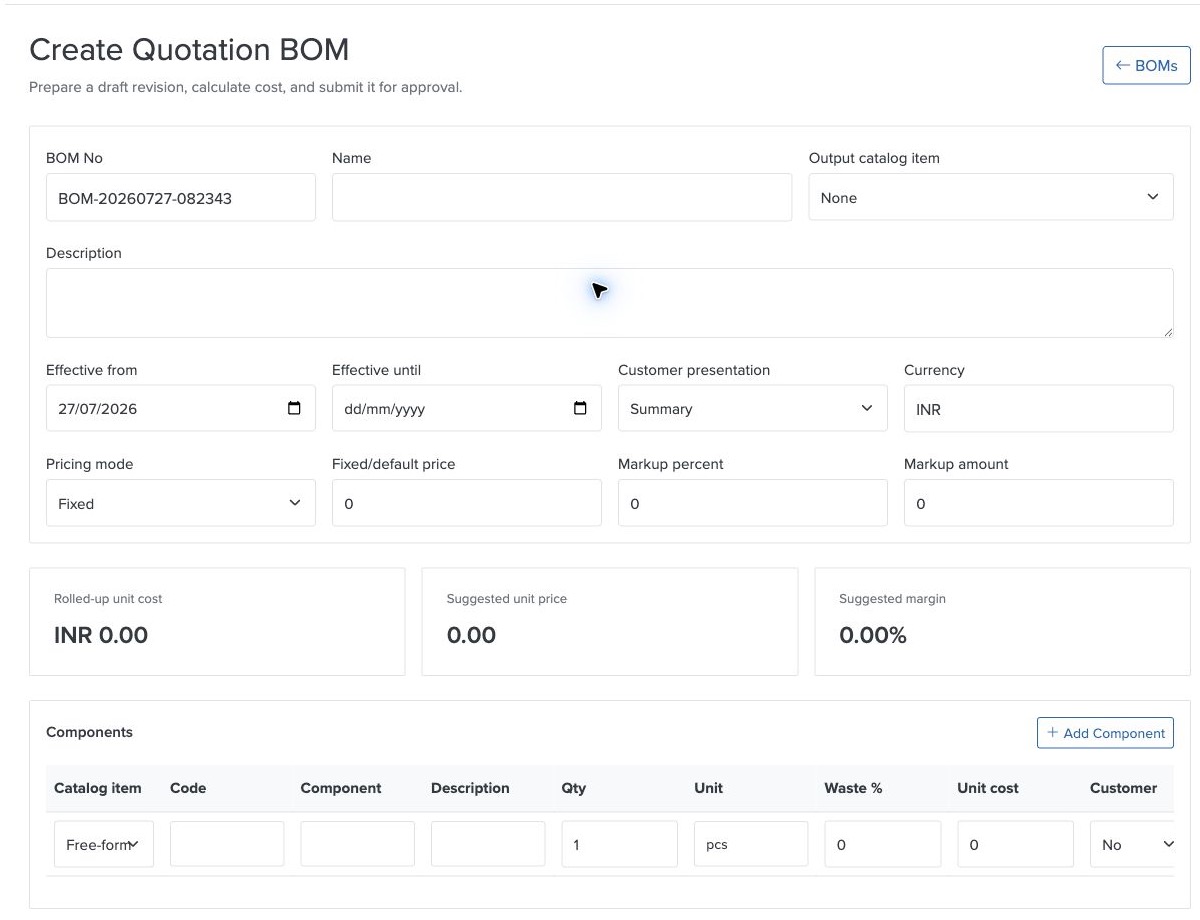
Saving creates a draft. A draft cannot be selected in a quotation until an Owner or Admin approves it.
Understand the header fields
BOM No
The BOM number identifies the definition and its revisions. Use the generated value unless your workspace has an agreed numbering convention.
Name
Use a name that Sales and Finance can recognize in the quotation picker, such as:
- Standard Workstation Package
- Annual Support Bundle
- Conference Equipment Kit
- Website Launch Package
Output Catalog Item
Select an output catalog item when the BOM represents an existing sellable catalog entry. Leave it as None for a named package that does not need a catalog link.
Description
Enter wording suitable for the quotation parent line. Do not put confidential component costs or supplier information in this field.
Effective From and Effective Until
An approved BOM appears in the quotation picker only while it is effective.
- Effective From controls when it becomes available.
- Effective Until is optional and controls when new selection should stop.
Existing quotations retain their stored snapshots after a BOM expires or is retired.
Customer Presentation
Choose how the BOM should normally appear on customer-facing quotation output:
- Summary: show the priced parent package only.
- Customer detail: show the parent package and selected customer-safe components.
- Internal only: keep components available for internal review but show the customer a summary parent line.
The quotation user may be able to choose a different presentation mode for a particular quotation.
Currency
The BOM currency should match the quotation currency. A BOM with a different currency will not normally appear in the quotation picker.
Pricing Mode
Choose one pricing method and complete the corresponding value:
- Fixed: enter the fixed or default selling price.
- Cost + percent: enter the markup percentage.
- Cost + amount: enter the fixed markup amount.
- Manual on quote: use the calculated cost as guidance and confirm the selling price in the quotation.
Only the field that belongs to the selected pricing method affects the suggested price.
Add components
A BOM requires at least one component before approval.
For each component:
- Choose a catalog item or keep Free-form.
- Enter or review the component code.
- Enter the component name.
- Add a customer-safe description where useful.
- Enter the quantity required for one parent package.
- Enter the unit, such as
pcs,hours,kg, orlicense. - Enter wastage when additional quantity should be included.
- Enter the unit cost.
- Choose whether the component can be shown to the customer.
Select Add Component to add another row.
Catalog-linked components
Selecting a catalog item can prefill available reference details. Always enter or confirm the expected internal unit cost before saving; do not assume that a catalog selling price is the component cost.
Free-form components
Use free-form components for materials, services, labor, or package elements that do not have a catalog record.
Enter a clear name, quantity, unit, and cost. Use consistent unit wording so demand analytics groups similar components correctly.
Wastage
Wastage increases the required component quantity used in costing and quotation snapshots. For example:
- Quantity:
10 - Wastage:
5% - Required quantity:
10.5
Use wastage only where it reflects a genuine planning allowance.
Customer visibility
Choose Yes only when the component name, description, quantity, and unit are suitable for a customer-facing quotation.
Review cost and margin
The editor calculates:
- Rolled-up unit cost: total component cost for one parent package, including wastage.
- Suggested unit price: selling price based on the selected pricing mode.
- Suggested margin: expected margin as a percentage of the suggested price.
Review these values before saving and before requesting approval. If a component cost is missing or uncertain, keep the BOM as a draft until Finance confirms the value.
Save and approve
Save the draft
Select Save Draft after reviewing the header, pricing, and component rows. If validation fails, correct the reported fields and save again.
Approve the revision
An Owner or Admin can open the saved draft and select Approve Revision.
Approval requires:
- a BOM name and number;
- a valid currency;
- valid effective dates;
- at least one component;
- a positive quantity for every component; and
- valid workspace-linked catalog references.
An approved revision is read-only and can be used in quotations while effective.
Create a new revision
Do not edit an approved revision in place.
- Open the approved BOM.
- Select Create New Revision.
- Edit the new draft.
- Review component quantities, costs, presentation, and pricing.
- Save the draft.
- Ask an Owner or Admin to approve it.
The earlier revision remains unchanged for historical quotations and invoices.
Retire or archive a BOM
Retire
Retire an approved revision when it should no longer be selected for new quotations. Existing quotation and invoice snapshots remain available.
Archive
Archive a BOM when it should be removed from the active library. Archiving does not rewrite quotations or invoices that already use the BOM.
Review quotation usage before retiring or archiving a definition.
Select a BOM in a quotation
- Open Finance → Quotations.
- Create or edit a quotation.
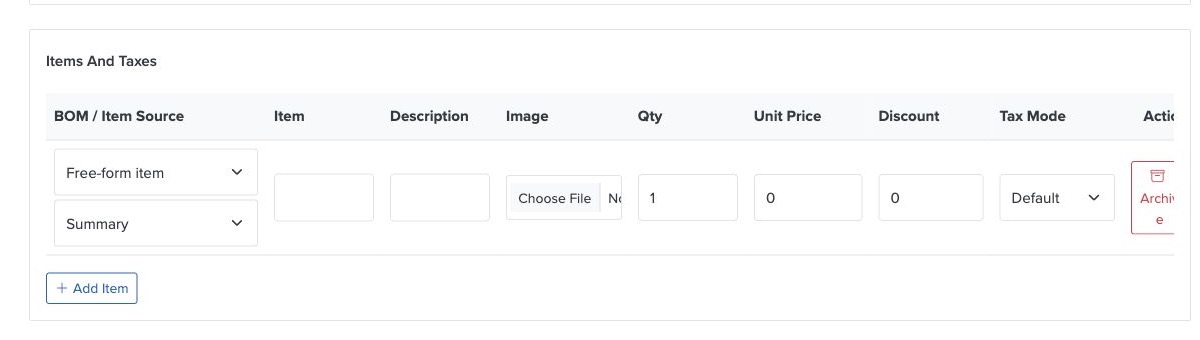
- In Items And Taxes, open BOM / Item Source.
- Select an approved BOM revision.
- Review the populated item title and unit price.
- Choose the BOM presentation mode.
- Enter the parent quantity.
- Review discount and tax mode.
- Complete the remaining quotation fields.
- Save or send the quotation.
What is stored with the quotation
When the quotation is saved, Flex stores:
- BOM identity and revision;
- pricing mode;
- parent quantity and final unit price;
- unit-cost and margin snapshots for authorized internal reporting;
- component names and descriptions;
- quantity per parent unit;
- required quantity;
- unit and wastage; and
- customer visibility.
This snapshot protects the quotation from later BOM changes.
Convert the quotation to an invoice
When a quotation is converted to an invoice, Flex copies the BOM traceability and component snapshot from the quotation.
The conversion:
- keeps the accepted parent-line price and totals;
- retains the BOM revision;
- preserves component traceability;
- does not recalculate from a newer BOM; and
- does not automatically reserve or consume inventory.
Use BOM analytics
Quotation BOM Analytics helps authorized users review usage, quoted value, expected margin, and component demand.
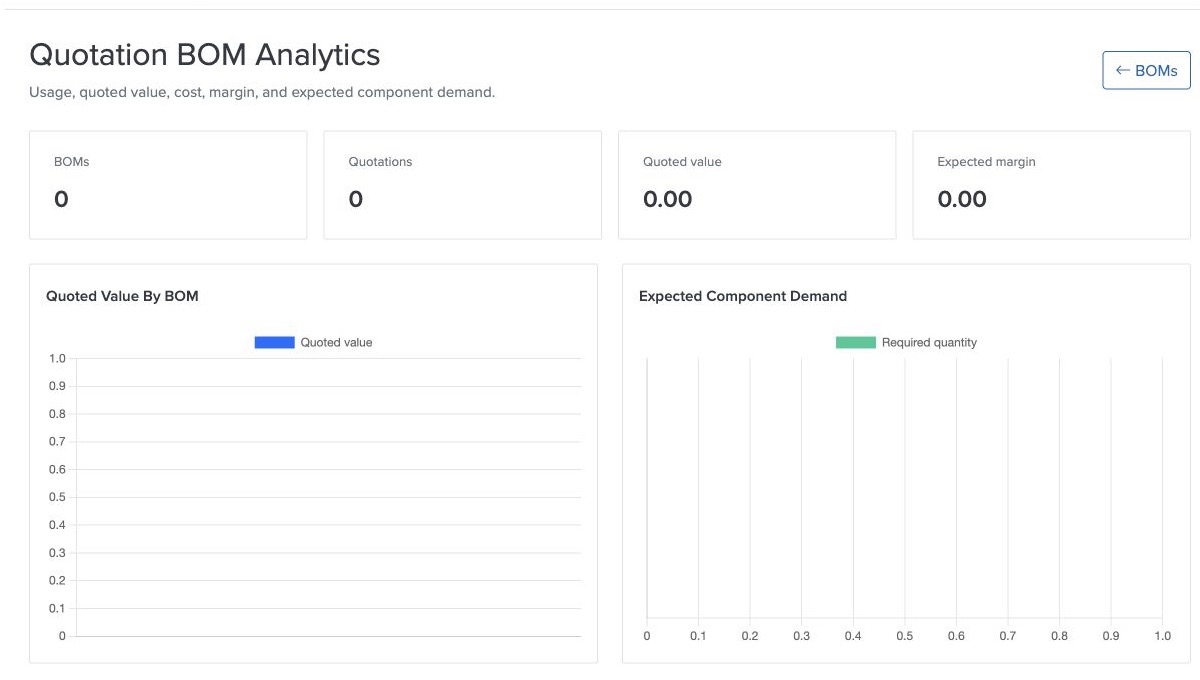
Use analytics to identify:
- frequently quoted packages;
- high-value BOMs;
- expected margin;
- demand concentration by component; and
- changes in quoted value and margin over time.
Troubleshooting
| What you see | What to check | Safe next action |
|---|---|---|
| Quotation BOMs is not in the Finance menu. | Scale plan, Quotation availability, your workspace role, and whether the menu refreshed after an entitlement change. | Ask an authorized Owner or Admin to confirm the subscription and role. Do not bypass the control with another account. |
| A BOM does not appear in the quotation picker. | Approval, active state, retirement or archive state, effective period, matching currency, and your role. | Correct the draft or governance state. Do not substitute an uncontrolled package merely to complete the quotation. |
| Approval fails. | At least one named component, positive quantities, valid effective dates, workspace-owned catalog references, and whether the output item is also its own component. | Correct the reported draft fields and request approval again. |
| The suggested price is unexpected. | Pricing mode, component quantities, wastage, unit costs, fixed price, markup percentage, and markup amount. | Keep the BOM in draft until Finance verifies the source values and calculated result. |
| Customer components are missing. | Customer detail presentation, component customer visibility, and whether the quotation was saved after selection. | Correct only customer-safe visibility and save the quotation again. |
| An existing quotation did not change after a new BOM revision. | The immutable snapshot and selected revision stored with that quotation. | This is expected. Deliberately review and update the quotation if a newer approved revision should be used. |
Good operating practice
- Use clear BOM names that Sales can recognize.
- Keep component units consistent.
- Confirm every cost before approval.
- Use effective dates for planned price or package changes.
- Keep customer-visible descriptions free of internal information.
- Create a new revision instead of changing approved commercial history.
- Review quotation usage before retirement or archive.
- Use analytics to watch margin and expected component demand.
Helpful tips
- Start with one frequently quoted package and validate the complete workflow before building a large BOM library.
- Use Summary presentation unless customers benefit from seeing component detail.
- Keep internal notes focused on costing, sourcing, or approval context.
- For more details, use Batoi Intelligence without including restricted customer, supplier, cost, or payment information in a prompt.
Related reading
For the product overview and practical business benefits, read Build Accurate Quotations Faster with Bill of Materials Management in Batoi Flex.
Next step
Continue with Coordinate Invoices and Payments in Batoi Flex, or return to the Batoi Flex Product Guide.