
Guide navigation 14 of 44
What this page helps you accomplish
Use Batoi Flex Community to help members discover one another, share updates, arrange introductions, and follow news, events, and opportunities within governed workspace settings.
Scope and authority
A Flex workspace whose subscription includes the required Community capabilities Workspace access and an appropriate Community manager, contributor, or read-only role
Community Management
Use Batoi Flex Community to help members discover one another, share updates, arrange introductions, and follow news, events, and opportunities within governed workspace settings.
Observable business result
Members can participate within their role and visibility choices, while Community managers can operate discovery, content, introductions, moderation, and settings responsibly.
Community or a Community action is missing.
Recommended recovery: Ask a Workspace Owner or Admin to confirm entitlement and least-privilege access. Do not use another member's account.Who should use this article
This article is for Workspace Owners, Workspace Admins, Community managers, contributors, and members who need to understand how Community works. Owners and Admins should use it when deciding participation rules, visibility defaults, moderation responsibility, and which Community capabilities a workspace should enable.
Before you begin
- Confirm that the workspace subscription includes the Community capabilities needed for the intended experience.
- Agree on the community purpose, eligible participants, acceptable use, visibility defaults, and named moderation owner.
- Use the minimum member information necessary for discovery. Do not treat directory participation as permission to publish private contact details.
- Decide whether profiles and networking posts require manager approval before they appear.
- Use a sanitized demonstration record when learning or documenting the workflow.
Workflow overview
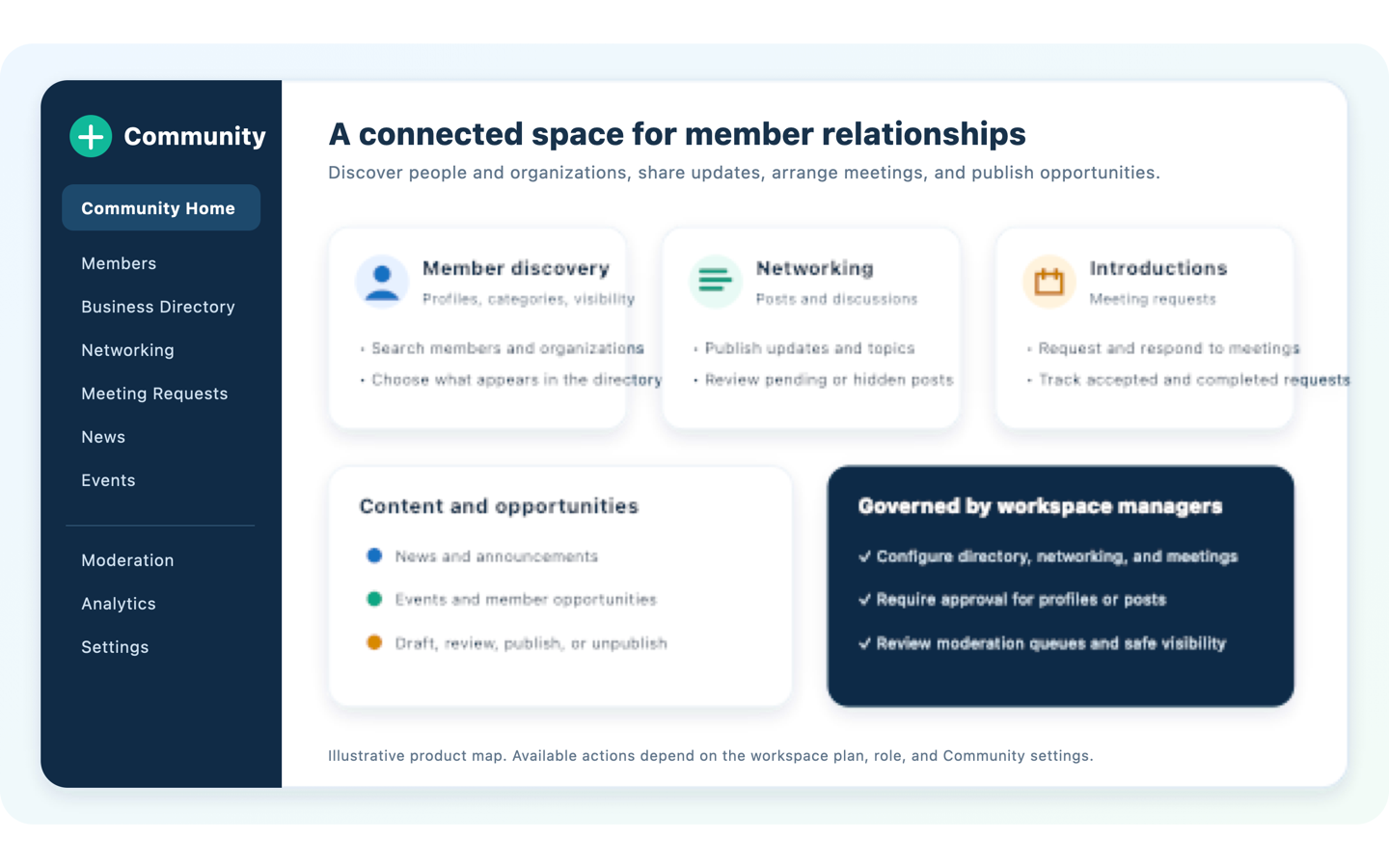
What Community includes
| Area | What members can do | What managers control or review |
|---|---|---|
| Community Home | See recent members, posts, meeting requests, news, events, and useful shortcuts. | Review current totals, recent activity, pending work, and the Community summary. |
| Member profiles and directory | Create or update a profile, choose permitted visibility, search by name, company, or headline, and open another visible profile. | Manage profiles, approval status, directory visibility, categories, and custom profile fields. |
| Business information | Discover organization context where it is available through visible member profiles and configured Community data. | Import or export the business directory dataset through Community Spreadsheet Data. The member directory is the current primary browsing experience. |
| Networking | Read posts and, when the role permits, create or update an announcement, question, or discussion topic. | Review published, pending, draft, and hidden posts and resolve moderation needs. |
| Meeting requests | Request a meeting for an introduction, business conversation, mentoring, partnership, or another stated purpose. Participants can accept, decline, cancel, or complete a request. | Review the response backlog and help resolve stalled introductions. Daily request limits can be configured. |
| News and announcements | Read published Community news and announcements. | Create, review, publish, unpublish, and maintain editorial content. |
| Events and opportunities | Find published events and member opportunities. | Maintain event and opportunity records and their draft, review, published, or unpublished state. |
| Moderation | Most members do not use this manager-only area. | Review pending or suspended profiles, draft or pending posts, and pending meeting requests in a central queue. |
| Spreadsheet data | Not generally a member task. | Use CSV templates to import or export members, businesses, news, and events. Member profile import and export is restricted to Workspace Owners. |
Member and manager experience
Read-only participant
Can browse the Community experiences available to the role but cannot create or change Community records.
Contributor or member
Can maintain the permitted profile, networking, and meeting activities. Member-role users are directed to the member workspace equivalents of supported Community pages.
Community manager
Can manage profiles, categories, schema, news, events, settings, moderation, and analytics when the relevant capabilities are included.
Role access and subscription capability are both required. A manager role does not make an unavailable plan capability appear, and a plan capability does not override workspace access.
Complete the workflow
- Define the community outcome. Decide whether the workspace is supporting a professional network, association, partner ecosystem, alumni group, accelerator, customer community, or another bounded member purpose. Name the accountable Community manager.
- Configure participation. In Community Settings, choose whether the member directory, networking, and meeting requests are enabled. Set the default profile visibility, approval requirements, and meeting request limit.
- Prepare the directory. Ask members to complete only useful profile fields. Managers can organize profiles with categories and custom schema fields. Search before creating or importing records to reduce duplicates.
- Start with useful content. Publish a small set of current news, events, opportunities, and discussion prompts so members understand the purpose of the space.
- Enable relationship building. Let members discover visible profiles, share relevant posts, and send purposeful meeting requests. A request can include a proposed date, time, time zone, and virtual, phone, in-person, or undecided mode.
- Moderate promptly. Review pending profiles and posts according to the published participation policy. Use hidden, rejected, suspended, or unpublished states only for a documented operational reason.
- Review and improve. Check current Community activity and Advanced Community Analytics. Verify any apparent issue in the underlying records before changing settings, contacting a member, or changing content.
Verify the result
- A member sees only the profiles and content permitted by workspace access, record visibility, and publication state.
- Contributors can create only the Community records allowed by their role.
- Required profile and post approvals place new items in the expected pending state.
- Meeting request participants receive the intended request and status notifications without exposing the request to unrelated members.
- Managers can identify and resolve pending profiles, posts, and meeting requests.
- CSV imports report created, updated, skipped, and error totals, and the resulting records are reviewed before broader use.
Troubleshooting and recovery
| What you see | What to check | Safe next action |
|---|---|---|
| Community or a Community action is missing. | Workspace subscription capability, membership, current role, manager-only route, and Community settings. | Ask a Workspace Owner or Admin to confirm entitlement and least-privilege access. Do not use another member's account. |
| A profile or post does not appear. | Approval status, visibility, directory or networking setting, moderation state, and whether the record is active. | Review the item in the manager queue and correct its state or content through the authorized workflow. |
| A member cannot create a post or meeting request. | Whether the role is read-only, whether networking or meeting requests are enabled, the daily meeting limit, and required fields. | Correct the setting or role only when it matches the approved participation policy. |
| A CSV import creates errors or unexpected updates. | Template headings, existing users, duplicate names, allowed status values, custom field keys, and the selected data type. | Stop further imports, export the current data, correct a small test file, and repeat with a reviewable batch. |
Safety and governance
- Publish clear participation, moderation, privacy, retention, and escalation expectations before inviting broad activity.
- Keep profile approval separate from the accuracy of a member's claims. Approval indicates readiness for the Community workflow, not independent verification.
- Do not publish screenshots containing names, email addresses, phone numbers, meeting messages, record identifiers, or private workspace navigation.
- Record why significant moderation actions were taken and who is responsible for any follow-up.
Use Batoi Intelligence safely
Next step
Continue with Use Advanced Community Analytics in Batoi Flex, or return to the Batoi Flex Product Guide.