
Guide navigation 42 of 42
What this page helps you accomplish
Learn how to choose, start, resume, verify, cancel, and review outcome-led Guided Paths from the Batoi Workspace Start page.
Scope and authority
Access to the intended authenticated Batoi Workspace A Workspace role permitted to view or start the selected Guided Path
Getting Started
Learn how to choose, start, resume, verify, cancel, and review outcome-led Guided Paths from the Batoi Workspace Start page.
Observable business result
Choose an outcome, start or resume one governed Journey Run, and rely on canonical Batoi product state for verified progress.
A path is not enabled or not entitled.
Recommended recovery: Use Quick Create when suitable, or ask an Owner or Admin to review Workspace readiness and subscription access.Workspace Guided Paths turn a business outcome into an ordered, resumable sequence across the Batoi products that own the work.
Who should use this article
This article is for Workspace Owners, Admins, Operators, Builders, Analysts, and Viewers who want to find the right starting point, follow verified progress, or review a completed result. Viewers can review permitted information but cannot start or change a path.
Before you begin
- Sign in to the intended Batoi Workspace and confirm that you have the role required for the outcome.
- Identify the Project or App context that should own the work, when the path asks for one.
- Confirm that the required Batoi products and provider connections are available.
- Never enter credentials, private keys, tokens, or unnecessary personal information in a Guided Path context.
How a Guided Path works
A Guided Path coordinates an outcome without taking ownership away from the Batoi products that create, approve, deploy, or verify the underlying records.
Open Start and choose the right approach
- Open your Workspace.
- Select Start from the Workspace navigation.
- Use Continue where you left off to resume active work.
- Choose a Guided Path for a complete outcome, or use Quick Create when you already know the exact record you need.
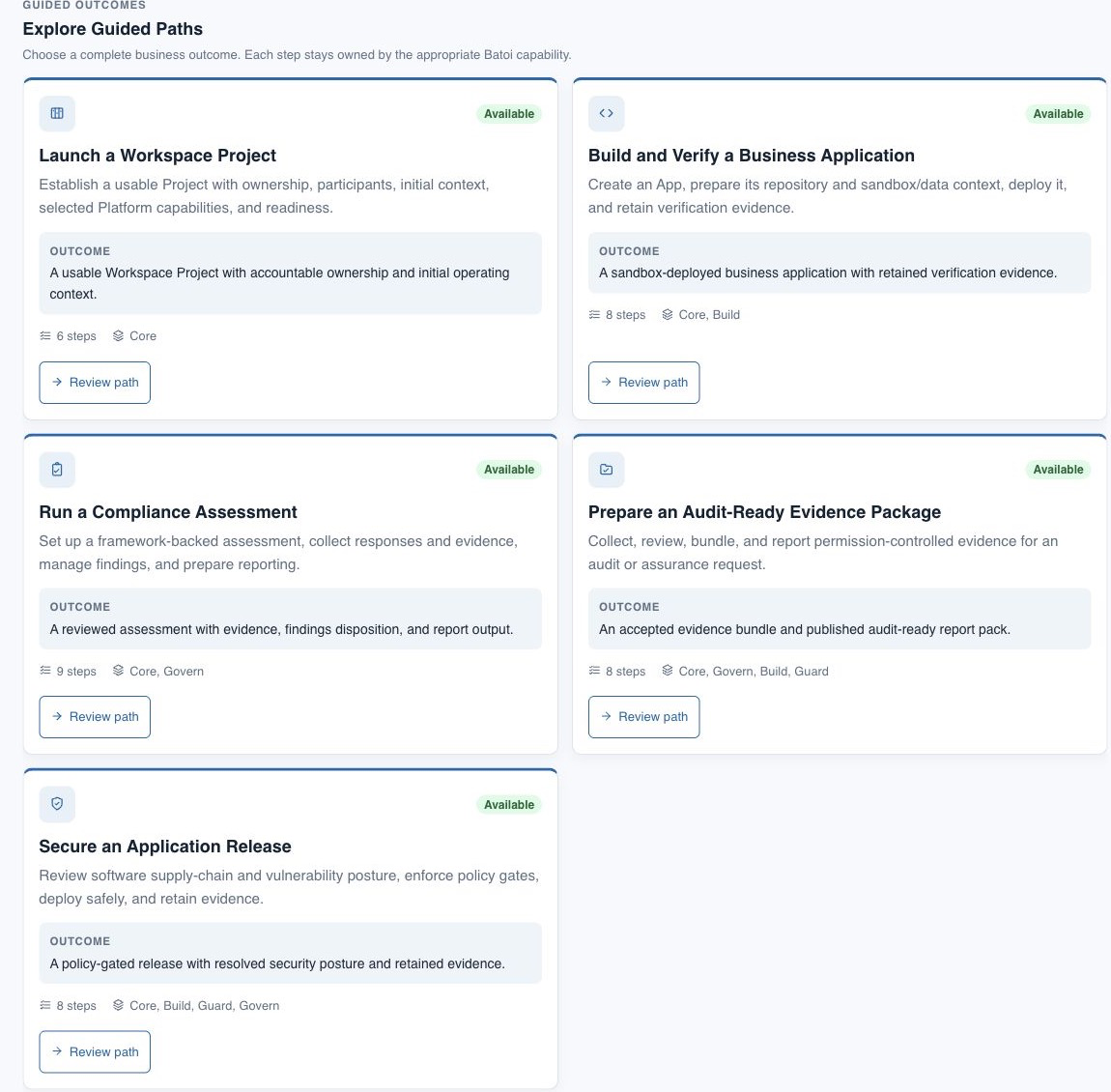
Review a Guided Path before starting
Select Review path to inspect the expected outcome, intended audience, participating products, ordered steps, and required context. A preview is read-only: no Journey Run or business record is created until you submit Start Path.
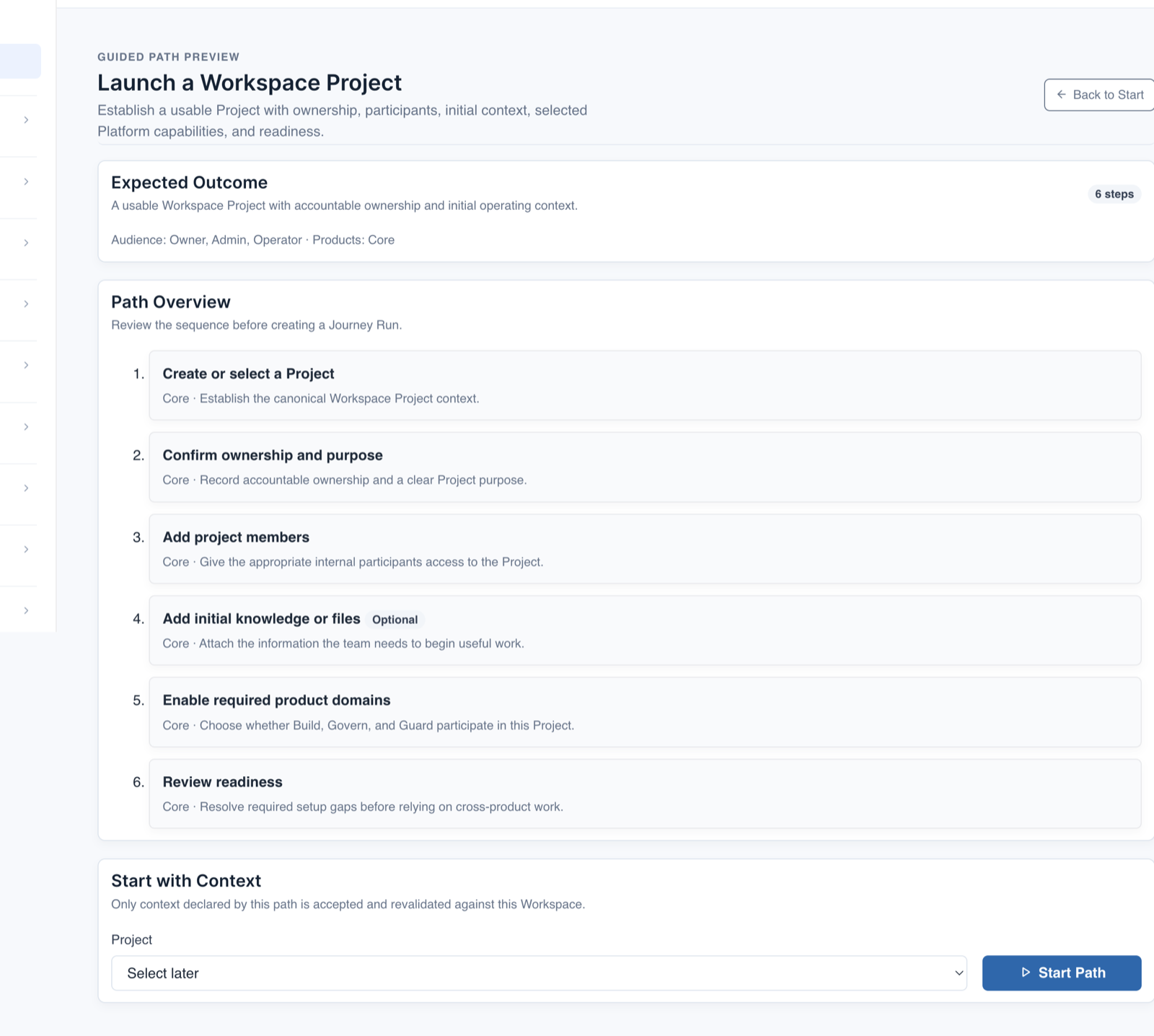
Start with safe context
- Select an existing Project or App when the path requests it, or select later when that option is available.
- Confirm that the selected record belongs to the current Workspace and represents the intended work.
- Select Start Path. Repeated submission resumes the matching active run instead of creating a duplicate lifecycle.
Follow verified progress
The run page shows progress, the governed next action, accountable owner, selected context, related canonical records, and every path step. Opening a link does not complete a step. Progress changes only when the owning Batoi product contains the required record, approval, decision, deployment, evidence, or verification result.
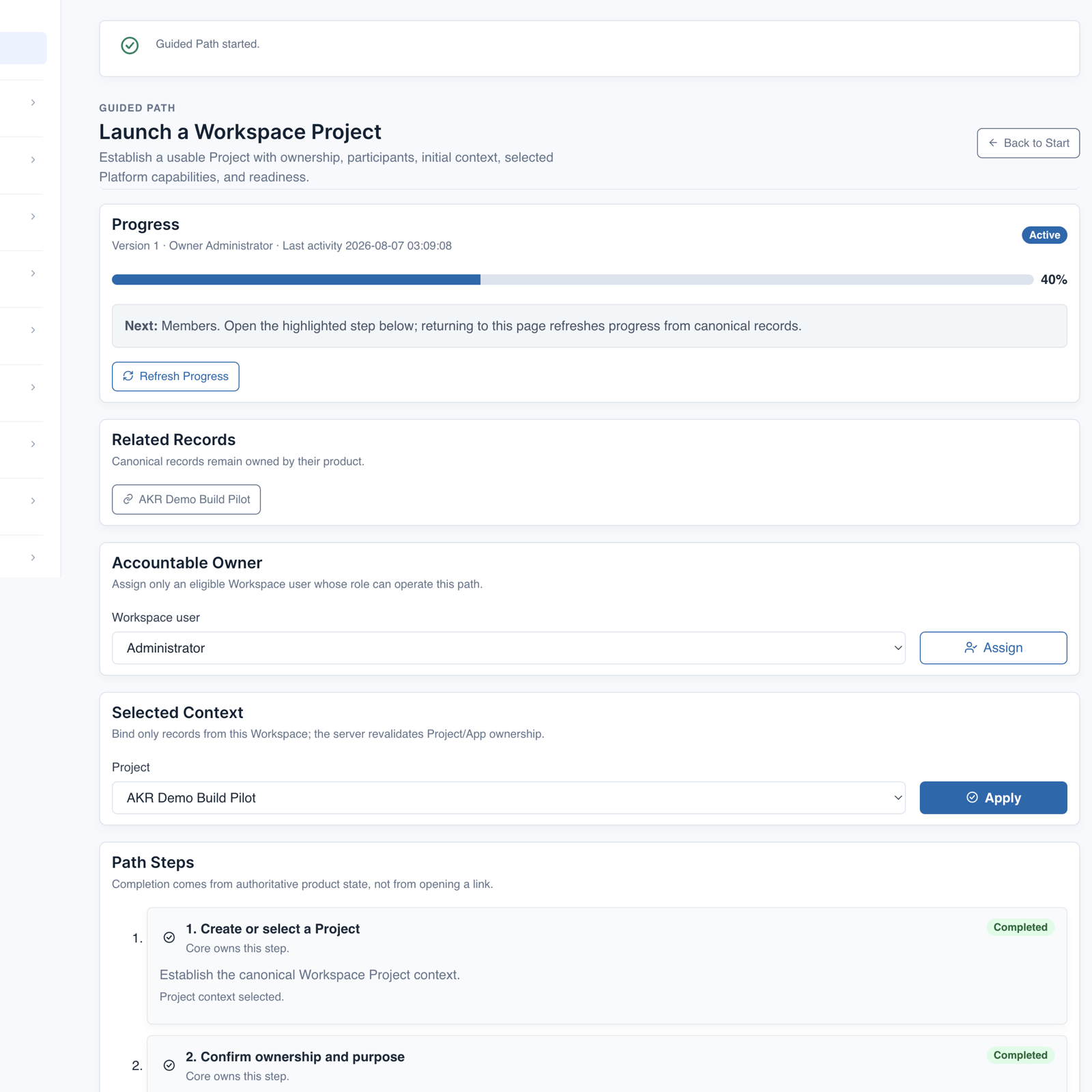
Understand common states
- Ready — the step can be opened now.
- Waiting approval — complete the approval in the owning product; the Guided Path does not bypass it.
- Blocked — review the stated prerequisite, setup gap, risk decision, or record condition.
- Completed — canonical product state satisfies the step resolver.
- Cancelled — coordination stops, but canonical records and Journey history are preserved.
- Archived — a terminal run is retained as reviewable history and removed from active work.
Cancel safely when the outcome should stop
Use Cancel Guided Path only when coordination should stop. Cancellation does not delete Projects, Apps, files, assessments, evidence, releases, or other records created in their owning products. An Owner or Admin can archive the terminal Journey history later.
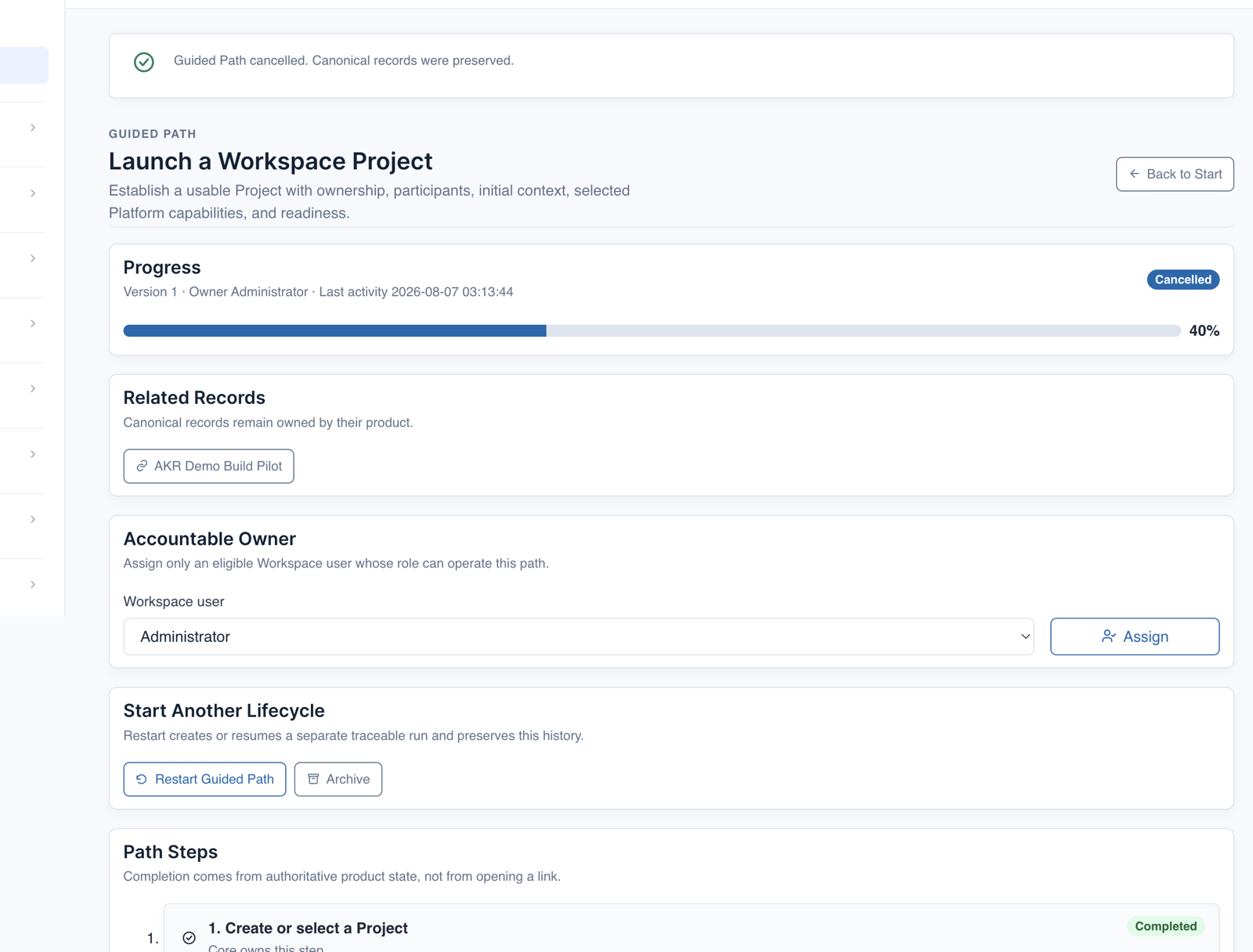
Safety and governance
- Use only a Project or App that belongs to the intended Workspace and business outcome.
- Keep approvals, exceptions, attestations, evidence acceptance, deployments, and security decisions in their owning products.
- Do not enter credentials, private keys, access tokens, or unnecessary personal information into Journey context.
- Cancel only the coordination lifecycle. Review canonical records separately before deleting, archiving, rolling back, or withdrawing them.
- Use Advanced for additional operating context, not as a way to bypass permissions or completion rules.
Troubleshooting and recovery
| What you see | What to check | Safe next action |
|---|---|---|
| A path is not enabled or not entitled. | Workspace rollout, subscription, role, and required product availability. | Use Quick Create when suitable, or ask an Owner or Admin to review Workspace readiness and subscription access. |
| Progress does not change after opening a step. | The required canonical record, status, approval, evidence, or verification result in the owning product. | Complete or correct the authoritative work, then return and select Refresh Progress. |
| A Project or App is unavailable. | Current Workspace, record status, path context declaration, and your permission to view the record. | Return to the correct Workspace or select another authorized context. Do not use another person’s account. |
| The run is blocked or waiting. | The highlighted blocker, accountable product, prerequisite, and approver. | Resolve the condition in the owning product; do not manually claim completion or bypass approval. |
Final verification
Next step
Return to Start in your Workspace to continue a path or choose another outcome. Owners and Admins can use Creation Analytics to review aggregate completion, blockers, duration, cancellation points, and the separation between organic and controlled acceptance runs.