
Guide navigation 32 of 44
What this page helps you accomplish
Review dated retail orders, monitor open and delivered volumes, and keep packing and delivery status current.
Scope and authority
Access to the appropriate authenticated workspace through My Batoi Authority for the records, action, or decision involved
Order Fulfillment
Review dated retail orders, monitor open and delivered volumes, and keep packing and delivery status current.
Observable business result
Each order has an accurate fulfillment status and the daily order desk reflects the current delivery position.
An order is shown with the wrong fulfillment status or on the wrong business date.
Recommended recovery: Confirm the source order and physical position, then apply the authorized status correction. Escalate date or amount corrections through the order-management process.Who should use this article
This article is for retail operators who are authorized to complete or review the task in the intended workspace. The person making a consequential operational, commercial, academic, care, access, or compliance decision remains accountable for the result.
Before you begin
- Access to the appropriate authenticated workspace through My Batoi
- Authority for the records, action, or decision involved
- Use a sanitized demonstration record for practice and confirm the intended workspace, role, scope, and responsible owner before changing operational records.
- Do not place passwords, connection secrets, personal data, regulated information, private documents, or payment details in notes, prompts, screenshots, or exports.
Workflow overview
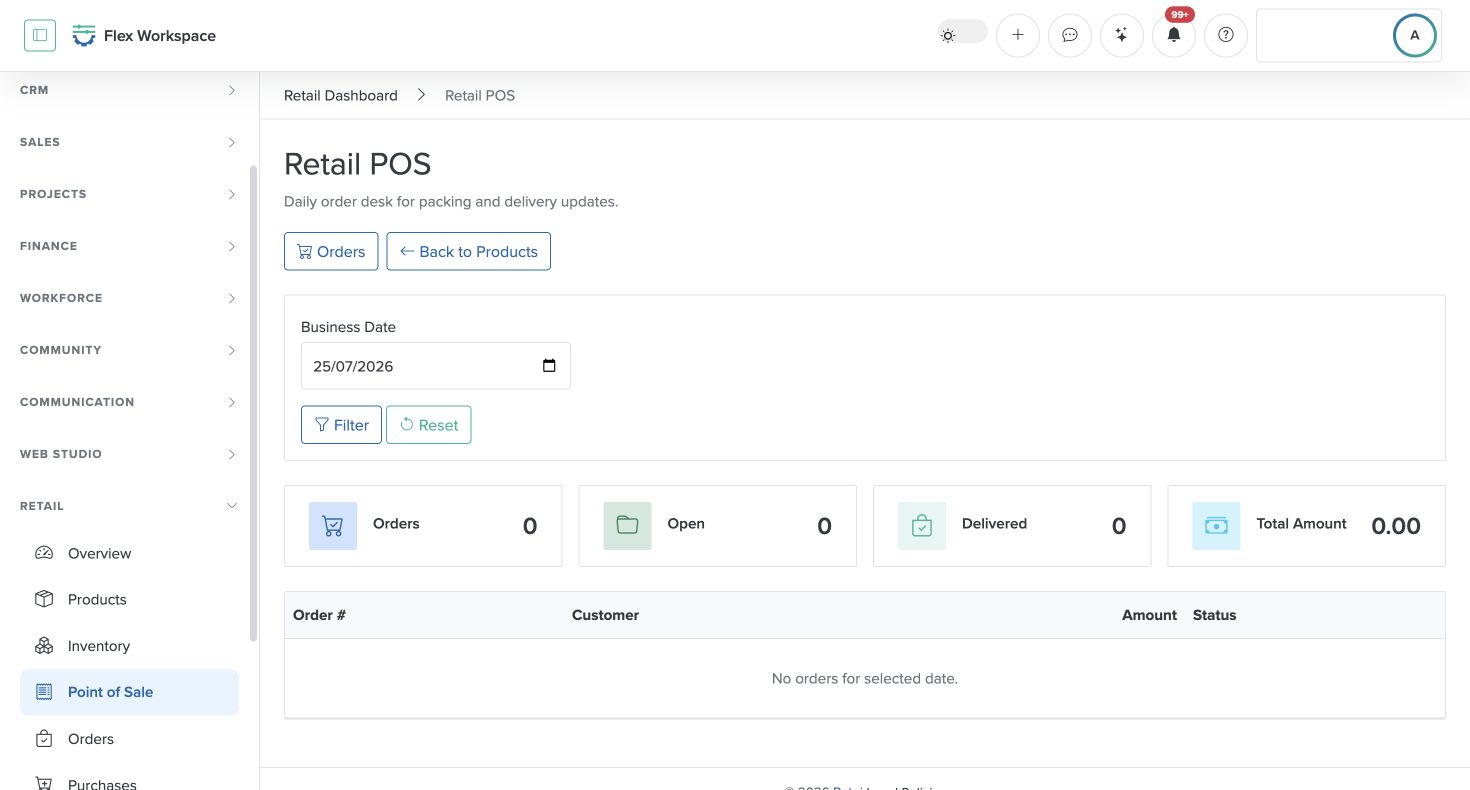
Read the Retail POS screen
All active orders recorded for the selected business date.
Orders in Draft, Confirmed, or Shipped status that still need attention.
Orders marked Delivered for the selected date.
The sum of recorded order amounts for that date, not a payment-settlement total.
Complete the workflow
- Confirm the workspace and responsibility. Enter the authorized workspace through My Batoi. Confirm the workspace name, your current role, the record or review period, and the person accountable for the result.
- Open the current product area. Open Retail and Point of Sale. Select the business date and review Orders, Open, Delivered, and Total Amount before changing any record.
- Check prerequisites and source records. Make sure the required capability, connection, status, relationship, approval, and safe information boundary are ready. Search before creating a new record.
- Perform the task. Locate the order by order number and customer, confirm the recorded amount, then move its status only through Draft, Confirmed, Shipped, Delivered, or Cancelled as the actual fulfillment state changes.
- Review the result. Check the selected date, order number, customer, amount, status, and whether another operator or connected process owns the next action.
- Verify and retain the outcome. The order status matches the physical packing or delivery position, and the daily Open and Delivered counts reflect the queue. Record every exception and follow-up with an owner and review date.
Verify the result
- The workspace, role, record, period, and Industry Pack still match the intended scope.
- Each order has an accurate fulfillment status and the daily order desk reflects the current delivery position.
- The visible status, source evidence, owner, exception, and next action agree with the completed work.
- An authorized reviewer can understand the result without relying on hidden assumptions or information outside Flex.
Troubleshooting and recovery
| What you see | What to check | Safe next action |
|---|---|---|
| An order is shown with the wrong fulfillment status or on the wrong business date. | Order number, source order, business date, current physical state, latest update, and responsible operator. | Confirm the source order and physical position, then apply the authorized status correction. Escalate date or amount corrections through the order-management process. |
| The expected page or action is missing. | Current role, team scope, Industry Pack availability, workspace subscription, record state, and prerequisite setup. | Stop and ask an authorized Owner or Admin to review access. Do not use another person’s account or bypass the control. |
| The result conflicts with evidence or another register. | Source ownership, date range, status definitions, duplicate records, latest update, and correction history. | Do not mark the task complete. Return it for correction or escalate it to the accountable owner. |
Safety and governance
Do not copy authenticated page addresses, record identifiers, connection details, browser notifications, account information, or unrelated workspace content into public documentation or external communication.
Use Batoi Intelligence safely
Next step
Continue with the next verified article in this Product Guide, or return to the Batoi Flex Product Guide.