
Guide navigation 11 of 42
What this page helps you accomplish
Create an approved project-sharing policy with explicit recipient, audience, redaction, visible sections, and member portal verification.
Scope and authority
An active Core Project with an approved member-sharing purpose An authorized Workspace Member, external auditor, or member-role recipient
Sharing
Create an approved project-sharing policy with explicit recipient, audience, redaction, visible sections, and member portal verification.
Observable business result
The authorized recipient can see the approved project status without gaining access to private workspace records or implementation details.
The expected record or action is missing.
Recommended recovery: Return to the intended context and ask an Owner or Admin to confirm access. Do not use another person’s account.Who should use this article
This article is for Workspace Owners, Workspace Admins, and Operators who are authorized to complete or review this task. A consequential decision remains with the accountable person.
Before you begin
- An active Core Project with an approved member-sharing purpose
- An authorized Workspace Member, external auditor, or member-role recipient
- Authority to define redaction, visible sections, and approval state
- Use approved sample or operational information only. Never enter a password, token, private key, or unnecessary personal information.
Understand the controlled sharing flow
Create the policy
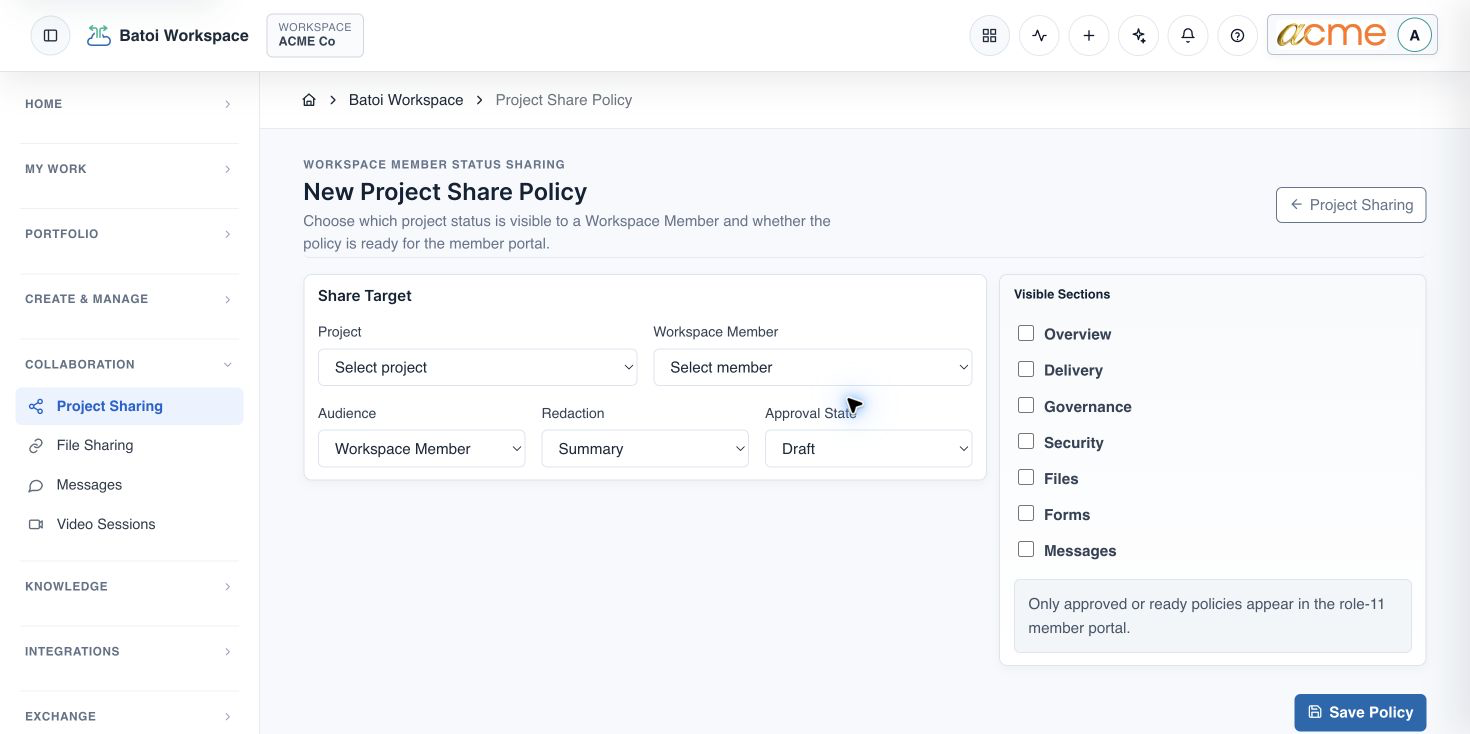
- Open Batoi Workspace, expand Collaboration, and choose Project Sharing.
- Select New Policy.
- Choose the exact Project and approved Workspace Member.
- Select the narrowest suitable Audience: Workspace Member, External Auditor, Member Role, or Mixed.
- Start with Summary redaction. Use a more detailed setting only when the recipient and purpose require it.
- Select only the approved visible sections, such as Overview, Delivery, Governance, Security, Files, Forms, or Messages.
- Save as Draft, review the proposed view, then move the policy to Ready or Approved through the authorized workflow.
Verify the member-safe result
- The publication policy register contains the intended project and recipient.
- The policy state is Ready or Approved; Draft policies do not appear in the role-11 member portal.
- The member view contains only the approved sections and sanitized status information.
- Private files, credentials, internal identifiers, implementation paths, and unapproved evidence are absent.
- Acknowledgement, comment, or access telemetry is available where the policy requires it.
When to stop
Do not publish when the recipient is ambiguous, the project is wrong, redaction is too broad, the approval owner is unavailable, or the member portal cannot be tested. Keep the policy in Draft and use My Batoi for authenticated support.
Troubleshooting and recovery
| What you see | What to check | Safe next action |
|---|---|---|
| The expected record or action is missing. | Workspace, project/app context, role, status filters, and prerequisites. | Return to the intended context and ask an Owner or Admin to confirm access. Do not use another person’s account. |
| The status remains incomplete or needs review. | Required fields, evidence, approvals, source connections, checks, and owners. | Record the missing item and owner. Do not mark the task complete until it can be independently verified. |
| The result conflicts with policy or evidence. | Scope, source recency, exception authority, decision conditions, and reviewer independence. | Do not bypass the control. Return the item for correction or escalate it through the authorized route. |
Safety and governance
Final verification
Next step
Continue with the next verified article in this Product Guide, or return to the Batoi Platform Product Guide.