
Guide navigation 5 of 54
Expected result
Click the Member Control Panel button available on the right side of the individual directory from the directory dashboard
Member Control Panel
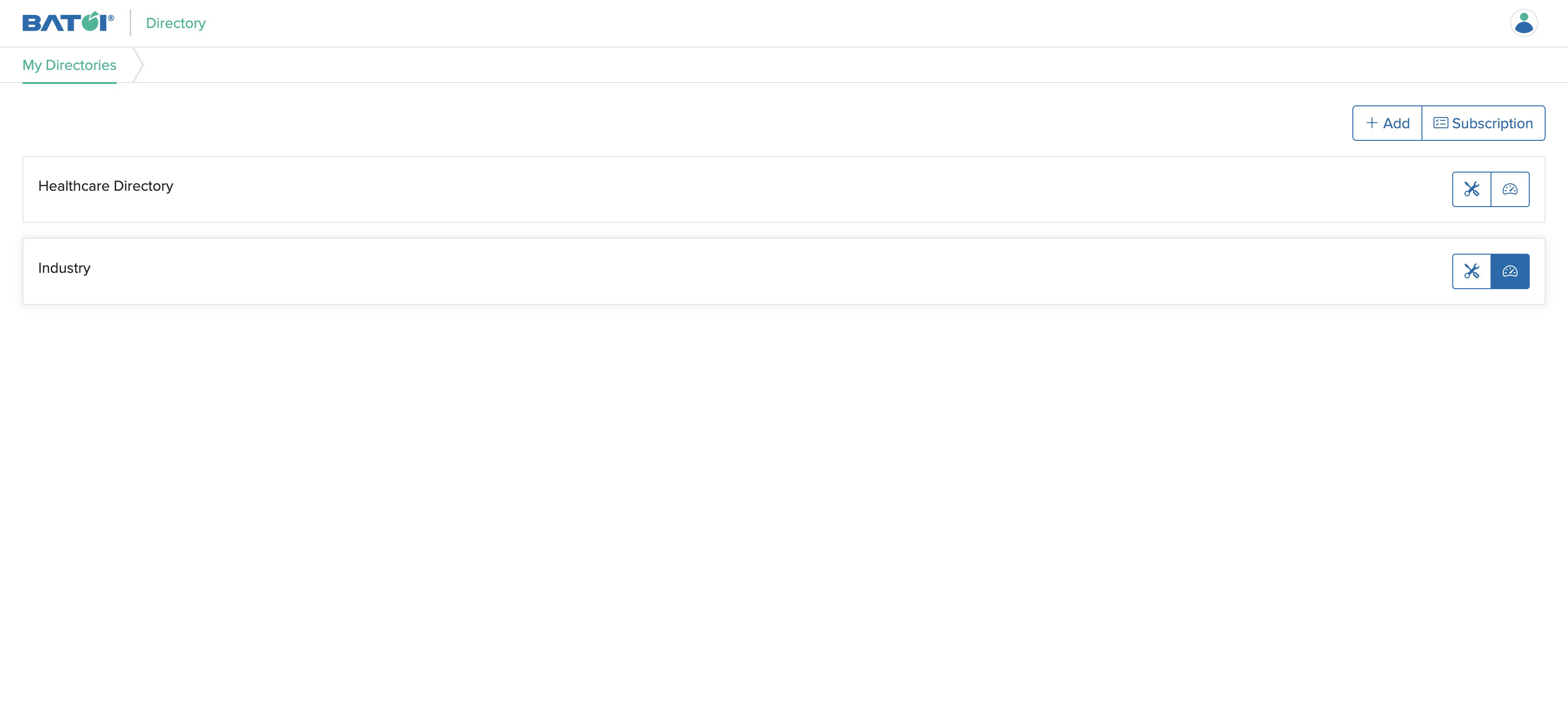
Click the Member Control Panel button available on the right side of the individual directory from the directory dashboard, as shown in Figure 1 below.
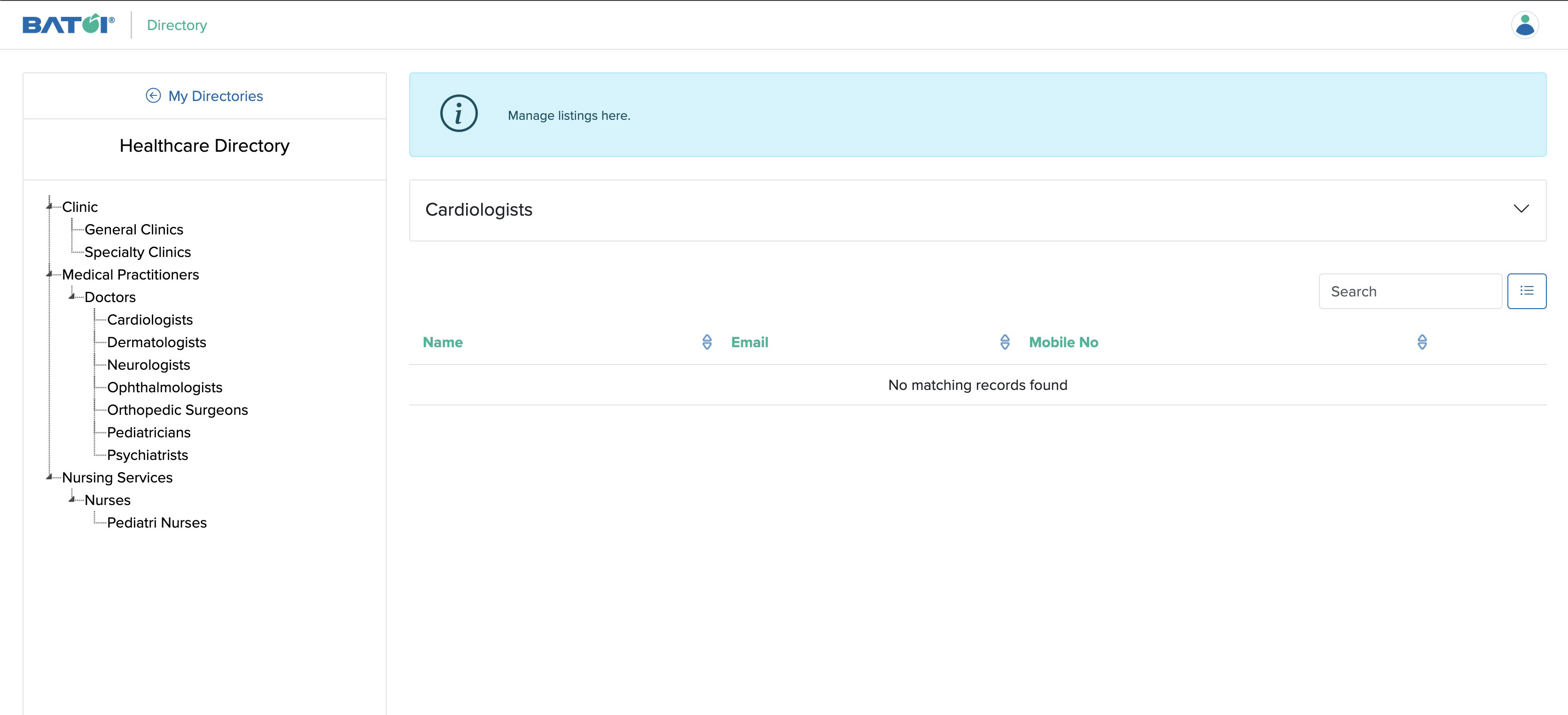
After clicking the Member Control Panel button, you will be redirected to the dashboard page, as shown in Figure 2 below.
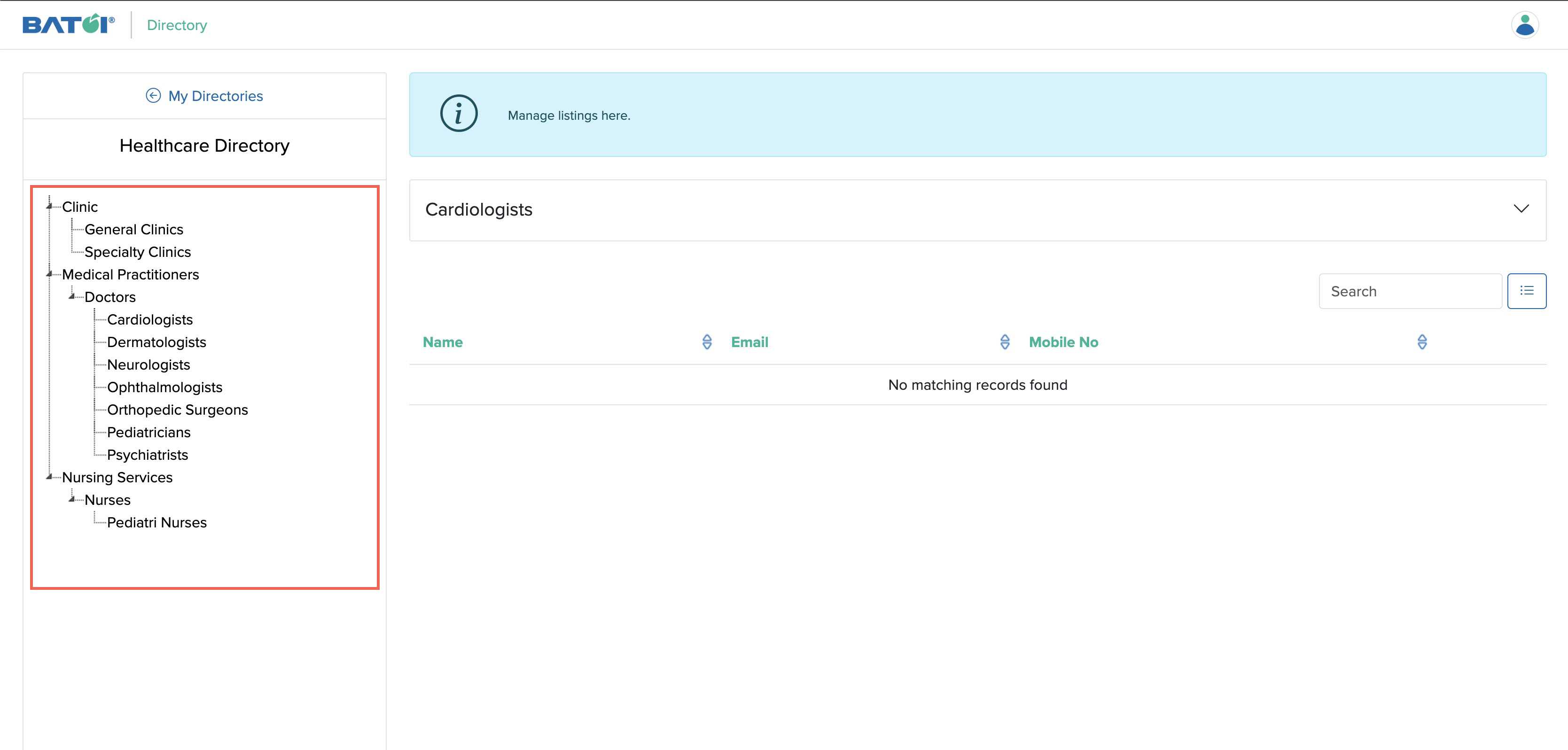
On the individual directory member dashboard, you will find the categories and subcategories of that particular directory on the left side of the screen, as shown in Figure 3 below:
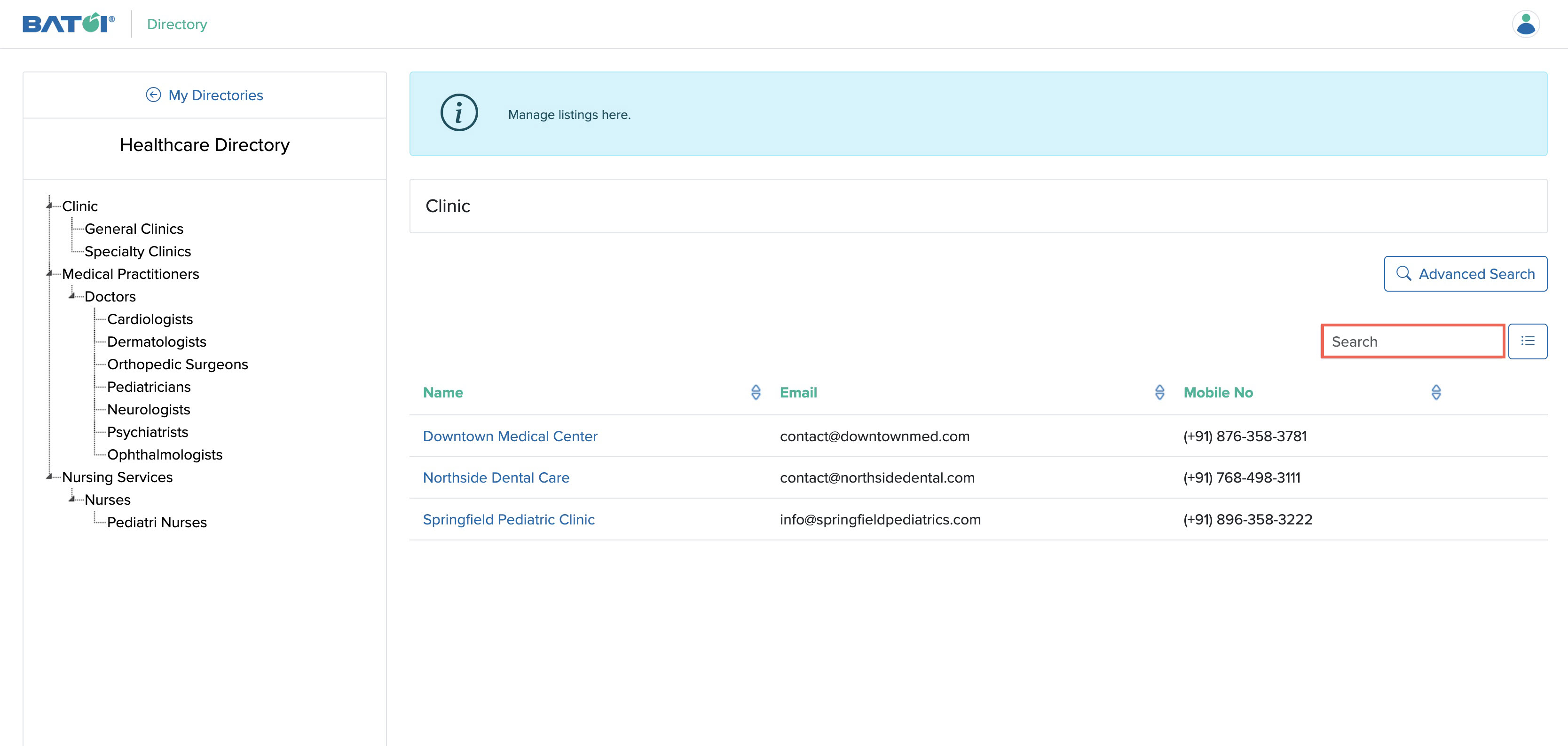
On the individual directory member dashboard, you will find the listing available in a tabular format for the category or subcategories selected from the categories and subcategories panel on the right side of the screen, as shown in Figure 4 below:

You can search the listing by typing ‘Name’, ‘Email’, or ‘Mobile no’ in the mart search box. The results will be filtered accordingly, as shown in Figure 5 below.
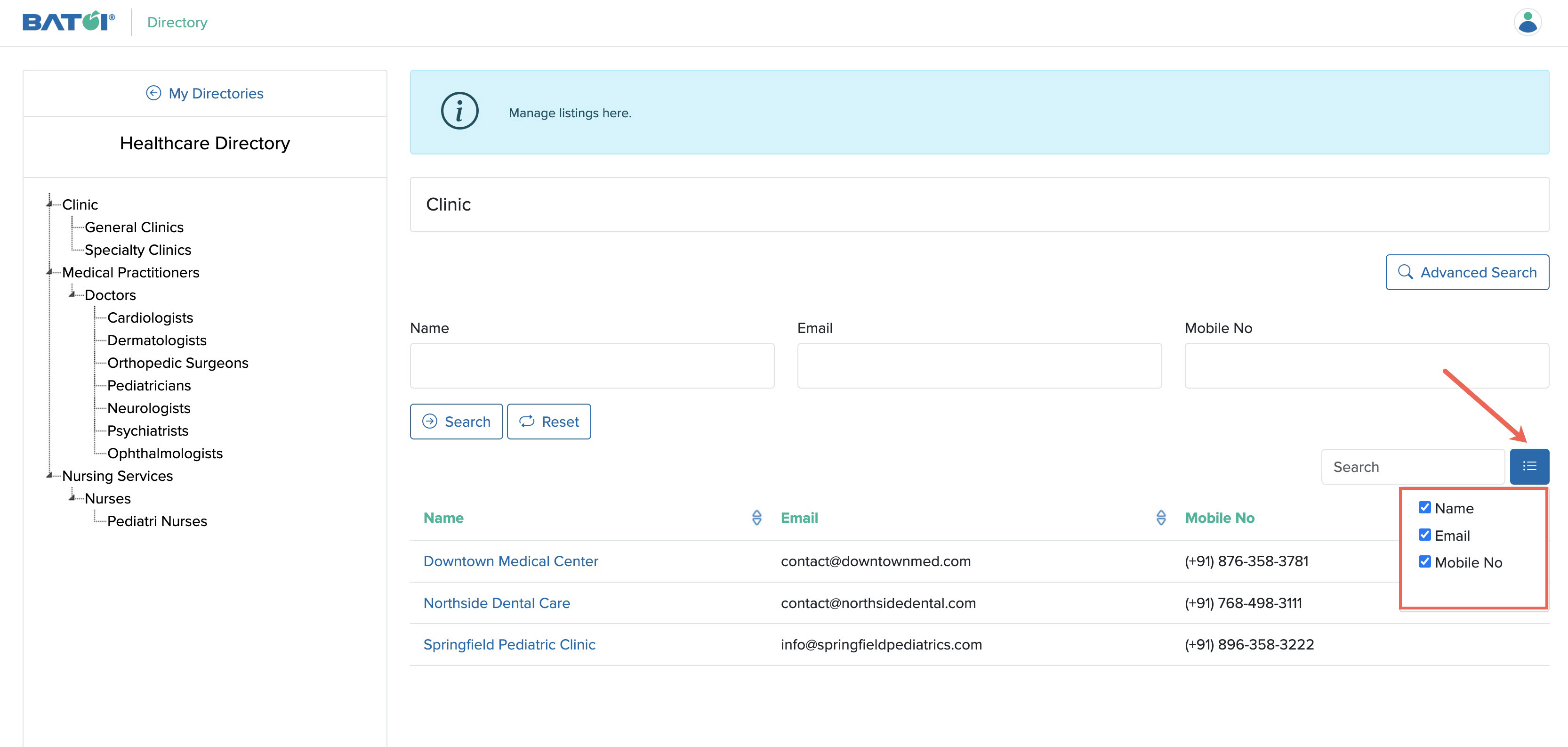
Click the filter button just right of the search field to filter the table columns, as shown in Figure 6 below.
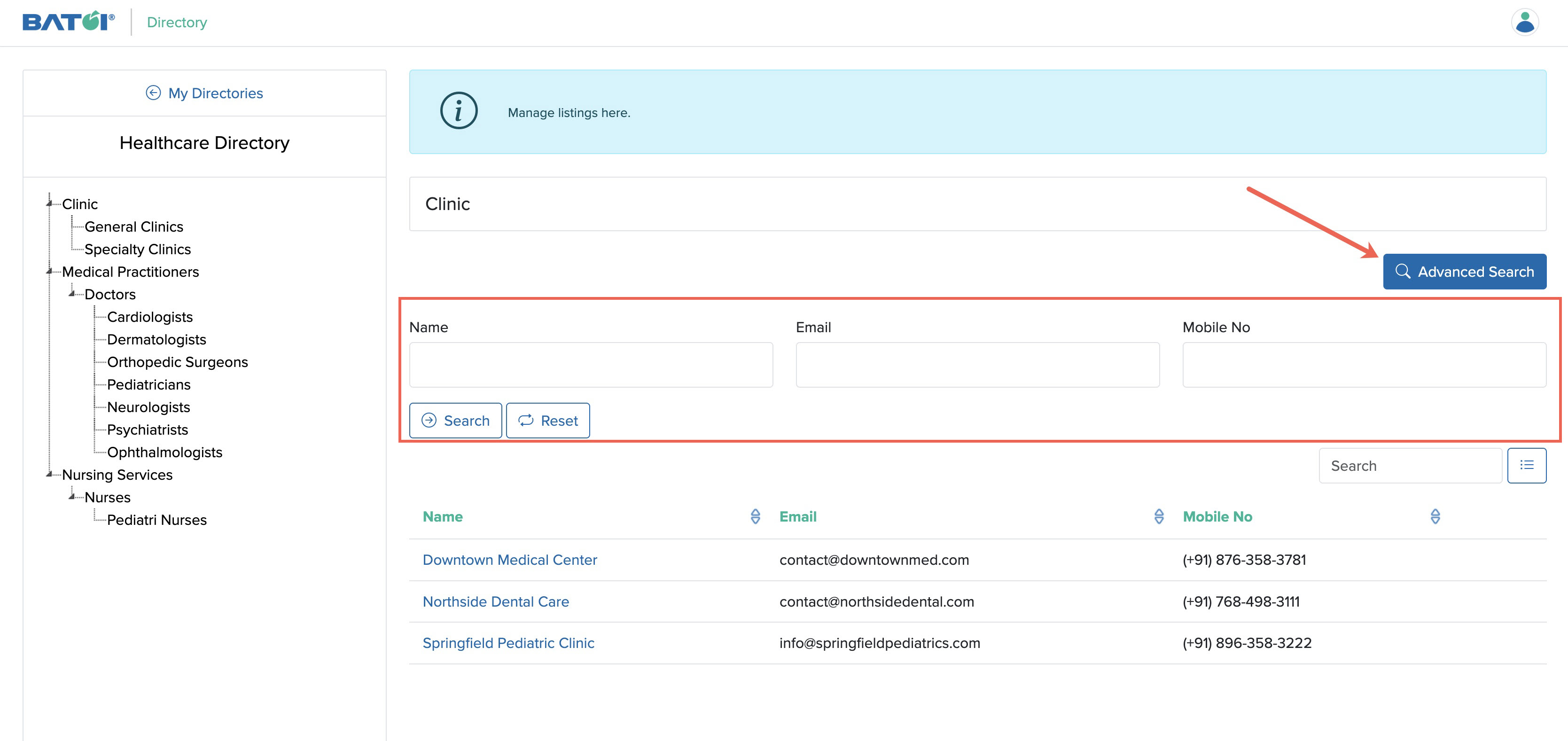
Click on the Advanced Search button at the top right of the screen, and the advanced search screen will appear, as shown in Figure 7 below.
Click on the individual listing view icon or the Name to view the details of that particular listing, as shown in Figure 8 below.

After clicking the individual listing view icon or on the Name, the listing detail page will open, as shown in Figure 9 below.
