
Microservice Route
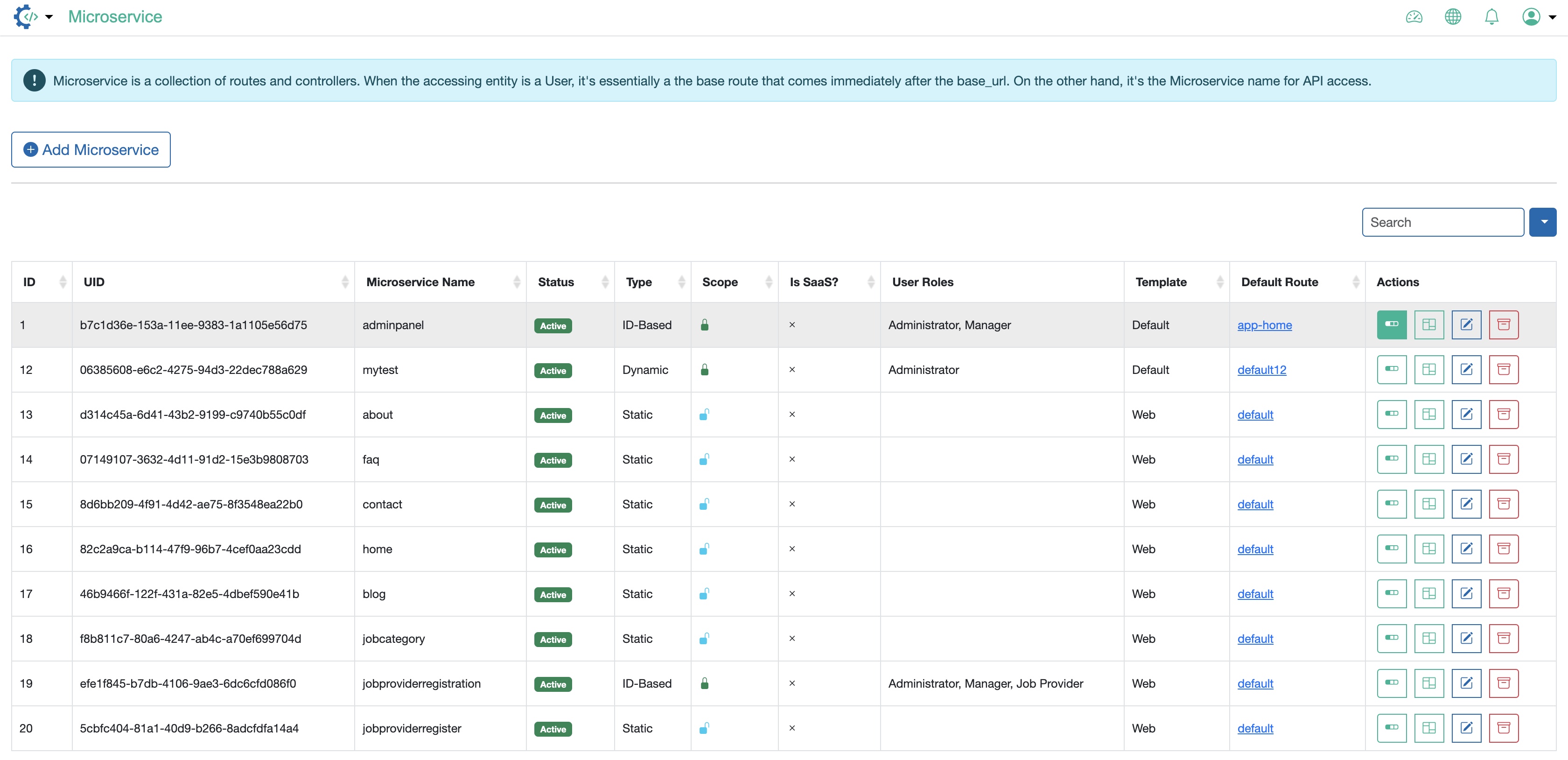
Click on the Route Icon available under the Action column for each Microservice from the Microservice list page, as illustrated in Figure 1 below, to go to the route page.
On the Microservice Route page, all the routes available under the particular Microservice are listed in a tabular format, as illustrated in Figure 2 below.
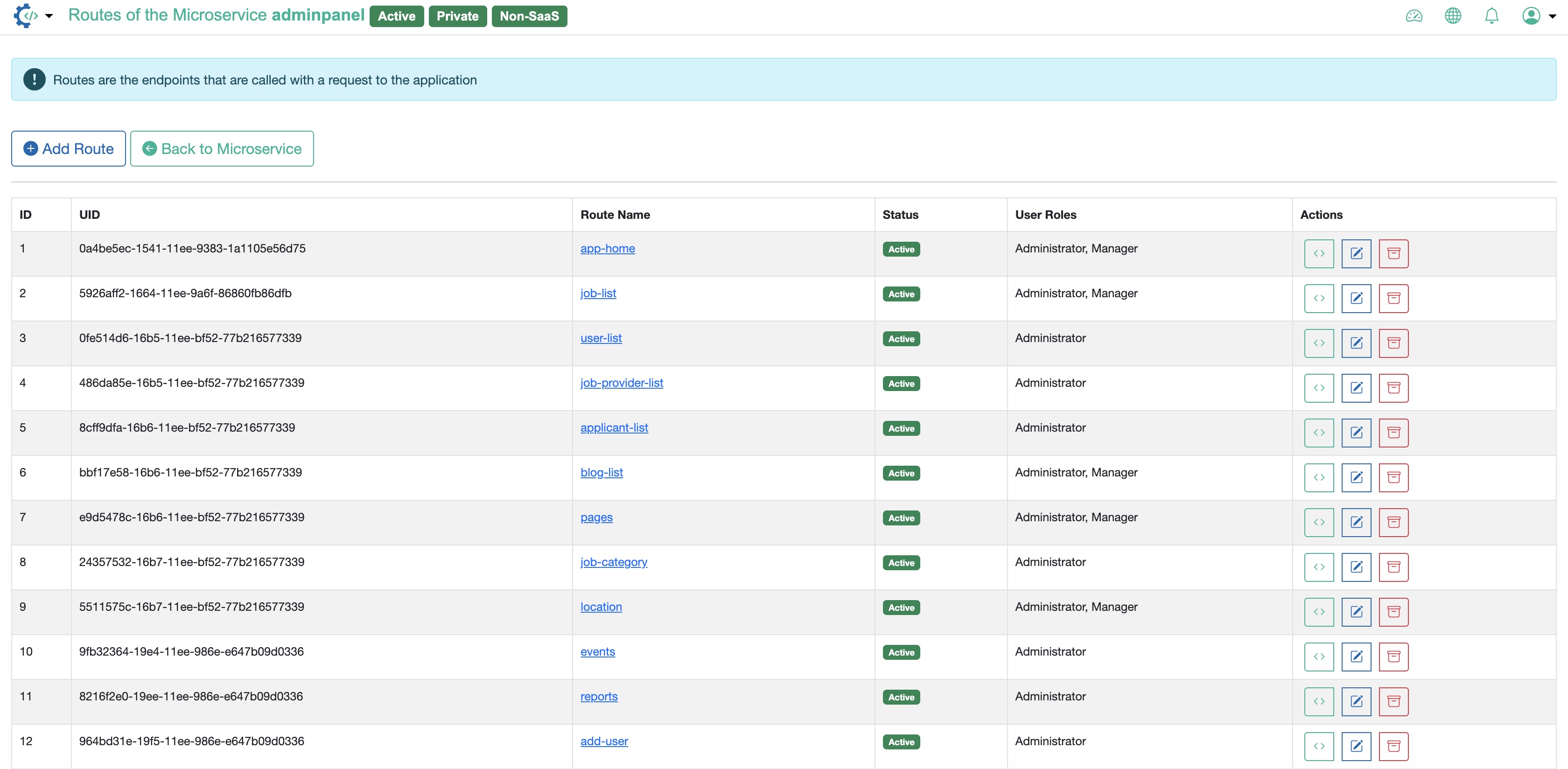
Click on the Add Route button to add a new route, as illustrated in Figure 2 above.
Click on the Back to Microservice button to go back to the Microservice list page, as illustrated in Figure 2 above.
For each Microservice Route, the below features are available under the Action column:
- Edit Route Code
- Edit Route
- Archive