
Introduction
This comprehensive guide walks you through the step-by-step procedure to add the Grammarly extension to Microsoft Edge.
Open the Edge browser and click the three dots, as illustrated in Figure 1 below.
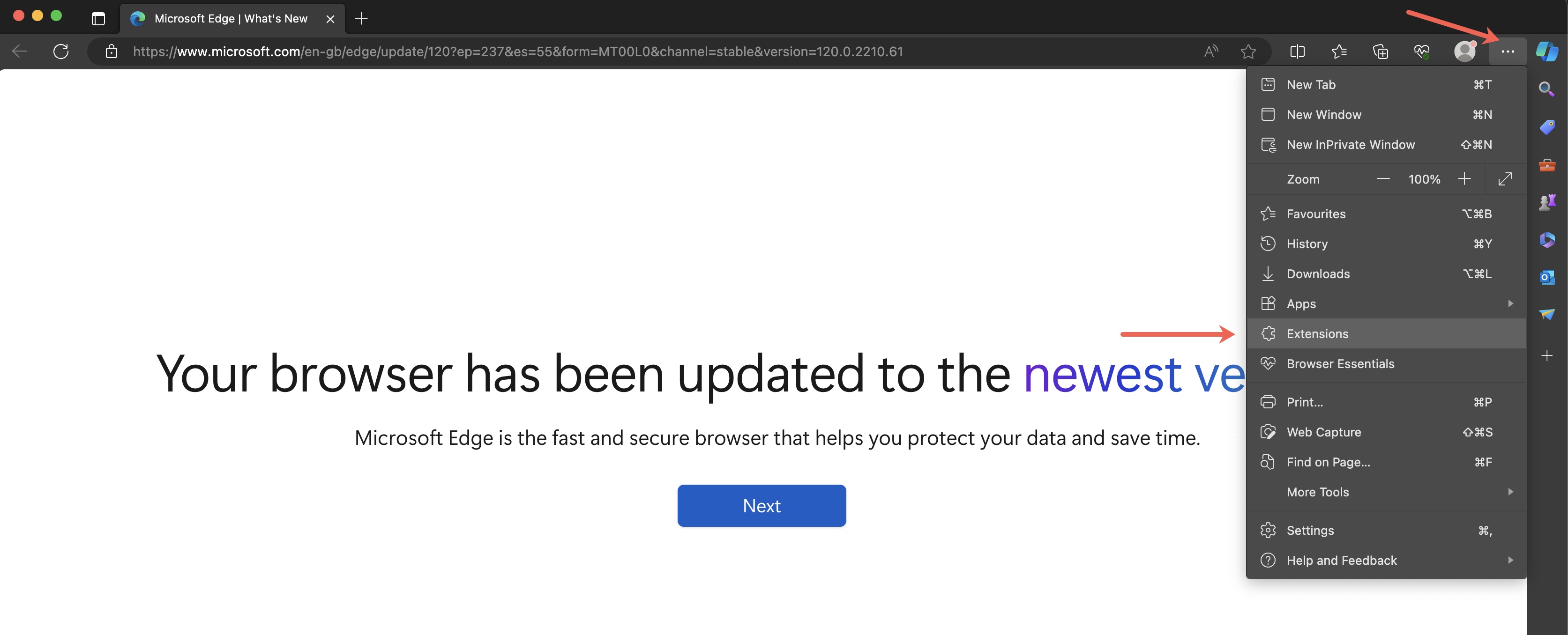
Click on the Extensions menu from the dropdown, as illustrated in Figure 1 above, and a pop-up screen will appear, as shown in Figure 2 below.
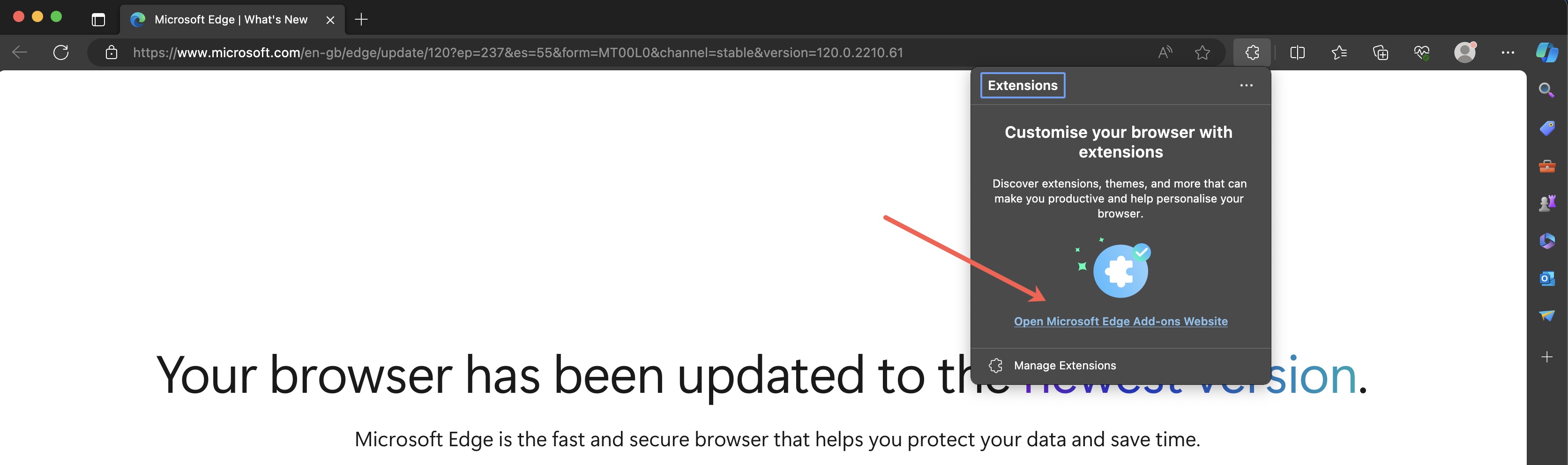
Click the Open Microsoft Edge Add-ons Website link from the pop-up, as illustrated in Figure 2, and you will be redirected to the Edge Add-ons dashboard, as shown in Figure 3 below.
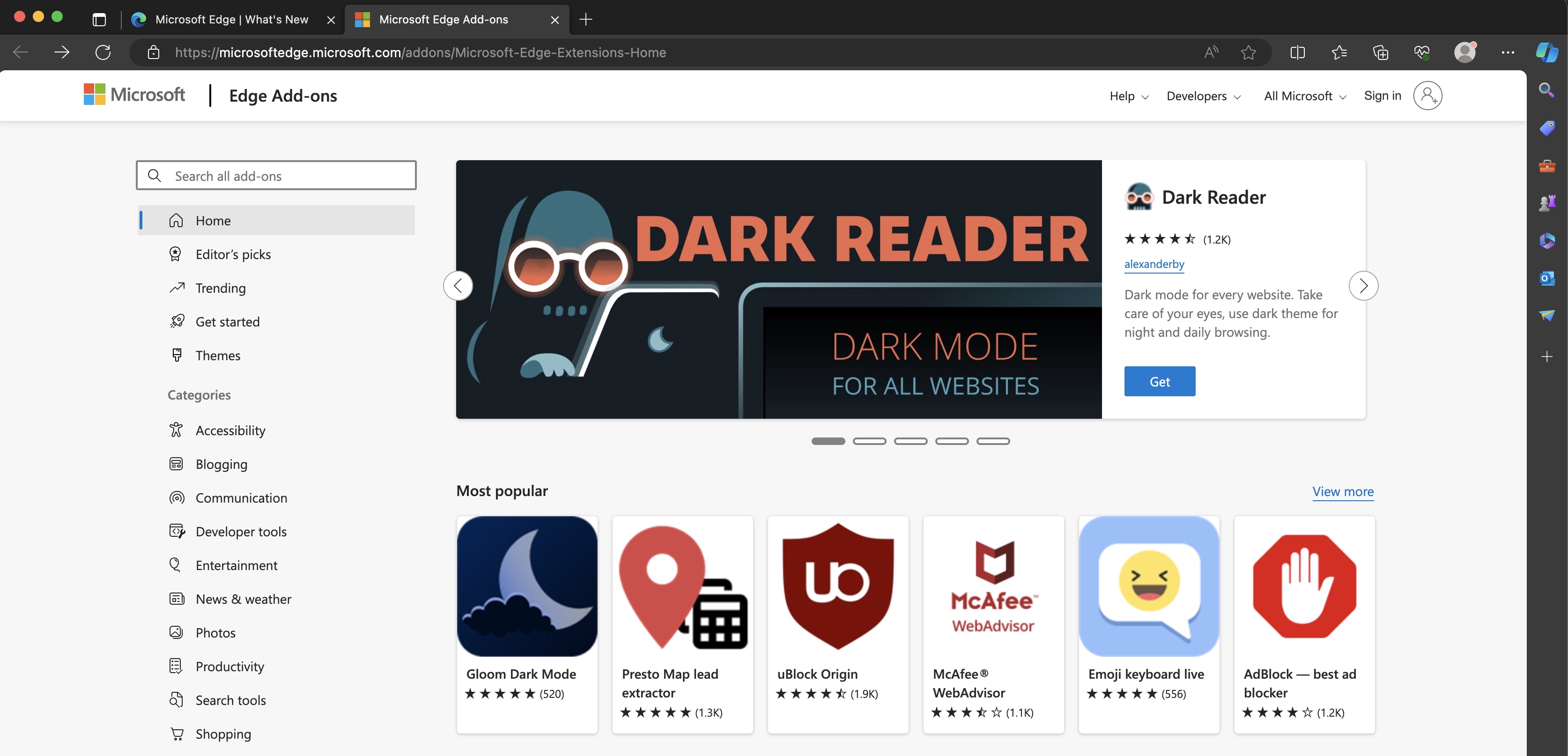
Click the search icon and type ‘Grammarly’; you will find the extension list in the dropdown list, as illustrated in Figure 4 below.
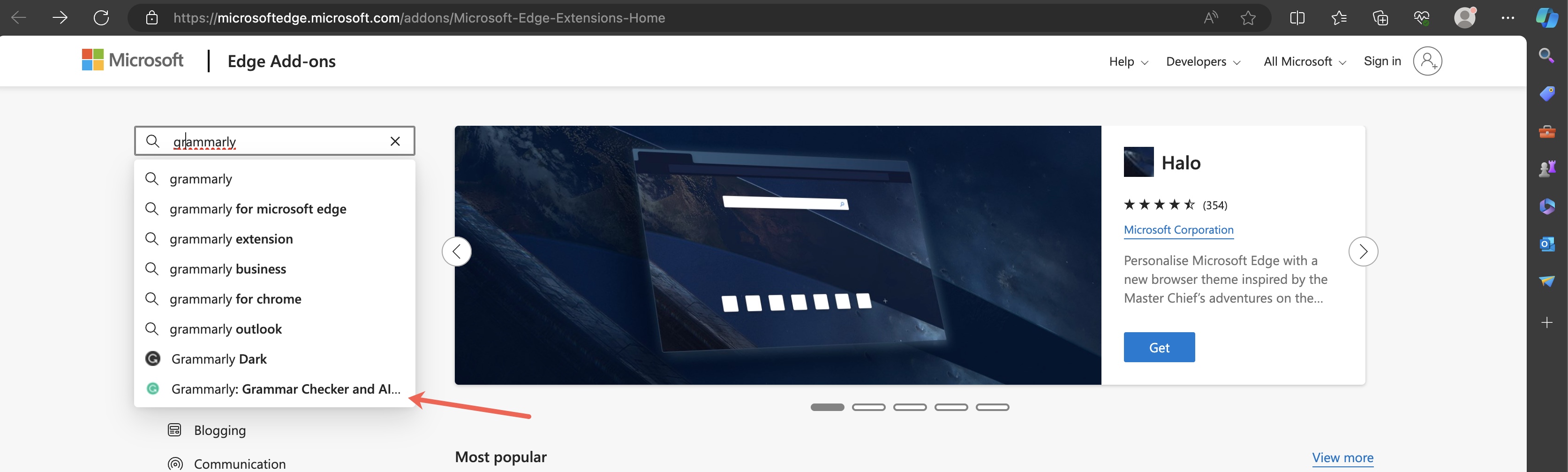
Click the link ‘Grammarly: Grammar Checker and AI Writing App’, as illustrated in Figure 4 above. You will be redirected to the ‘Grammarly’ extension dashboard page, as shown in Figure 5 below.
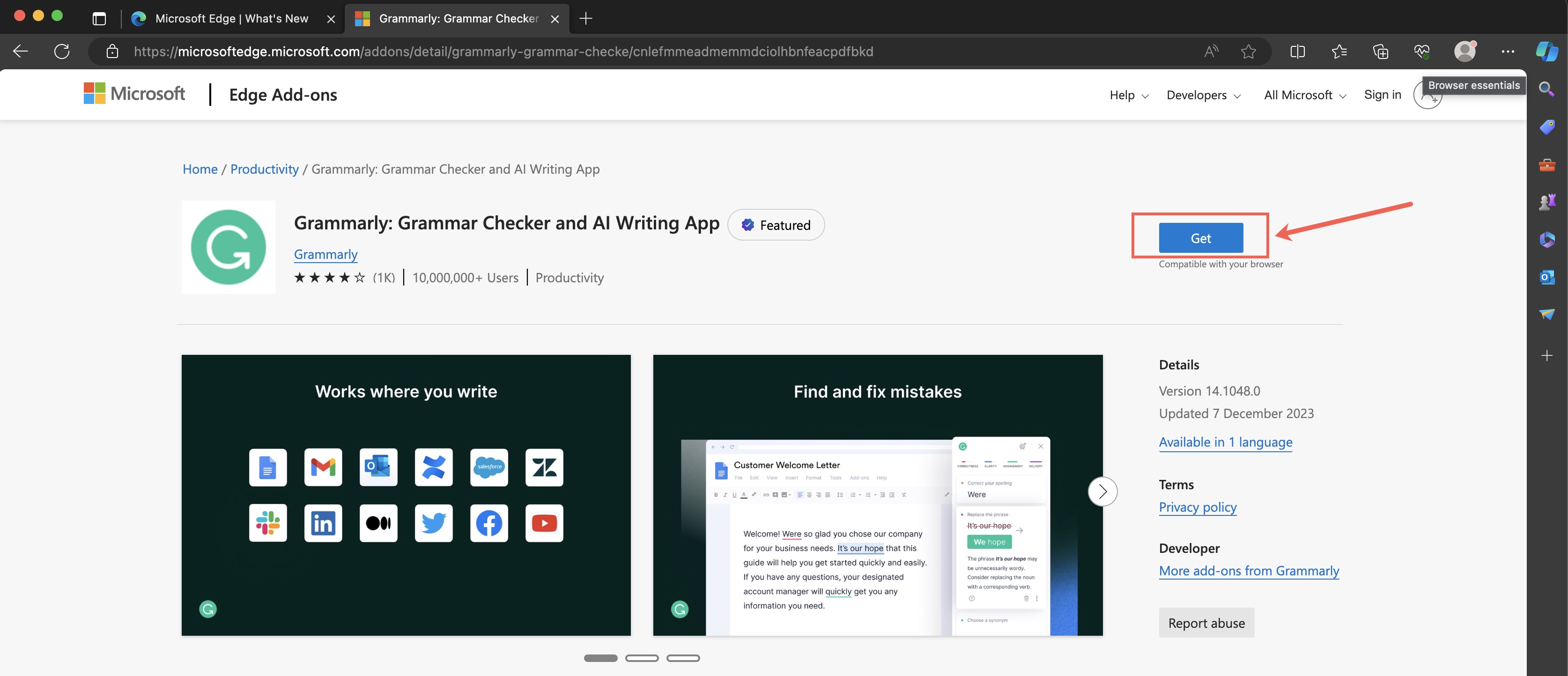
Click the Get button, as illustrated in Figure 5 above, and Edge will ask you for permission to install the extension for you, as shown in Figure 6 below.
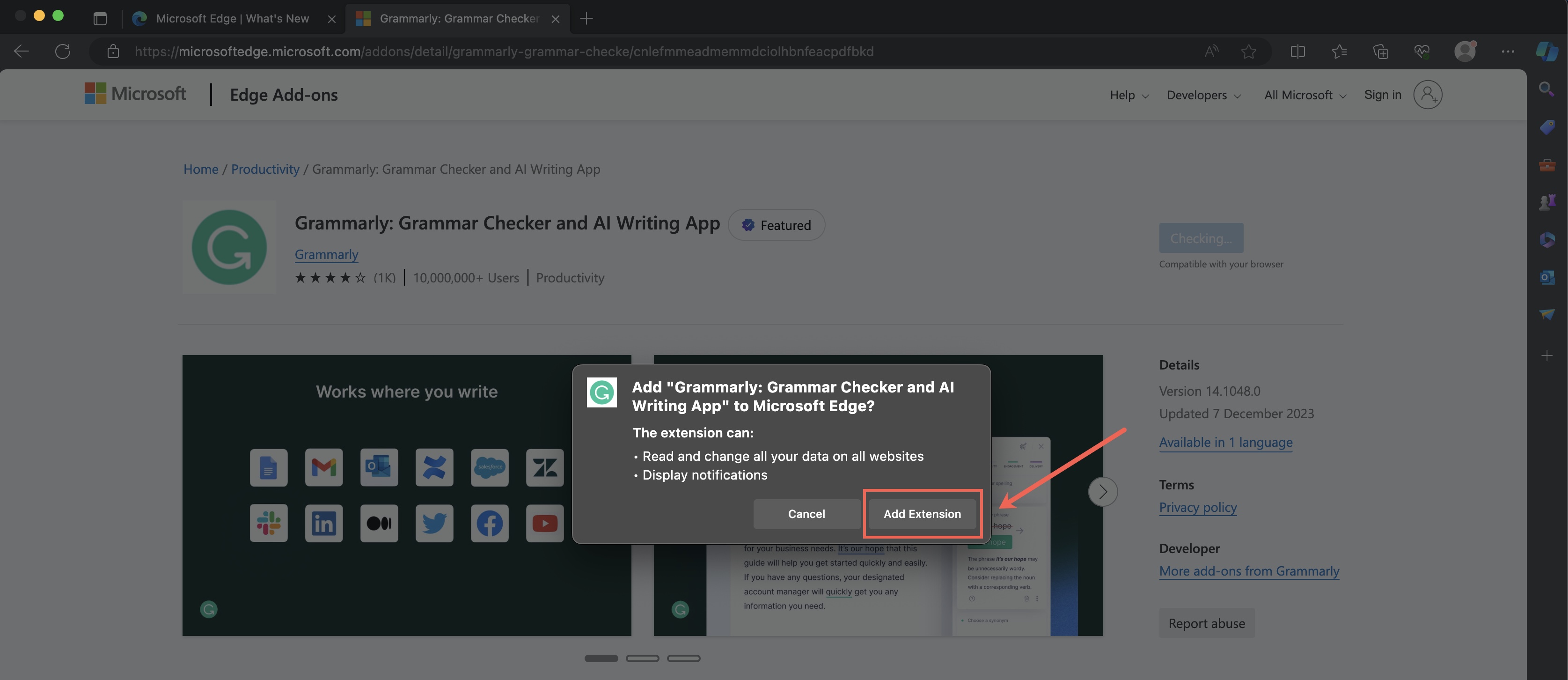
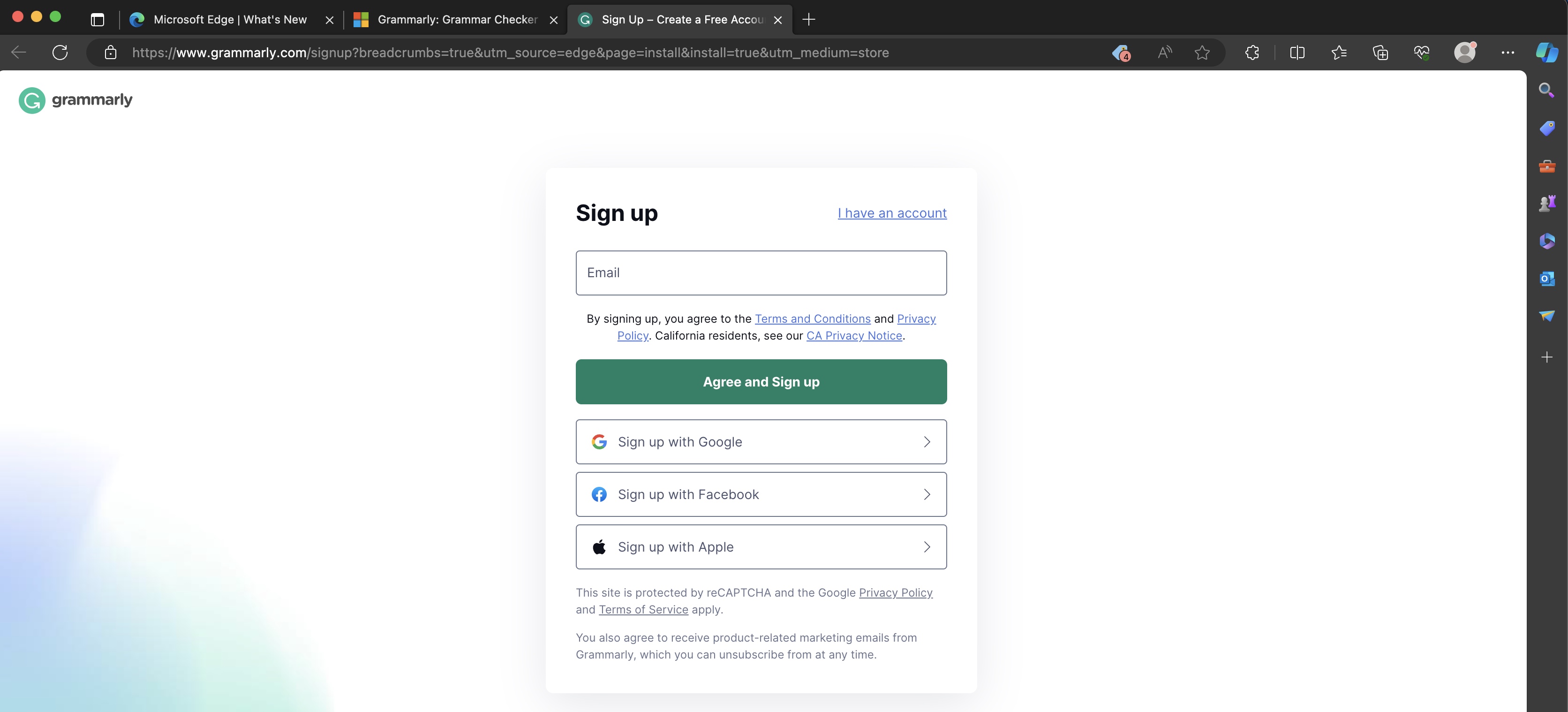
Click the Add Extension button in the pop-up screen, as illustrated in Figure 6 above, and Edge will first download and then install the extension for you. Once installed, you will be redirected to the activation page, as illustrated in Figure 7 below.
Click the Agree and Sign up button, as illustrated in Figure 7 below. Enter your email address to sign up. You can also use your Google, Facebook, or Apple IDs for single sign-on.
After successful sign-on, you will be redirected to the dashboard, where you can customize the services, as illustrated in Figure 8 below.
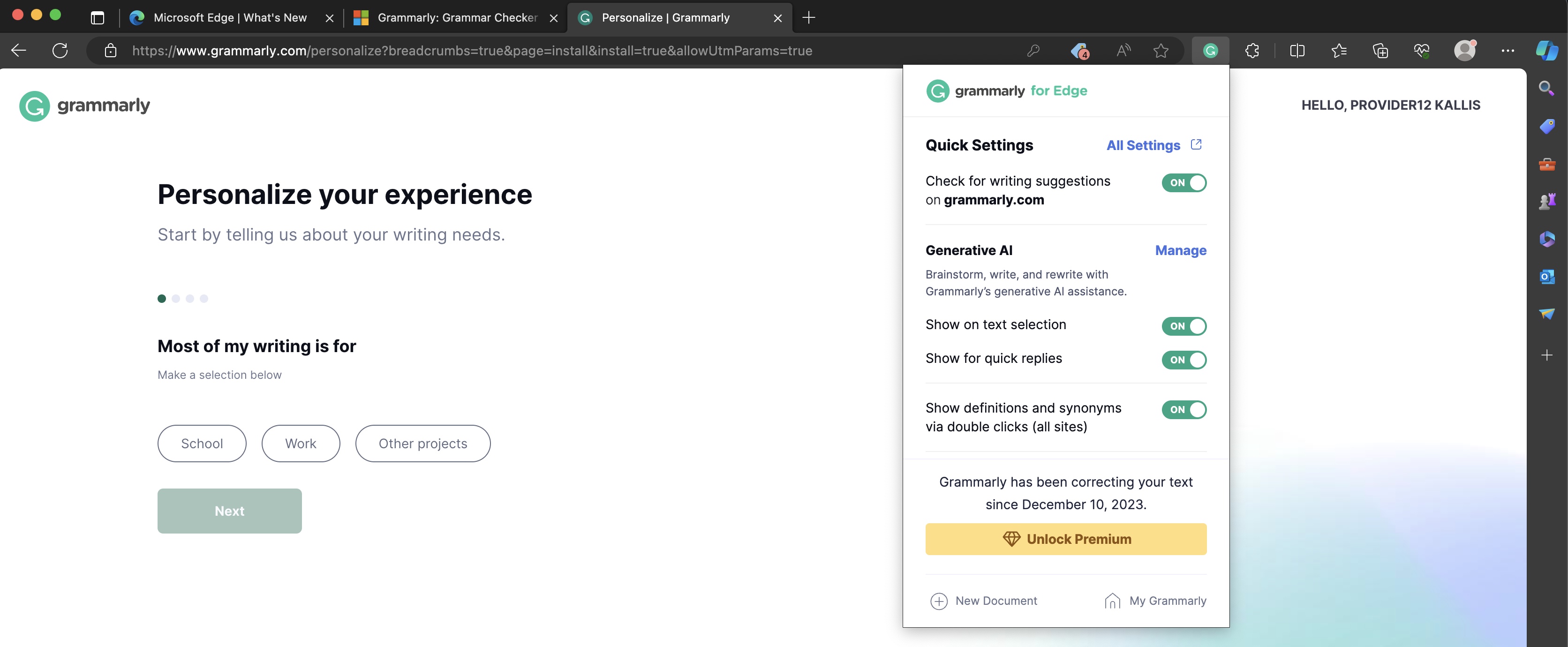
You can also click the Grammarly extension icon from the browser's top right side to open the manage screen pop-up, as illustrated in Figure 8 above.
Conclusion
As you can see, installing the Grammarly browser extension to Microsoft Edge is incredibly simple and only takes a few clicks. You can also install this free Grammarly browser extension to Chrome, Firefox, or Safari, the steps are nearly identical. This will help your writing be more grammatically correct.