
Test
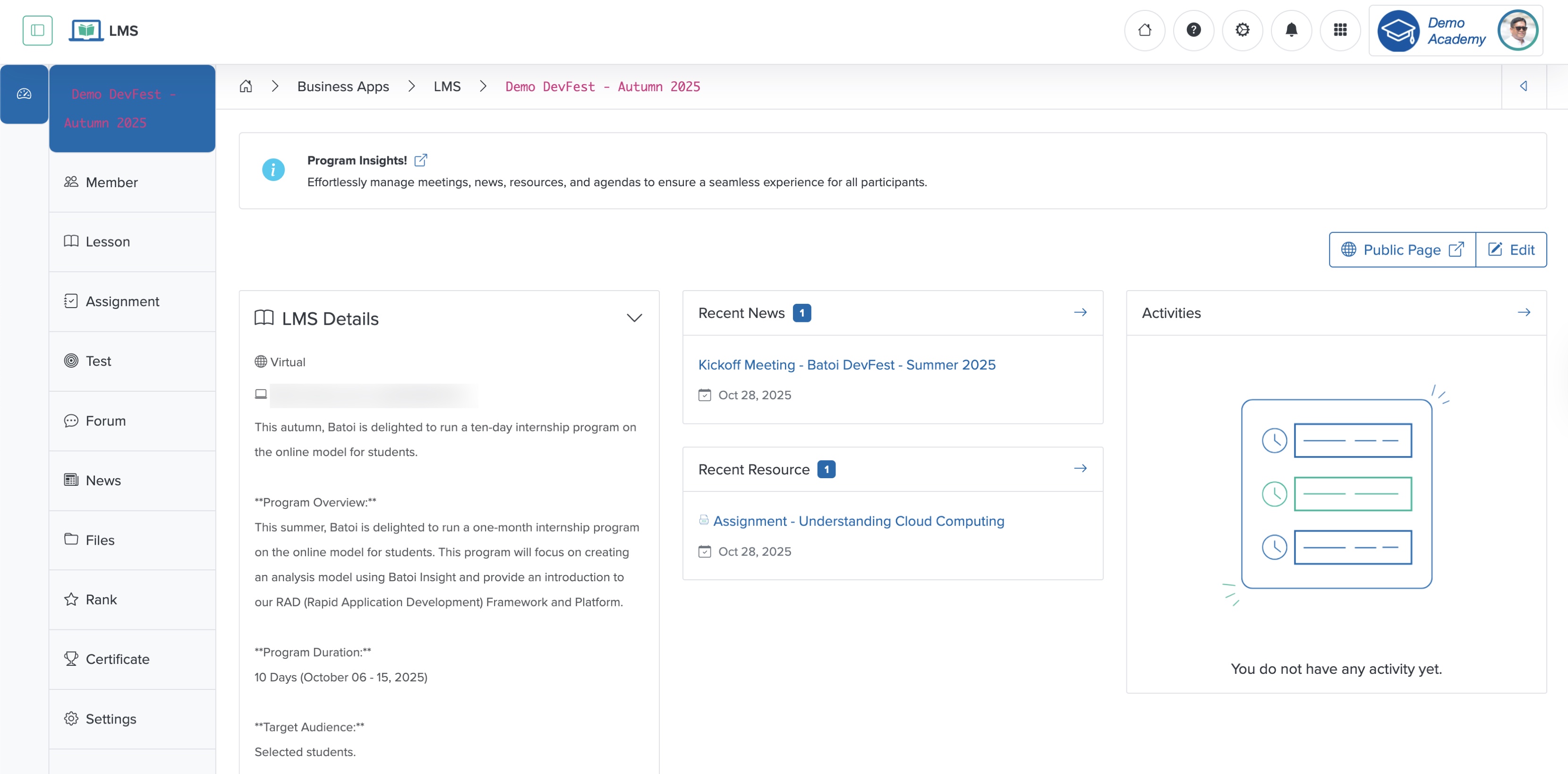
Click the Test menu from the sidebar, as shown in Figure 1 above, and the test page appears, as shown in Figure 2 below.
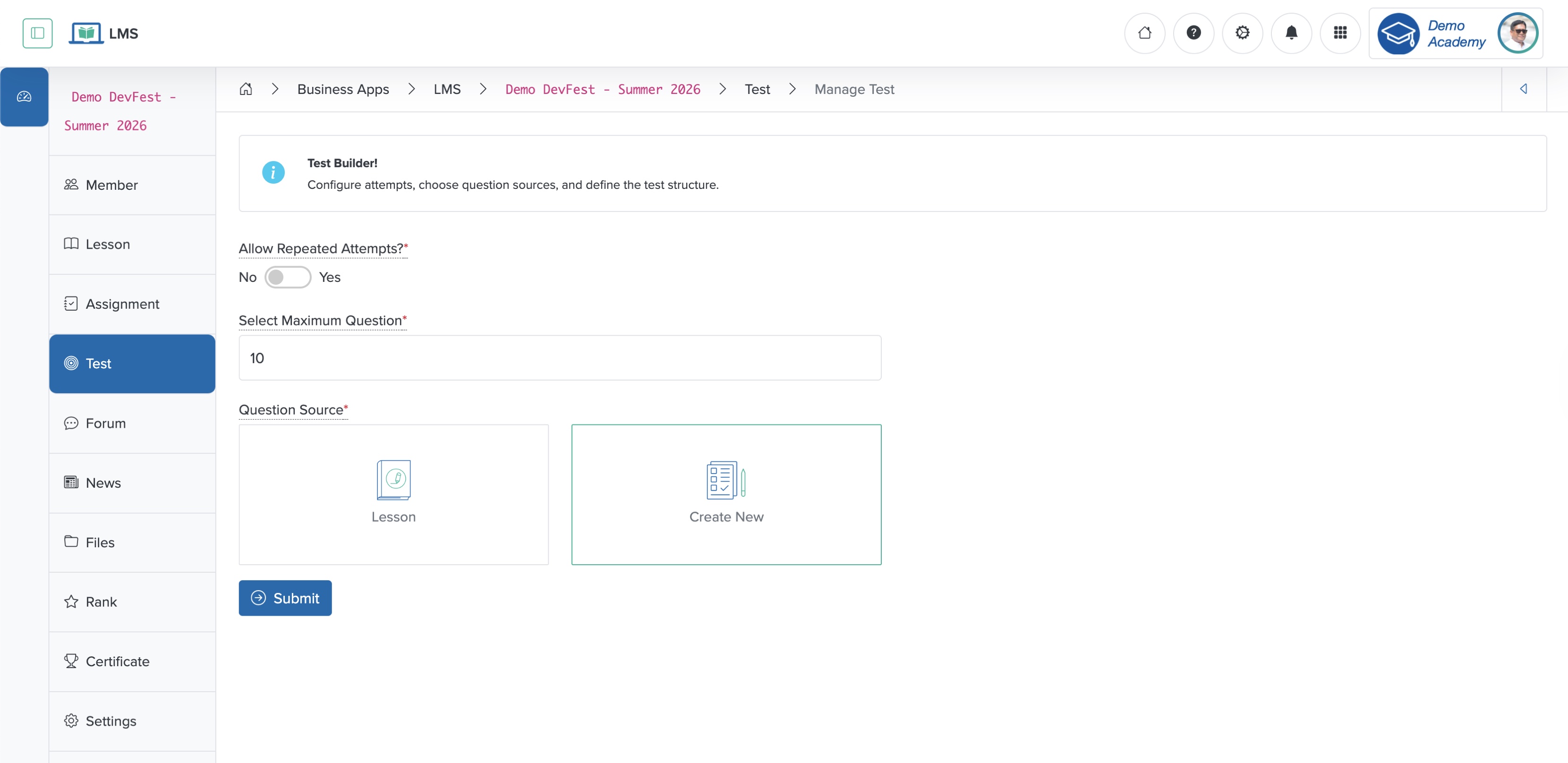
Enter the details below and click the Submit button to create a new test, as shown in Figure 2 above. You can add the following details:
- Allow Repeated Attempts? (Radio button - Optional): Select ‘Yes’ if you want the participant to attempt the quiz multiple times
- Select Maximum Question (Textbox - Mandatory): Select the number of questions that appear in the test
- Question Source (Select card - Mandatory): Select the option from which the quiz question will be mined
- Lesson: Questions will be selected from the existing lessons
- Create New: New questions will be created
Based on your selection, the test detail page appears, as shown in Figure 3 below.
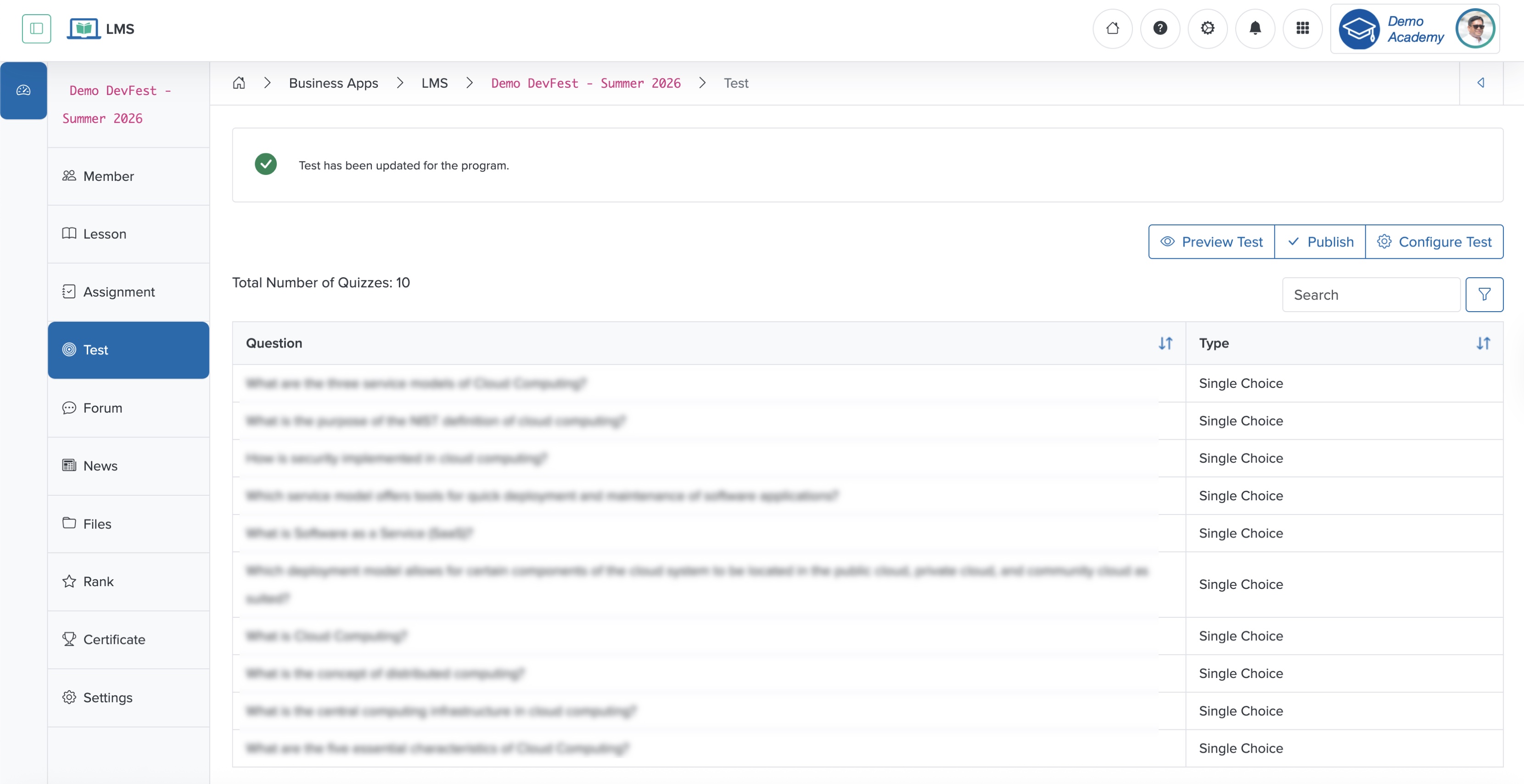
Click the Publish button to activate the test for the participants, as shown in Figure 3 above. Once the test is published, you can not modify the test parameters.
Click the Preview button to view the test questions, as shown in Figure 3 above.
Click the Configure Test button to reconfigure the setting, as shown in Figure 3 above.