
Forward Domain Name to a Different Website
This article explains how you can forward a domain name to a different website by logging in to the service dashboard for domains by following some steps.
To forward a domain name to a different website, follow the steps as mentioned below.
Login to your Service Dashboard for domains.
Note: The Username and Password to log into the Service Dashboard for domains shall be provided to you by Batoi Support Team after you sign up for a domain name service. If you do not have the correct login credentials, please contact Batoi Support Desk via phone or create a support ticket for help.
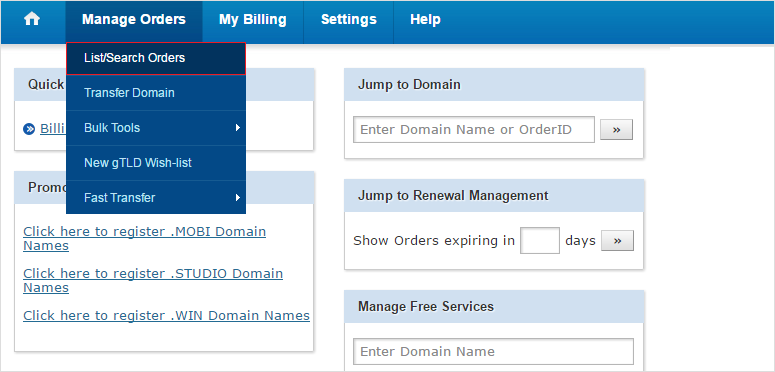
In the Menu, point to Manage Orders and then click List/Search Orders as shown in Figure 1.
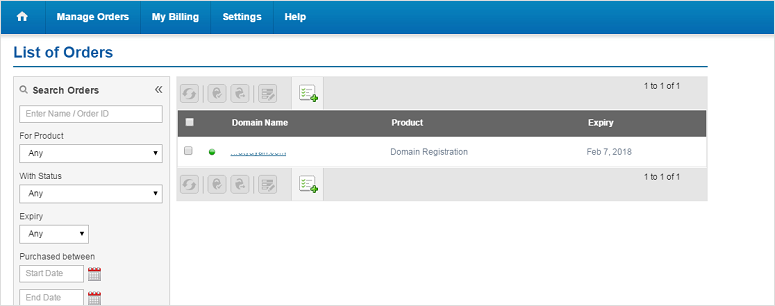
Upon doing so, you would see a list of all your Domain Names registered as shown in Figure 2. Click any domain name to reach its Overview.
Then scroll down to the Domain Forwarding section and click on the link Manage Domain Forwarding as shown in Figure 3.
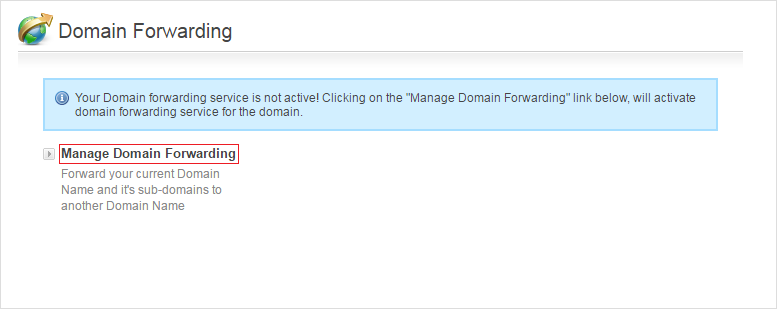
Note: The Domain Forwarding Service gets activated, when you click the Manage Domain Forwarding link for the first time.
Upon doing so a pop-up window shall appear as shown in Figure 4.
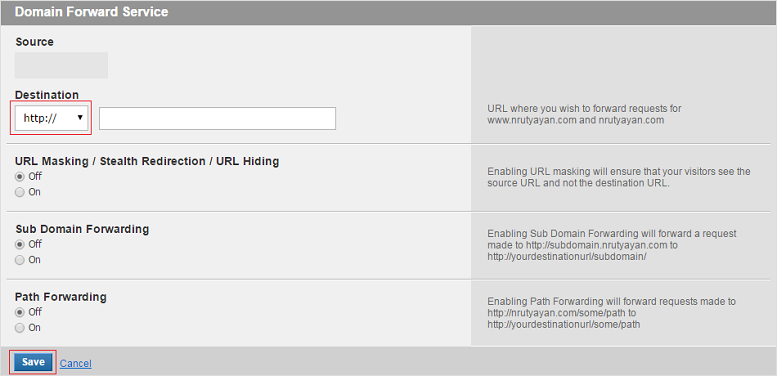
Enter the Destination URL in the text box provided as shown in Figure 4. This may be of the form domain.com, www.domain.com, www.domain.com/index/index.html, subdomain.domain.com etc.
You may also choose http or https protocol from the drop-down menu and then click Save button.
Note: Please note that it may take up to 24 to 48 hours before these changes to take effect.