
News
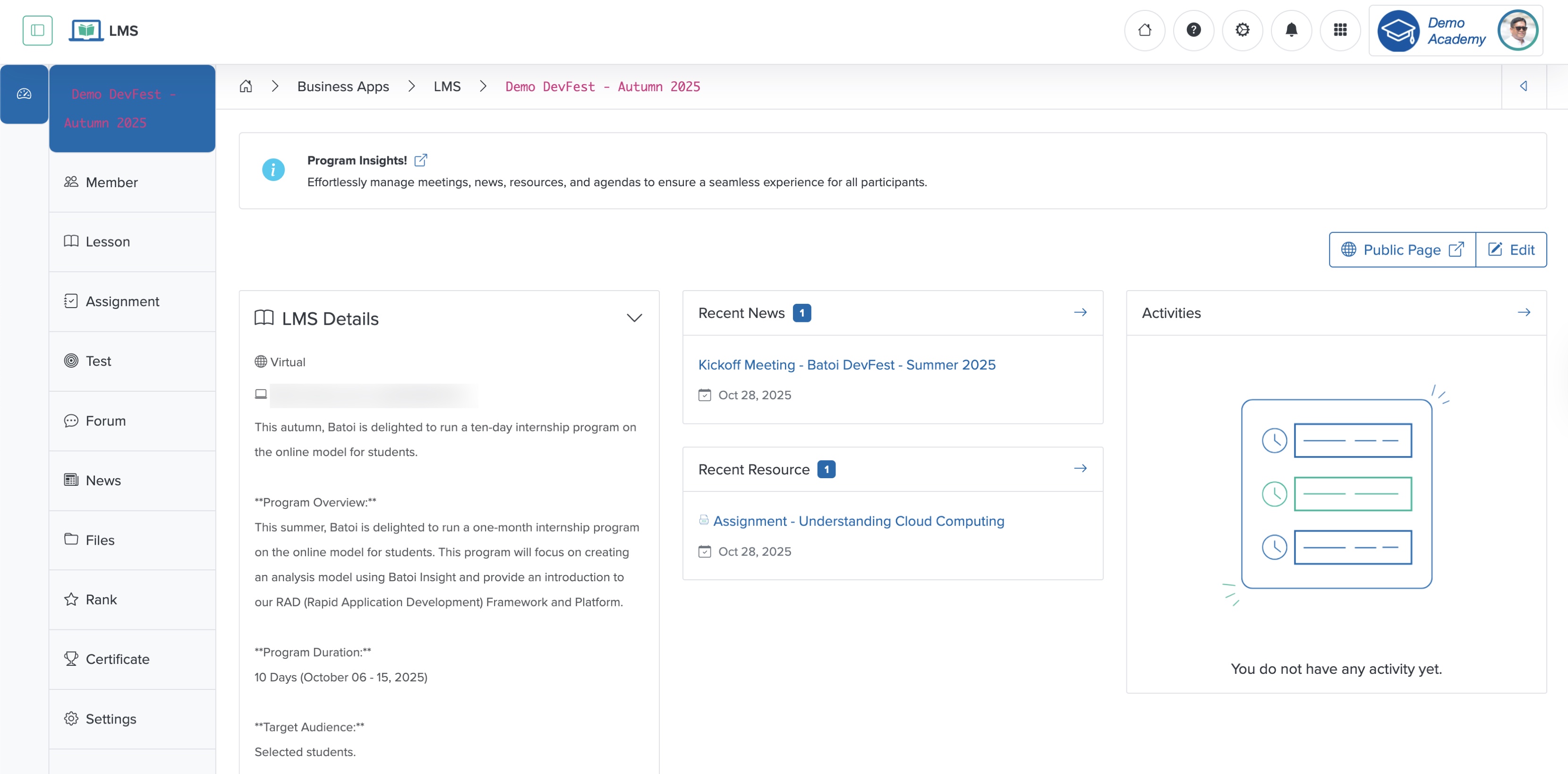
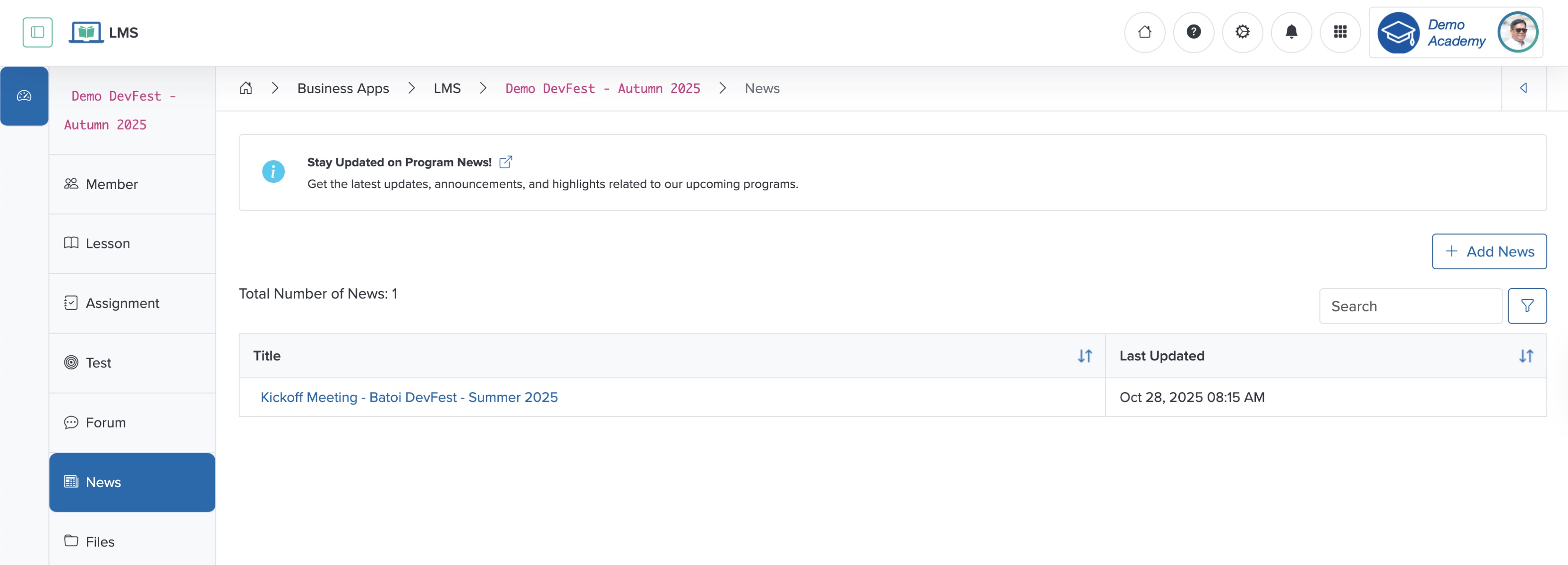
Click the Arrow on the right side of the News card on the program dashboard or from the sidebar, as shown in Figure 1 above, and the system redirects you to the news list screen, where all news related to the program appears in a tabular format, as shown in Figure 2 below.
Add News
Click the + Add News button at the top of the news list page to open the news page, as shown in Figure 3 below.
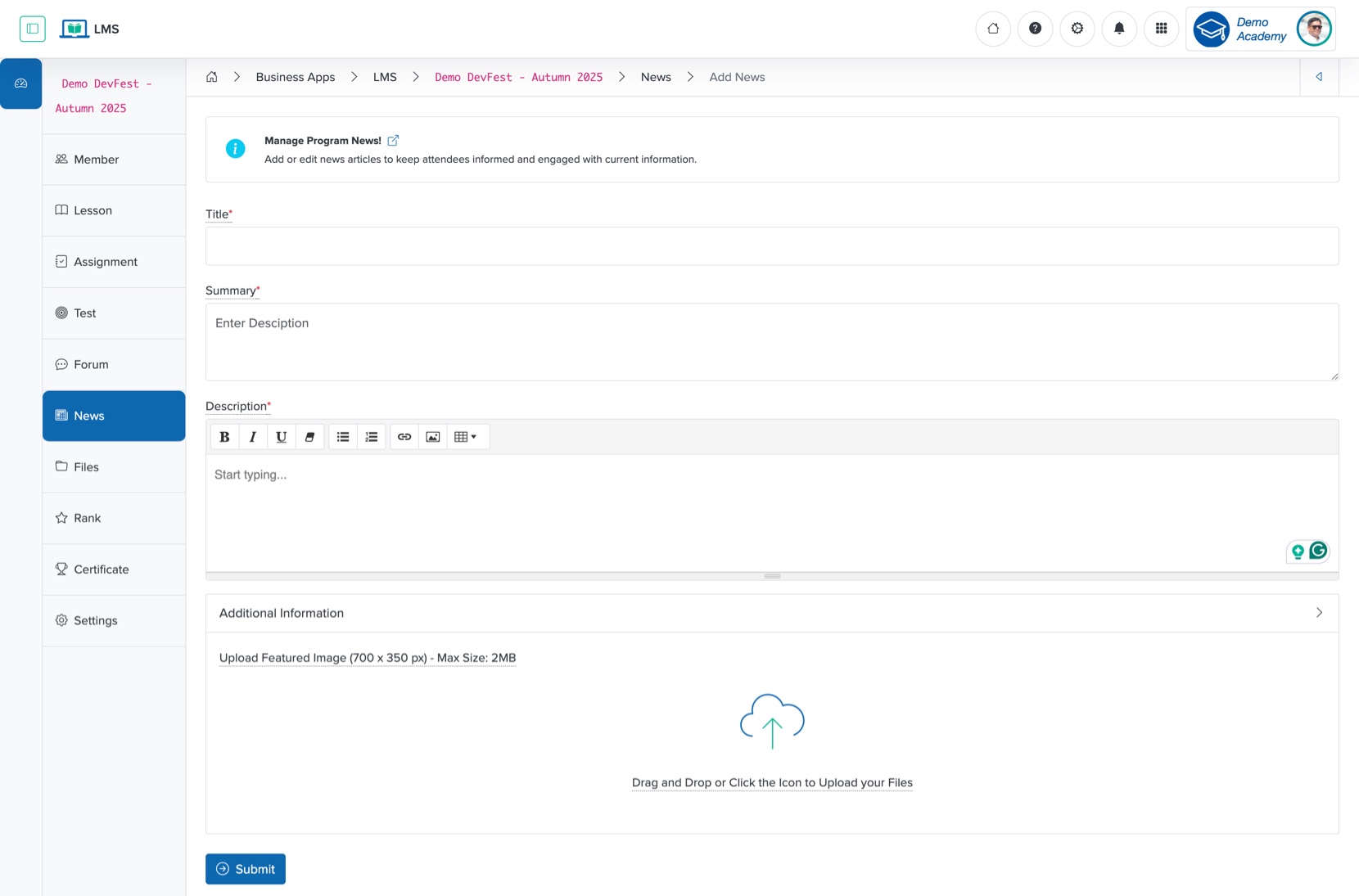
Enter the details below and click the Submit button to create a new news item, as shown in Figure 3 above. You can add the following details:
- Title (Textbox - Mandatory): Enter the Title of the News
- Summary (Textbox - Mandatory): Enter the summary of the News
- Description (Textarea - Mandatory): Enter the description of the News
- Upload (File Upload - Optional): Upload the attachment
View News
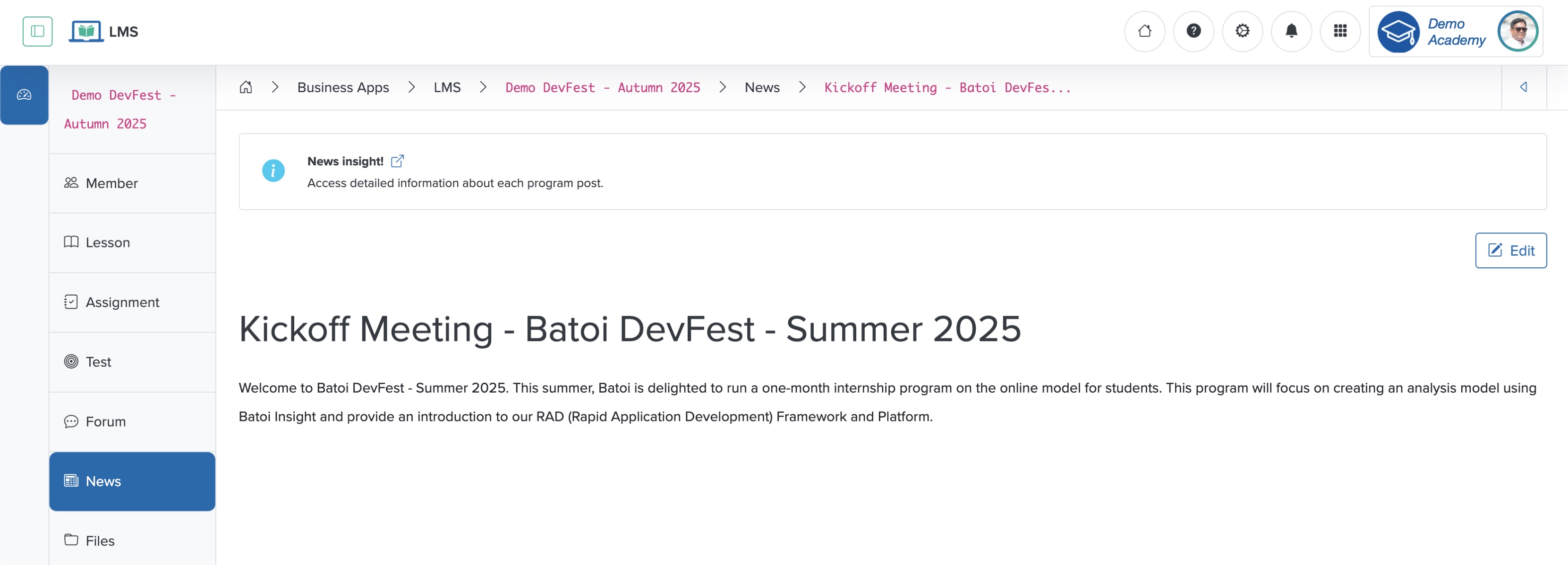
Click the Title of the news in the news list page, as shown in Figure 3 above, and the news detail page opens, as shown in Figure 4 below.
Edit News
Click the Edit button on the top-right side of the news detail screen, as shown in Figure 4 above, and the edit news page opens, as shown in Figure 5 below.
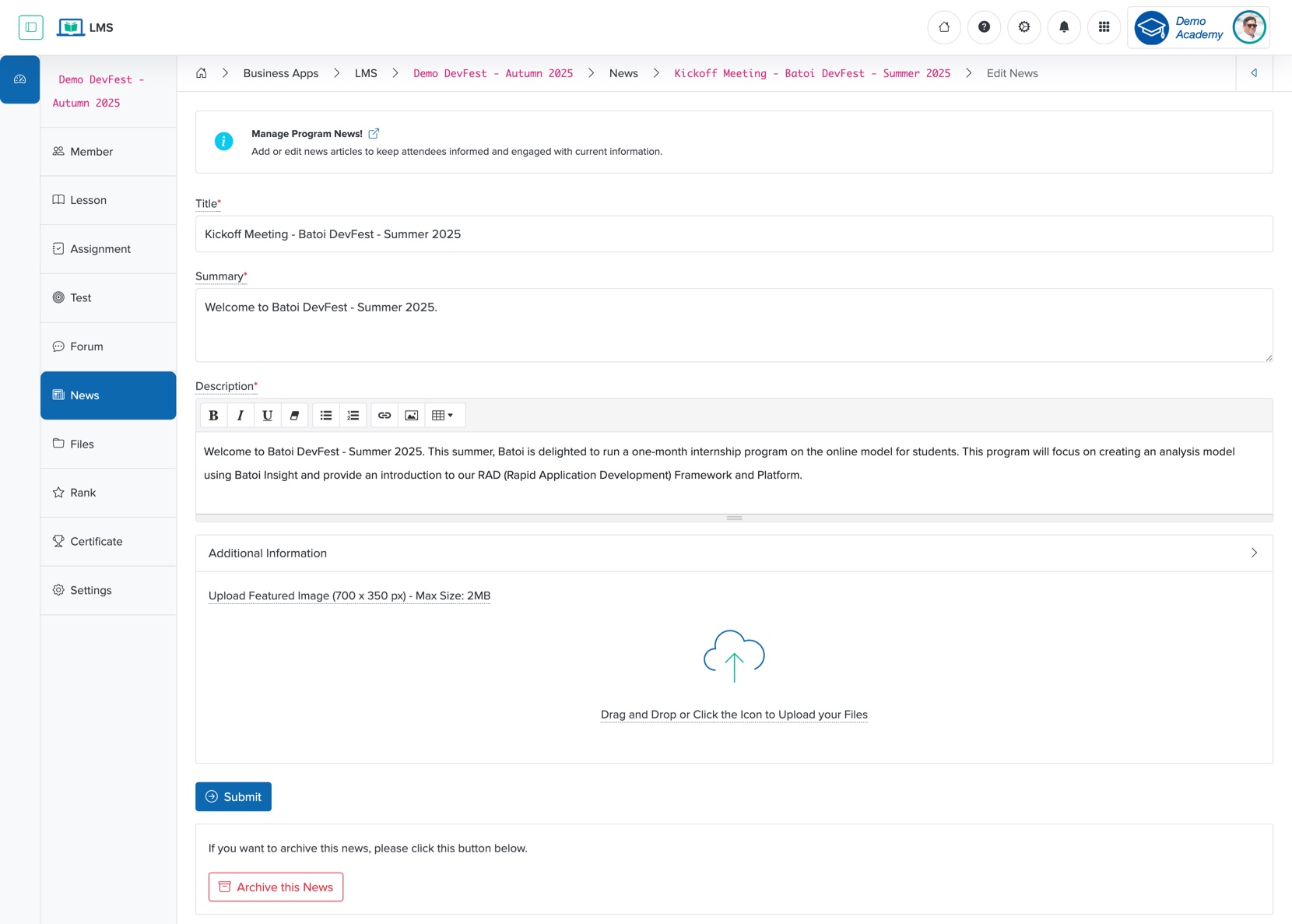
Update the details below and click the Submit button to modify the news, as shown in Figure 5 above.
- Title (Textbox - Mandatory): Update the Title of the News
- Summary (Textbox - Mandatory): Update the summary of the News
- Description (Textarea - Mandatory): Update the description of the News
- Upload (File Upload - Optional): Upload the attachment
To archive the new, click the Archive this News button at the bottom of the edit screen, as shown in Figure 5 above.