
inline-codeCode goes here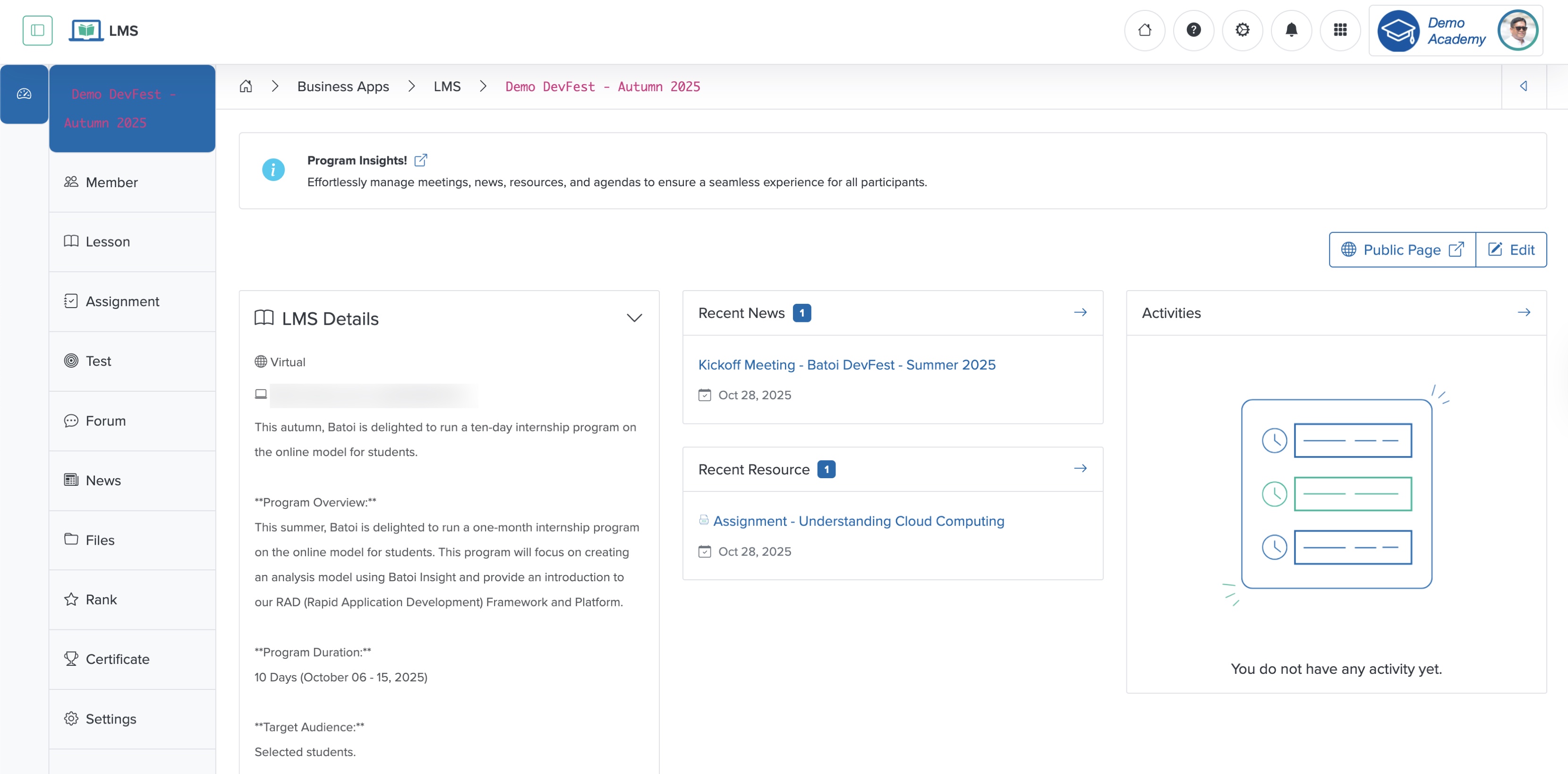
Settings
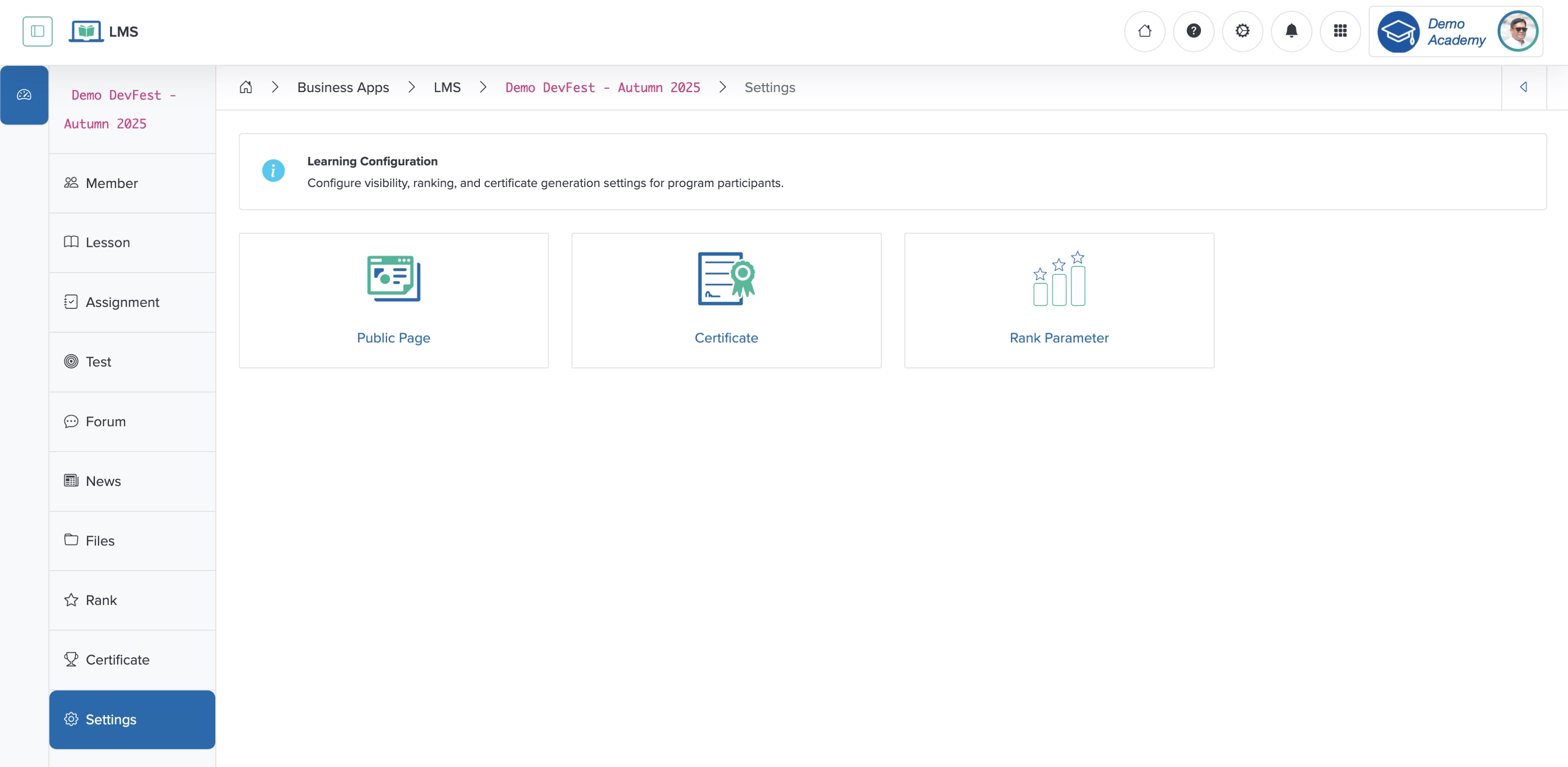
Click the Settings menu from the sidebar, as shown in Figure 1 above, and three options appear, as shown in Figure 2 below.
- Public Page
- Certificate
- Rank Parameter
Public Page Setting
Click the Public Page card from the settings page, as shown in Figure 2 above, and the public page setting appears, as shown in Figure 3 below.
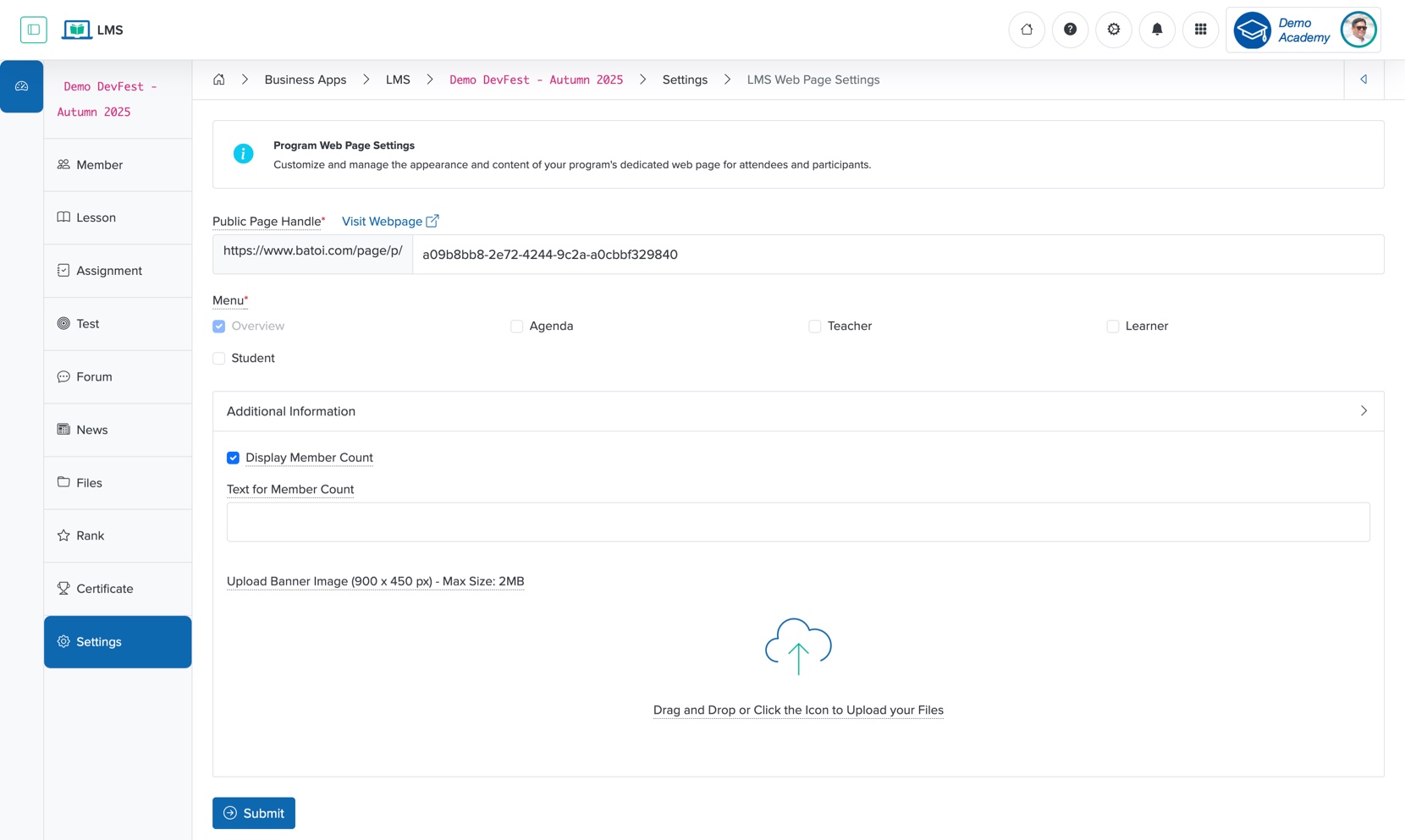
You can set the following details:
- Public Page Handle: To set the desired public page URL
- Menu: Select the menu that will be visible on the public page (you can select a maximum of 3 options)
- Display Member Count: Show the number of participants attending the learning program
- Upload Banner Image: Customize the public page banner image
Set the details and click the Submit button to update the public page setting, as shown in Figure 3 above.
Certificate Setting
Click the Certificate card from the settings page, as shown in Figure 3 above, and the certificate setting appears, as shown in Figure 4 below.
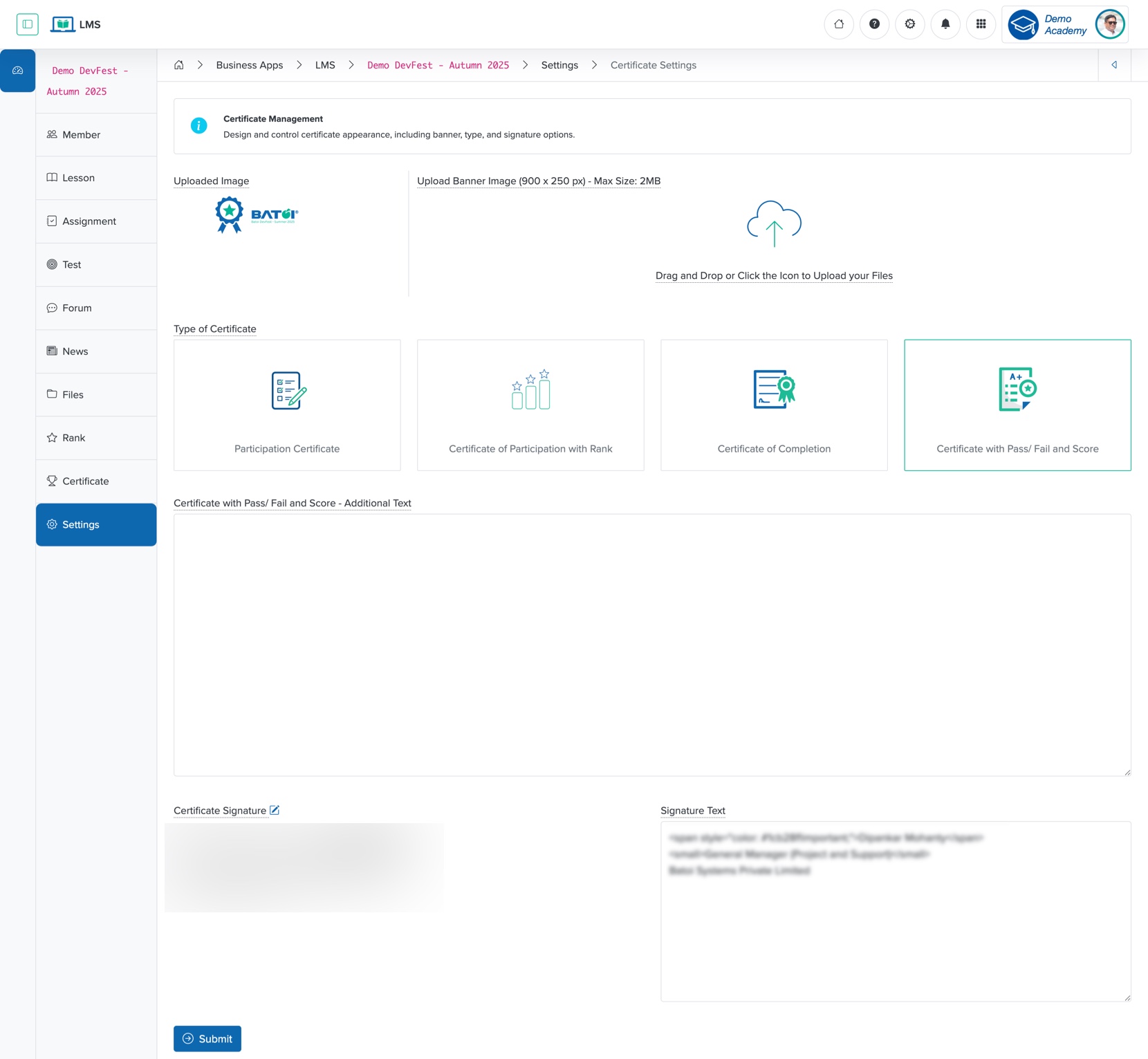
You can set the following details:
- Upload Banner Image: Customize the certificate banner image
- Type of Certificate: Select one option: ‘Participation Certificate’, ‘Certificate of Participation with Rank’, ‘Certificate of Completion’, or ‘Certificate with Pass/Fail with Score’
- Additional Text: Add your custom text to be displayed in the certificate
- Certificate Signature: Upload or draw the signature of the certificate authority
- Signature Text: Name and Designation of the certificate authority
Set the details and click the Submit button to update the certificate setting, as shown in Figure 4 above.
Rank Parameter Setting
Click the Rank Parameter card from the settings page, as shown in Figure 2 above, and the rank parameter setting appears, as shown in Figure 5 below.
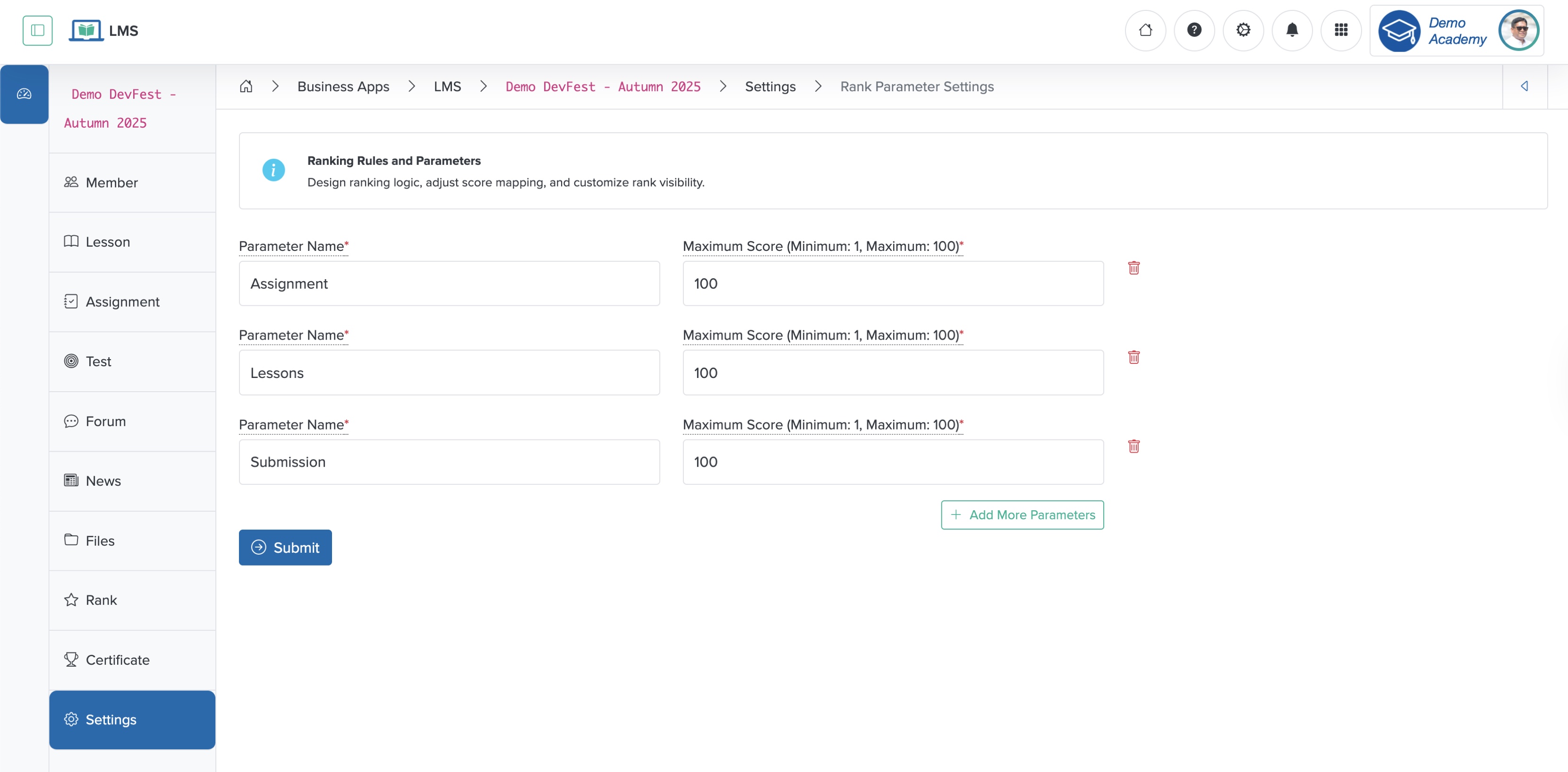
You can set the following details:
- Parameter Name: Define the rank parameter
- Maximum Score (Minimum: 1, Maximum: 100): Set the score
- Add More Parameters: Add a new set of parameters
Set the details and click the Submit button to update the rank parameter setting, as shown in Figure 5 above.