
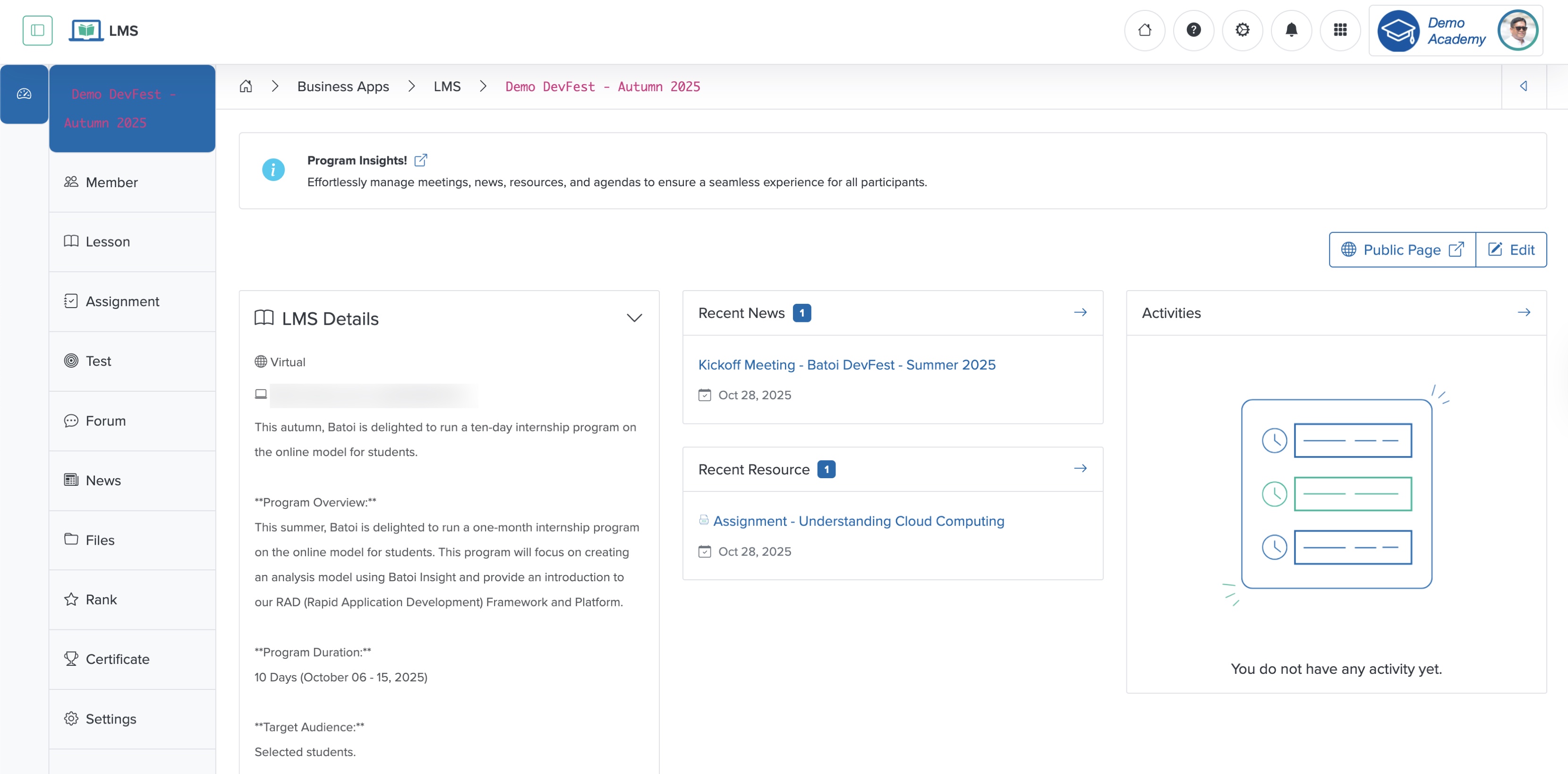
Forum
Click the Forum card on the Course dashboard or from the sidebar, as shown in Figure 1 above, and the system redirects you to the forum list screen, where all forum threads added to the program appear in a tabular format, as shown in Figure 2 below.

Add Forum
Click the + Add Thread button at the top of the forum list page, and the Add new forum thread page appears, as shown in Figure 3 below.
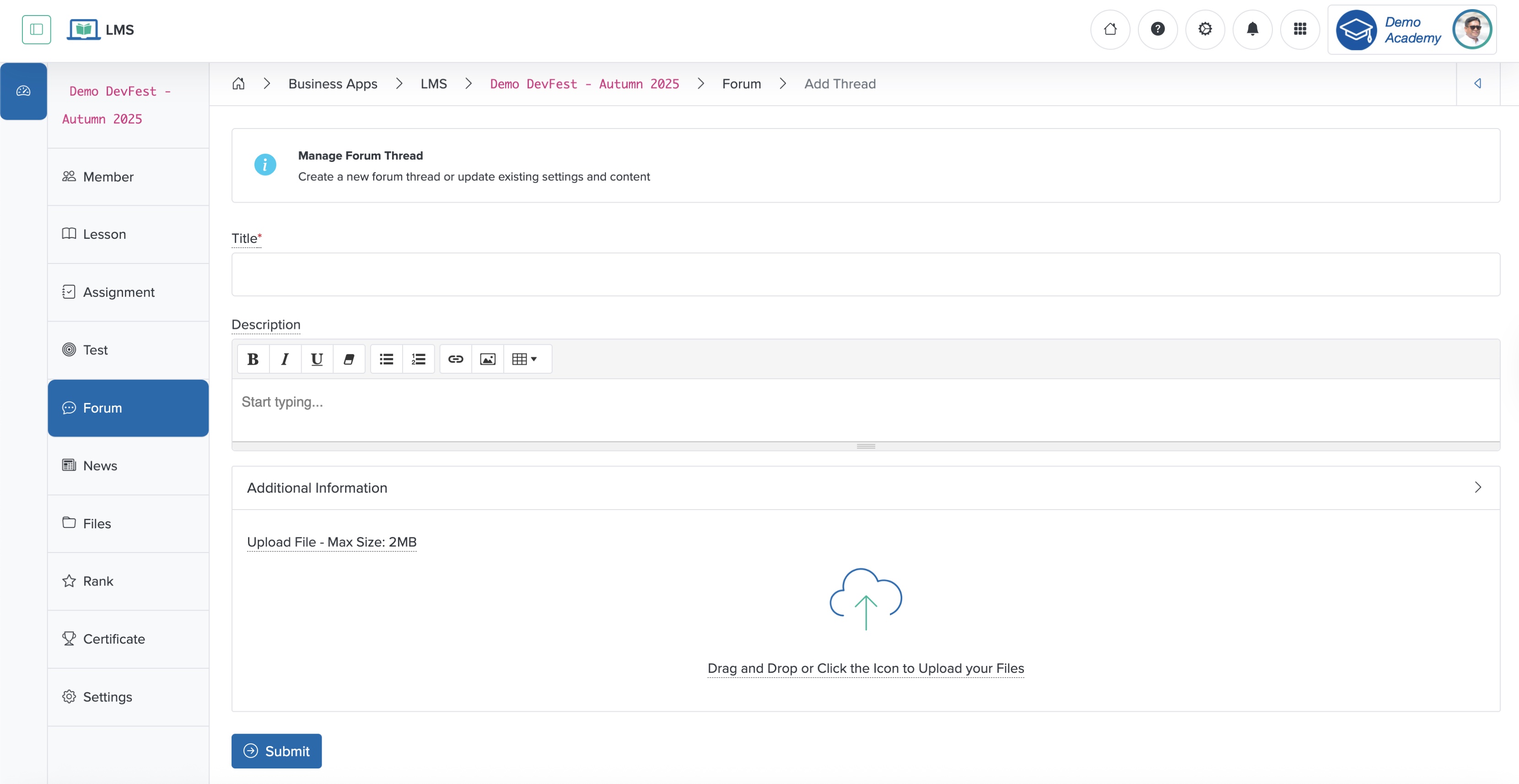
Enter the details below and click the Submit button to create a new forum thread item, as shown in Figure 3 above. You can add the following details:
- Title (Textbox - Mandatory): Enter the Title of the forum thread
- Description (Textarea - Mandatory): Enter the description of the forum thread
- Upload (File Upload - Optional): Upload the attachment
View Forum
Click the View icon associated with each forum row in the forum list page, and the forum thread detail page opens, as shown in Figure 4 below.
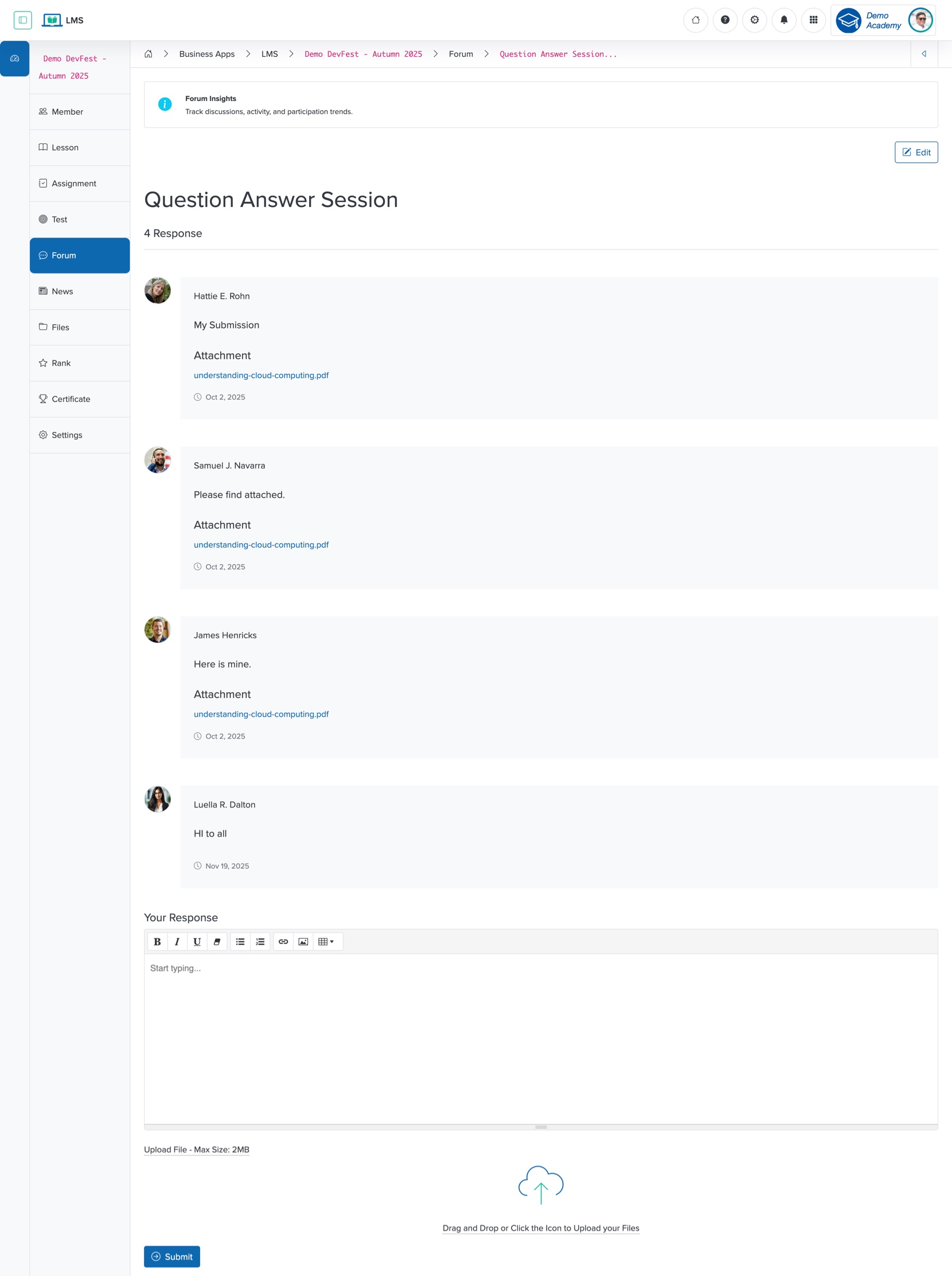
You can see the title, description, and the file attachment (if any) on the top section of the forum view page, as shown in Figure 4 above. The middle section shows the comment added under the forum, and the bottom section shows the ‘Your Response’ text editor and the option to upload any file, as shown in Figure 4 above.
Add a Response to the Forum Thread
Add the response and click the Submit button to the forum by entering the comment and uploading the related file (if any) on the ‘Your Response’ text editor and file upload section, as shown in Figure 4 above.
Edit Forum
Click the Edit button on the top right side of the forum thread details screen, as shown in Figure 4 above, and the edit forum thread page opens, as shown in Figure 5 below.
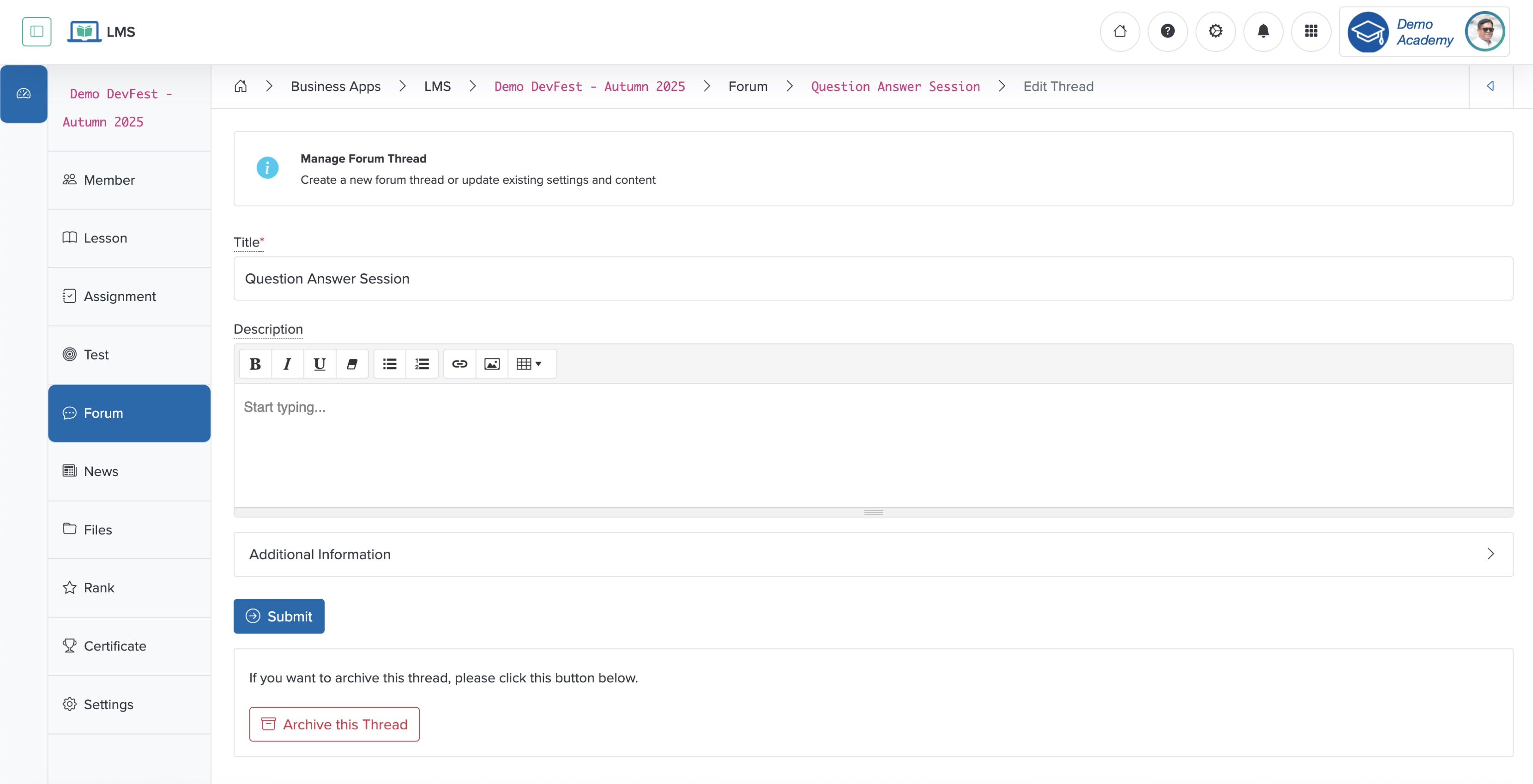
Edit the details and click the Submit button to update the forum thread, as shown in Figure 5 above:
- Title (Textbox - Mandatory): Update the Title of the forum thread
- Description (Textarea - Mandatory): Update the description of the forum thread
- Upload (File Upload - Optional): Upload the attachment
To archive the forum, click the Archive this Forum button at the bottom of the Edit screen, as shown in Figure 5 above.