
Rank
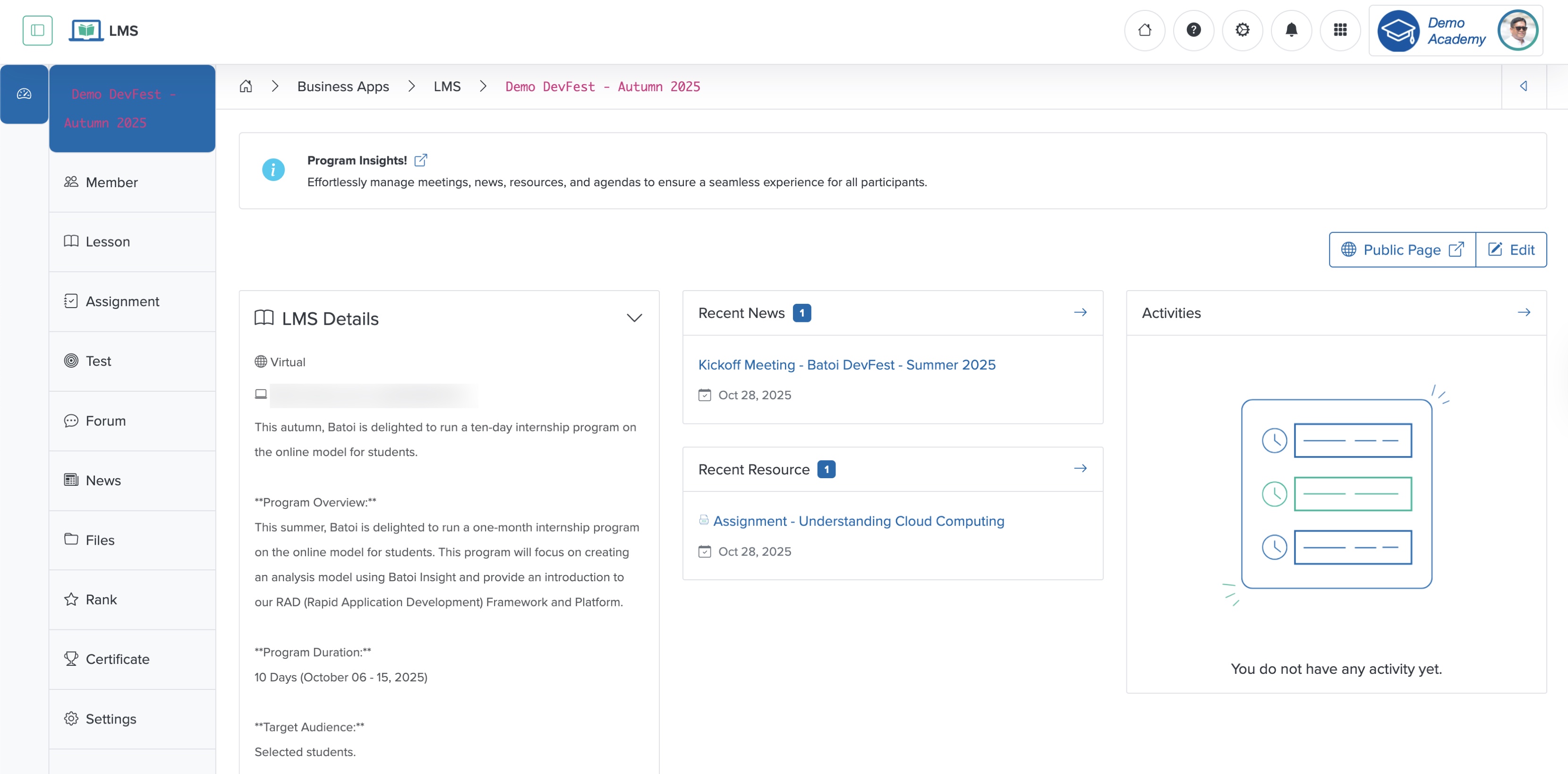
Click the Rank menu from the sidebar, as shown in Figure 1 above, and the rank page appears, as shown in Figure 2 below.
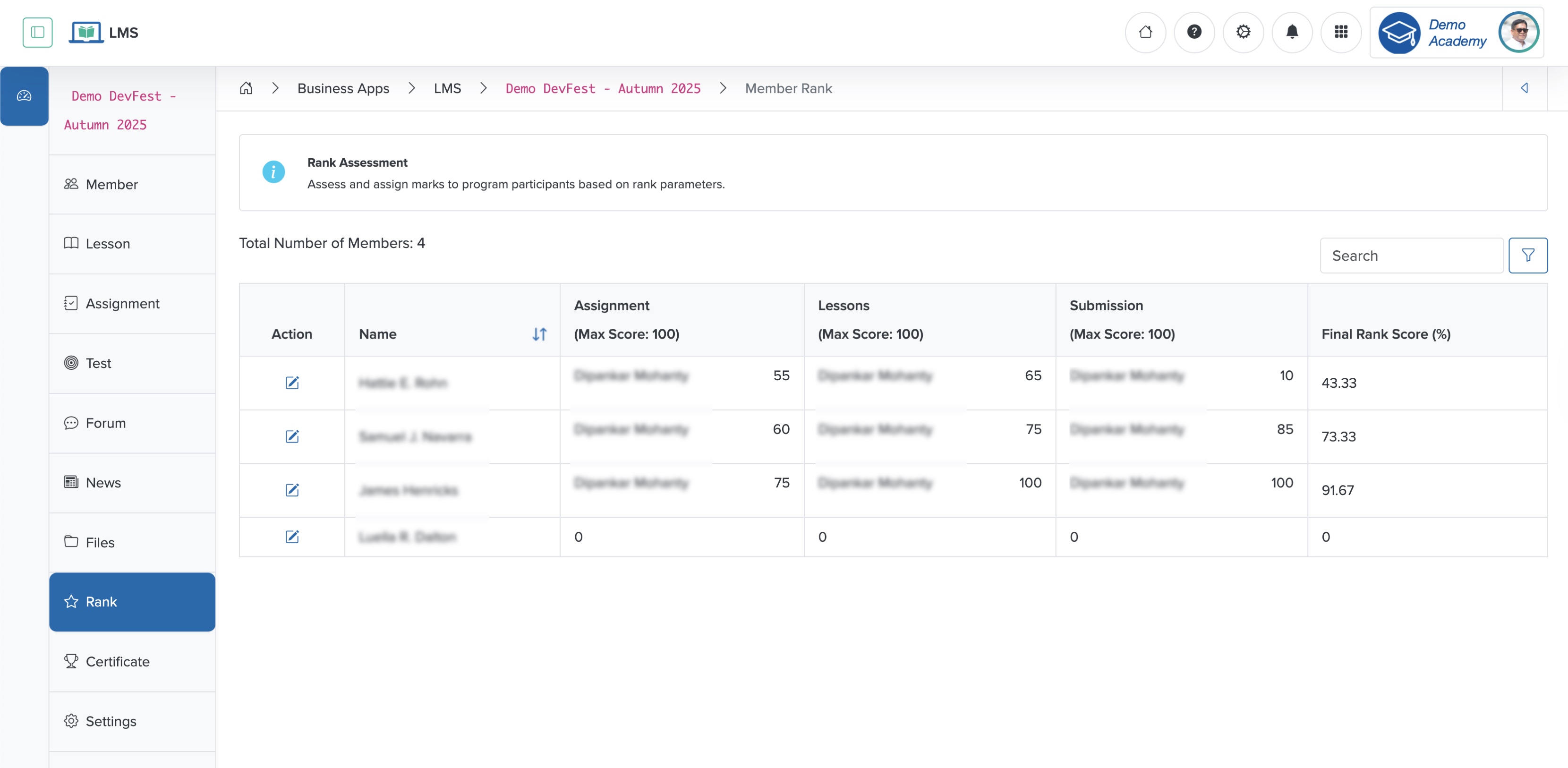
In the rank page, you can see all the participants listed in a tabular format, as shown in Figure 2 above. The system calculates each participant's final rank based on the marks they received against the assignment, lesson, and submission. Click the edit button associated with each participant to update the mark, as shown in Figure 2 above, and the system opens the mark edit page, as shown in Figure 3 below.
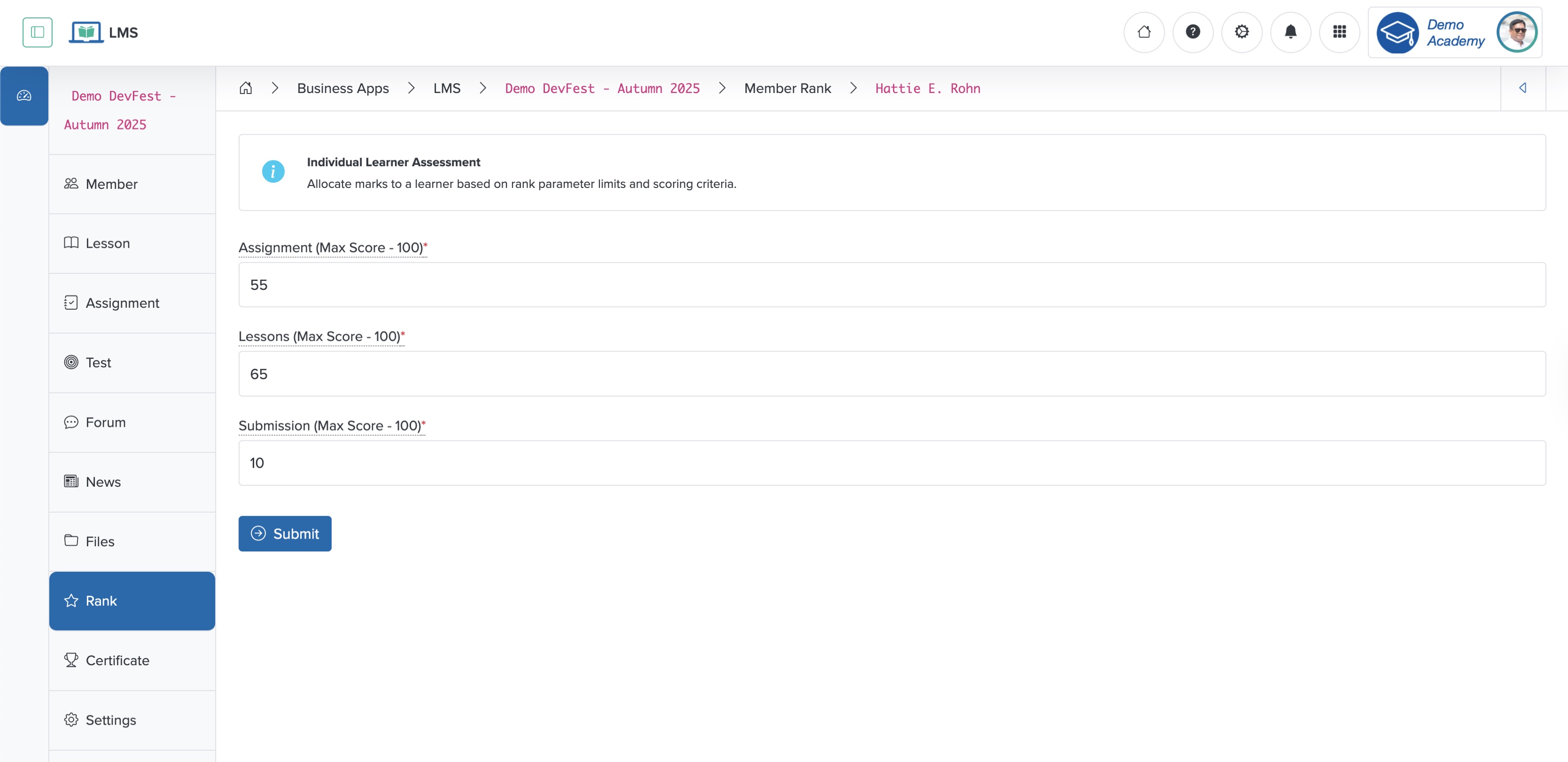
Update the mark details and click the Submit button, as shown in Figure 3 above, to update the rank.