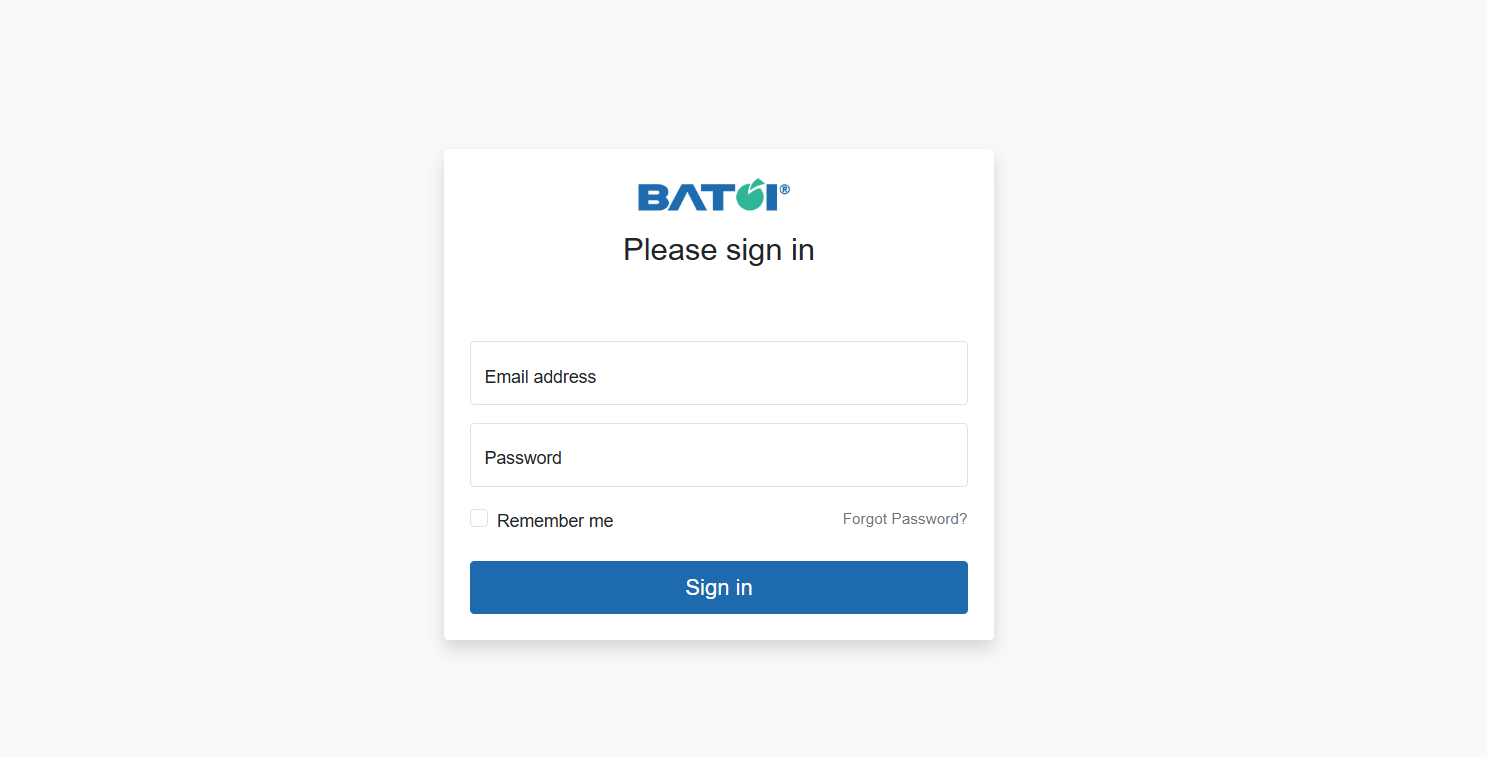
Apply to the Batoi Partner Program
Use the link https://www.batoi.com/partners/join to apply for the partnership, as shown in Figure 1 below.
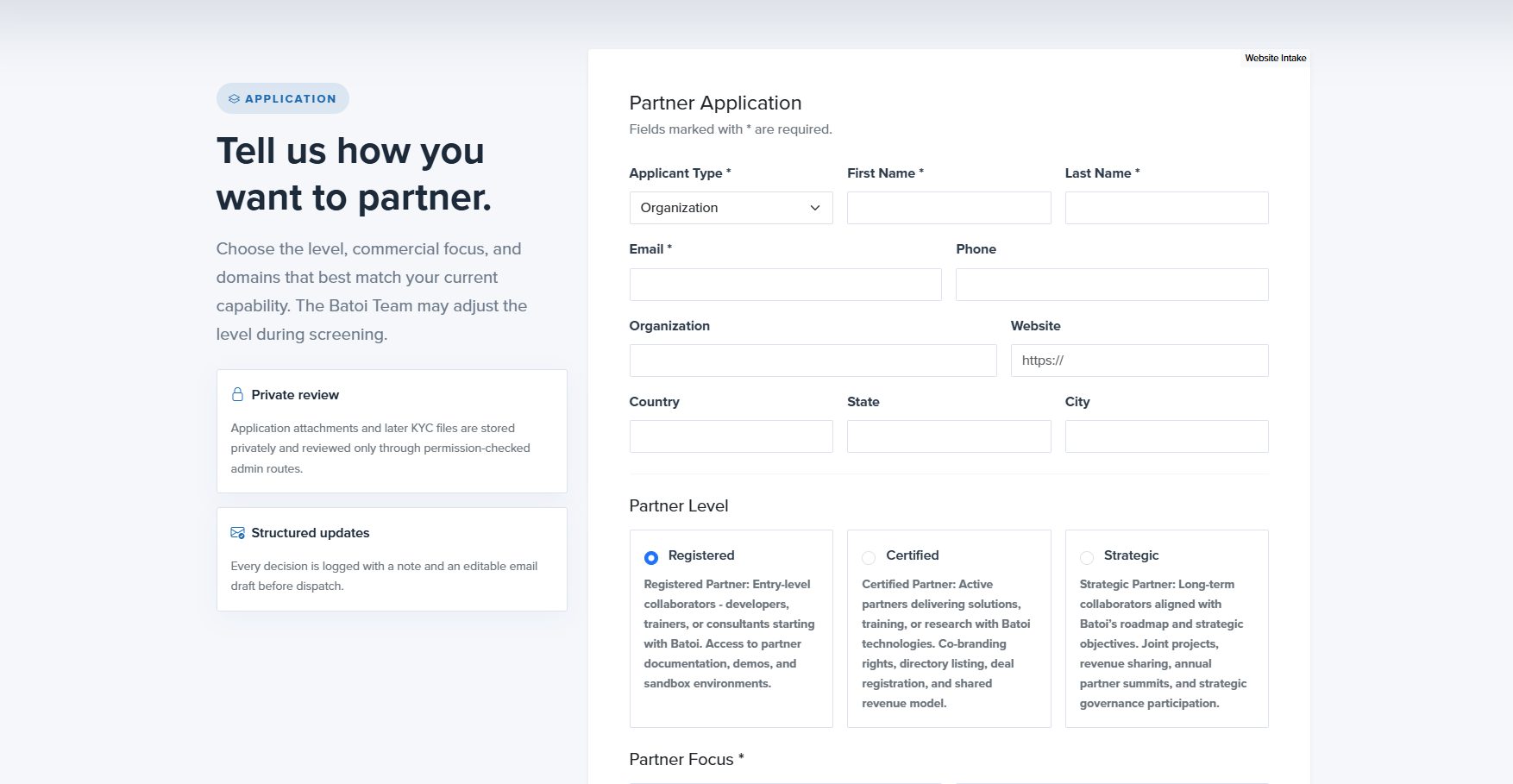
Fill in the details in the Partner Application form and click the Submit Application button to submit your application.
You will also receive an application submission confirmation email at your registered email address, as shown in Figure 2 below.
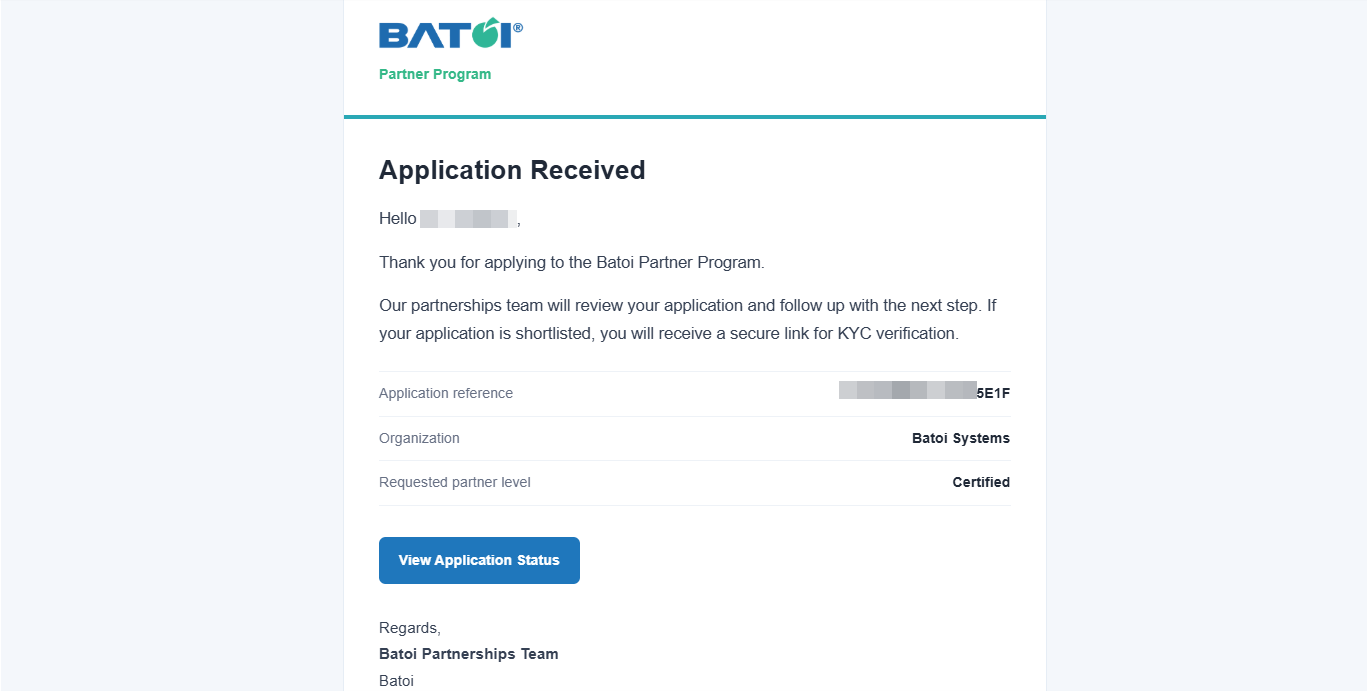
Click the View Application Status button from the email, as shown in Figure 2 above, and you will be redirected to the Application Status page, as shown in Figure 3 below, where you can see all the status updates related to your application.
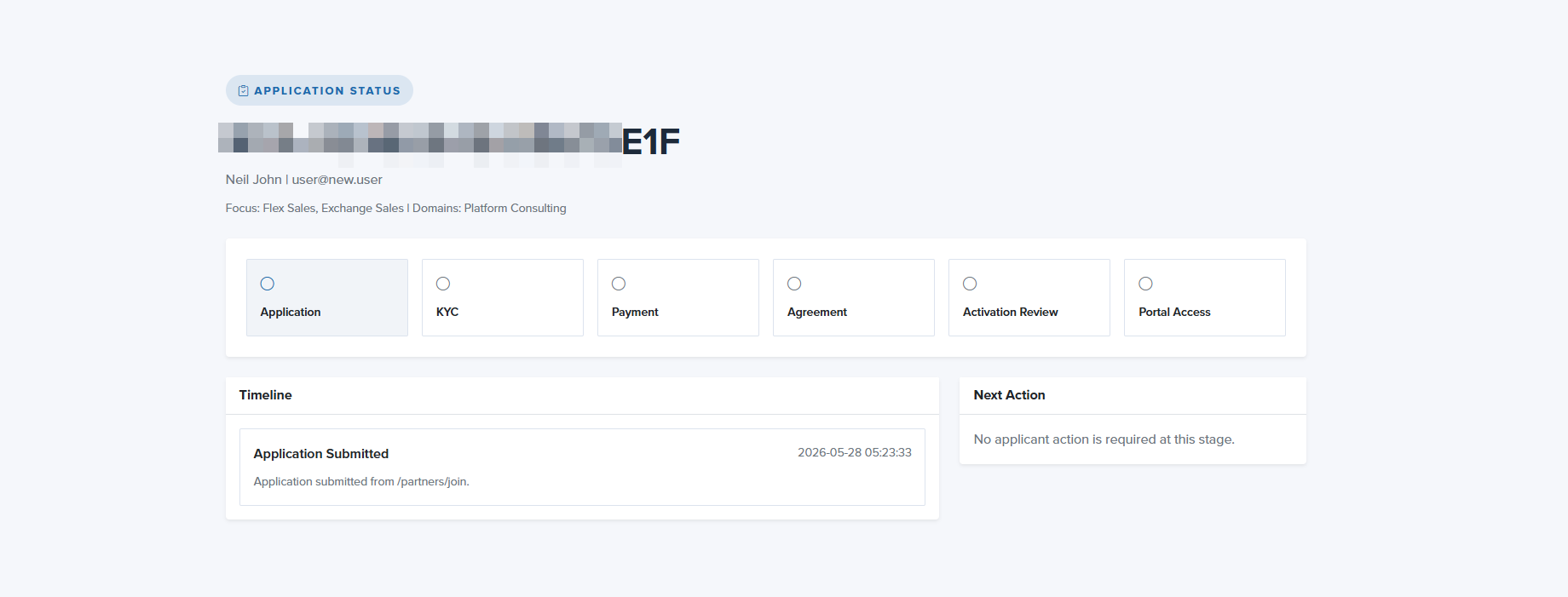
Batoi Team will review your application, and if it is shortlisted, you will receive a link to complete the KYC verification process.
KYC Verification Process
You will receive an email at your registered email address on the Batoi Partner Application Update after the completion of the screening process, as shown in Figure 4 below.
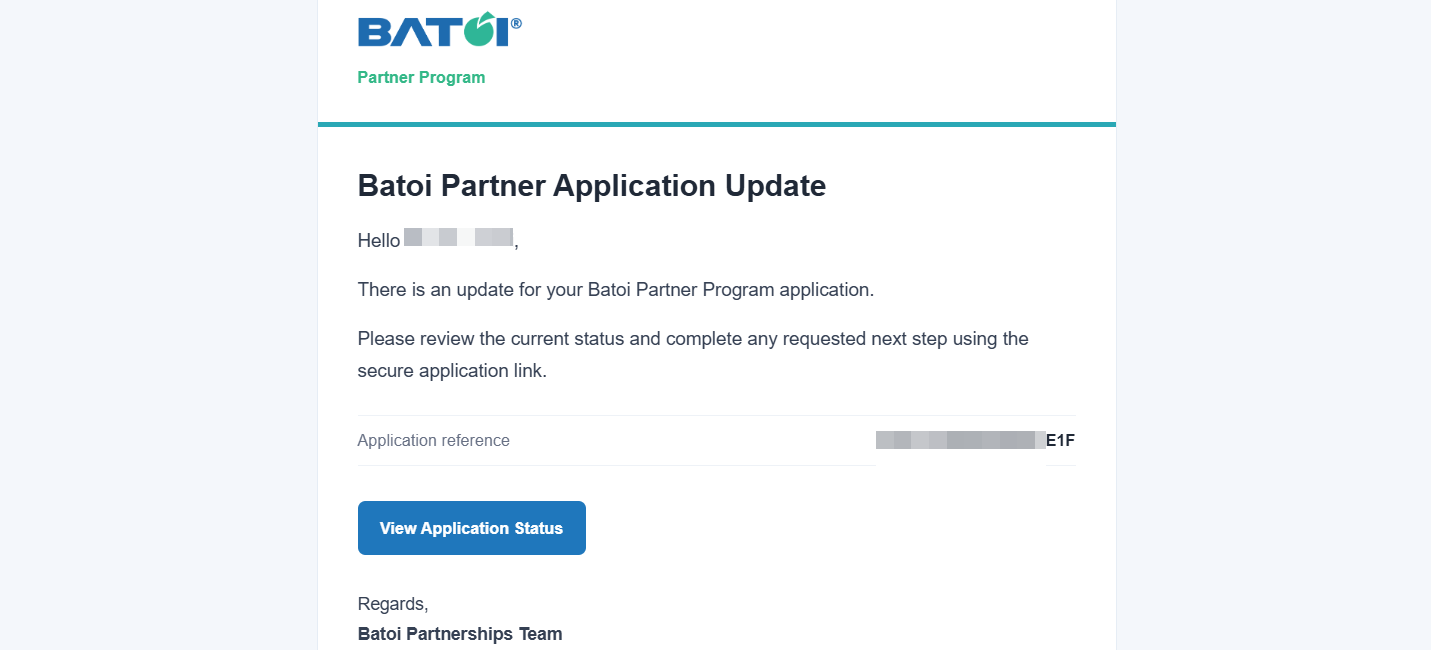
Click the View Application Status button in the email, as shown in Figure 4 above. You will be redirected to the Application Status page, as shown in Figure 5 below, where you can review the current status and complete the next steps using the link provided.
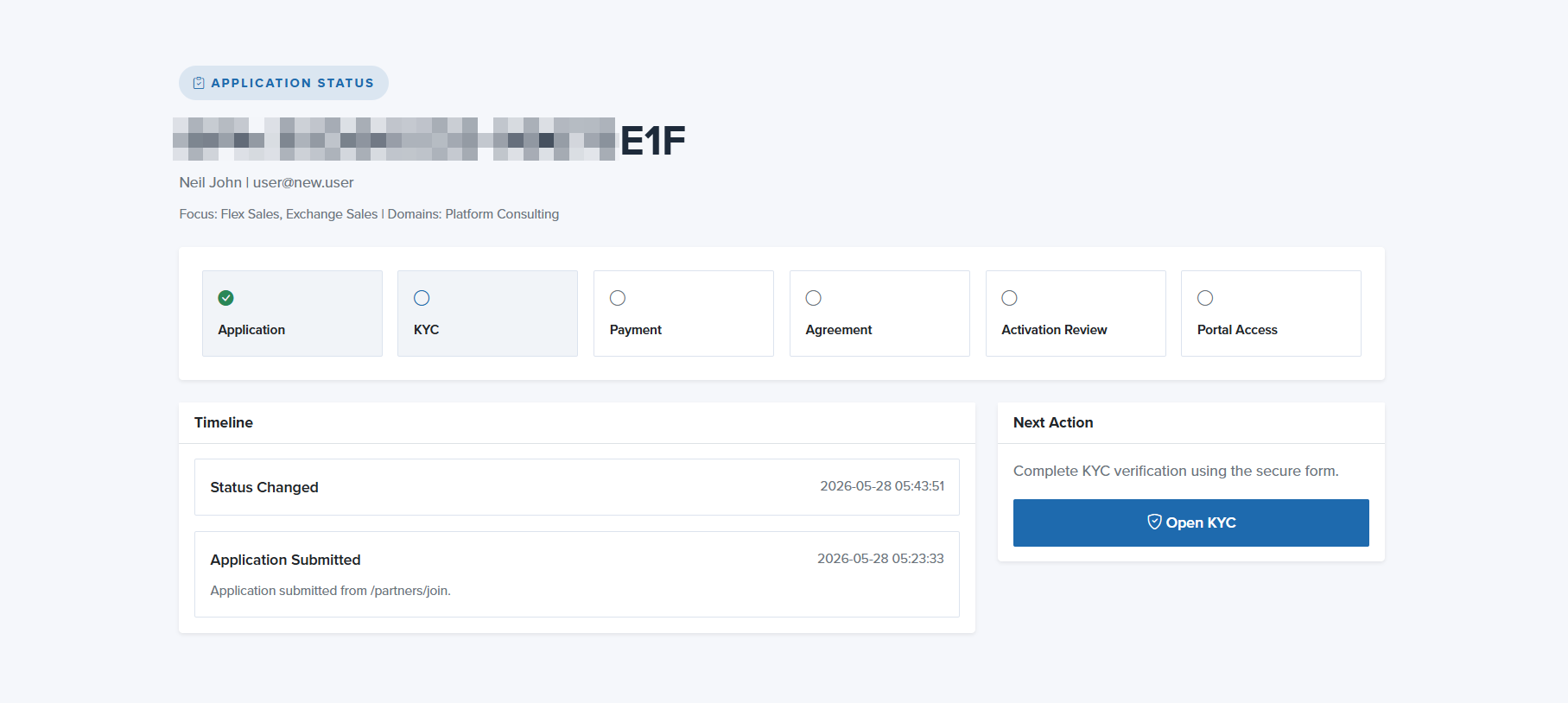
On the Application Status page, click the Open KYC button, as shown in Figure 5 above, and you will be redirected to the Secure Partner Verification form page, as shown in Figure 6 below.
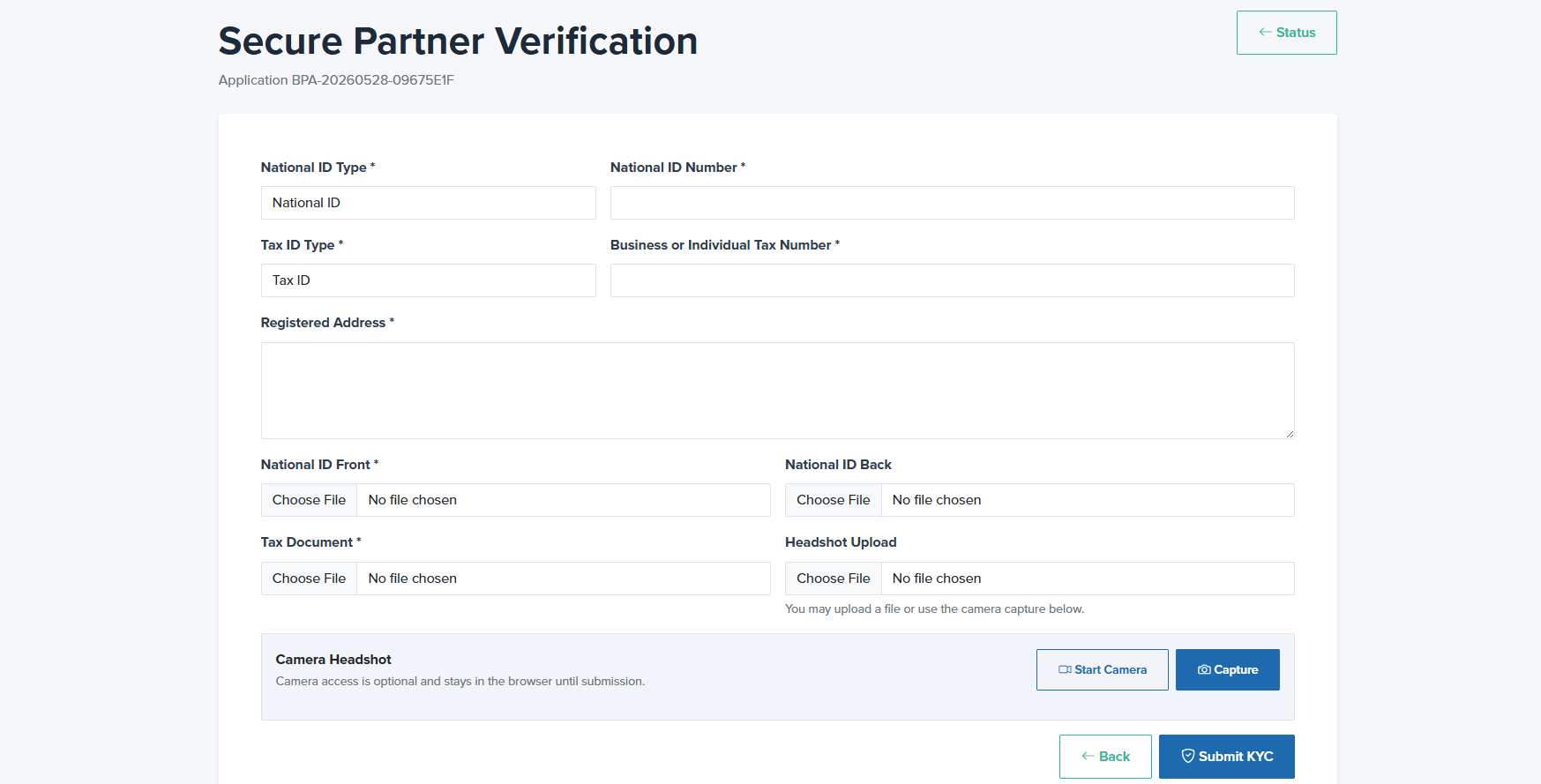
Fill in the details in the Secure Partner Verification form and click the Submit KYC button to submit your details for the KYC Verification, as shown in Figure 6 above
You will also receive a KYC submission confirmation email at your registered email address, as shown in Figure 7 below
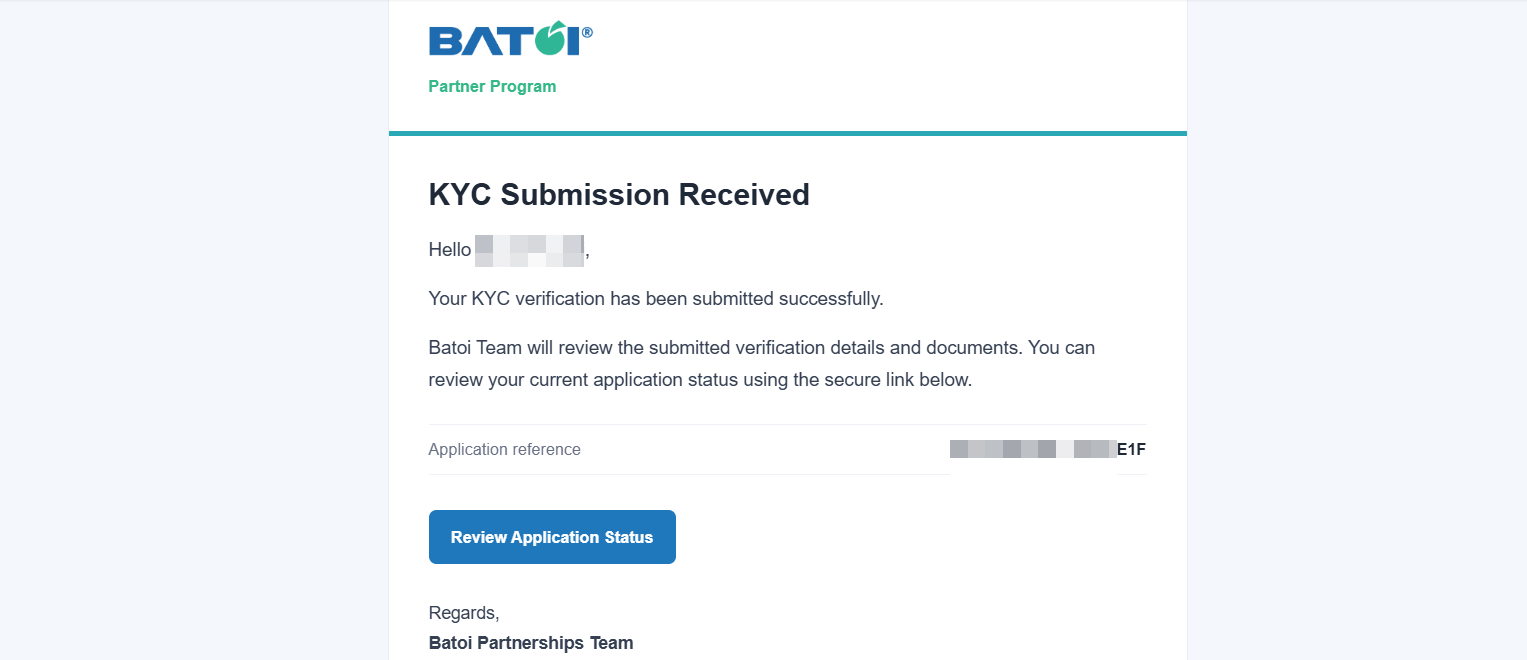
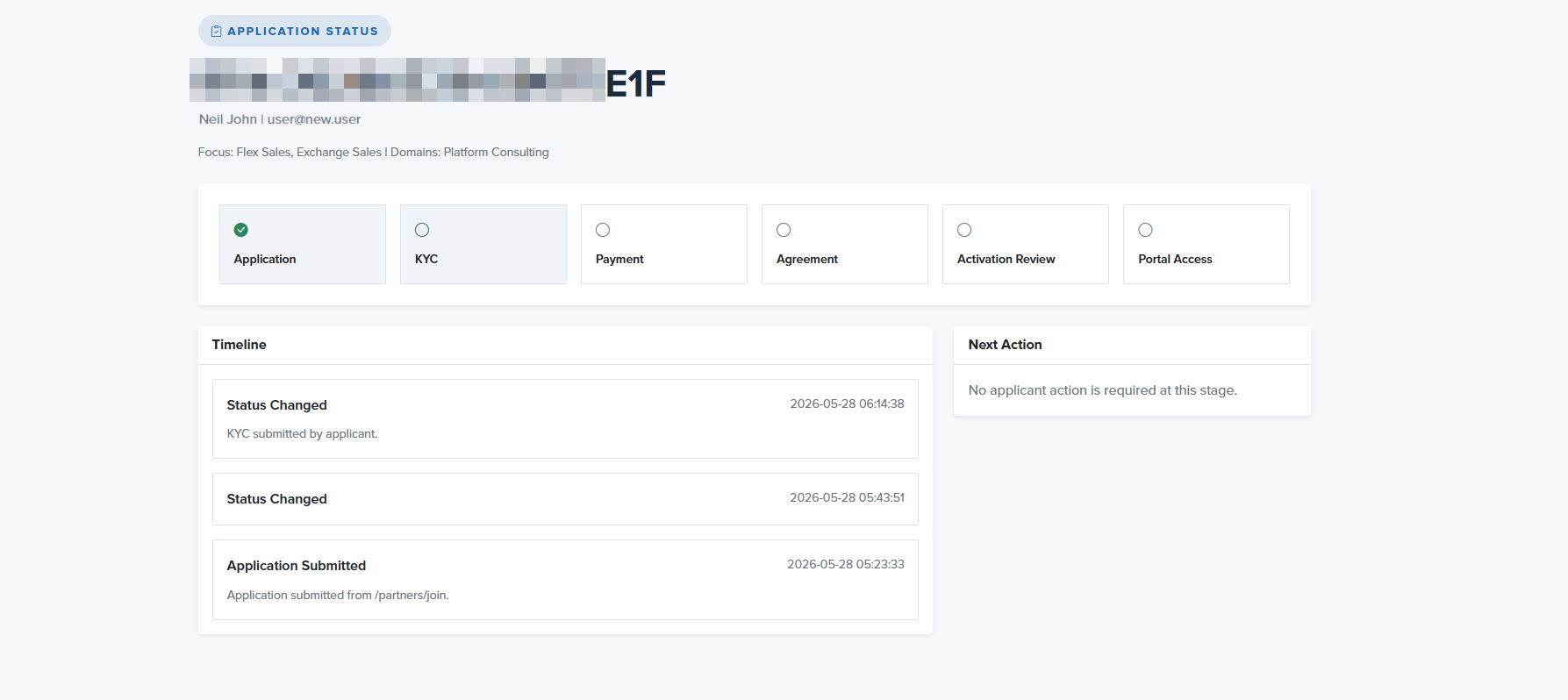
If you click the Review Application Status button from the email, as shown in Figure 7 above, you will be redirected to the Application Status page, as shown in Figure 8 below, where you can see all the updates related to your submission.
The Batoi Team will then review your submitted verification details and documents.
After the Batoi Team approves your KYC details, you will receive a KYC Verification Approval confirmation email at your registered email address, as shown in Figure 9 below.
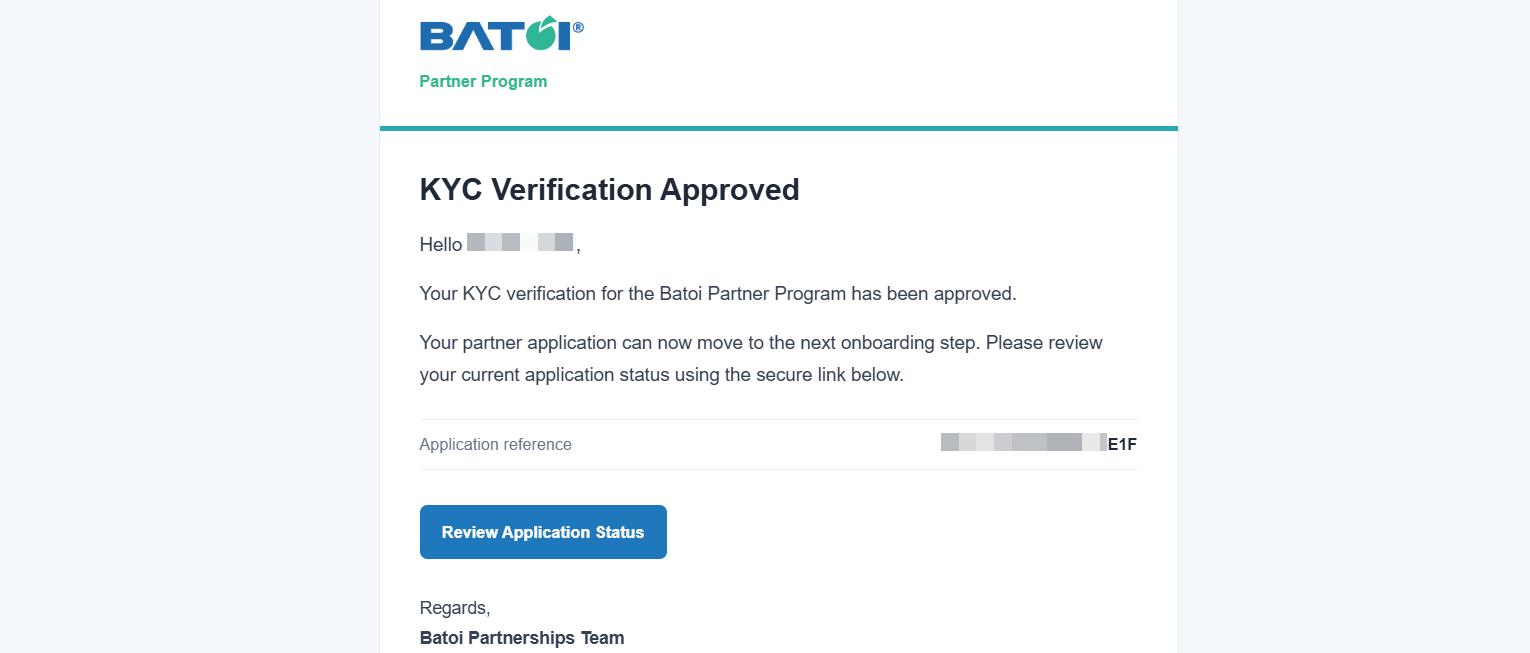
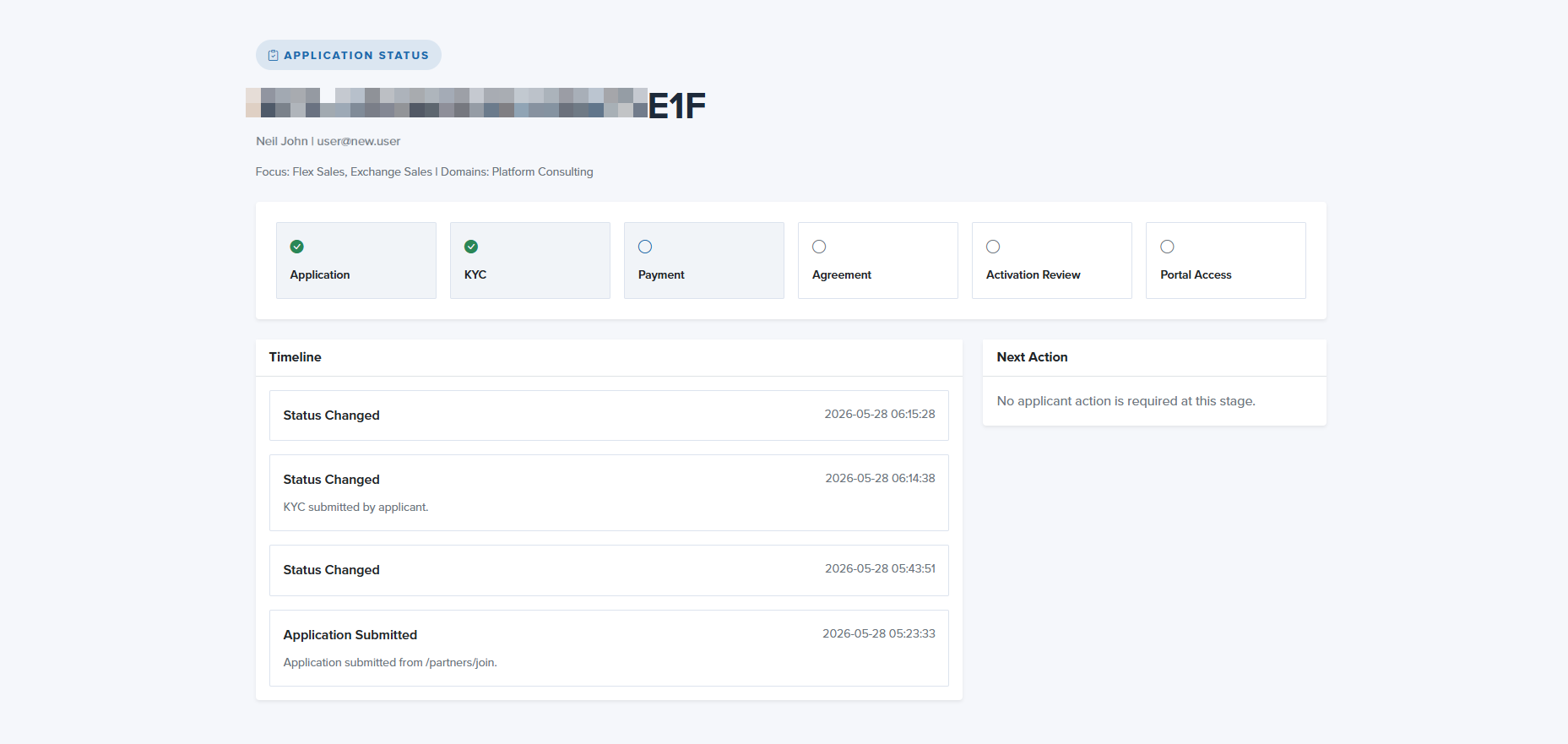
If you click the Review Application Status button from the email, as shown in Figure 9 above, you will be redirected to the Application Status page, as shown in Figure 10 below, where you can see all the updates.
Payment Process
After the completion of the KYC Verification process by the Batoi Team, you will receive an email at your registered email address on the Payment request for Batoi Partner application, as shown in Figure 11 below.
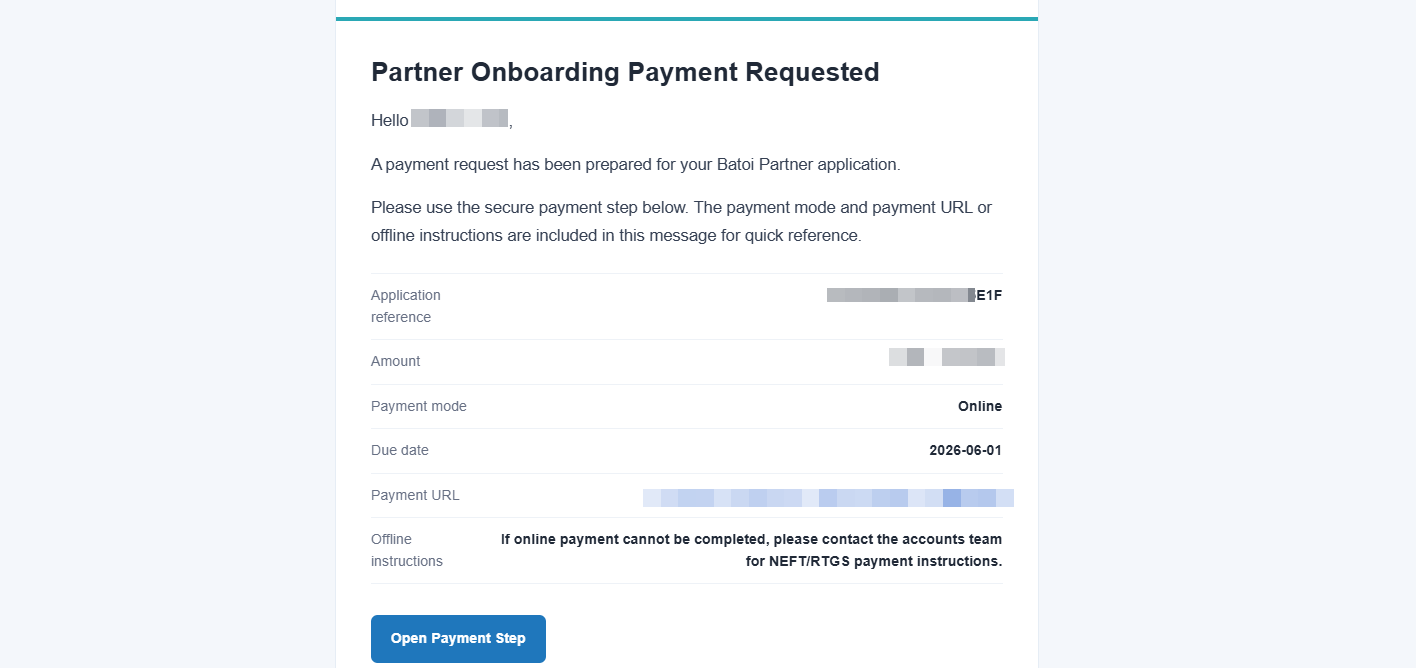
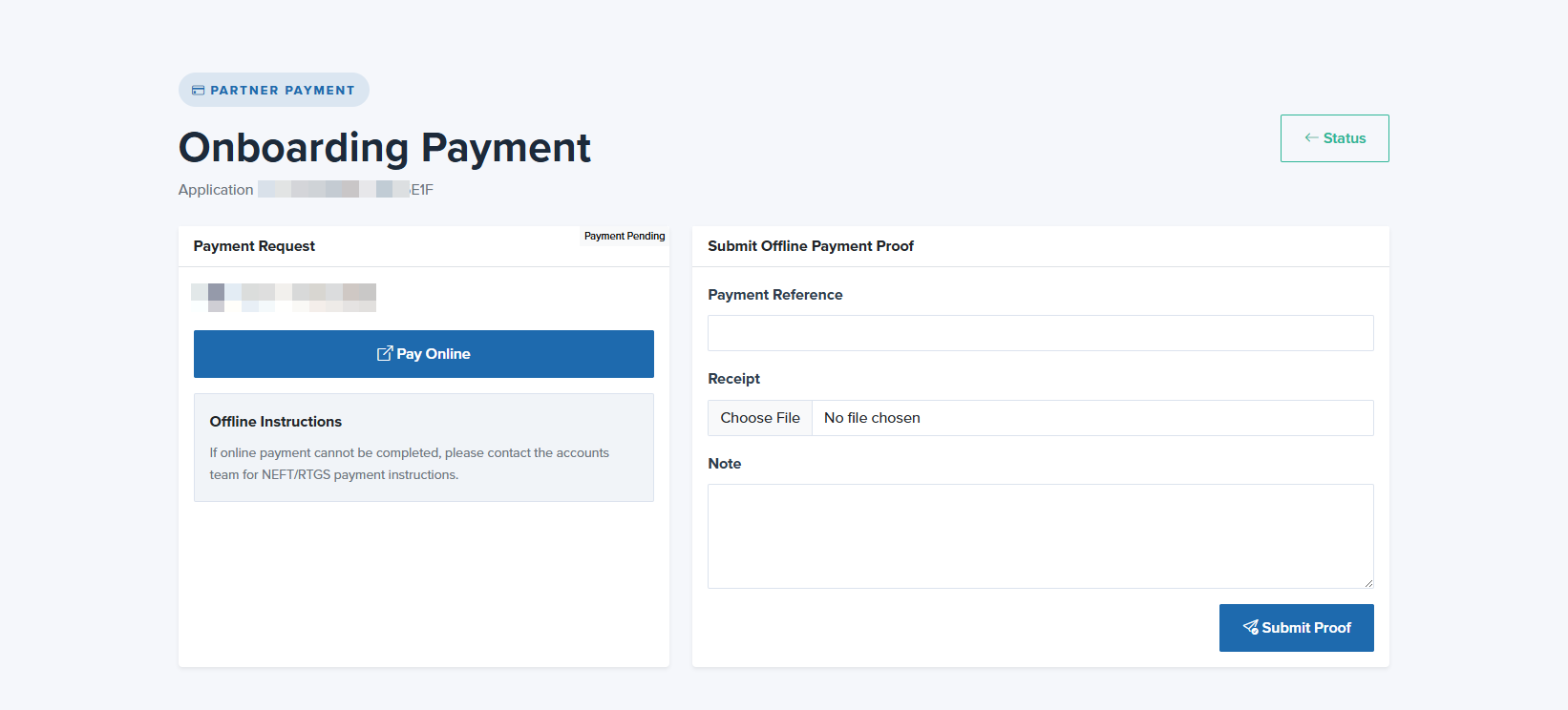
Click the Open Payment Step button in the email, as shown in Figure 11 above, to proceed with the payment process. You can Pay Online or submit the Offline Payment Proof, as shown in Figure 12 below.
The Batoi Team will verify the payment received, and once approved, you will receive an email at your registered email address regarding the Payment Confirmation, as shown in Figure 13 below.
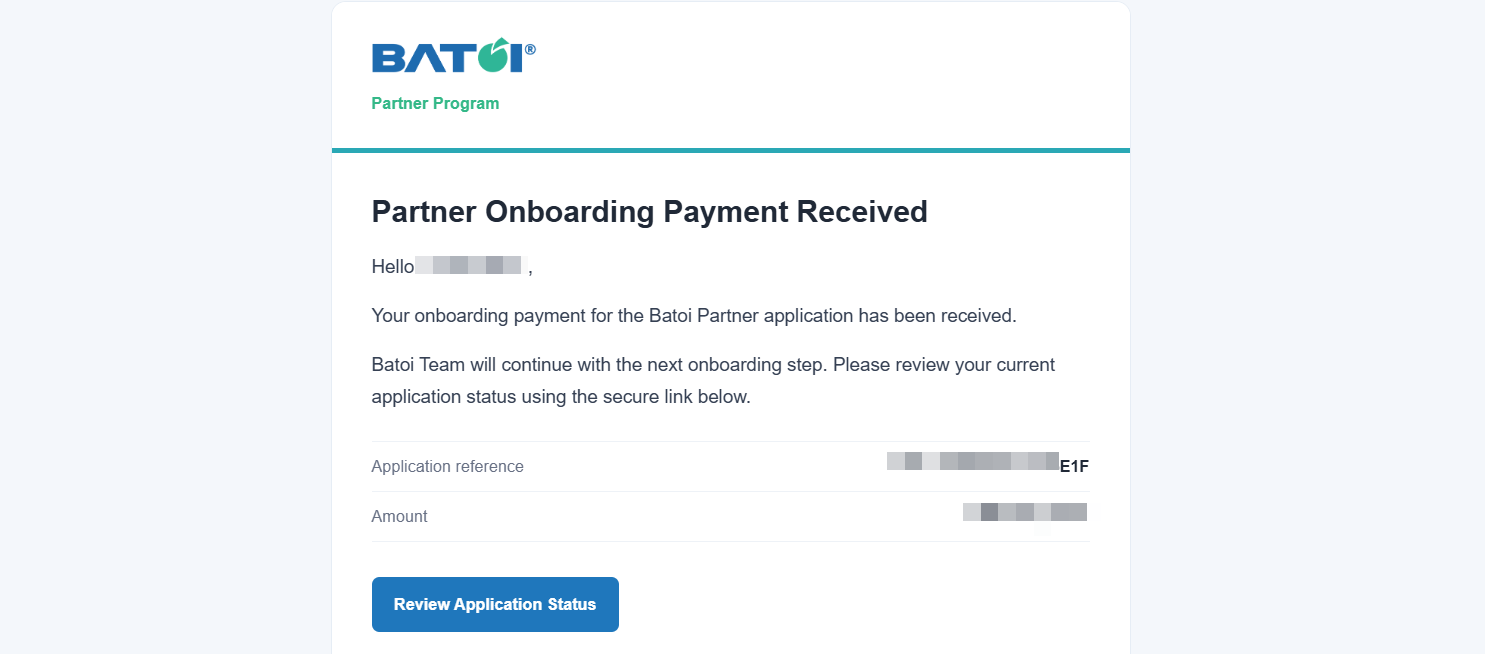
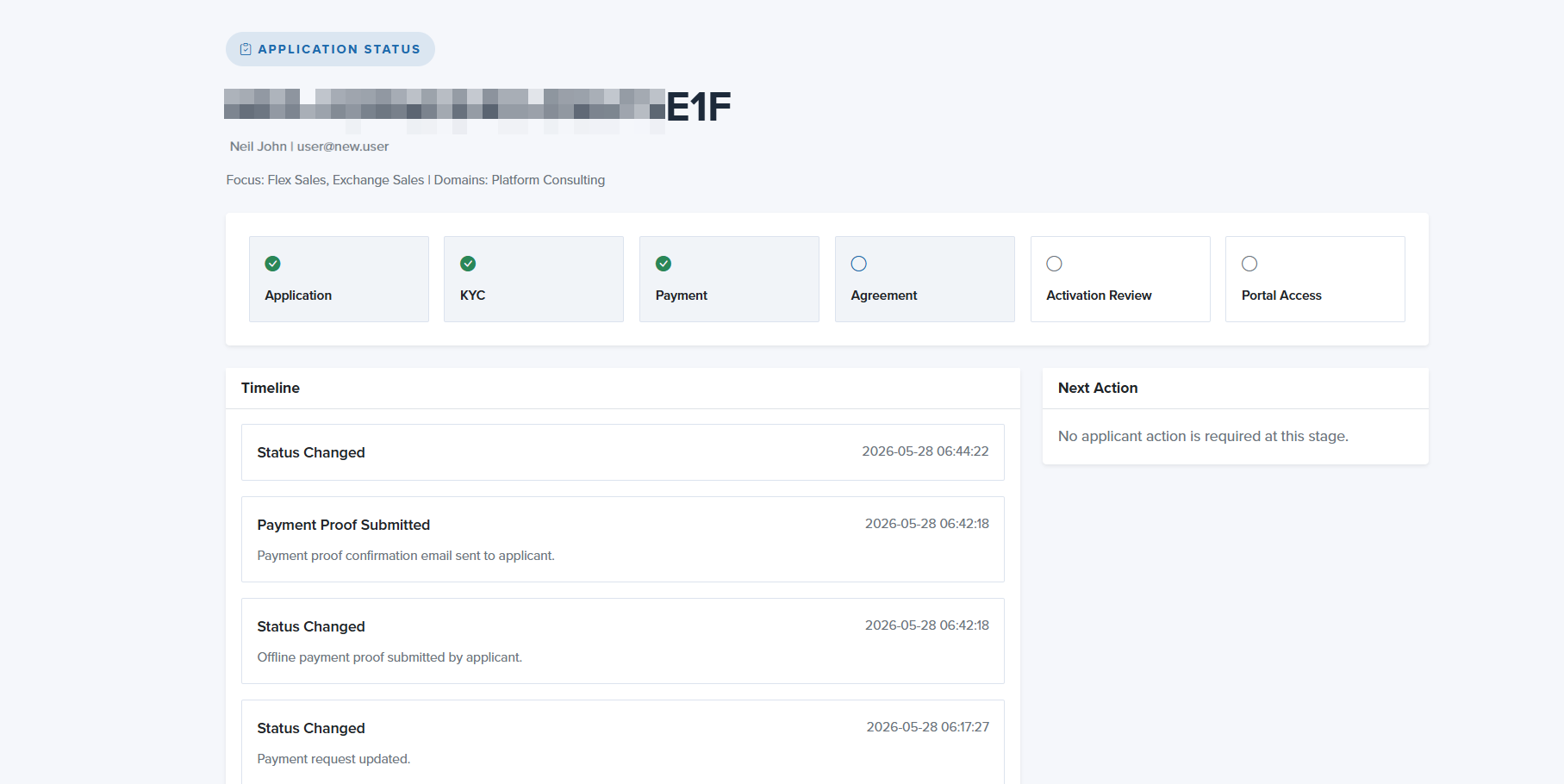
If you click the Review Application Status button from the email, as shown in Figure 13 above, you will be redirected to the Application Status page, as shown in Figure 14 below, where you can see all the updates.
Agreement Signing Process
After the completion of the payment, you will receive an email at your registered email address on the Partner Agreement Signature Request, as shown in Figure 15 below.
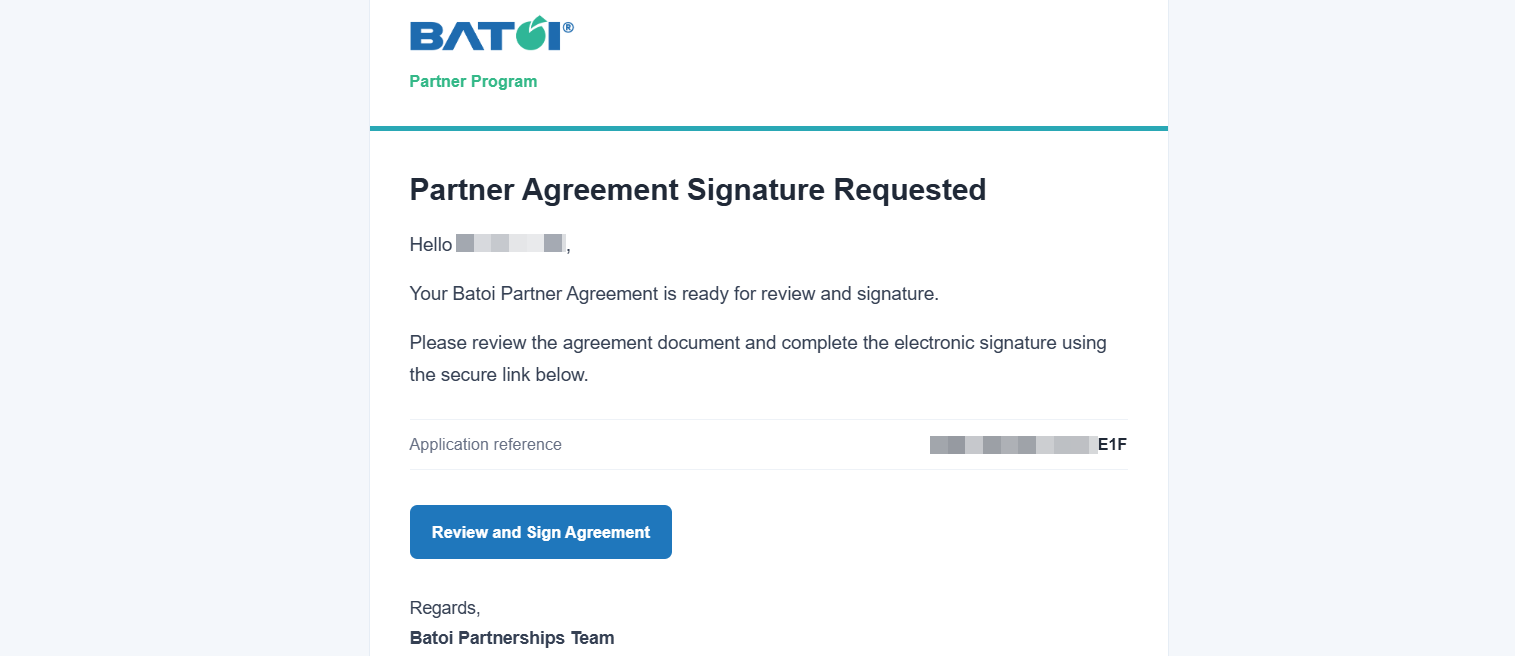
Click the Review and Sign Agreement button in the email, as shown in Figure 15 above. You will be redirected to the Agreement Signing page, as shown in Figure 16 below.
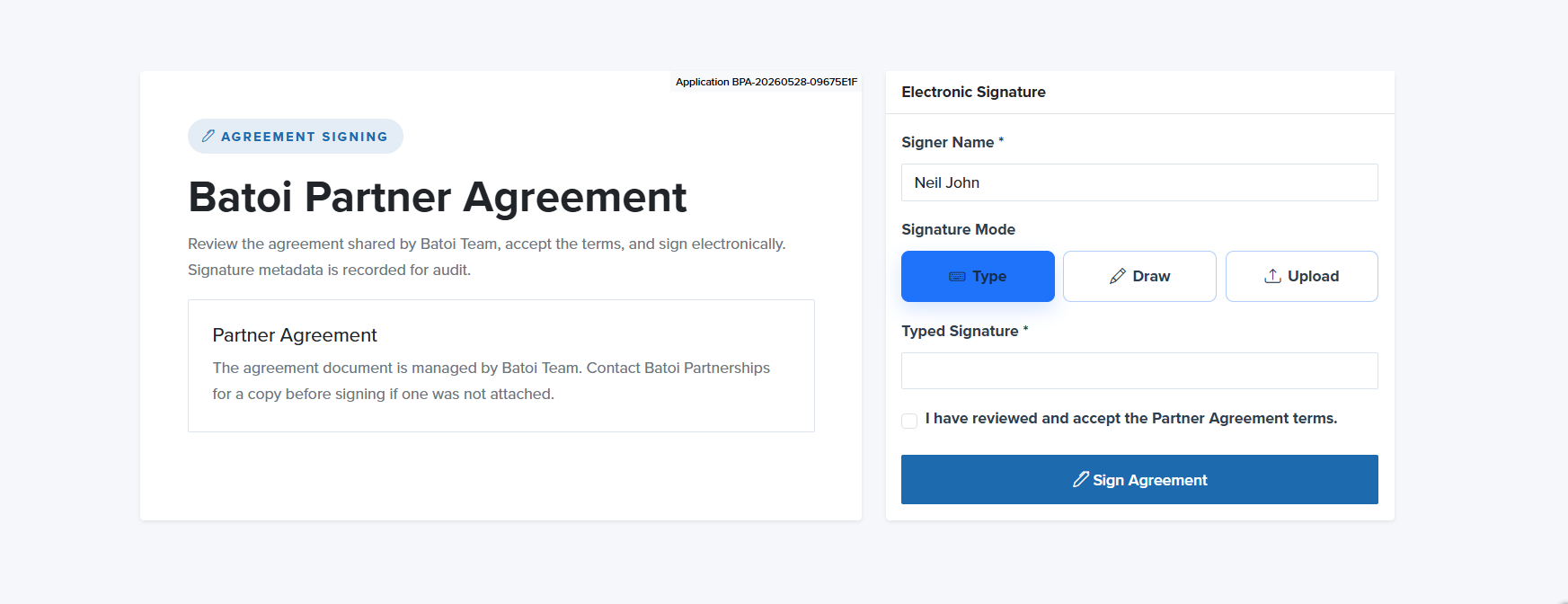
You can provide your signature either by typing, drawing, or uploading. Then select the I have reviewed and accept the Partner Agreement terms checkbox, and click the Sign Agreement button to submit the signature, as shown in Figure 16 above.
You will also receive an agreement signature submission confirmation email at your registered email address, as shown in Figure 17 below.
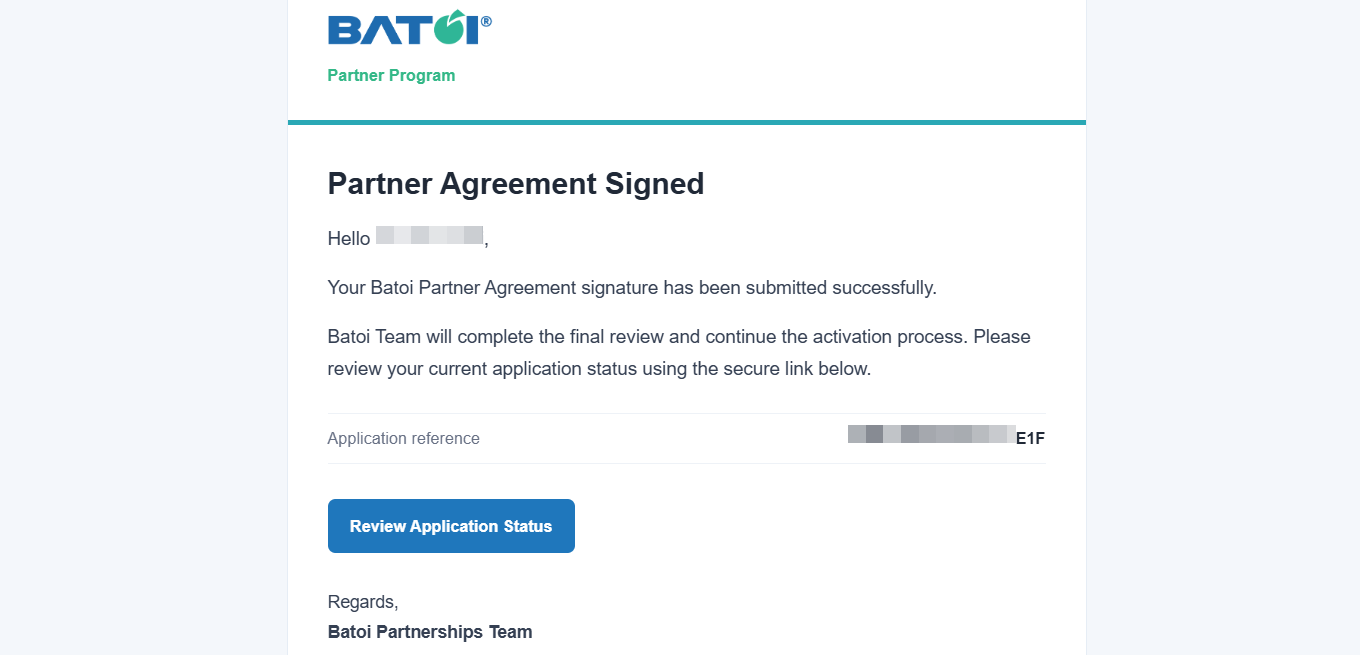
Click the Review Application Status button in the email, as shown in Figure 17 above. You will be redirected to the Application Status page, as shown in Figure 18 below, where you can review the current status.
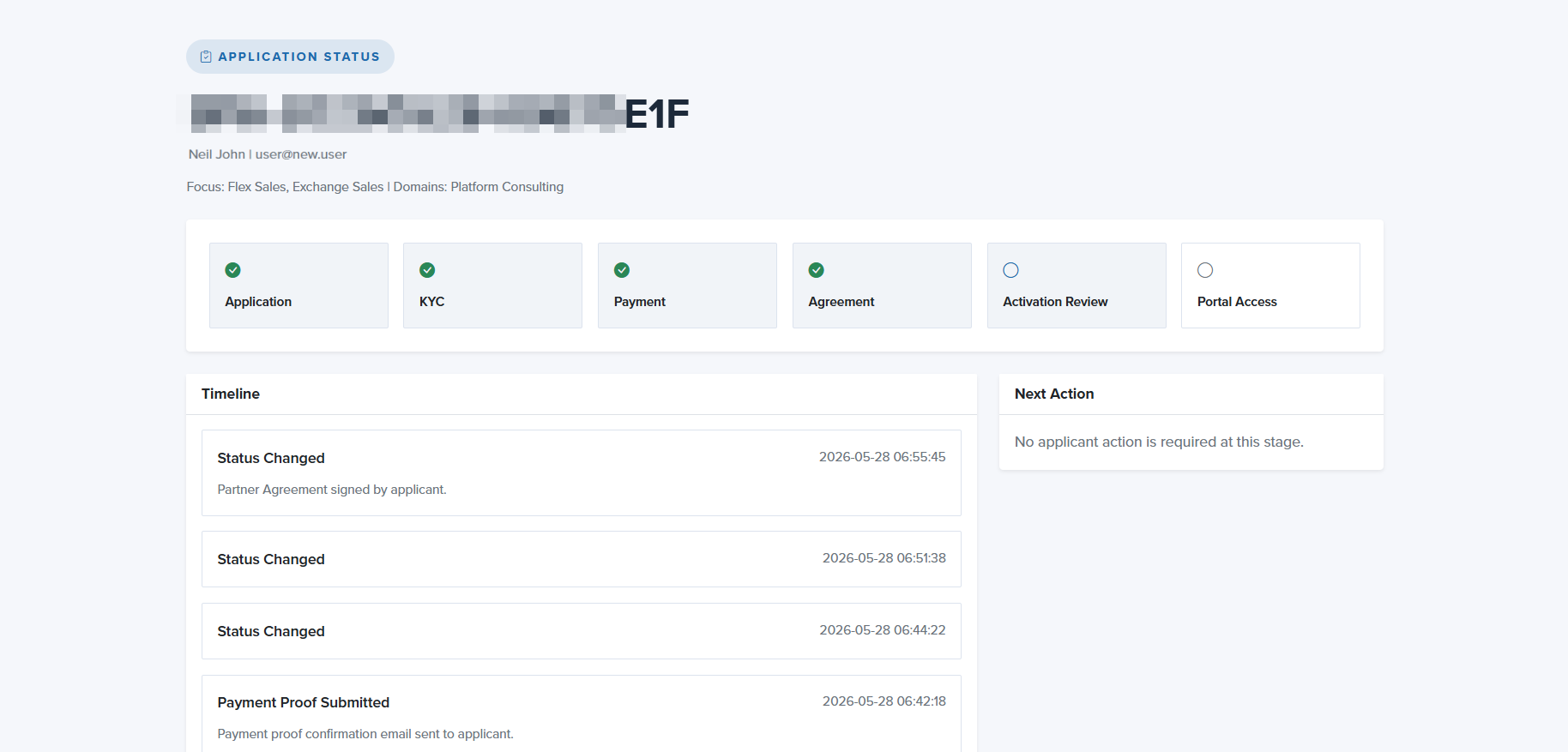
The Batoi Team will then review the agreement submitted. Once reviewed, you will receive an email at your registered email address on the Partner Agreement Review confirmation, as shown in Figure 19 below.
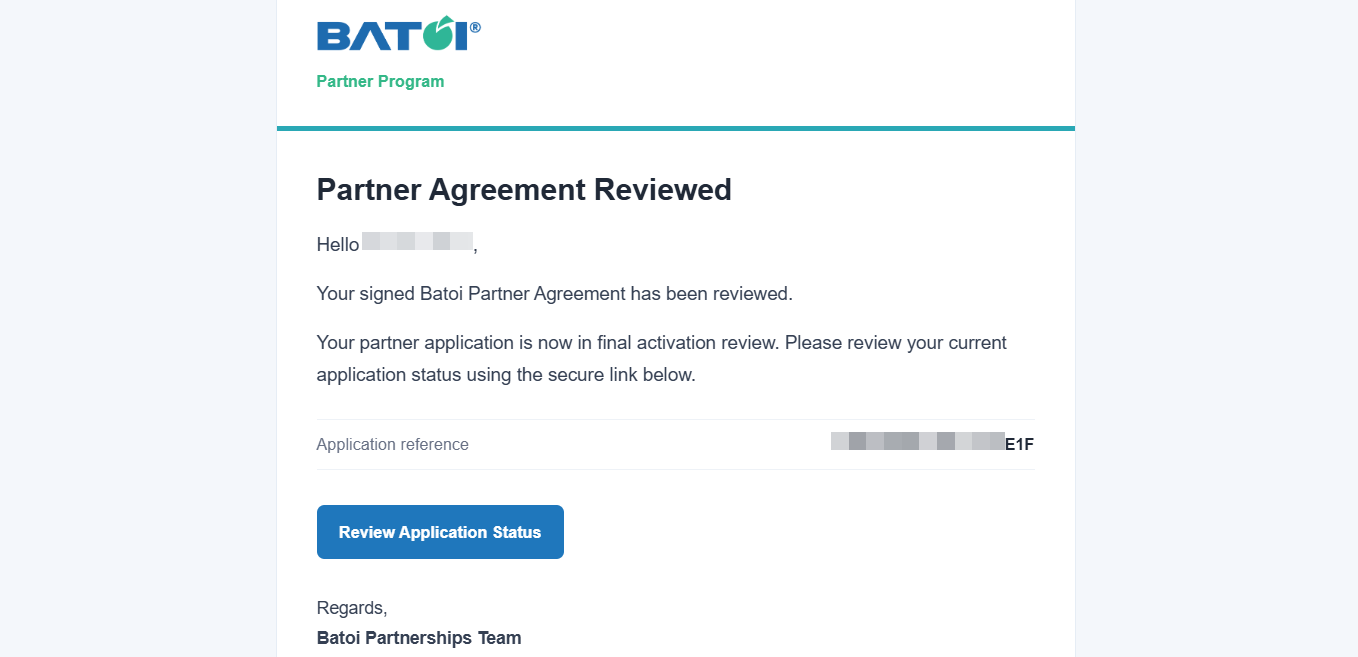
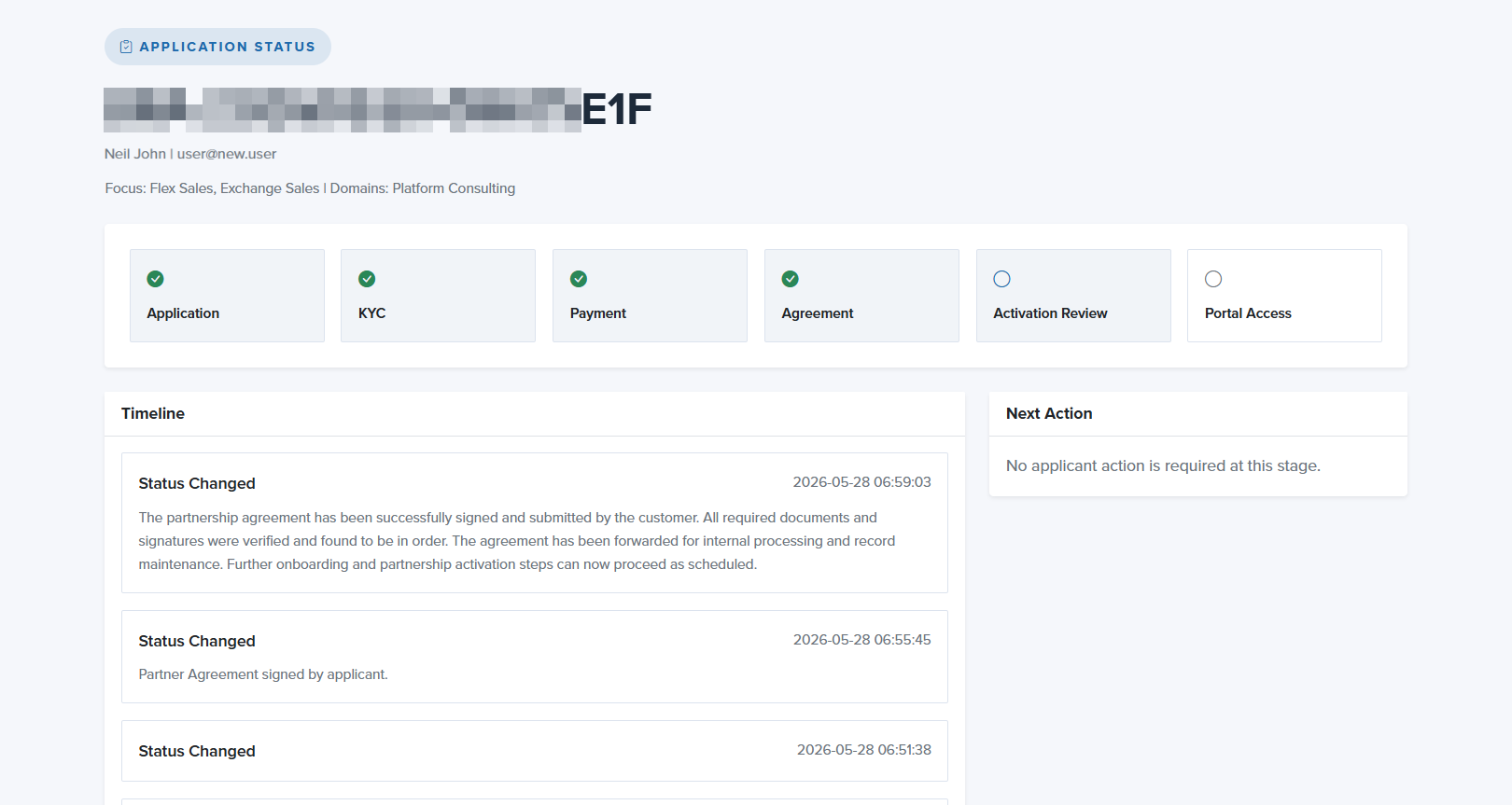
Click the Review Application Status button in the email, as shown in Figure 19 above. You will be redirected to the Application Status page, as shown in Figure 20 below, where you can review the current status.
Partnership Activation Process
After the completion of all the procedures, you will receive a Welcome email at your registered email address to join the Batoi Partner Portal, as shown in Figure 21 below.
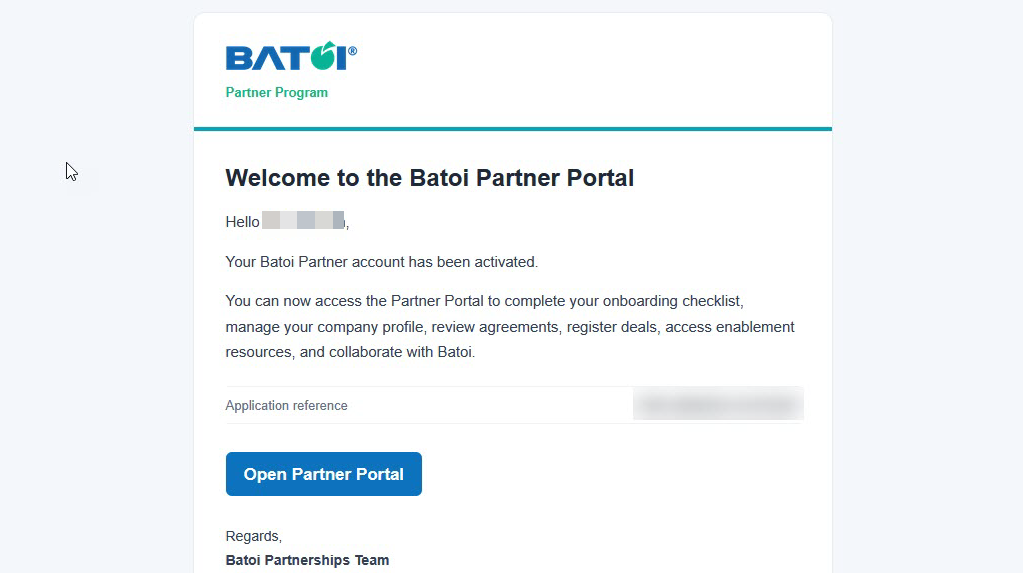
Click the Open Partner Portal button in the email, as shown in Figure 21 above. You will be redirected to the login screen, as shown in Figure 22 below.