
Set up MFA for Office 365
In this article we shall walk you through how to set up multi-factor authentication (MFA) for your Office 365 account. By setting up MFA, you add an extra layer of security to your Office 365 account sign-in and ensure that only you can access your information.
Login to your Microsoft Office 365 Outlook account at https://outlook.office365.com/ from any browser using your username and password. You will land on the dashboard page upon successful login, as illustrated in Figure 1 below.
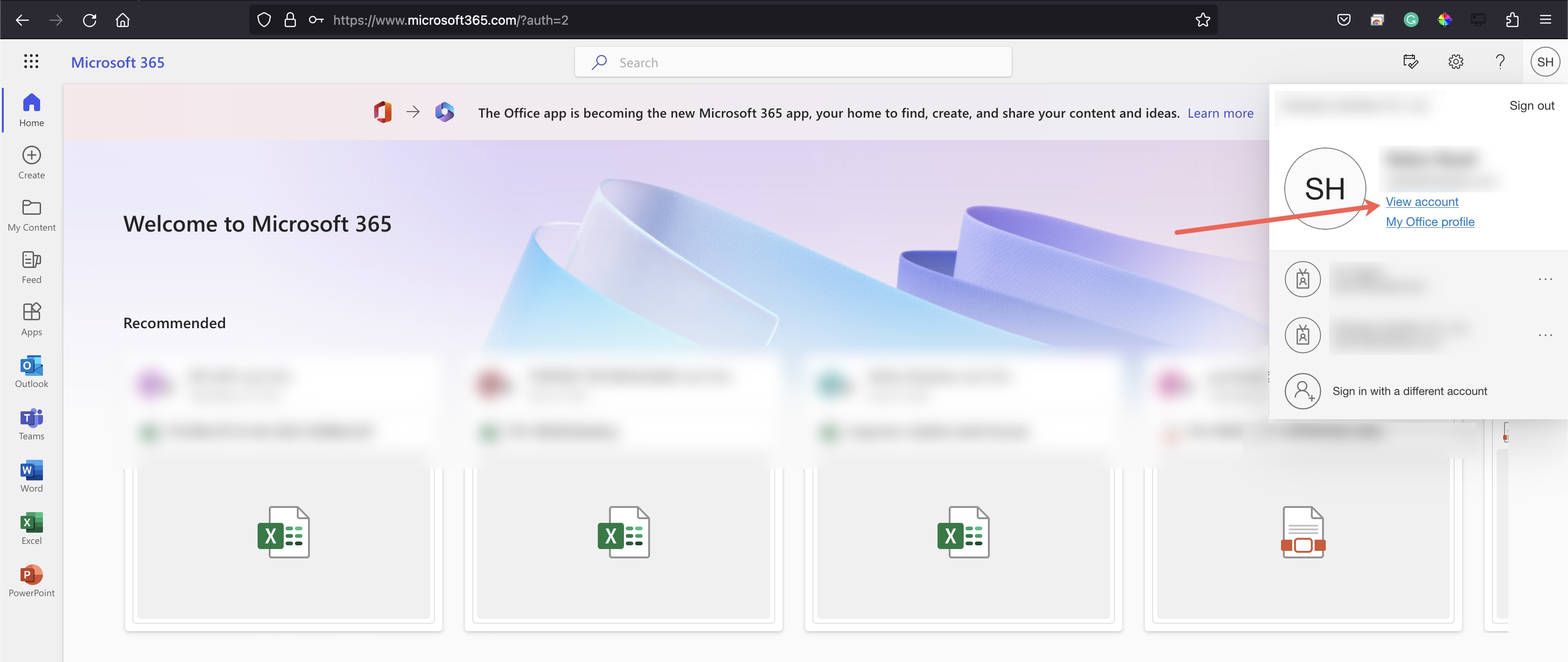
Click on your profile icon available in the top right corner. Click on the view account link on the popup screen, as illustrated in Figure 1 above.
After clicking the view account link, you will land on the view account dashboard page, as shown in Figure 2 below.
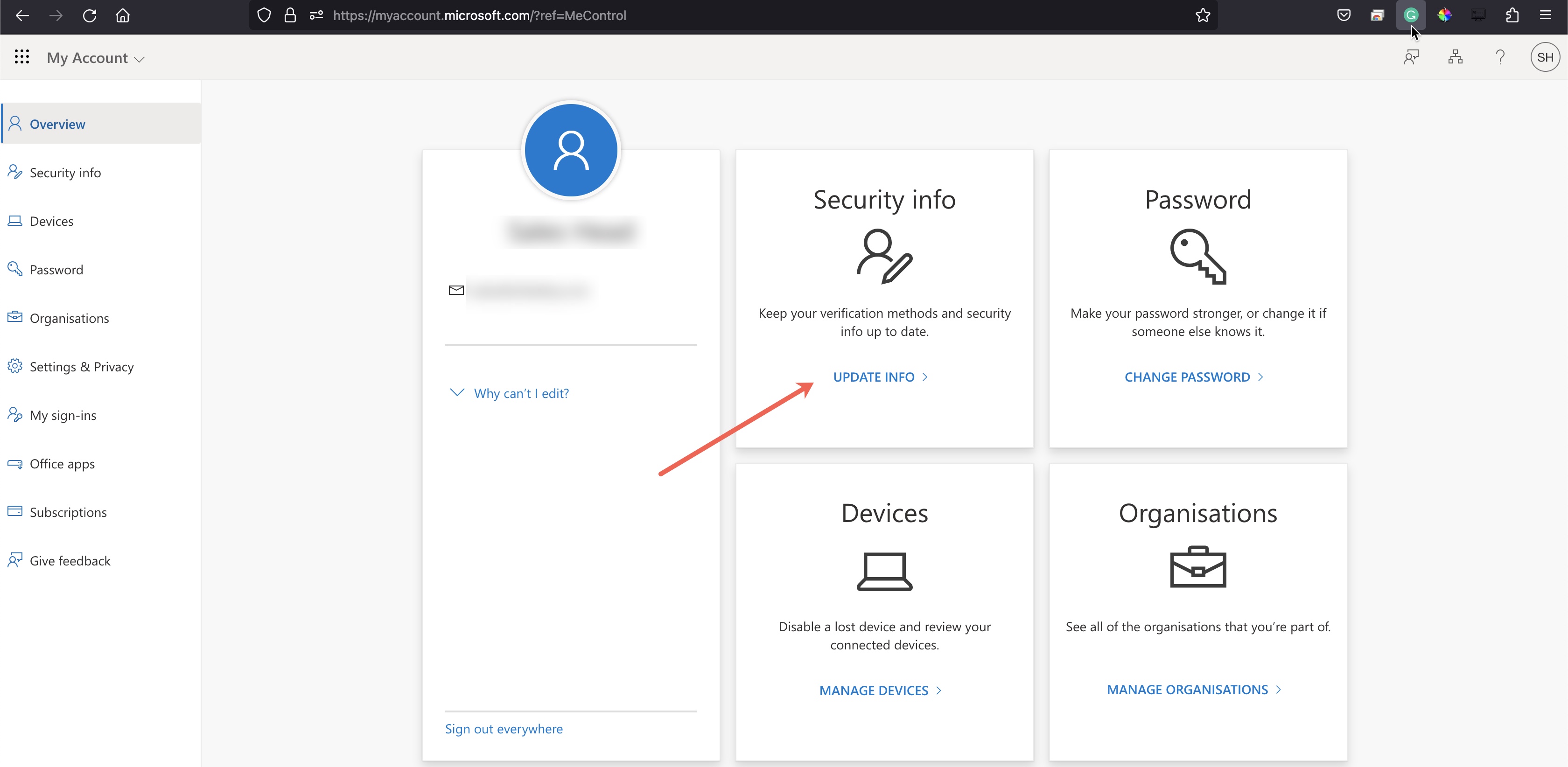
Click on the update info link on the card 'Security info,' as illustrated in Figure 2 above.
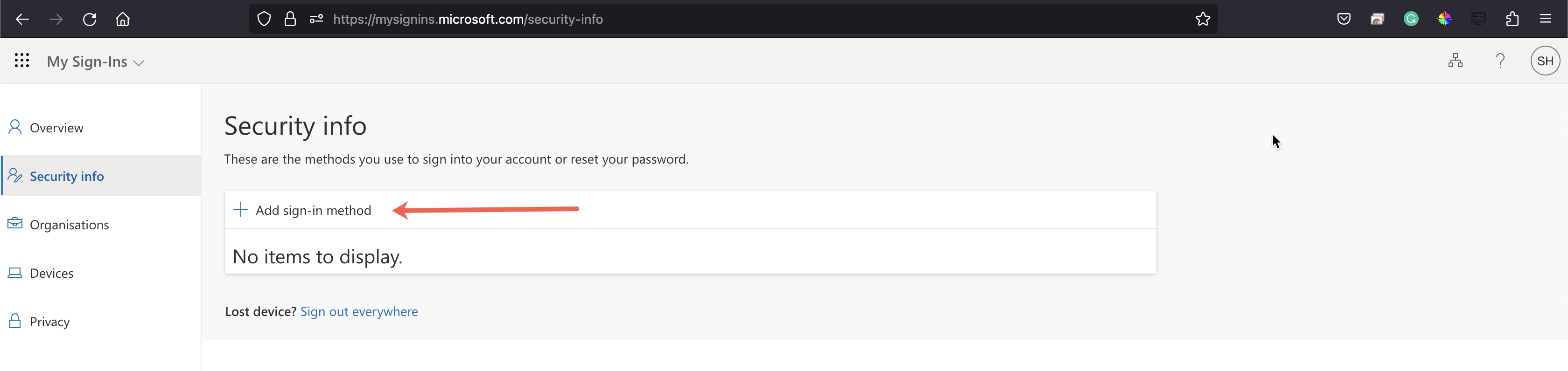
After clicking the update info link, you will land on the list page. Click on the Add sign-in method link available on the list page, as illustrated in Figure 3 below.
Upon clicking on the link, a popup will appear for adding the method with a drop-down list as illustrated in Figure 4 below.
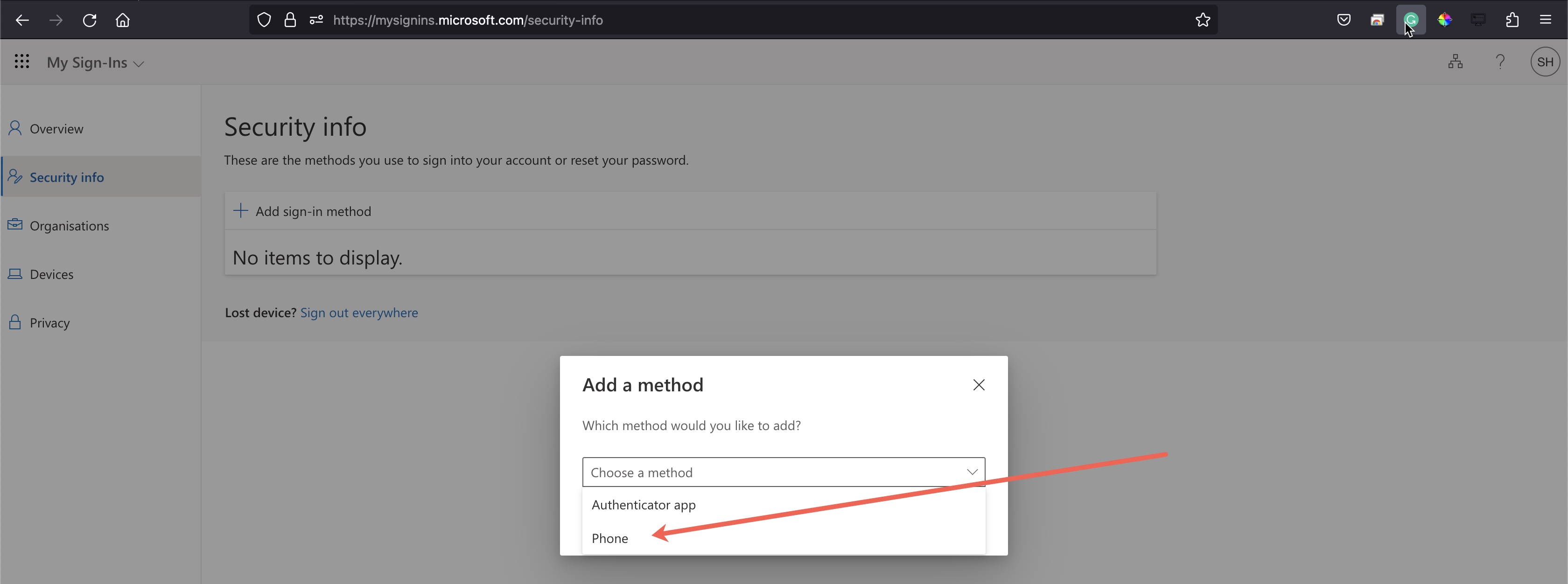
Select the phone option from the drop-down list, as illustrated in Figure 4 above.
Upon doing so, another popup screen will appear with the country code as a drop-down list and phone number as a text box as illustrated in Figure 5 below.
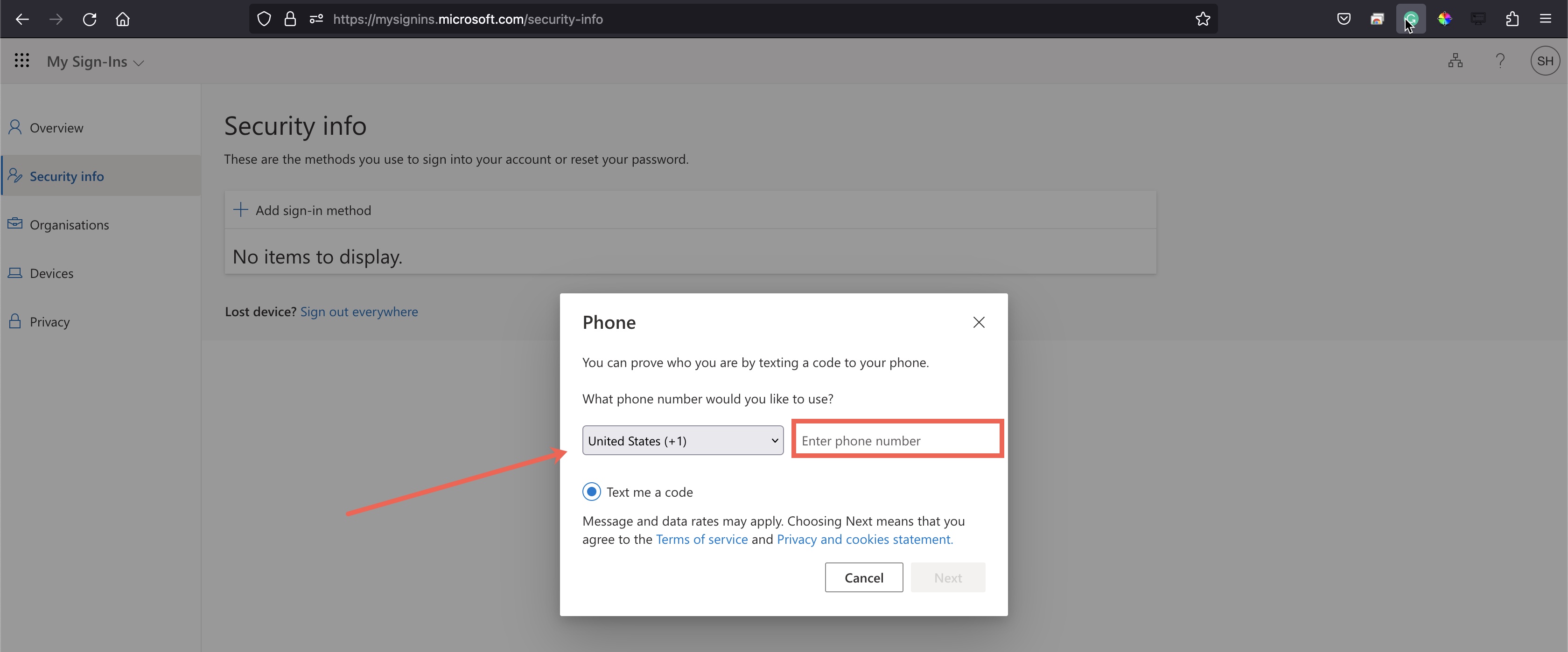
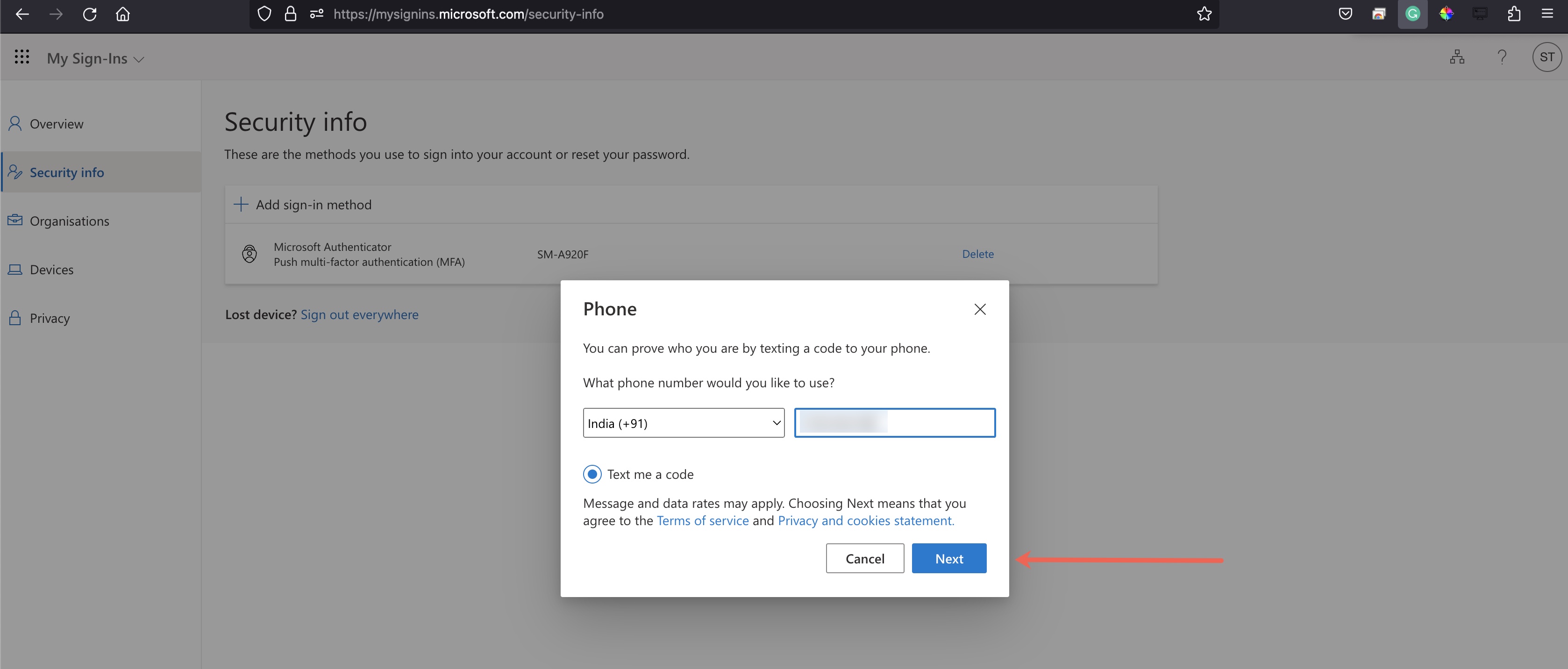
Select your country code from the drop-down list, enter your mobile number in the text box, and click next, as illustrated in Figure 6 below.
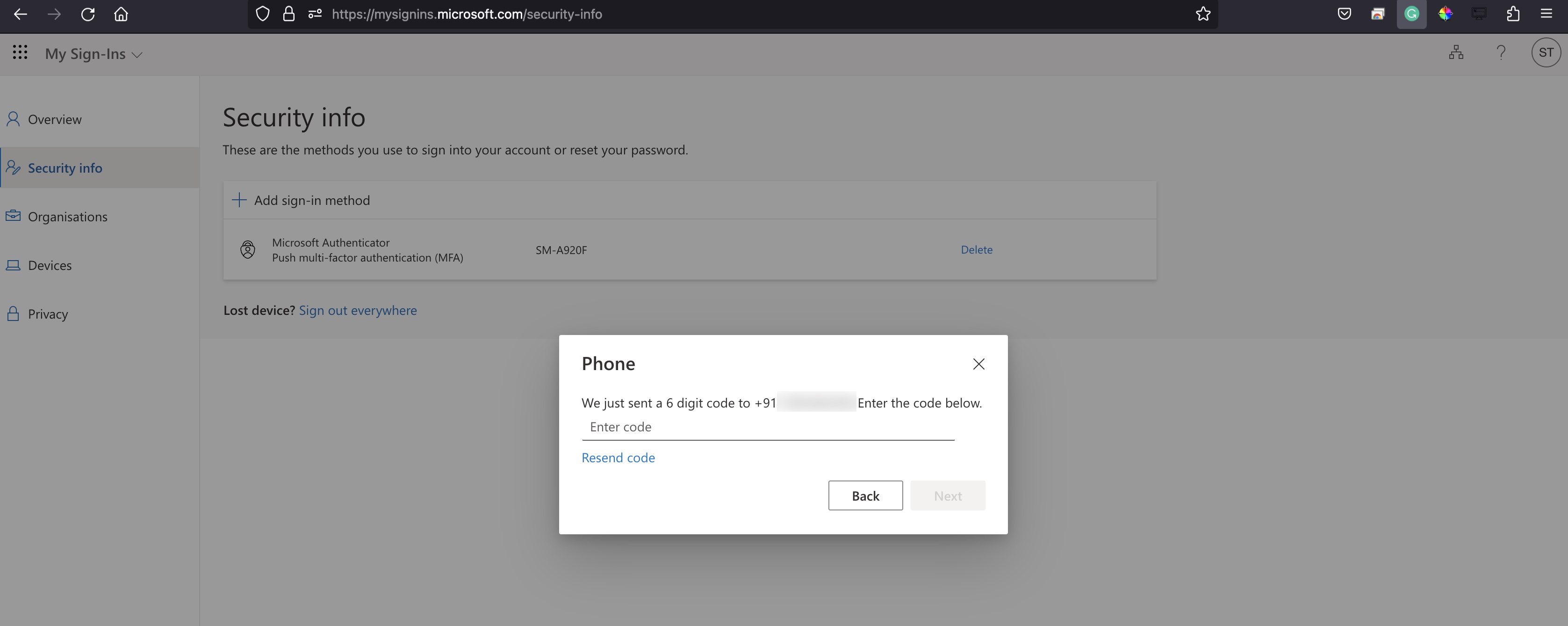
An OTP will be sent to the mobile number given, as illustrated in Figure 7 below, and upon verification of your OTP, your MFA will be activated for the account.
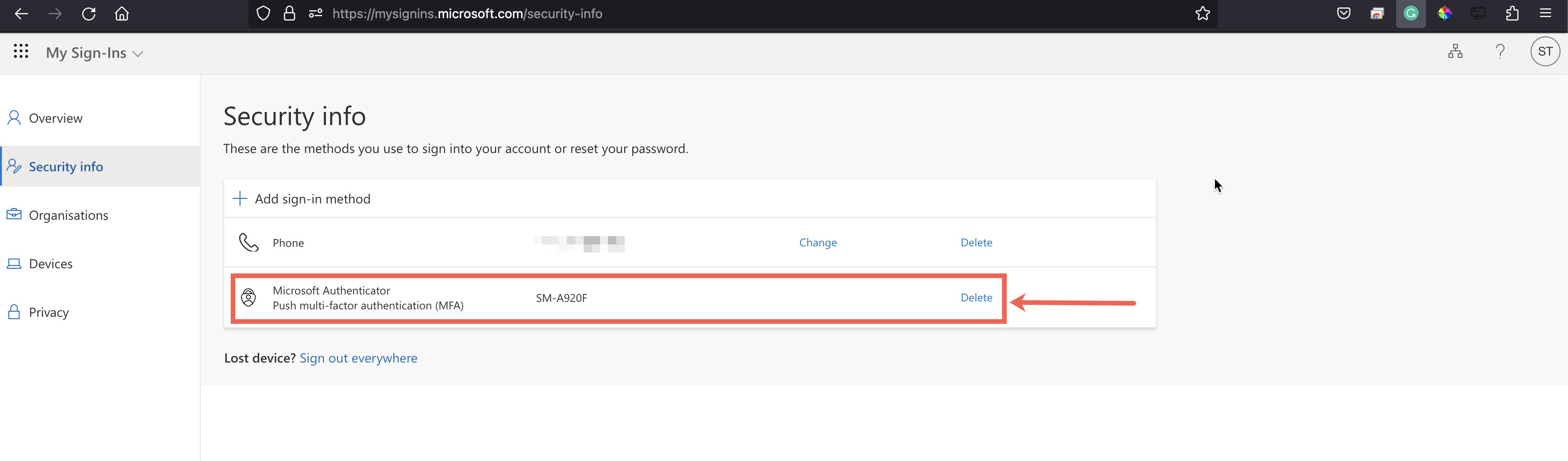
Now you shall see all the sign-in methods for your Outlook 365, and you can also delete the method you do not want to use, as illustrated in Figure 8 below.
Now, whenever somebody tries to log in to the account, an OTP will be generated each time, and upon successful authentication of the OTP, the user can log in to the Outlook account.