
- Overview of Batoi Hosting
- Renew Your Domain Name with Batoi
- Protect or Lock Your Domain Name with Batoi
- View Action History of Your Domain Name
- Manage Name Servers for a Domain Name
- Forward a Domain Name to a Different Website
- Handle Privacy Protection for a Domain Name
- Domain Name Whois Data Reminders from Batoi
- Modify the Contact Details of Your Domain Name
- Backup Your Website with cPanel on Linux
- Managing DNS Records in Linux Hosting via cPanel: A Comprehensive Guide
- Create FTP Accounts in Your Linux Hosting using cPanel
- Backup and Restore Your Linux Hosting Account via cPanel
- Effortless 301 and 302 Redirects in Linux Hosting: A Detailed cPanel Guide
- How to Seamlessly Manage DNS Records with Batoi's Premium DNS Service through Your Domain Control Panel
- Mastering Contact Management within Batoi's Domain Control Panel
- Step-by-Step Guide: Managing Business/Enterprise Email via My Domain Control Panel
- How to Efficiently Manage Users and Assign Administrative Roles in Google Workspace
- A Complete Guide to Purchasing and Managing Google Workspace through Batoi Hosting Control Panel
- Effortless Migration from cPanel Email to Google Workspace: Your Step-by-Step Guide
- Setting Up Google Workspace Using cPanel: A Comprehensive Guide
- How to Add an SPF Record to Your DNS Settings for Email Security
- Setup of Microsoft Office 365 Using cPanel: A Comprehensive Guide
- Reviewing Your Linux Hosting Resource Allocation and Usage in cPanel
- Creating and Managing Sub-domains with cPanel on Linux
- How Do I Emulate DNS Change on My PC?
- Effortless Migration from cPanel Email to Microsoft Office 365: Your Step-by-Step Guide
- How to Set up MFA for Your Microsoft Office 365 Outlook Account
- Setting up POP or IMAP Email on an Apple iPhone
- Creating and Managing MySQL Databases with cPanel on Linux
- How to Fix the Error '0x800CCC1A' in Microsoft Outlook?
- How to Fix the Error '0x800CCC78' in Microsoft Outlook?
- Setting up Email Account on Your Mac Mail Application
- Installing WordPress within Your Hosting Account with cPanel on Linux
- Setting up POP or IMAP Email on an Android Phone
- Setting up Mozilla Thunderbird as Your Email Client in Windows PC
- Setting up Microsoft Outlook as Your Email Client in Your Windows PC
- Setting up Mozilla Thunderbird as Your Email Client in Mac
- Creating Email Accounts with cPanel on Linux
- Creating More FTP Accounts with cPanel on Linux
- Accessing cPanel and Webmail on Linux
- Generate a Certificate Signing Request (CSR)
- Generate the Domain Secret or the Authorization Code for Your Domain Name
- How to Fix the Error '0x800CCCDD' in Microsoft Outlook with IMAP Server?
- Comprehensive Guide to Managing PHP Settings in cPanel on Your Linux Hosting Account
- Integration of Google Analytics on Your Website
- My Emails Are Bouncing Back. What Should I Do?
- What should I do when I cannot access my email or website on My Windows PC?
- Password Protect Files and Folders with cPanel on Linux
- Transfer Your Domain Name from your Current Registrar to Batoi
- Uploading Your Files with an FTP client (FileZilla)
How to Add an SPF Record to Your DNS Settings for Email Security
Introduction
This comprehensive guide walks you through the step-by-step procedure to add an SPF (Sender Policy Framework) record to your DNS settings. By doing so, you fortify your email against spoofing and minimize the chances of legitimate emails being classified as spam.
Section 1: Add SPF Record to Your DNS Settings
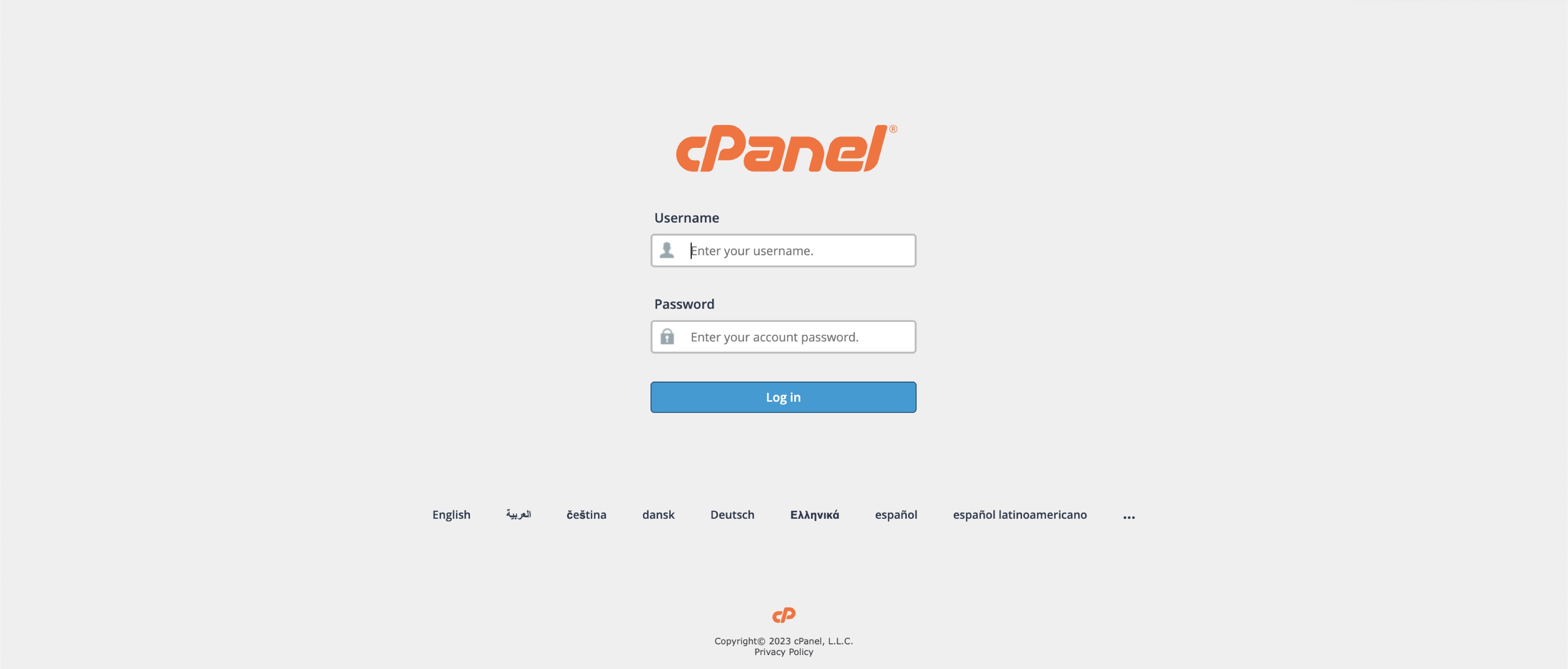
Login to cPanel: To start, you need to access your cPanel account. You can do this by appending '/cpanel' to your domain name (e.g., https://<your-domain-name>/cpanel) or via the link provided by our Support Team. Use your username and password to log in , as illustrated in Figure 1 below.
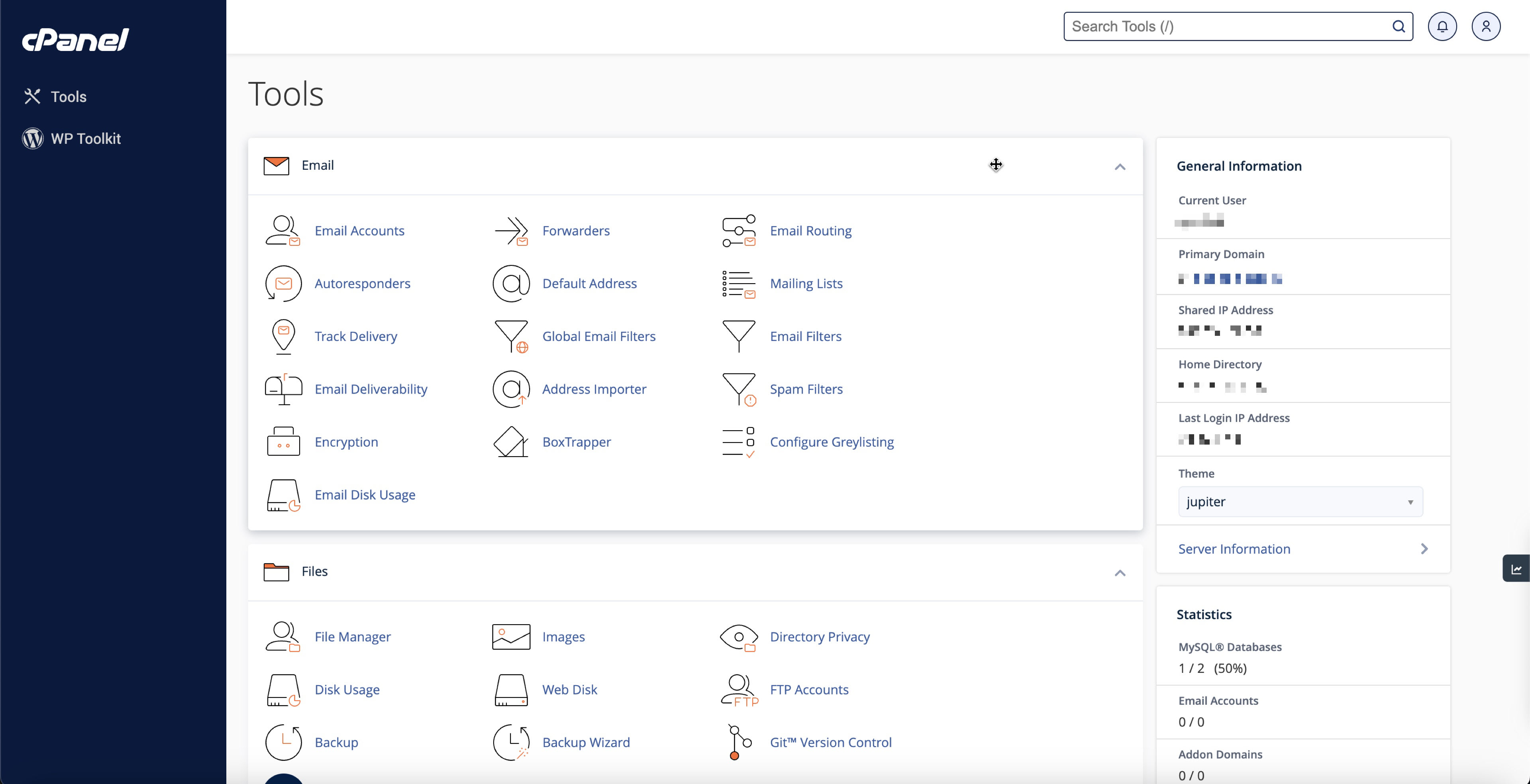
You will land on the dashboard page upon successful login, as illustrated in Figure 2 below.
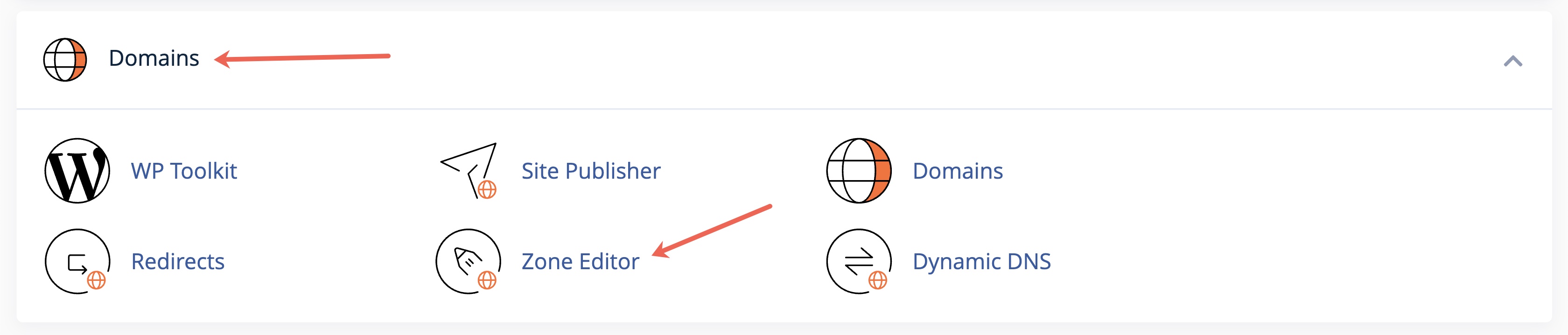
Look for the DNS Zone Editor tool under the Domain section, as illustrated in Figure 3 below.
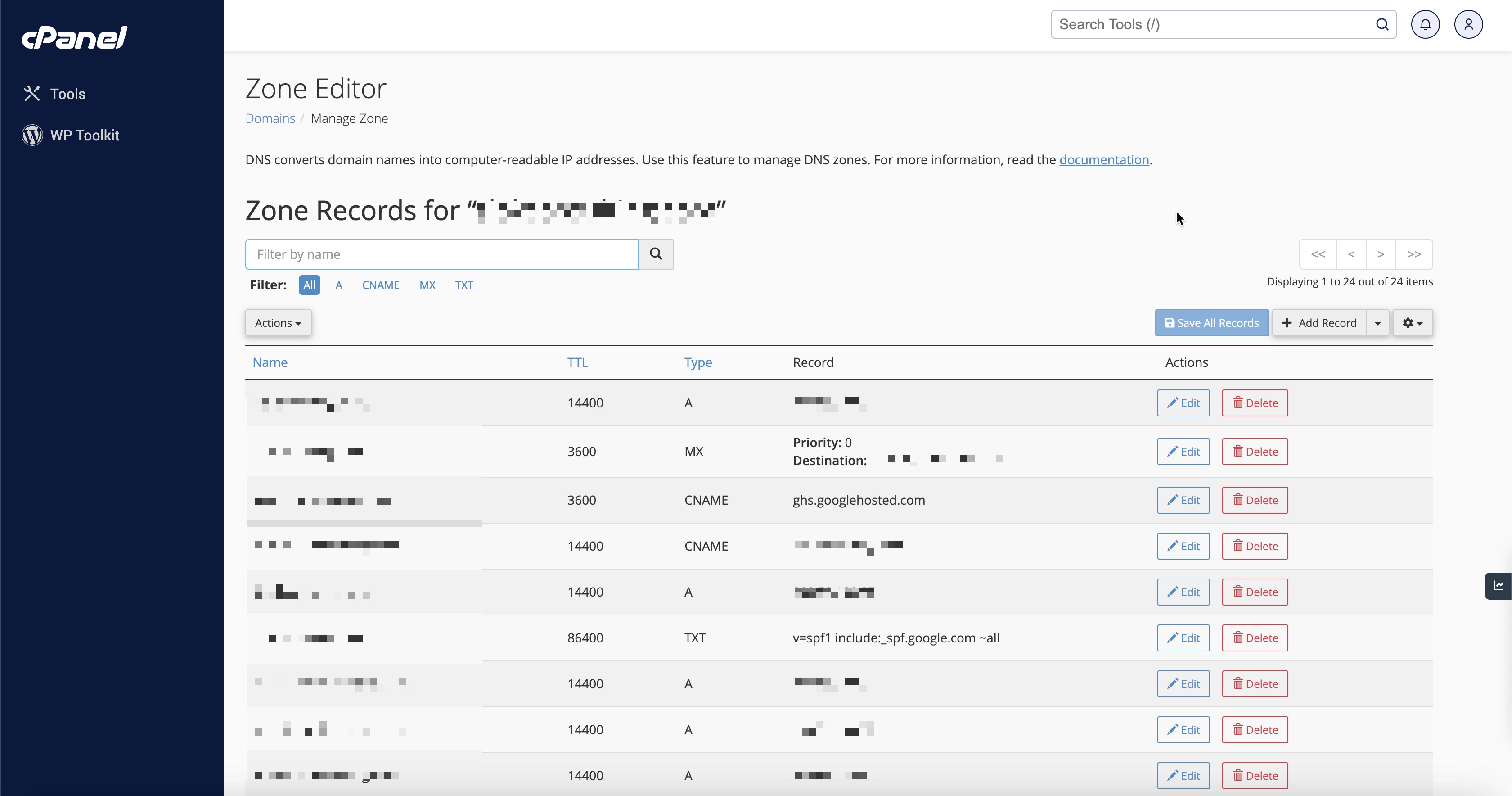
You will land on the zone editor list page, as illustrated in Figure 4 below.
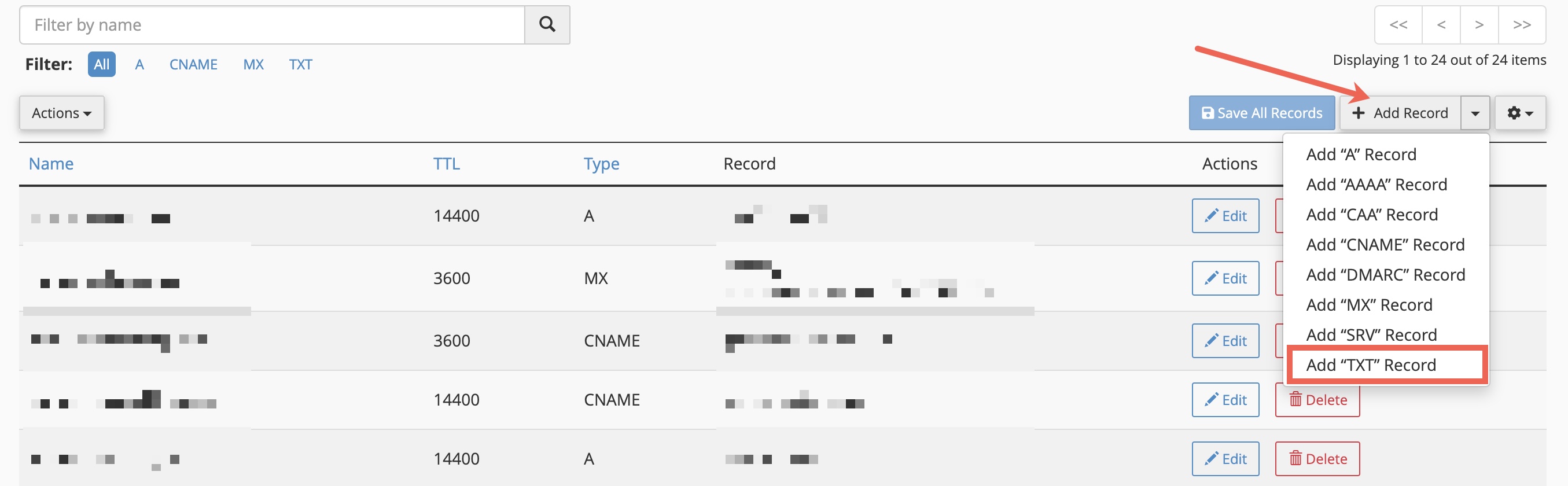
Click on the Add Record button drop-down arrow and click Add ”TXT” Record, as illustrated in Figure 5 below.
A new form will open and you need to use the form to add a TXT record that contains the information from the Google Workspace website, as illustrated in Figure 6 below.
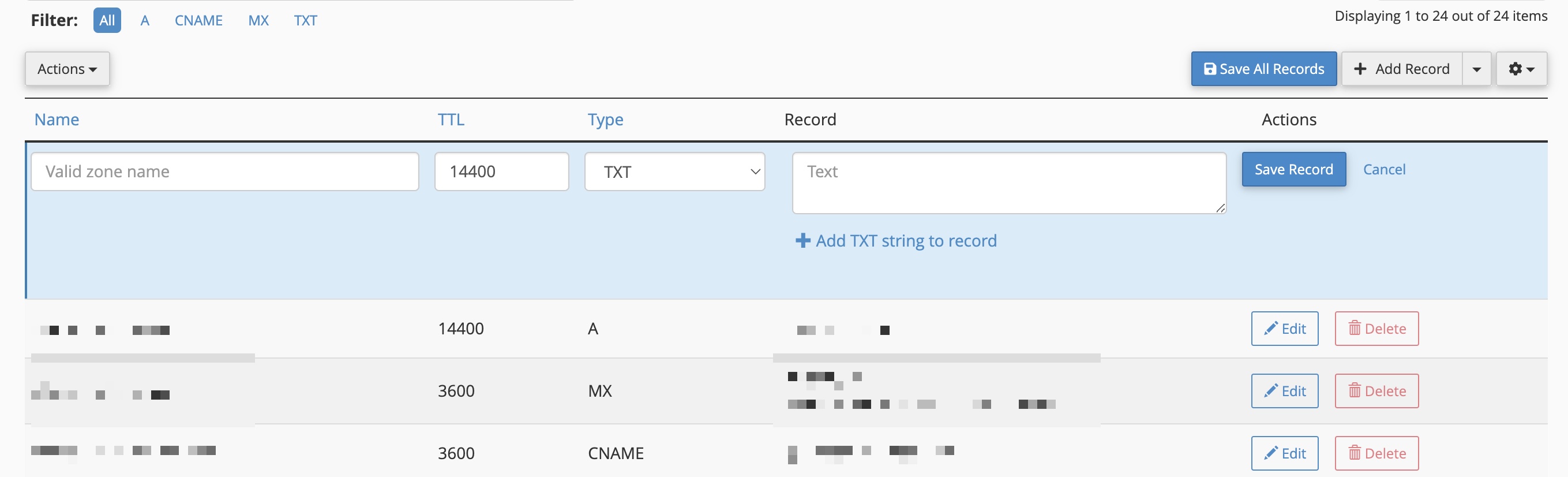
Enter the below details and click on the Save Record button as illustrated in Figure 6 above.
| Name | TTL | Record |
|---|---|---|
| @ or (Your Domain Name) | 3600 | v=spf1 include:_spf.google.com ~all |
After adding the SPF record at your DNS setting it can take up to 48 hours for SPF authentication to start working.
Conclusion
Congratulations, you have successfully added an SPF record to your DNS settings via cPanel. This will fortify your email security by protecting against spoofing and reducing the likelihood of emails being marked as spam.