
Learn how to purchase and manage Google Workspace services with Batoi's Hosting control panel. Our step-by-step guide navigates you through each phase, making the process effortless. Ideal for business owners and IT managers seeking a simplified solution.
Introduction
Simplify your business operations by understanding how to purchase and manage Google Workspace services directly from your Batoi HostMart domain control panel. This step-by-step guide aims to streamline the process for you.
Section 1: Accessing Batoi's Hosting Control Panel
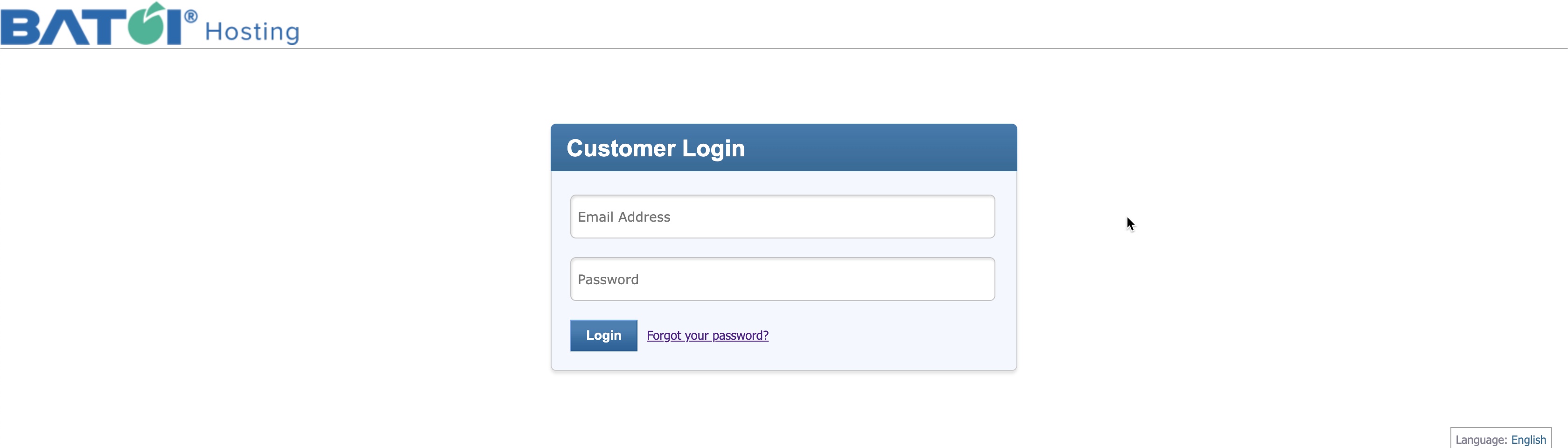
Login to Batoi Hosting: To start, you must access your domain control panel at Batoi. You can do this by typing the URL https://myhostmart.batoi.com/customer or via the link provided by our Support Team. Use your username and password to log in, as illustrated in Figure 1 below.
Section 2: Accessing Services in Domain Control Panel
You will land on the dashboard page upon successful login, as illustrated in Figure 2 below.
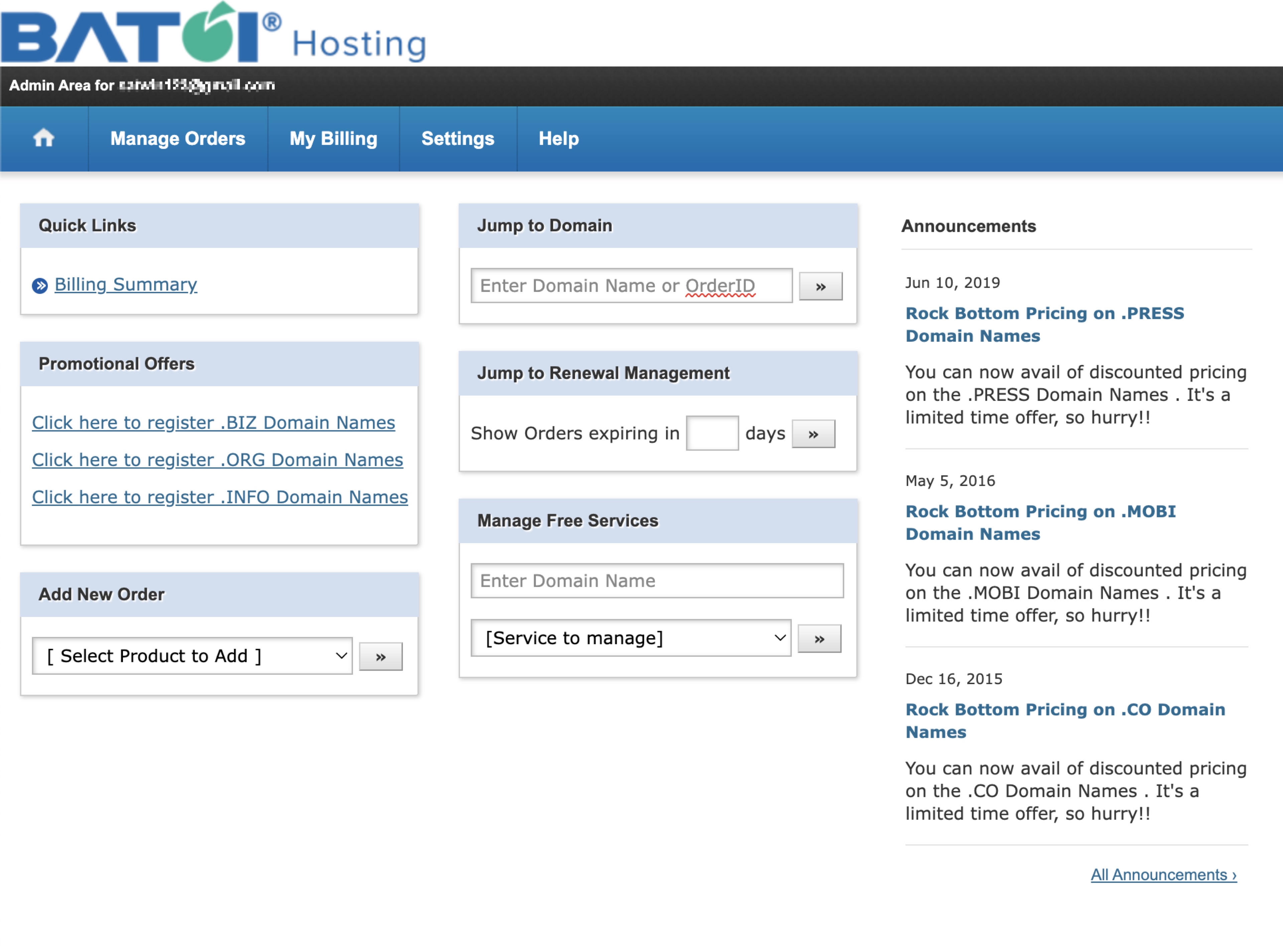
Click on the Manage Orders link, as illustrated in Figure 2 above, and the system will take you to the list of service pages.
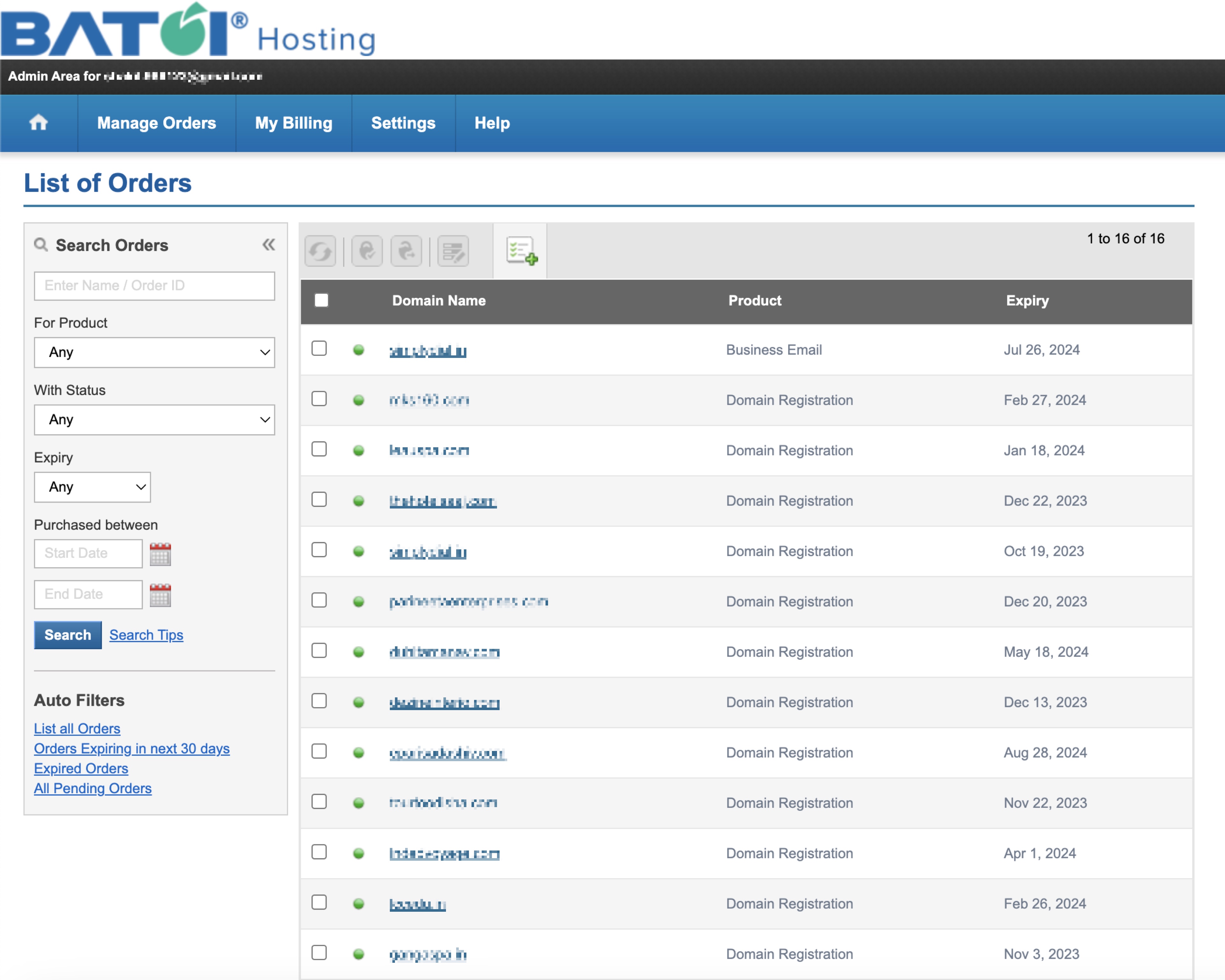
All the products allocated to you with the Product Type and Expiry Date will be listed in the tabular format on the List of Orders page. Click on the domain name for which you want to subscribe to the Google Workspace as illustrated in Figure 3 below.
Section 3: Accessing Individual Domain Details
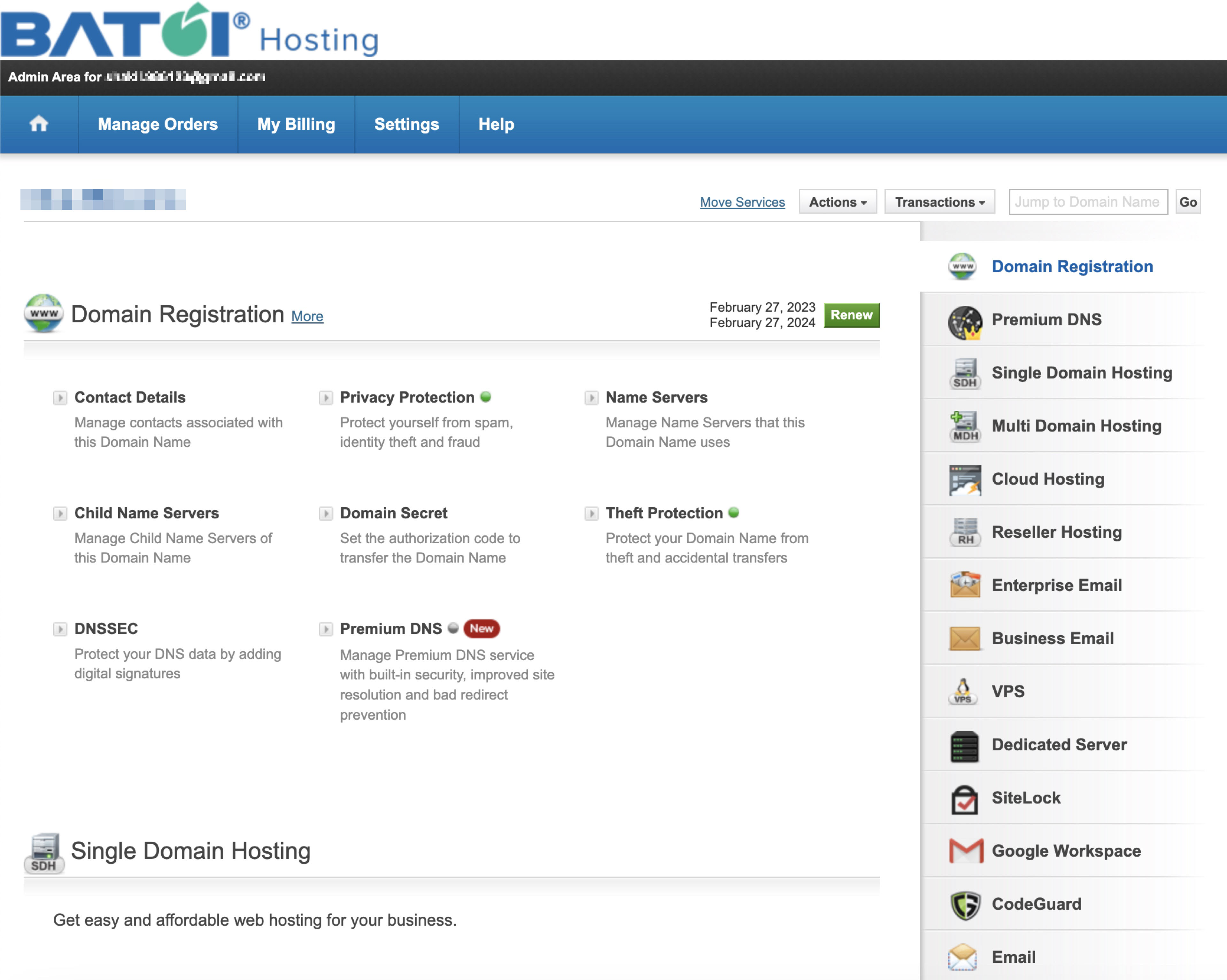
Click on the Domain Name for which you want to add or modify the DNS record from the list, and you will be redirected to the detail page for the particular domain, as illustrated in Figure 4 below.
Section 4: Accessing Google Workspace Details
Go to the Google Workspace section under the individual domain details page, as illustrated in Figure 5 below.
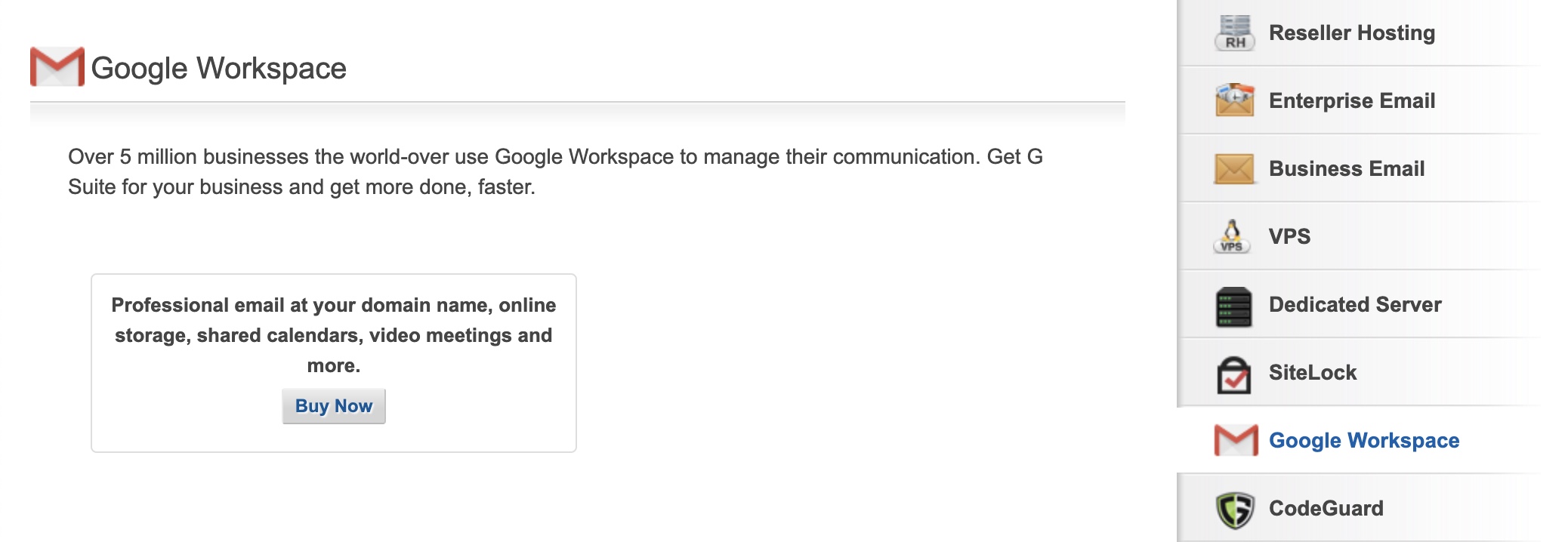
To subscribe to the Google Workspace, click the Buy Now button under the section, as illustrated in Figure 5 above.
Section 5: Purchasing Google Workspace Service
After clicking the Buy Now button, the system will redirect to the purchase page, as illustrated in Figure 6 below.
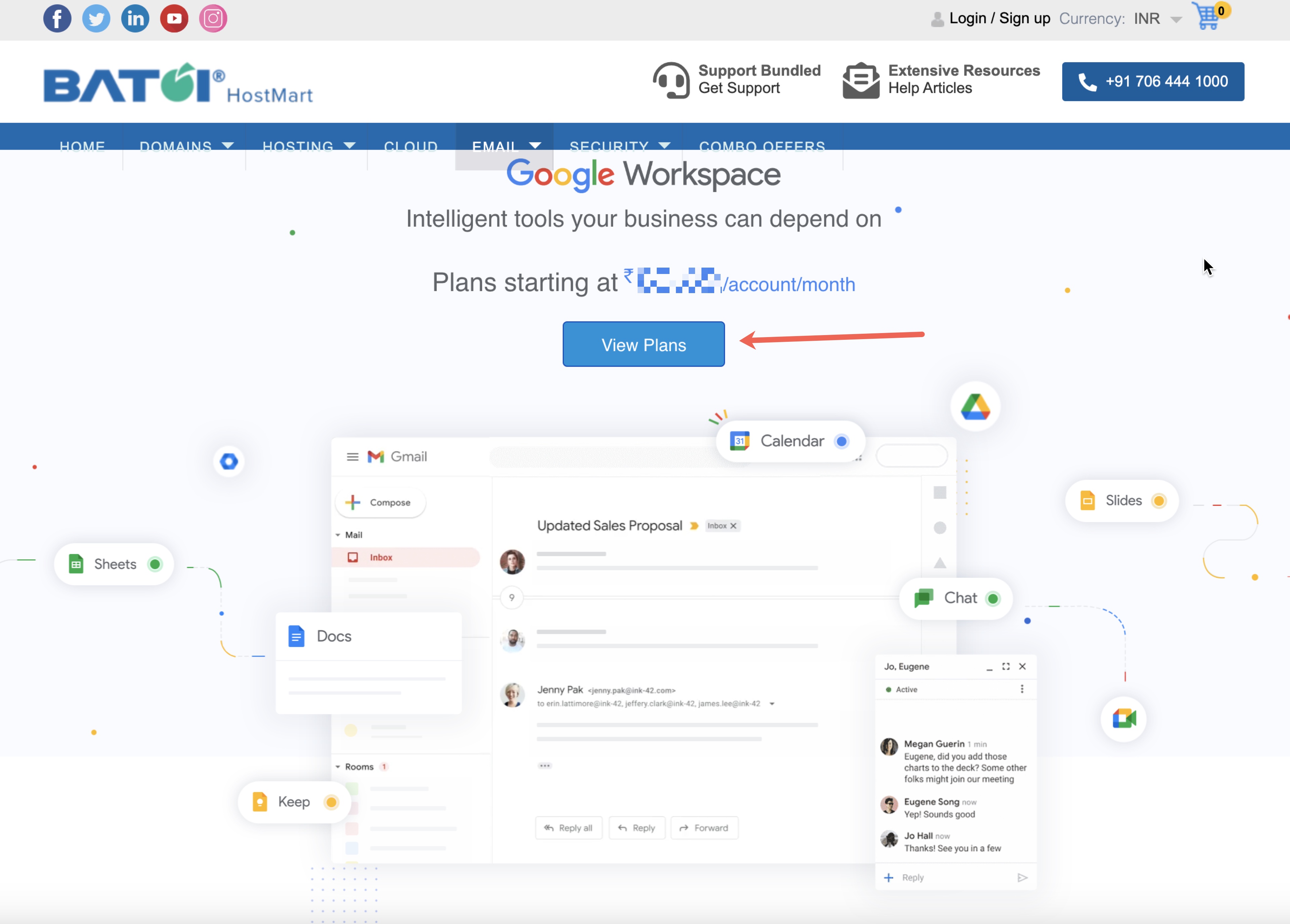
Click on the View Plan button as illustrated in Figure 6 above and you will be able to see all the available plans with details, as illustrated in Figure 7 below.
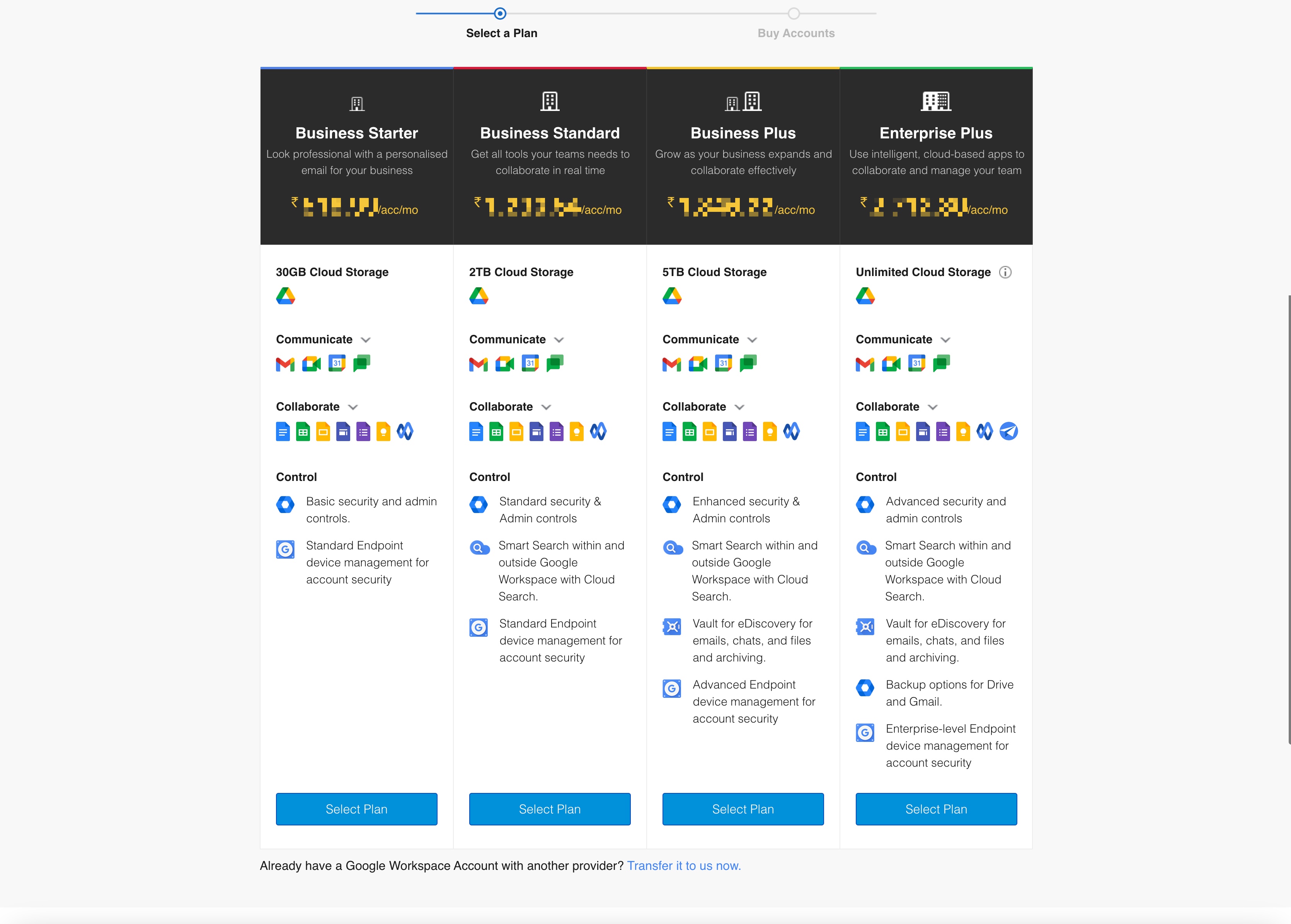
Click on the Select Plan button of the plan you choose and the system will take you to the payment gateway page and upon successful payment the service will be added to your order list page, as illustrated in Figure 8 below.
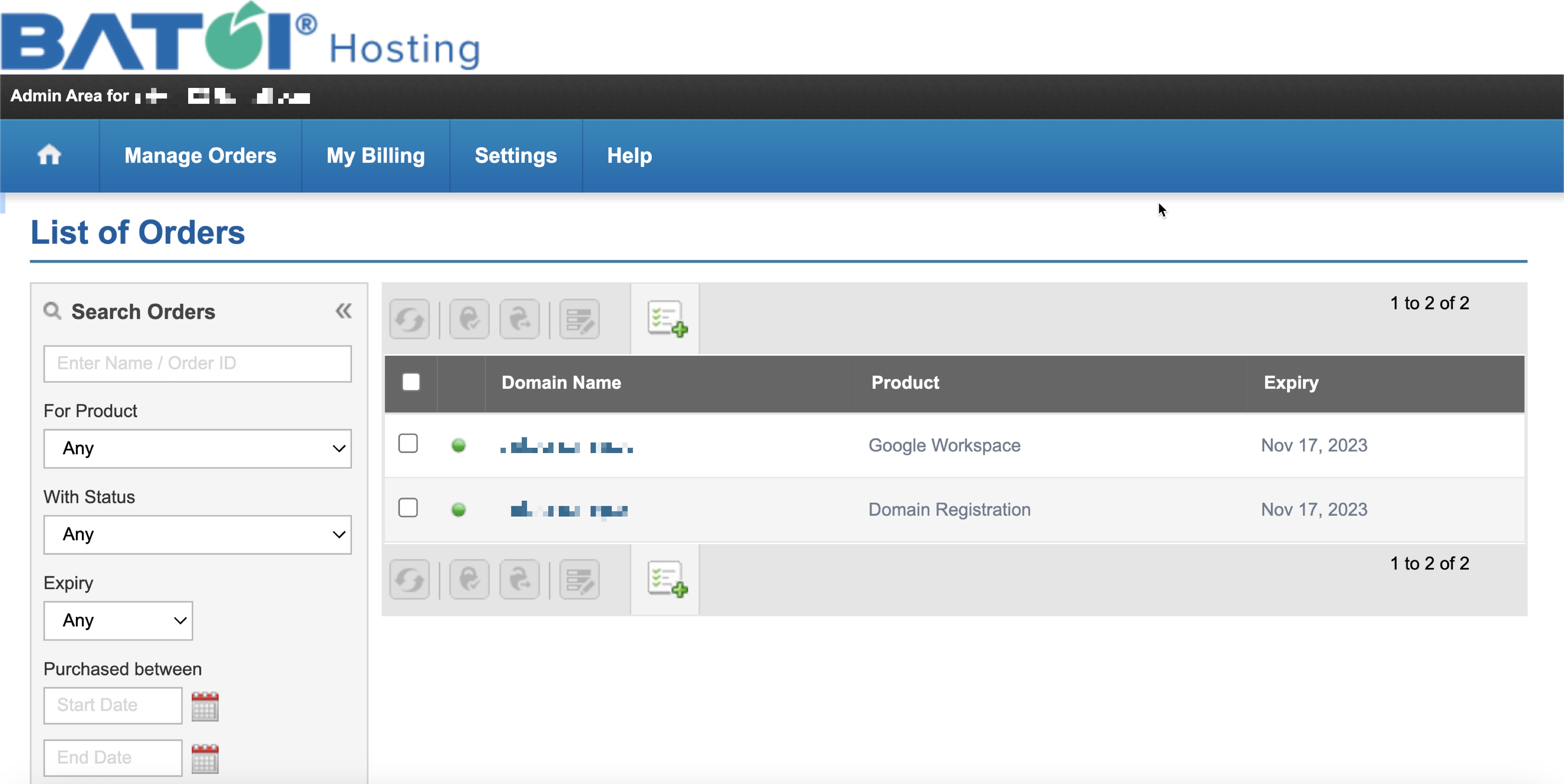
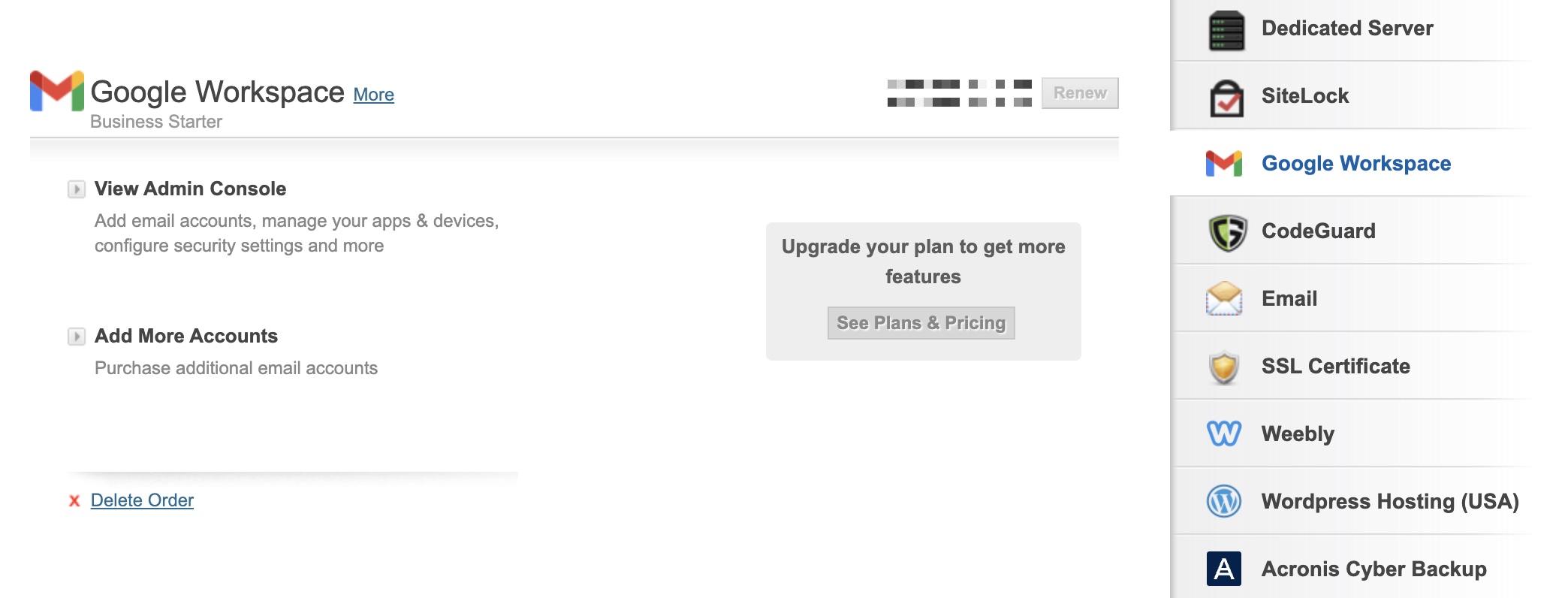
By clicking on the link you will land on the Google Workspace details page, as illustrated in Figure 9 below.
Section 6: Manage Google Workspace Service
Once you subscribe to Google Workspace, you will find the below features, as illustrated in Figure 9 above.
- View Admin Console: You can Add Users, Add Forward Only Accounts, Manage Users / Accounts, Add Mailing Lists, and Manage Mailing Lists.
- Add More Accounts: Purchase additional email accounts.
- Delete Order: Delete the Google Workspace subscription
View Admin Console
Click on the View Admin Console link available in the Google Workspace section as illustrated in Figure 9 above and a popup screen will appear as illustrated in Figure 10 below.
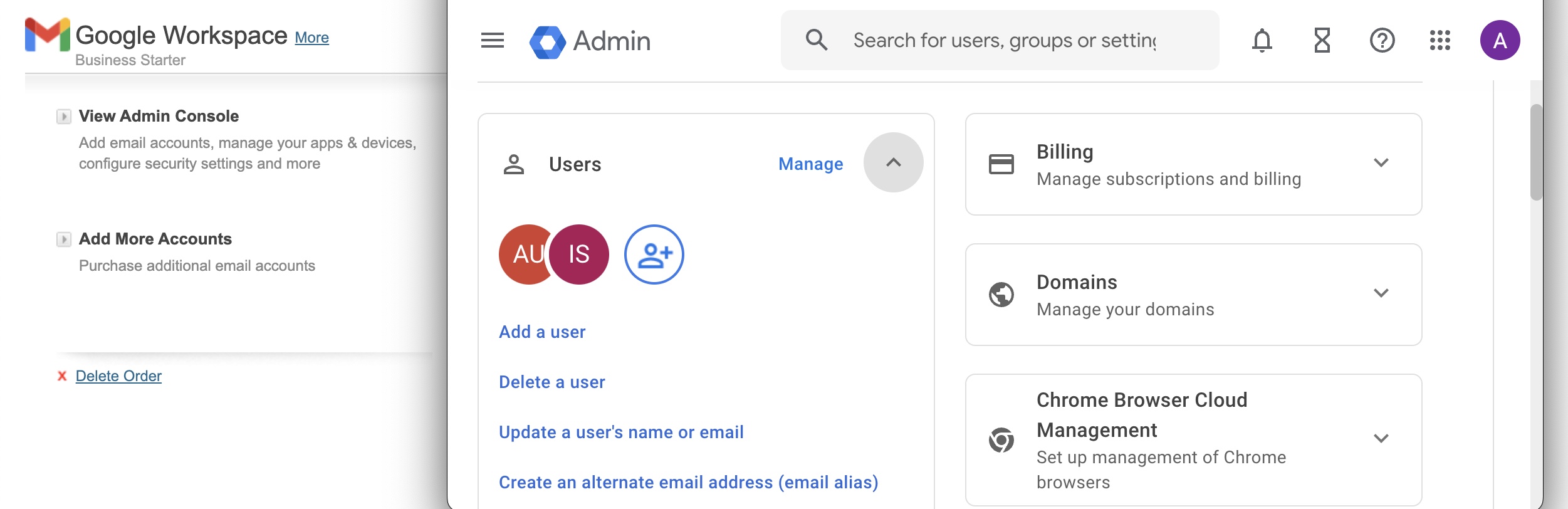
Here you can manage all the Google Workspace related services.
Add More Accounts
Click on the Add More Accounts link available in the Google Workspace section and a popup screen will appear as illustrated in Figure 11 below.
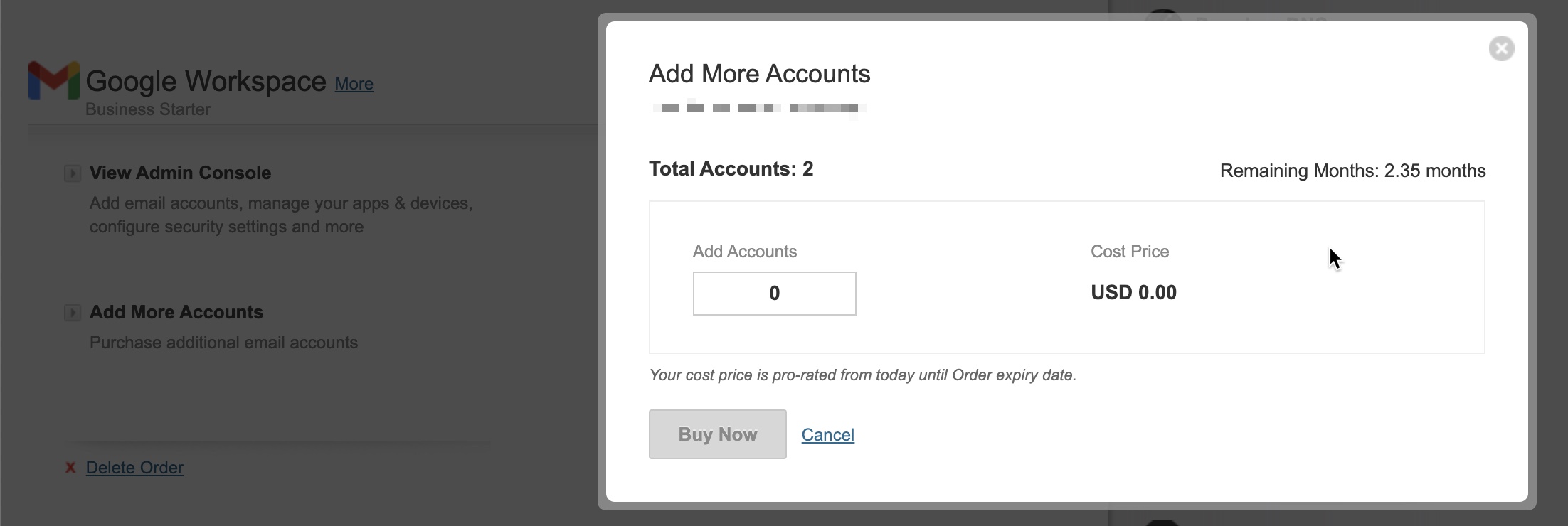
Here you can purchase more Google Workspace user accounts.
Delete Order
Click on the Delete Order link available in the Google Workspace section and a popup screen will appear as illustrated in Figure 12 below.
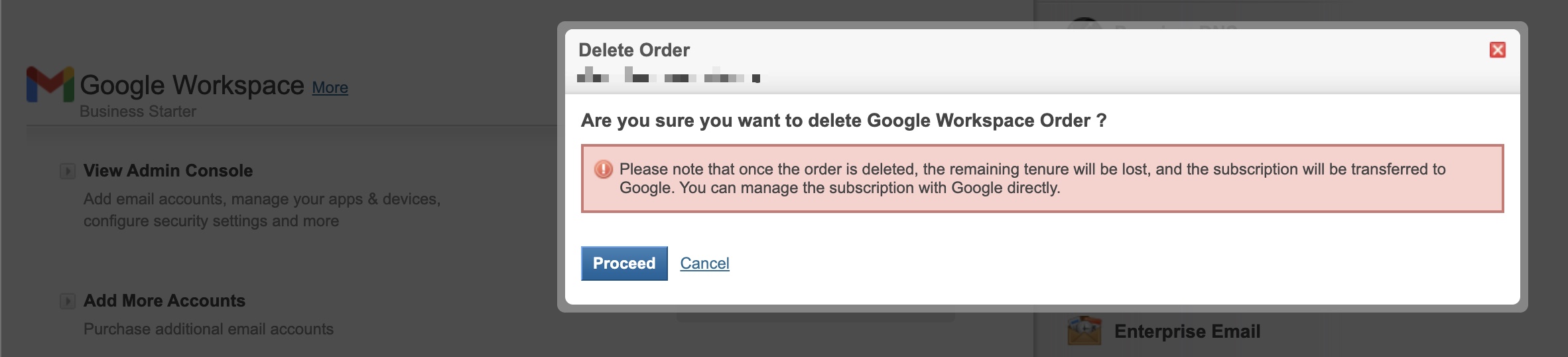
Here you can remove the entire Google Workspace subscription.
Conclusion
This guide provides a comprehensive roadmap for seamlessly purchasing and managing Google Workspace services through Batoi's Hosting domain control panel.