
News
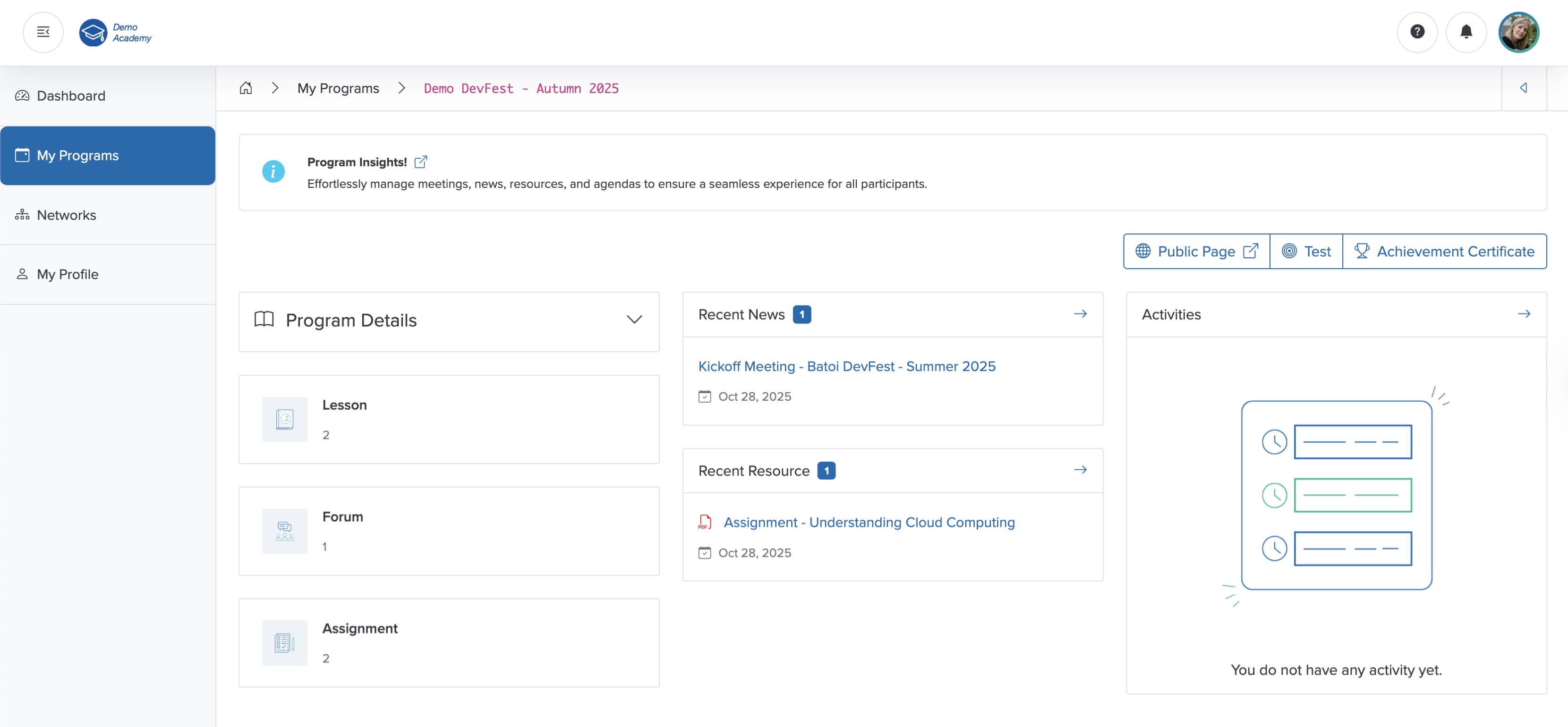
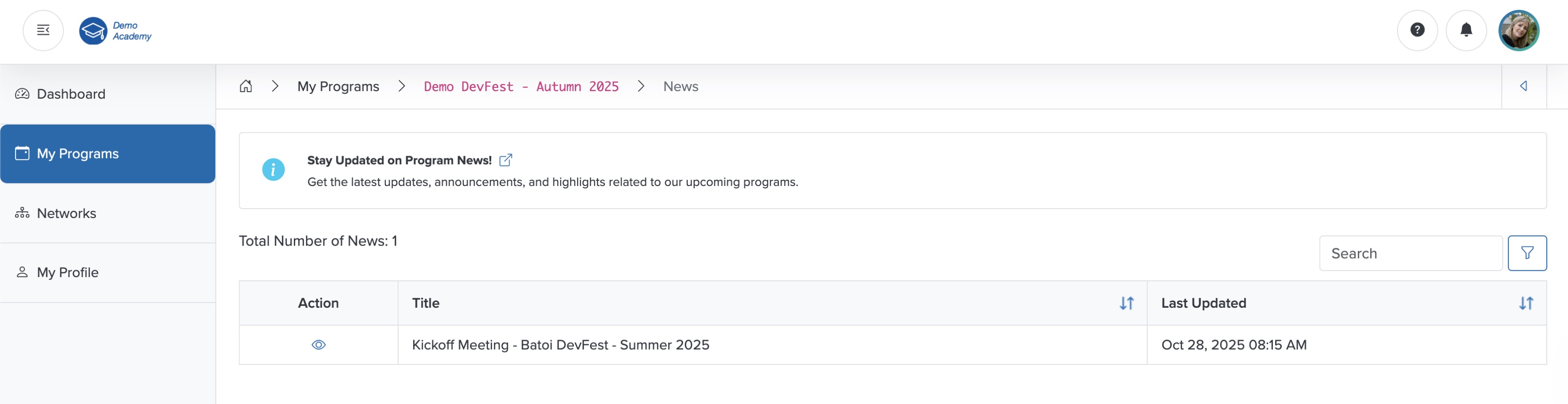
Click the Arrow on the right side of the News card on the course dashboard, as shown in Figure 1 above, and the news list page opens, where you can see all news items in a tabular format, as shown in Figure 2 below.
View News
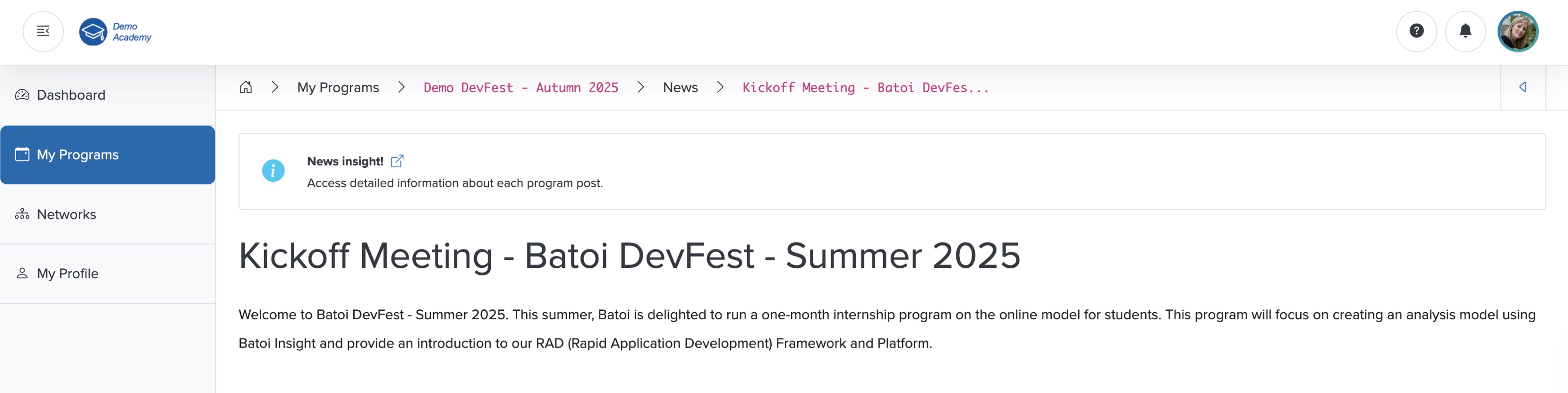
Click the View icon associated with any news in the Action column, as shown in Figure 2 above, and the news detail page opens, as shown in Figure 3 below.
Resources
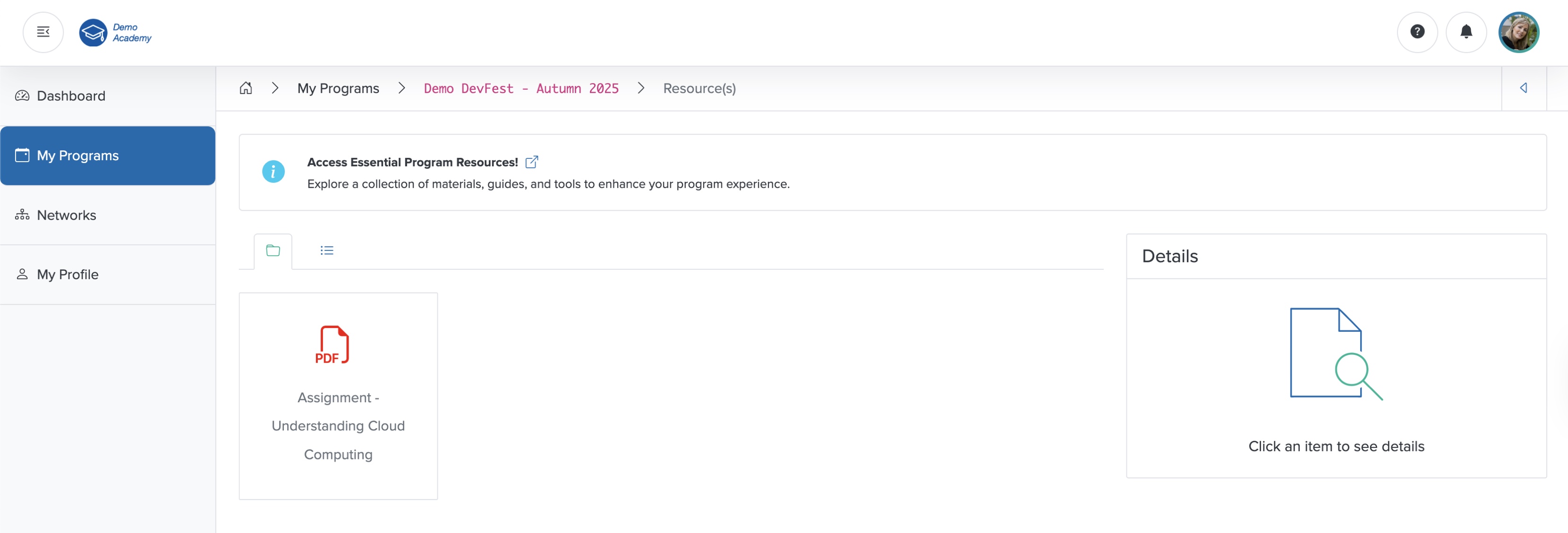
Click the Arrow on the right side of the Resources card on the course dashboard, as shown in Figure 1 above. This opens the resource list screen, where you can see all the resource files related to your course in a card format, as shown in Figure 4 below.
Click the List tab to view the resource files in a tabular format, as shown in Figure 5 below.
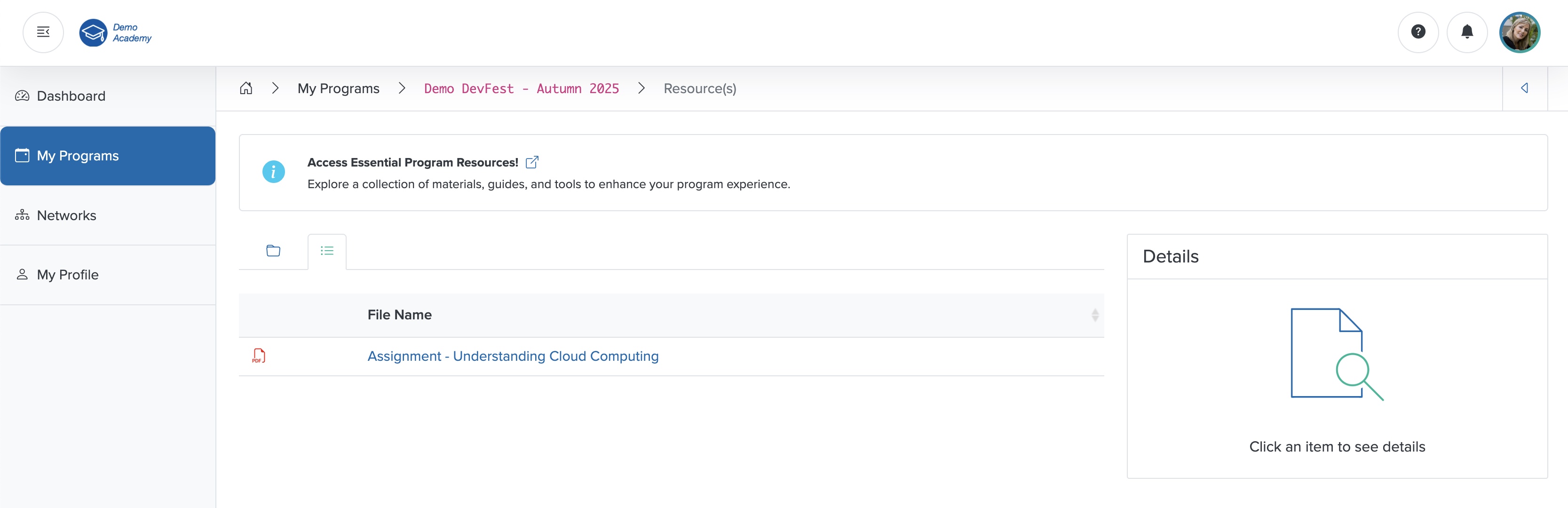
Click the Sort Arrow on the header row of the resource table to sort the resource files, as shown in Figure 5 above.
View Resource
Click the individual resource Card or Title, as shown in Figure 4 or Figure 5 above, and the view screen opens on the right side of the resource list page, as shown in Figure 6 below.
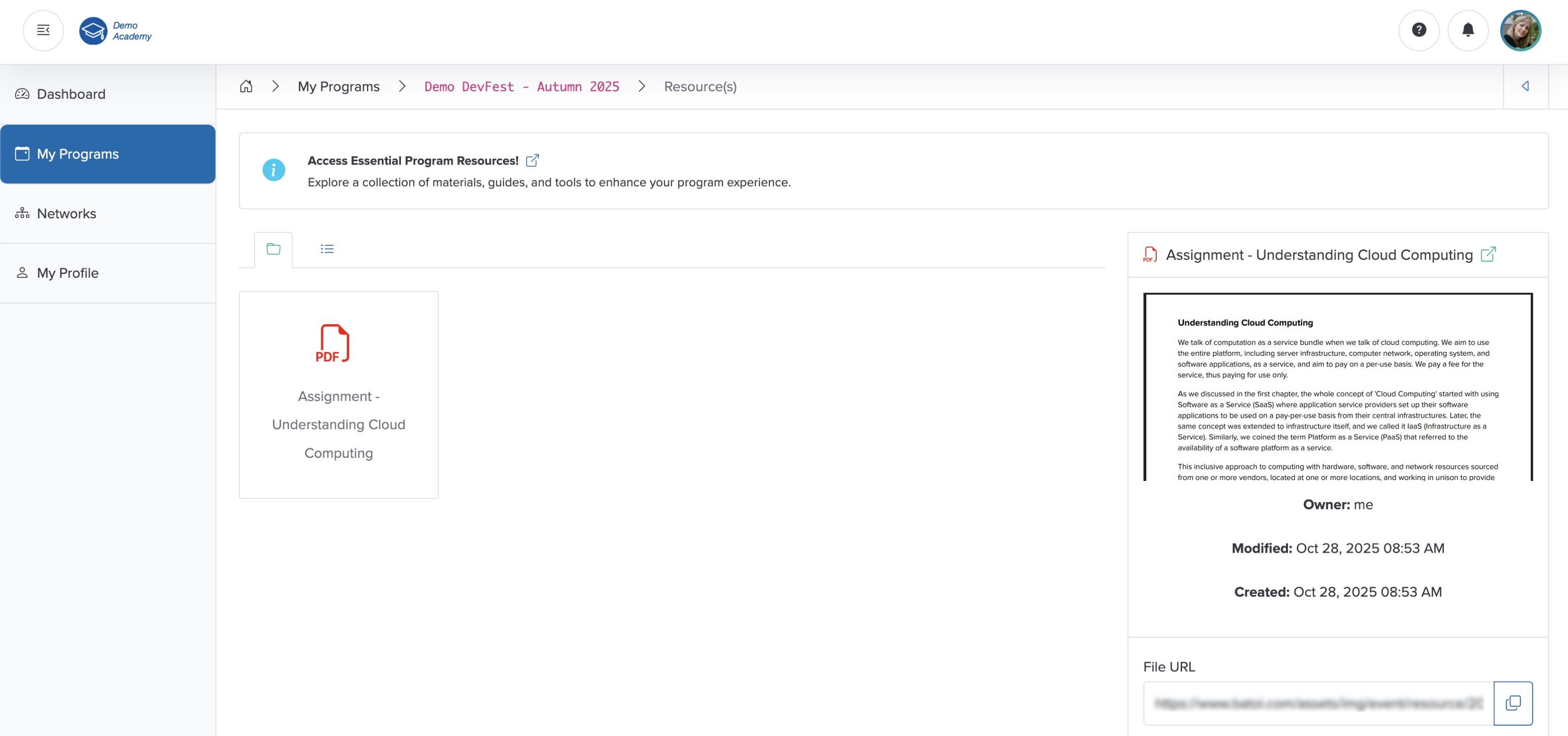
Click the External Link icon next to the file name to view the resource file in a new window, as shown in Figure 6 above.
Click the Copy Link icon on the file URL to copy the file name, as shown in Figure 6 above.