My Profile
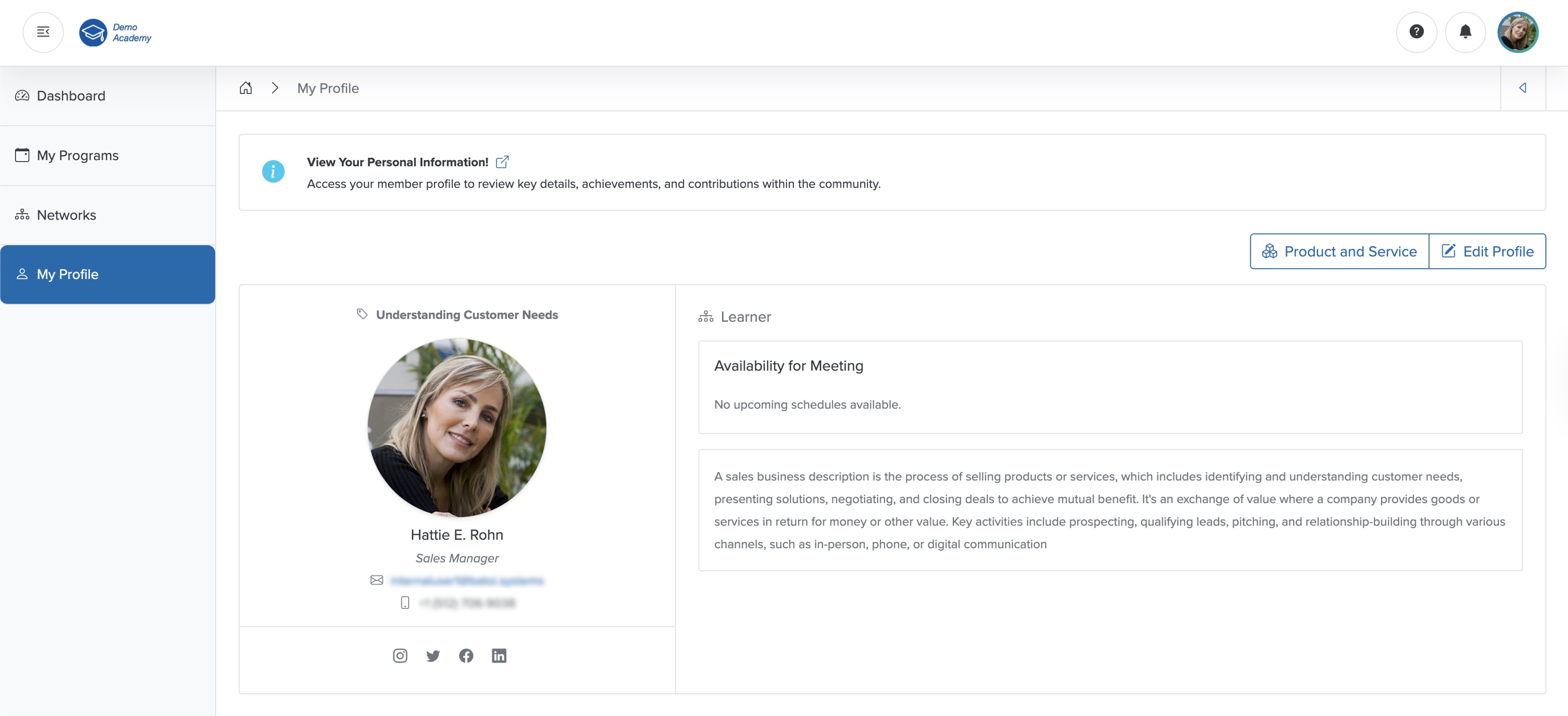
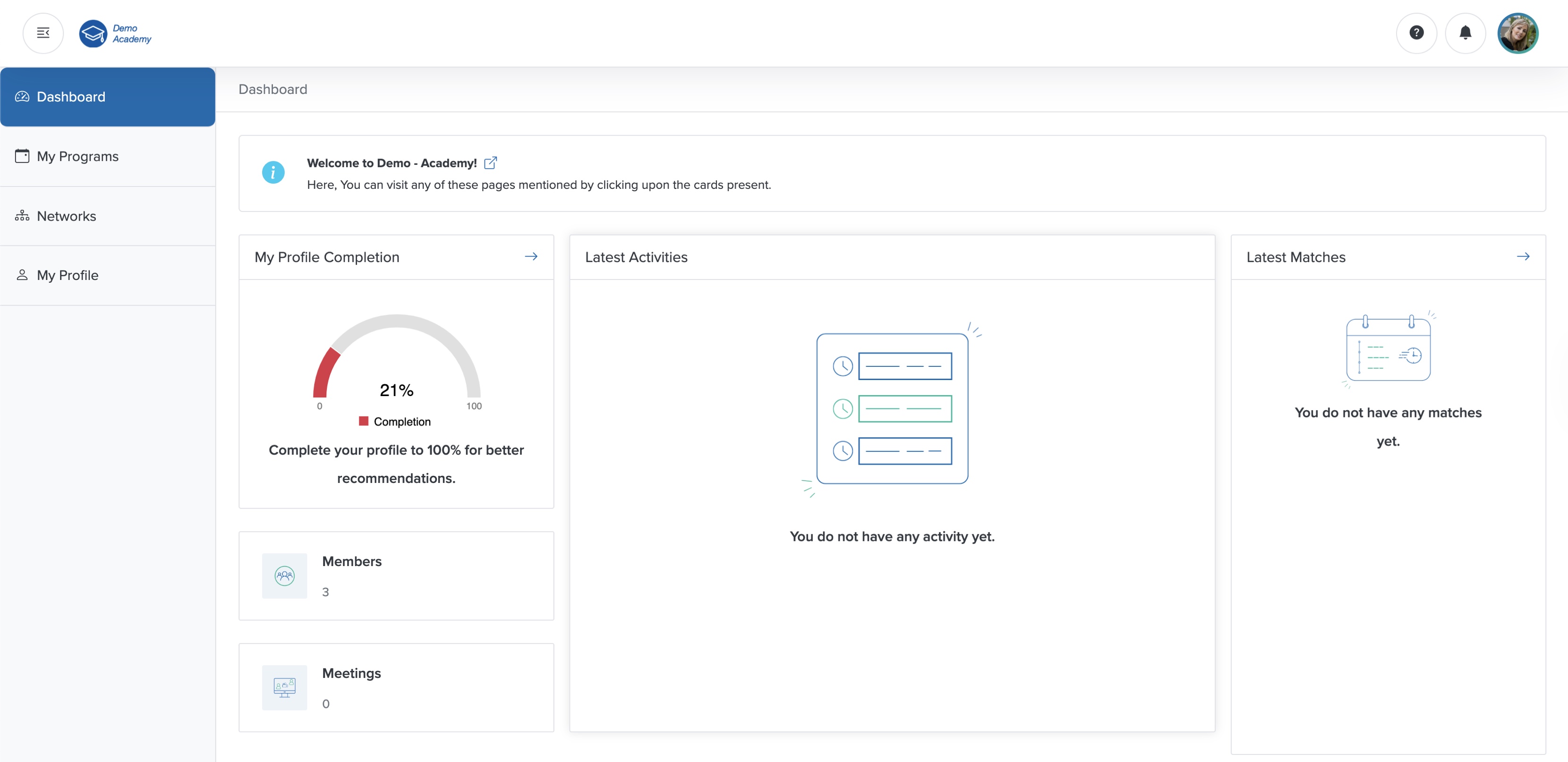
Click the Arrow on the header row of the My Profile Completion card or click the My Profile menu from the sidebar, as shown in Figure 1 above, and the My Profile page opens, as shown in Figure 2 below.
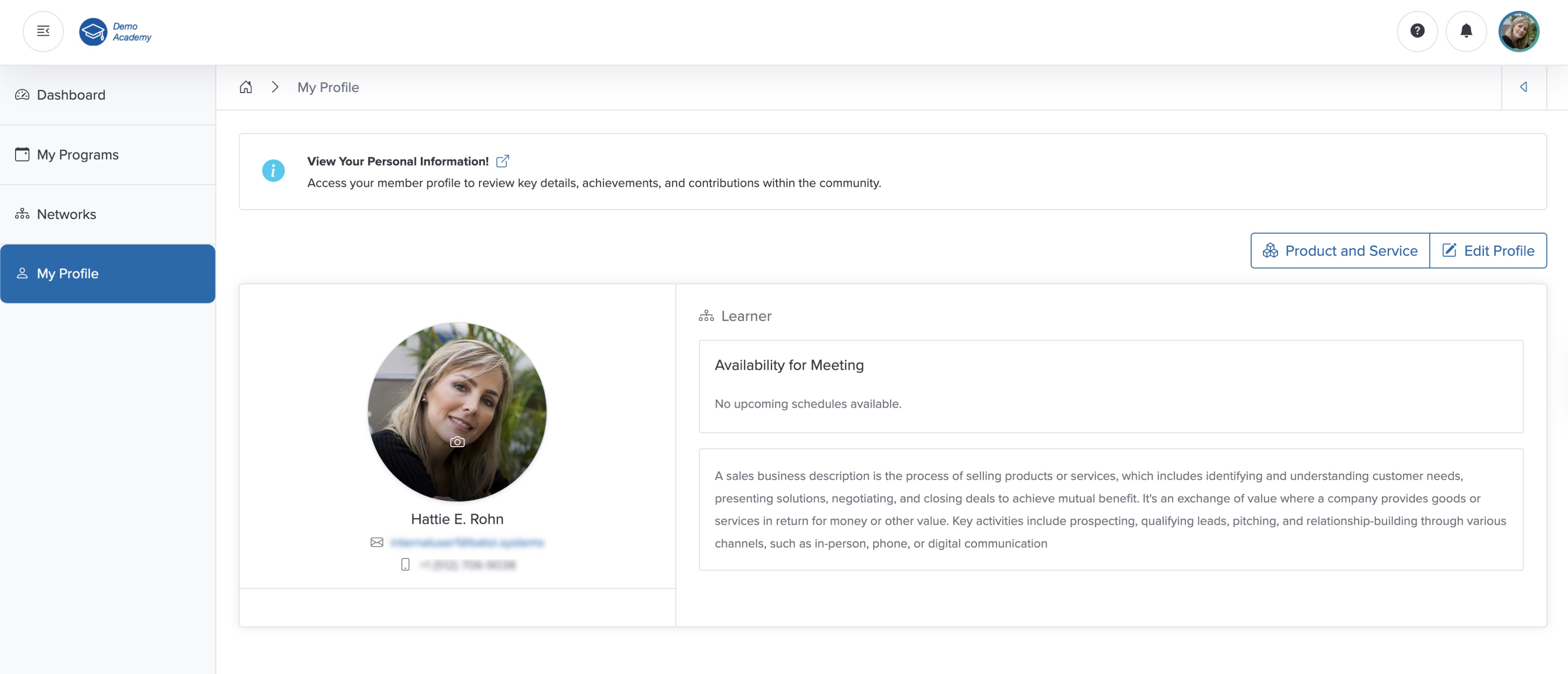
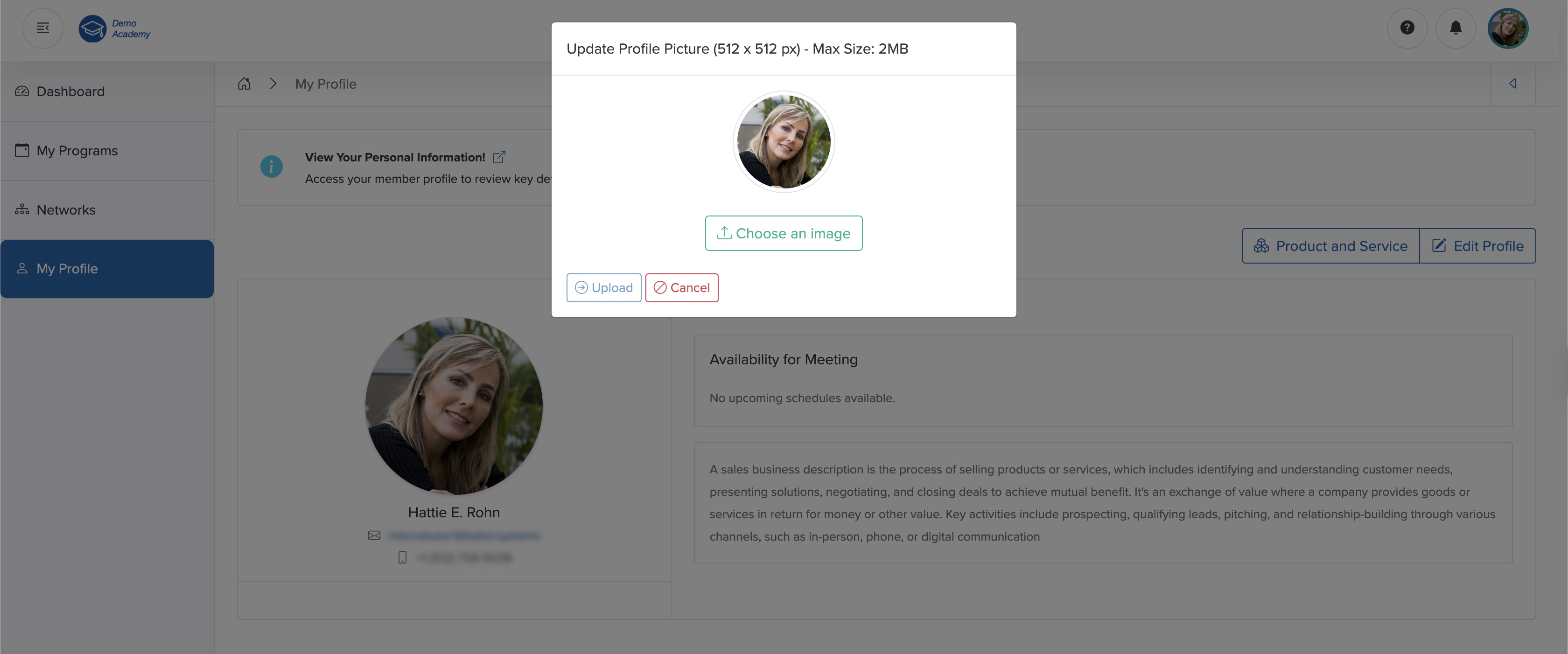
Click the Camera icon, as shown in Figure 2 above, and the image upload pop-up screen appears, as shown in Figure 3 below.
After uploading your profile image, you can see your updated profile picture, as shown in Figure 4 below.
Edit Profile
Click the Edit Profile button on the top-right side of the profile detail screen, as shown in Figure 4 above, and the profile edit page opens, as shown in Figure 5 below.
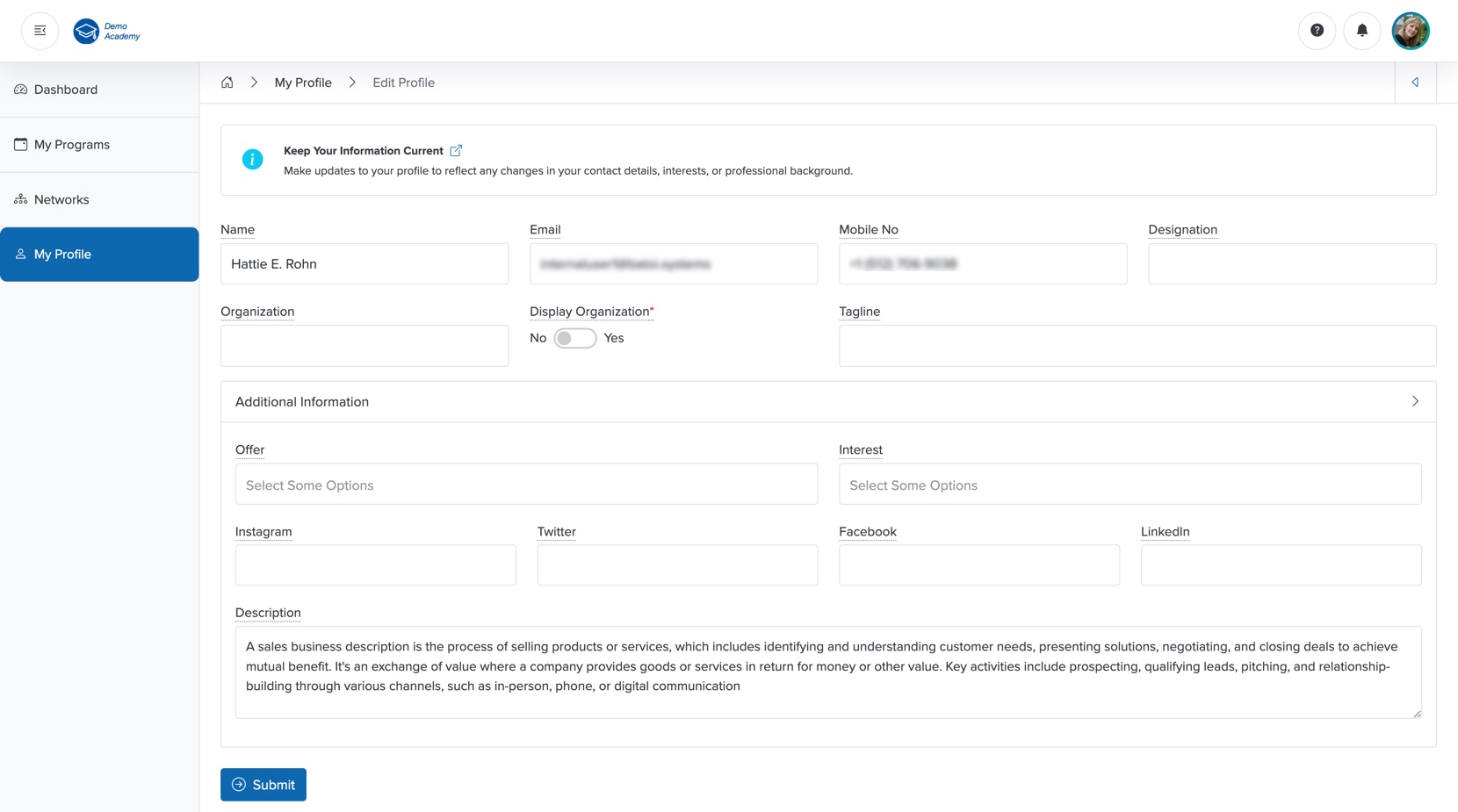
You cannot edit the Name, Email, and Mobile No fields on the edit profile page. To modify these fields, you must contact your Organization User.
You can edit the details below and click the Submit button to update your profile, as shown in Figure 5 above. You can set the following details:
- Designation (Textbox - Optional): Your Designation
- Organization (Textbox - Optional): Name of your Organization
- Display Organization (Radio Button - Optional): Select if you want to display the organisation name of your profile page or not. (If you selected Yes, then the Organization name and logo will come first, and the contact name will come below that.)
- Tagline (Textbox - Optional): Tagline to describe you
- Offers (Multi-select - Optional): Select the category of service you offer from the options available
- Interest (Multi-select - Optional): Select the category of service you are looking for from the options available
- Social Media Handles
- Description (Textarea - Optional): Write about you or your organisation
After you update your profile, you can see your updated details, as shown in Figure 6 below.