Assignment
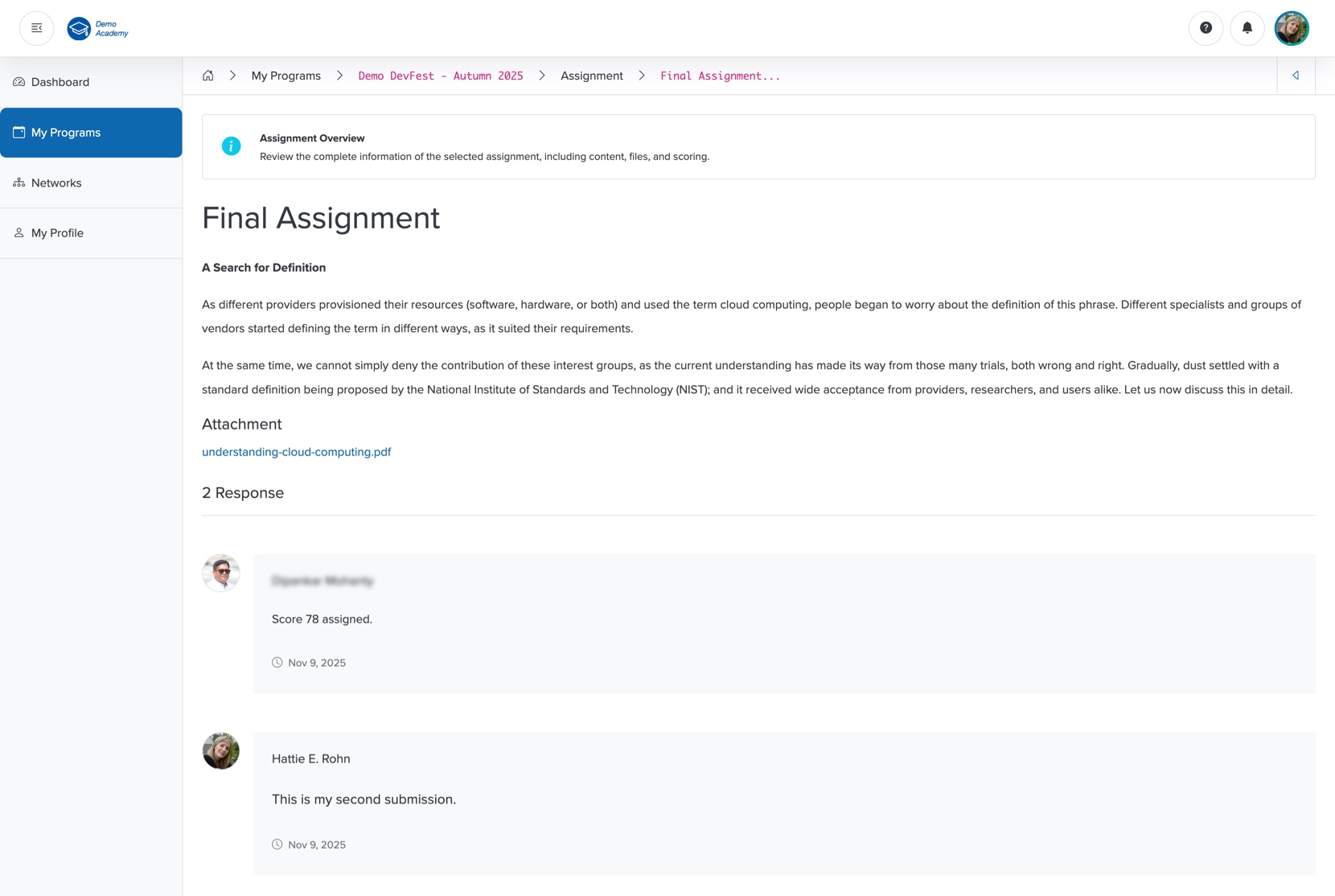
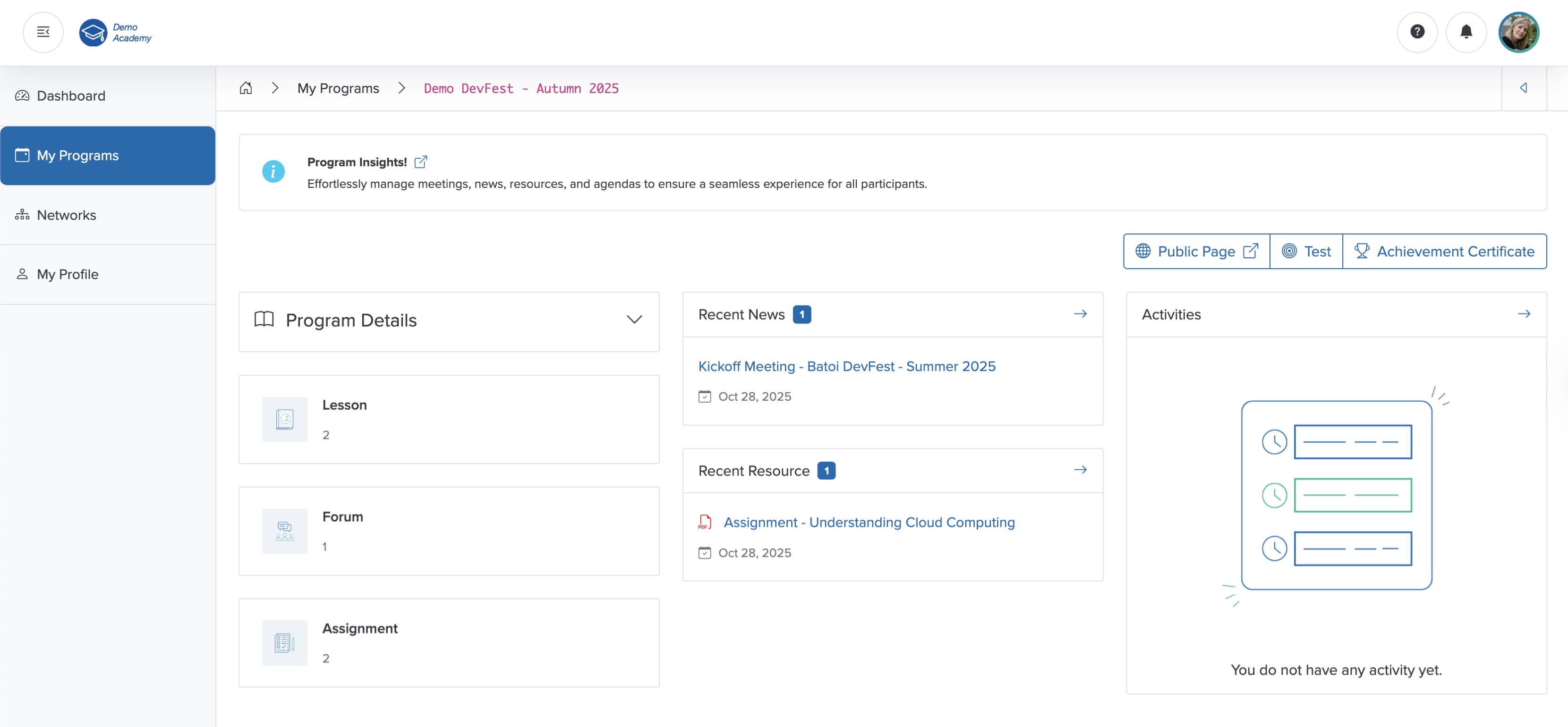
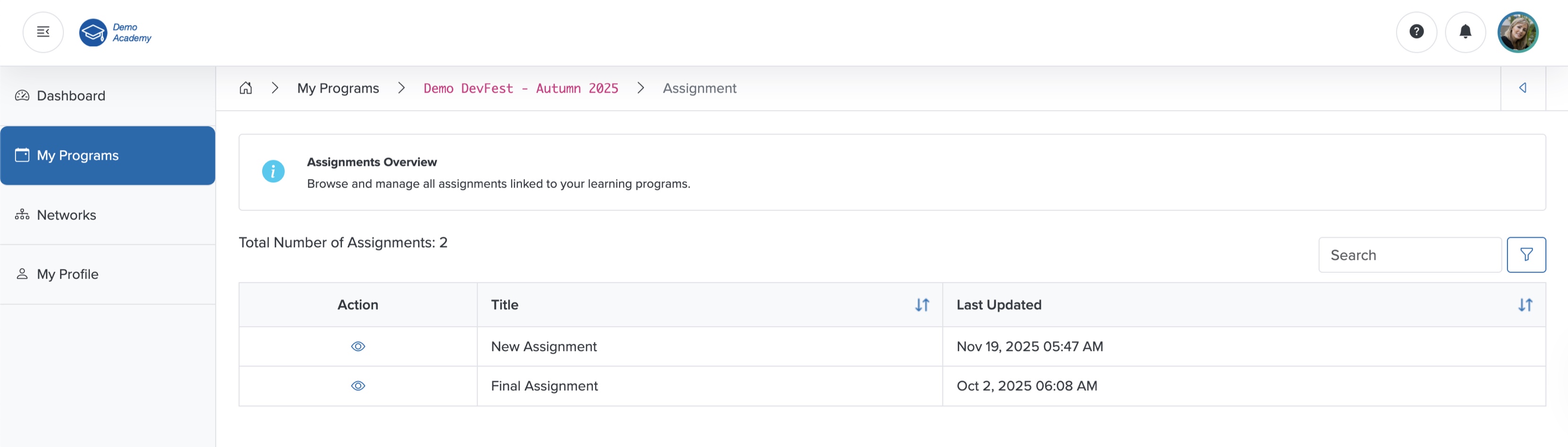
Click the Assignment card on the course dashboard, as shown in Figure 1 above, and the assignment list page opens, where you can see all the available assignments in a tabular format, as shown in Figure 2 below.
View Assignment
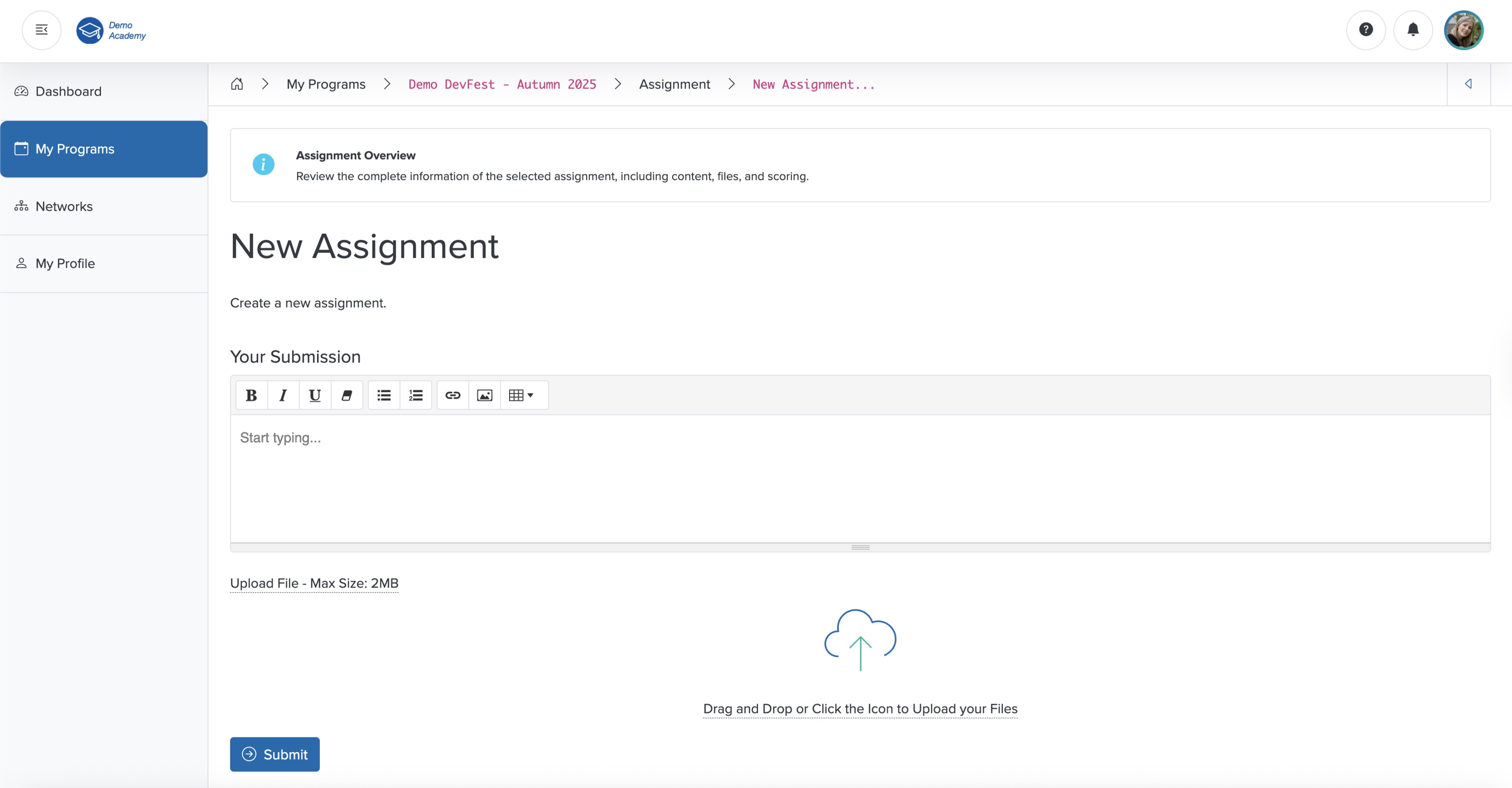
Click the View icon associated with any assignment in the Action column, as shown in Figure 2 above, and the assignment detail page opens, as shown in Figure 3 below.
Submit Your Assignment
Enter your submission in the Summer Note section and click the Submit button to submit your assignment, as shown in Figure 3 above.
You can also upload files using the Upload feature, as shown in Figure 3 above.
Once your course instructor approves your submission, you can see your score in the response, and the system closes the assignment to prevent further submission, as shown in Figure 4 below.