Lesson
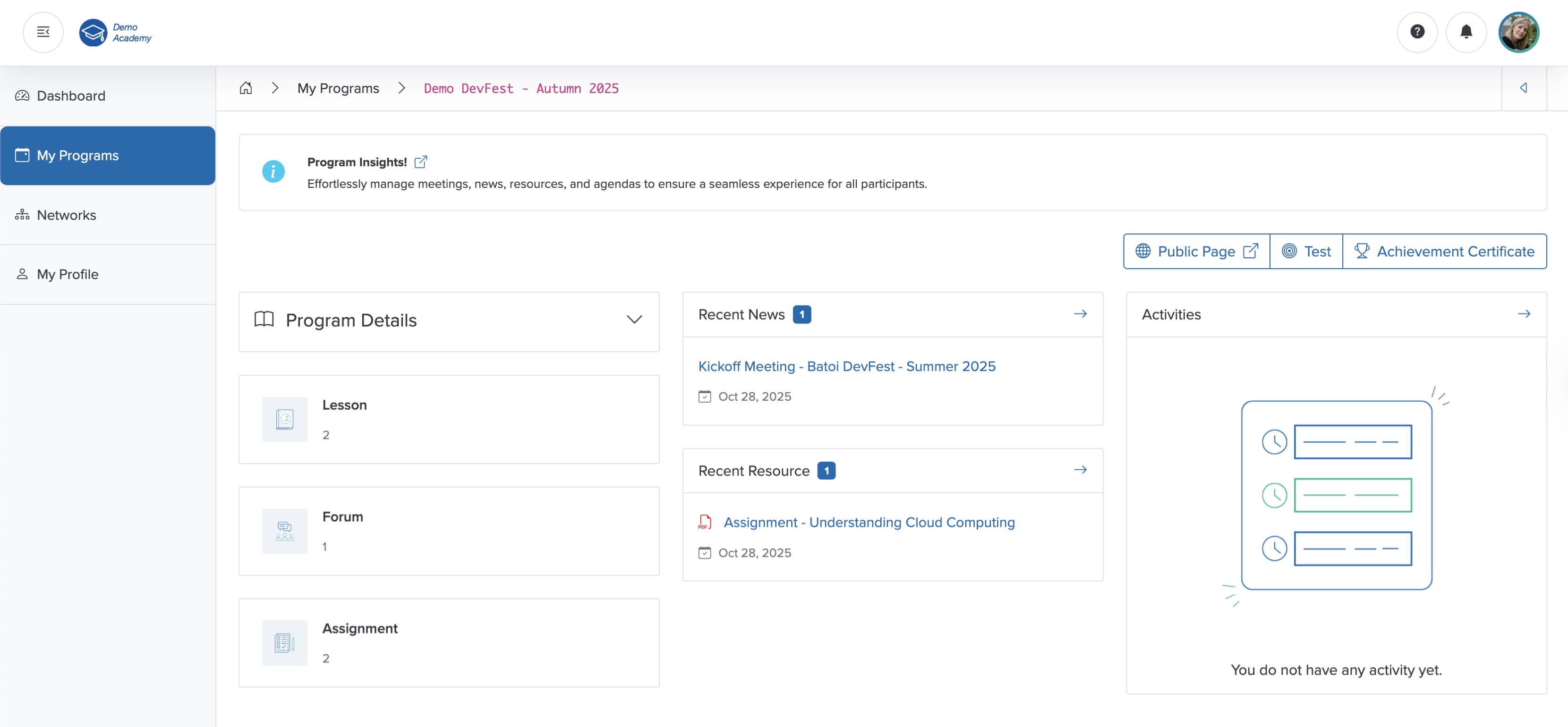
Click the Lesson card from the course dashboard, as shown in Figure 1, and the lesson page opens, as shown in Figure 2 below.
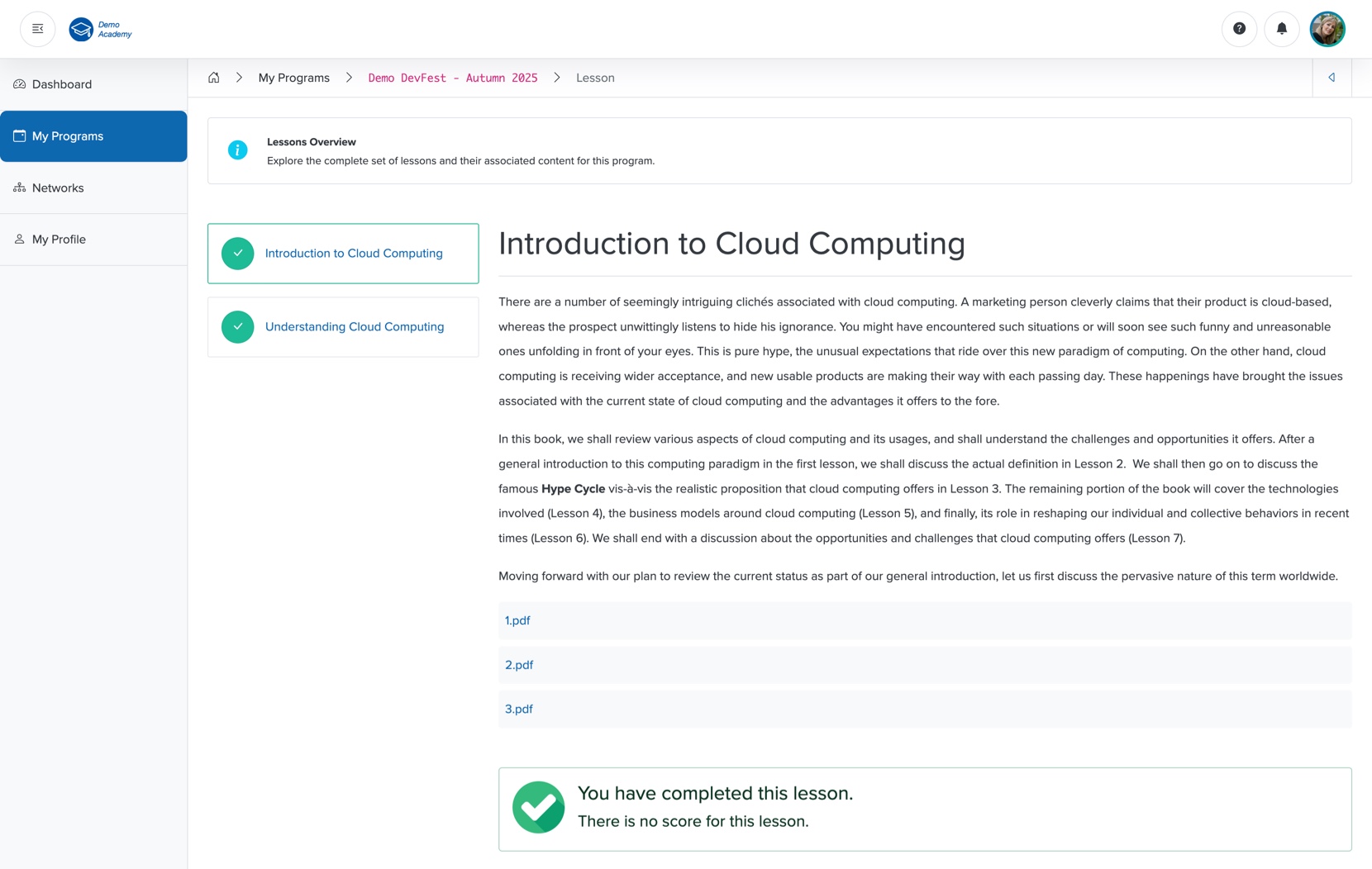
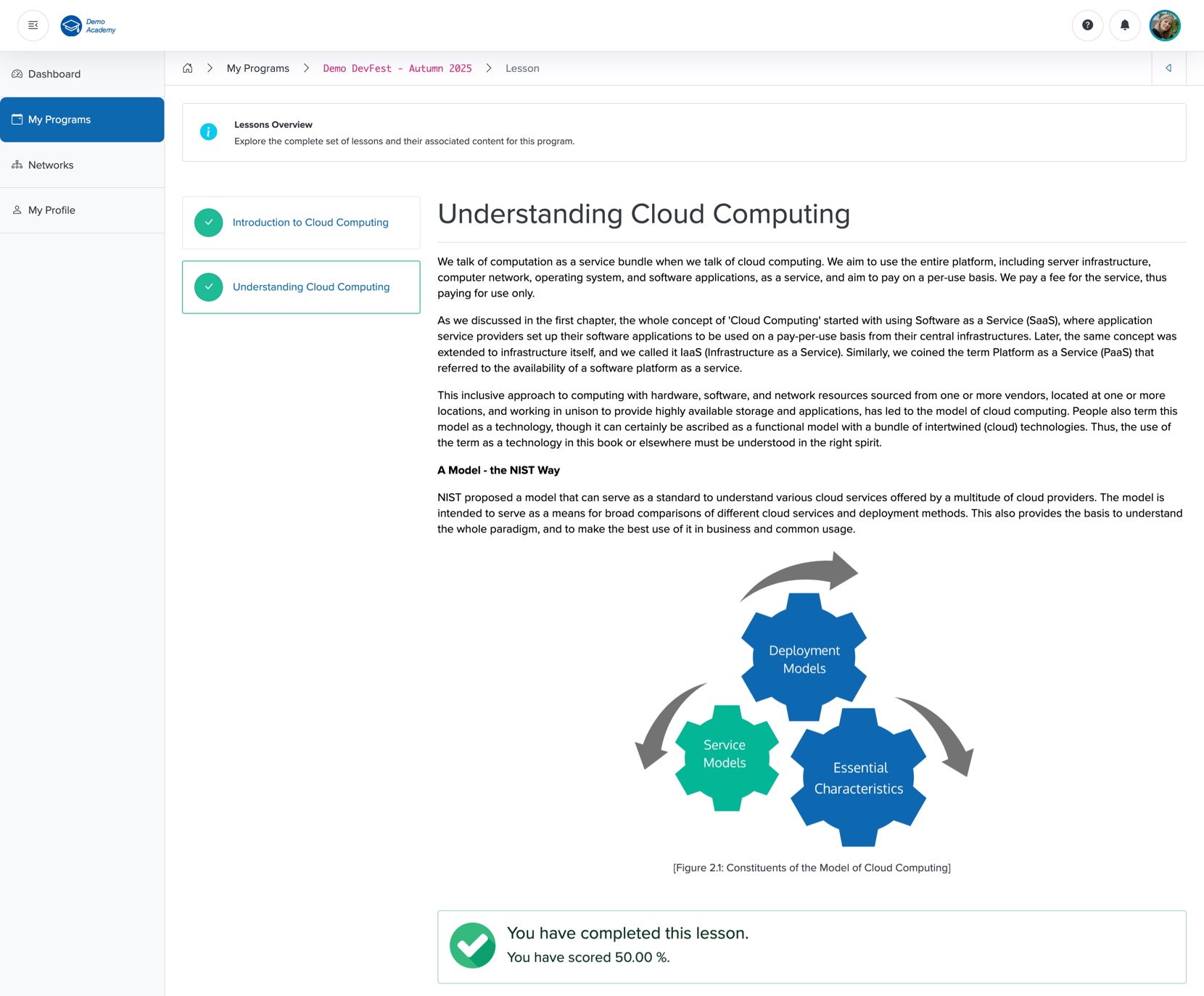
On the left side of the screen, the list of lessons appears in a tab format, as shown in Figure 2 above. Click the lessons from the tab, as shown in Figure 2 above, to view the lessons.
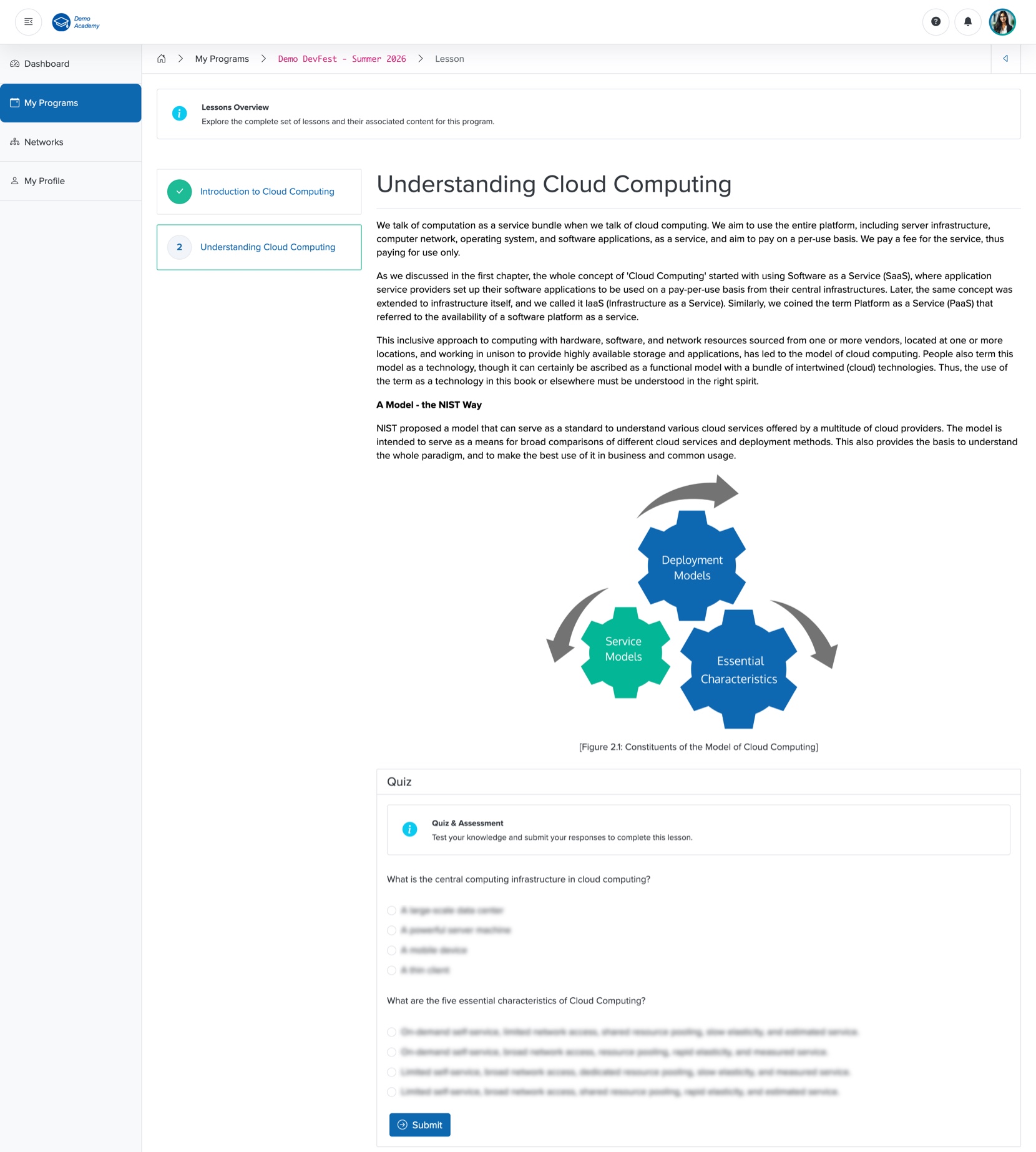
You can find the quiz for a lesson at the bottom of the lesson screen, as shown in Figure 3 below.
Click the Submit button at the bottom of the screen, as shown in Figure 3 below, after you complete the lesson, and a green tick mark appears with a note, as shown in Figure 2 above. You can also see the green tick mark appear on the lesson tab, as shown in Figure 2 above.
NOTE: You can attempt all the quizzes associated with individual lessons before you mark them as complete. Once the lesson is marked as completed, you will not be able to access the quiz associated with it.
You can see the score you have obtained in the quiz, along with the lesson completion note at the bottom of the screen, as shown in Figure 4 below.