My Dashboard
Click the Bridge Portal button for the specific space as shown in Figure 1 above, and your dashboard page opens, as shown in Figure 2 below.
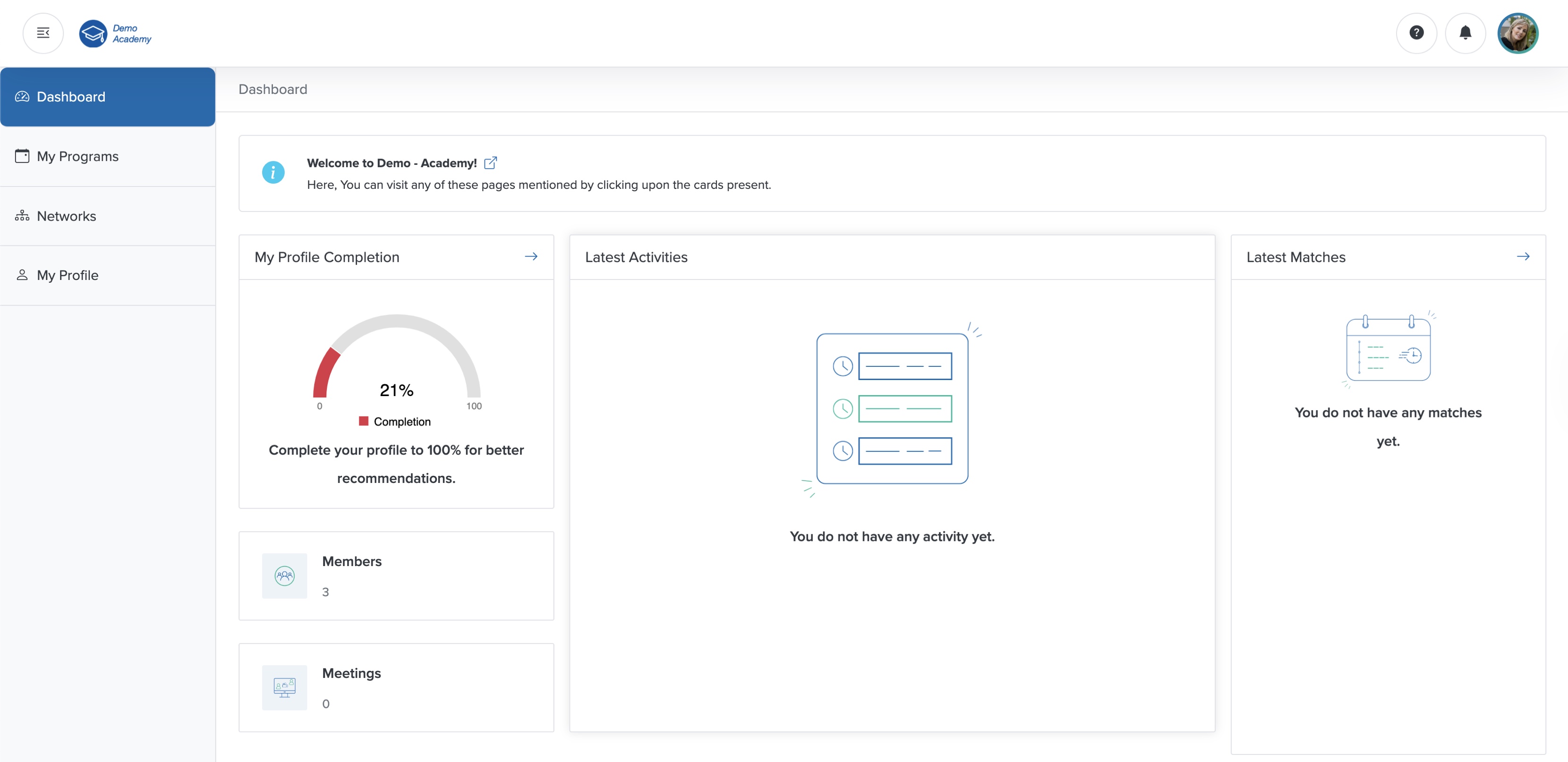
As a member, you can access the menus ‘Dashboard’, ‘My Programs’, ‘Networks’, and ‘My Profile’, as shown in Figure 2 above.
On the left side of your Dashboard, you can see the My Profile Completion status, number of Members, and number of Meetings details in card format, as shown in Figure 2 above.
In the middle of the Dashboard, you can see the latest Activities details in card format, as shown in Figure 2 above.
On the right side of your Dashboard, you can see the latest Matches details in card format, as shown in Figure 2 above.
My Programs
Click the My Programs menu as shown in Figure 2 above, and the program list page opens, as shown in Figure 3 below.
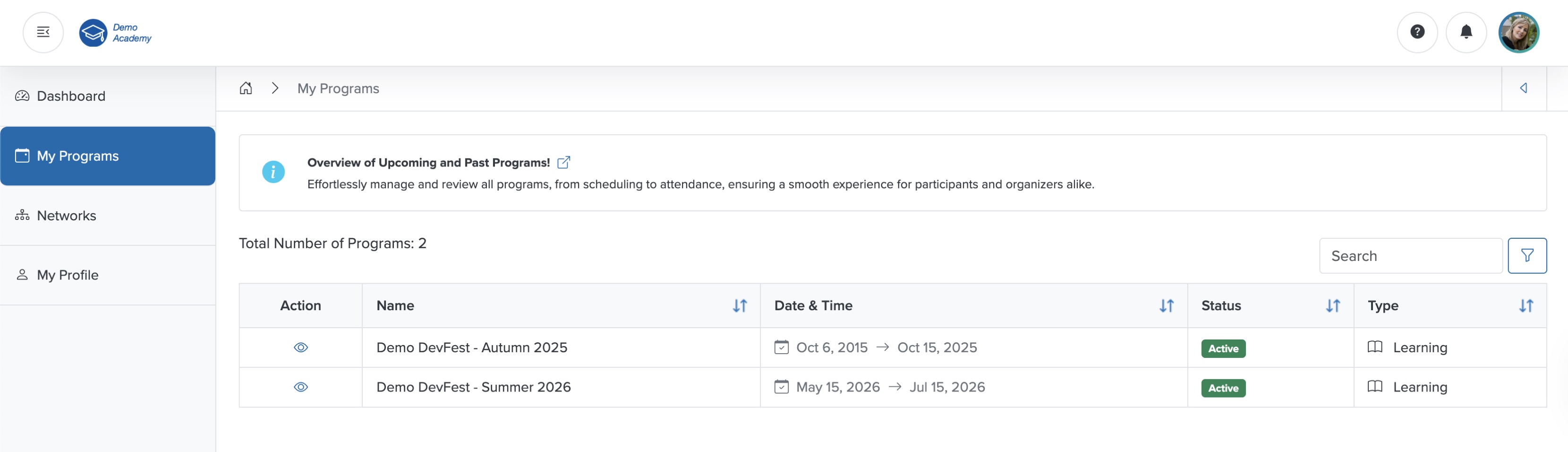
In the Program list page, you can see all the programs listed in tabular format, as shown in Figure 3 above. To filter the program, enter the details in the Filter Textbox located at the top-right corner of the screen, as shown in Figure 3 above. To sort the program by 'Name', 'Date and Time', 'Status', and 'Type', click the sorting arrow in the header row of the corresponding column of the table, as shown in Figure 3 above.
Individual Course Dashboard
Click the View icon associated with any Learning program in the Action column, as shown in Figure 3 above, and the course dashboard page opens, as shown in Figure 4 below.
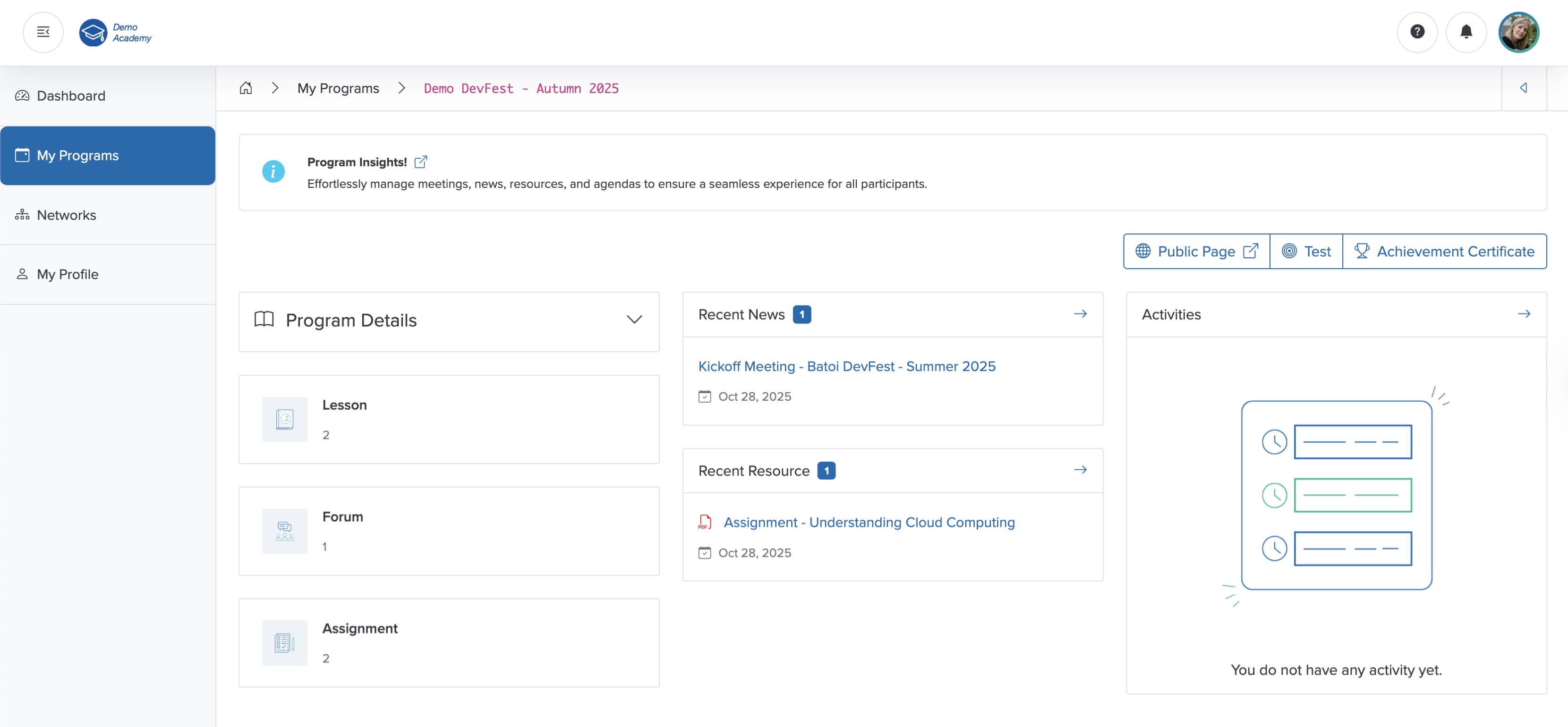
In the extreme left side of the individual course dashboard screen, you can see the menu structure available for the course, as shown in Figure 4 above.
In the course dashboard, you can find the Program details, number of Lessons added, number of Forum threads created, and number of Assignments added on the left side in a card format, as shown in Figure 4 above.
In the middle section, you can see the latest News published and the recent Resources added to the Learning program, as shown in Figure 4 above.
On the right side, you can see the Activities, as shown in Figure 4 above.
Program Details
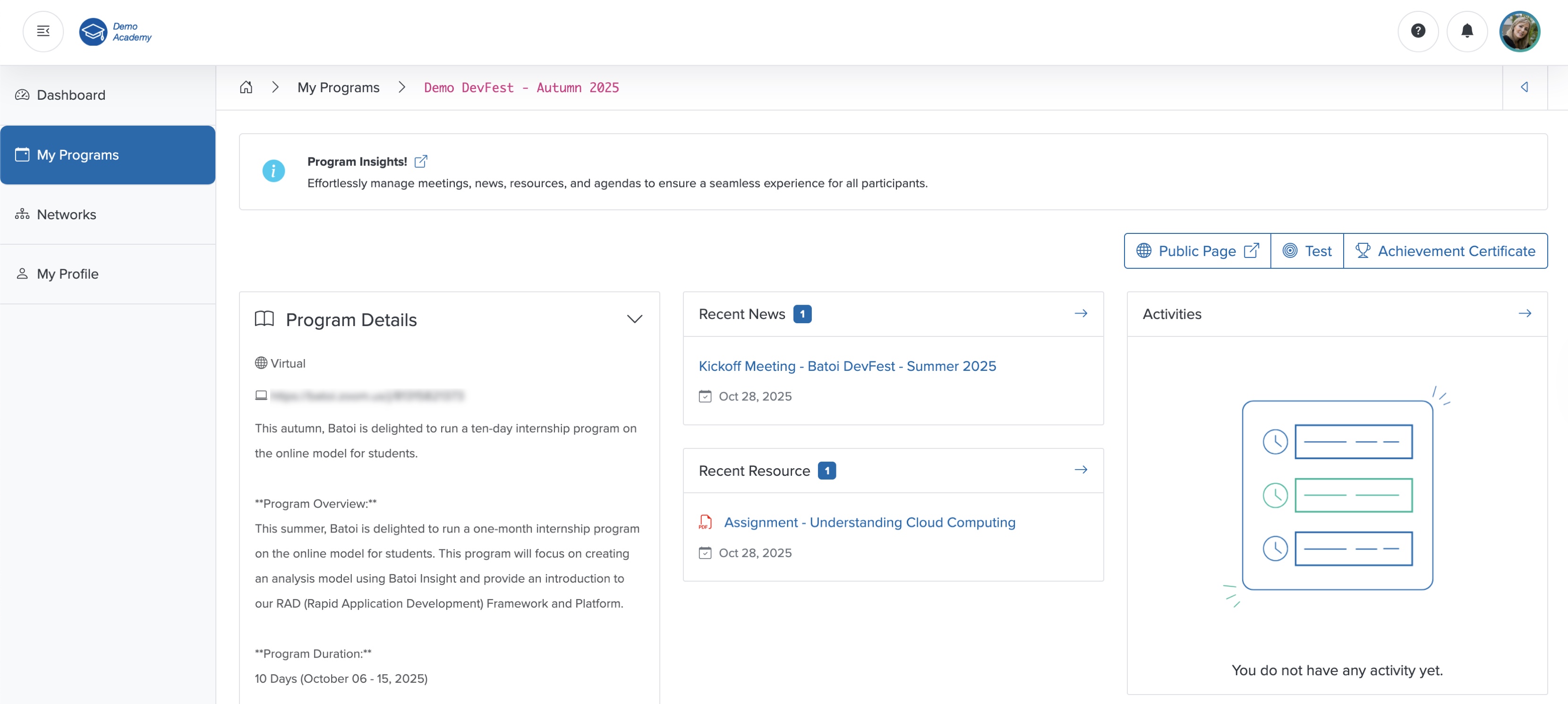
Click the Down Arrow on the Program Details card on the course dashboard, as shown in Figure 4 above, and the section expands, displaying the details such as course Type and Location, as shown in Figure 5 below.