Batoi LMS is a Software as a Service (SaaS) platform designed to manage course content, including members, lessons, forums, assignments, ranks, tests, certificates, resources, news, and more.
Once you have a subscription to Batoi, you can log in as an organization user at https://www.batoi.com/login, as shown in Figure 1 below.
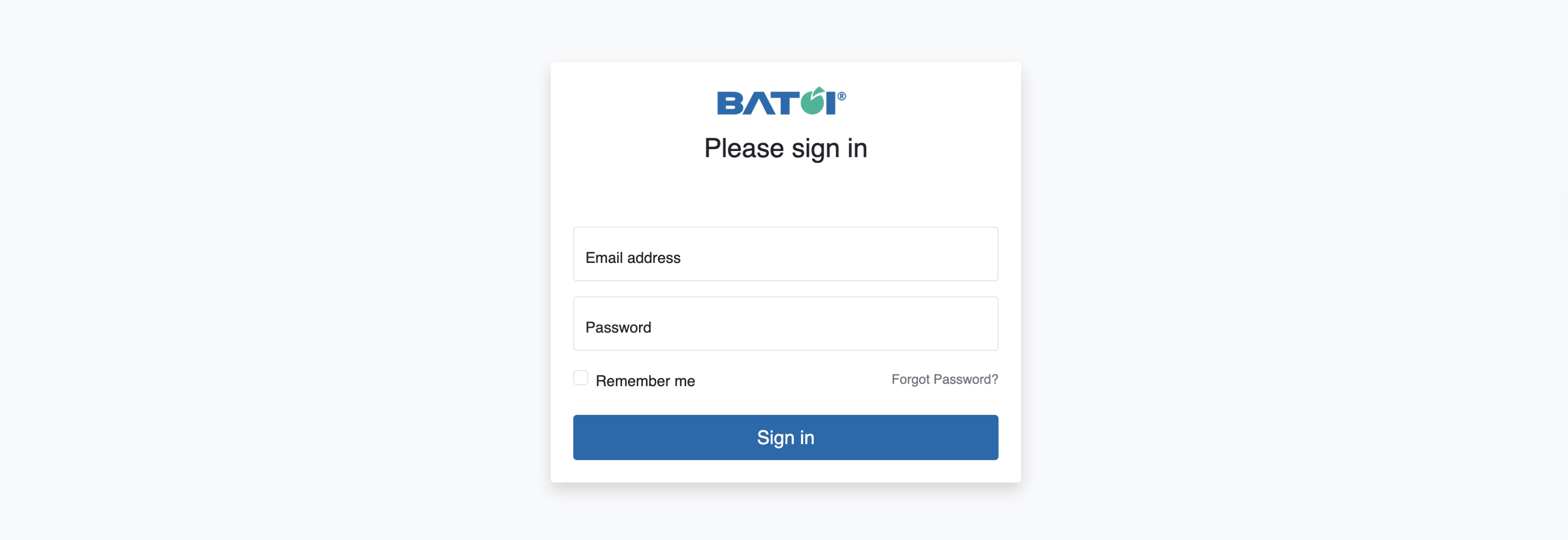
Enter your Email Address as your username and your Password, and click the Sign in button, as shown in Figure 1 above.
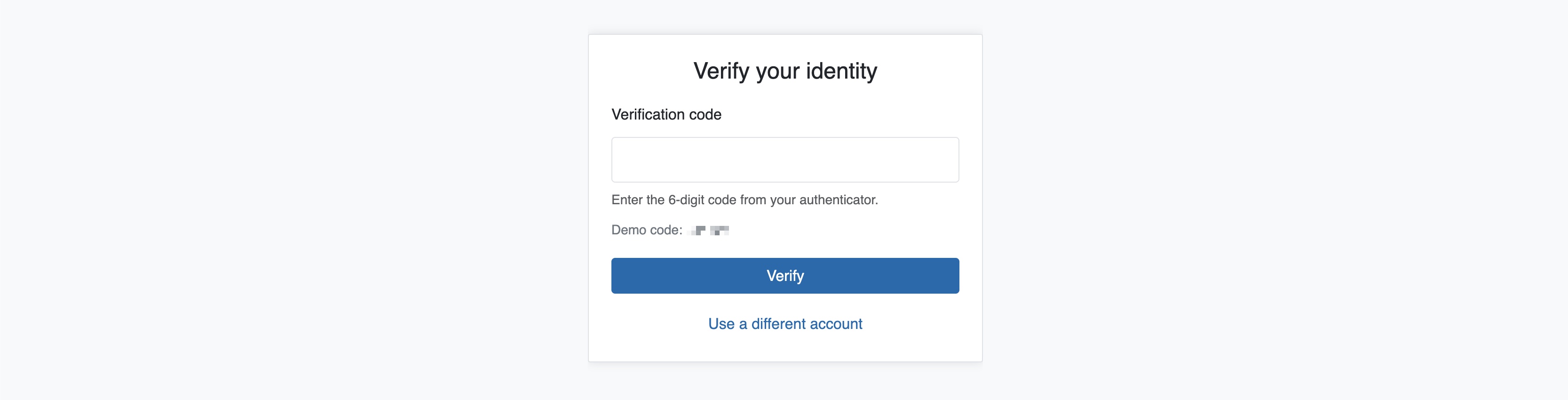
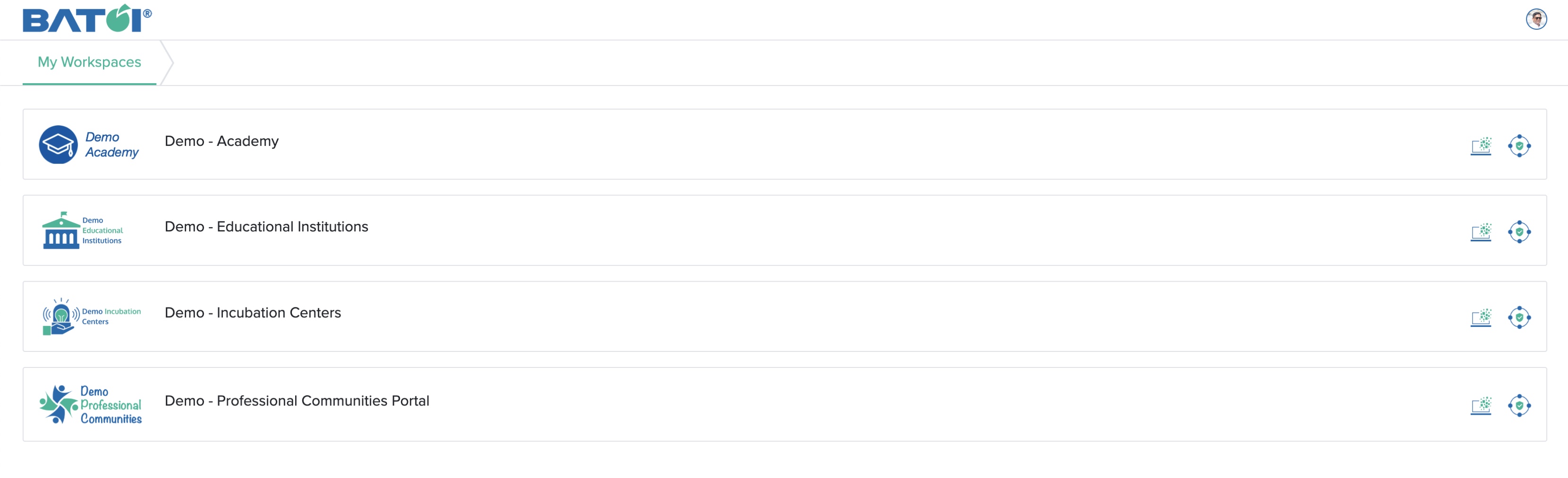
The system prompts you with the verification code. Enter the 6-digit Demo code available on your screen, as shown in Figure 2 below, and click the Verify button. After successful verification, the system redirects you to My Workspaces, as shown in Figure 3 below.
My Workspaces
On My Workspaces, you can see all the spaces assigned to you in card format, as shown in Figure 3 above. Each workspace has two buttons:
- Workspace on the left with the desktop icon
- Bridge Portal on the right with the loop icon
Forgot Password
Click the Forgot Password link on the login screen, as shown in Figure 1 above, and the system redirects you to the Forgot Password page, as shown in Figure 4 below.
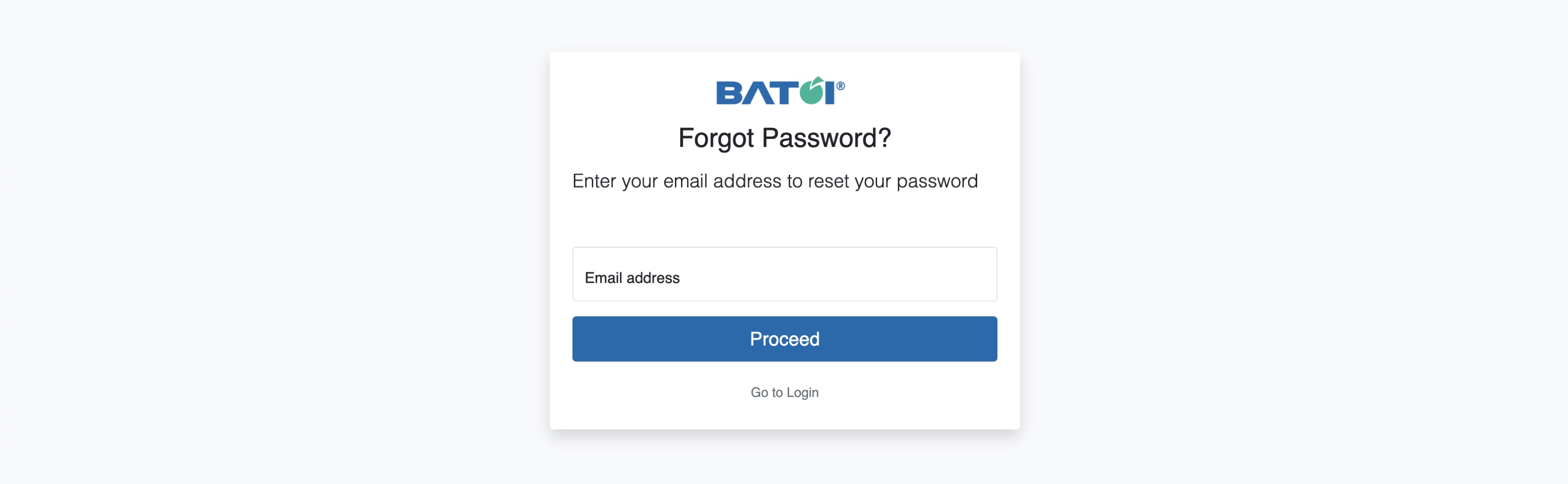
Enter your registered email address and click the Proceed button, and the system generates your new password and sends it to your email ID, as shown in Figure 5 below.
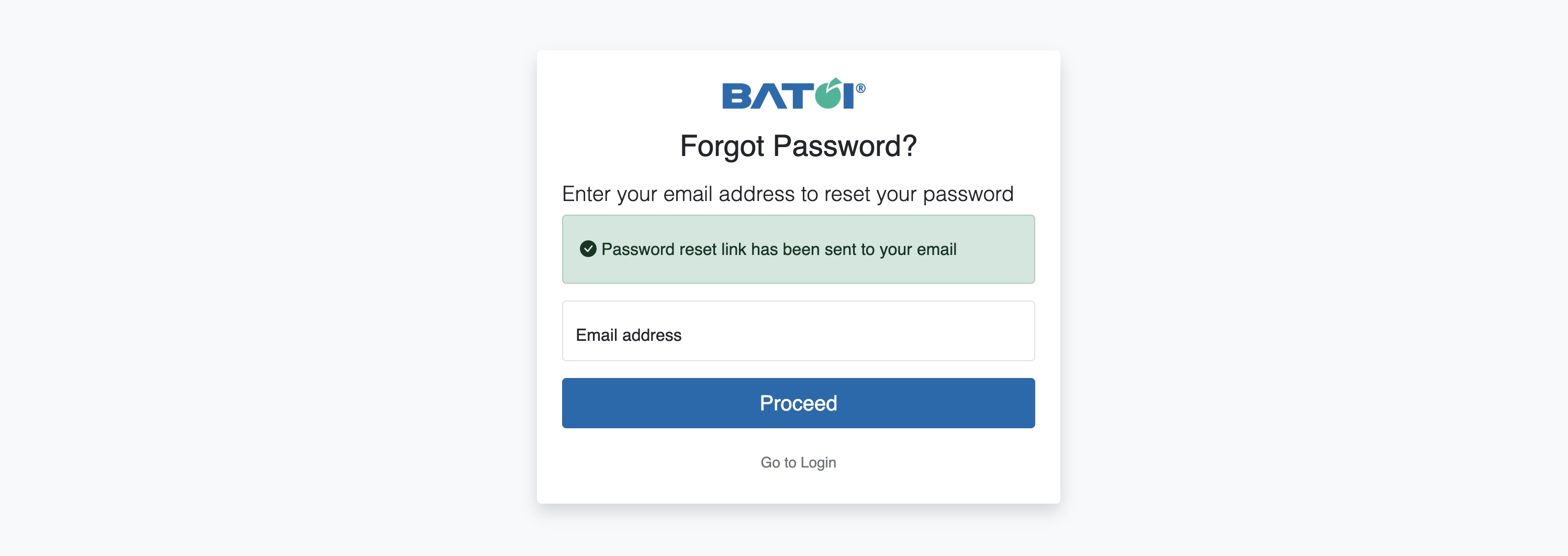
Click the Go to Login link, as shown in Figure 5 above, to return to the login screen.
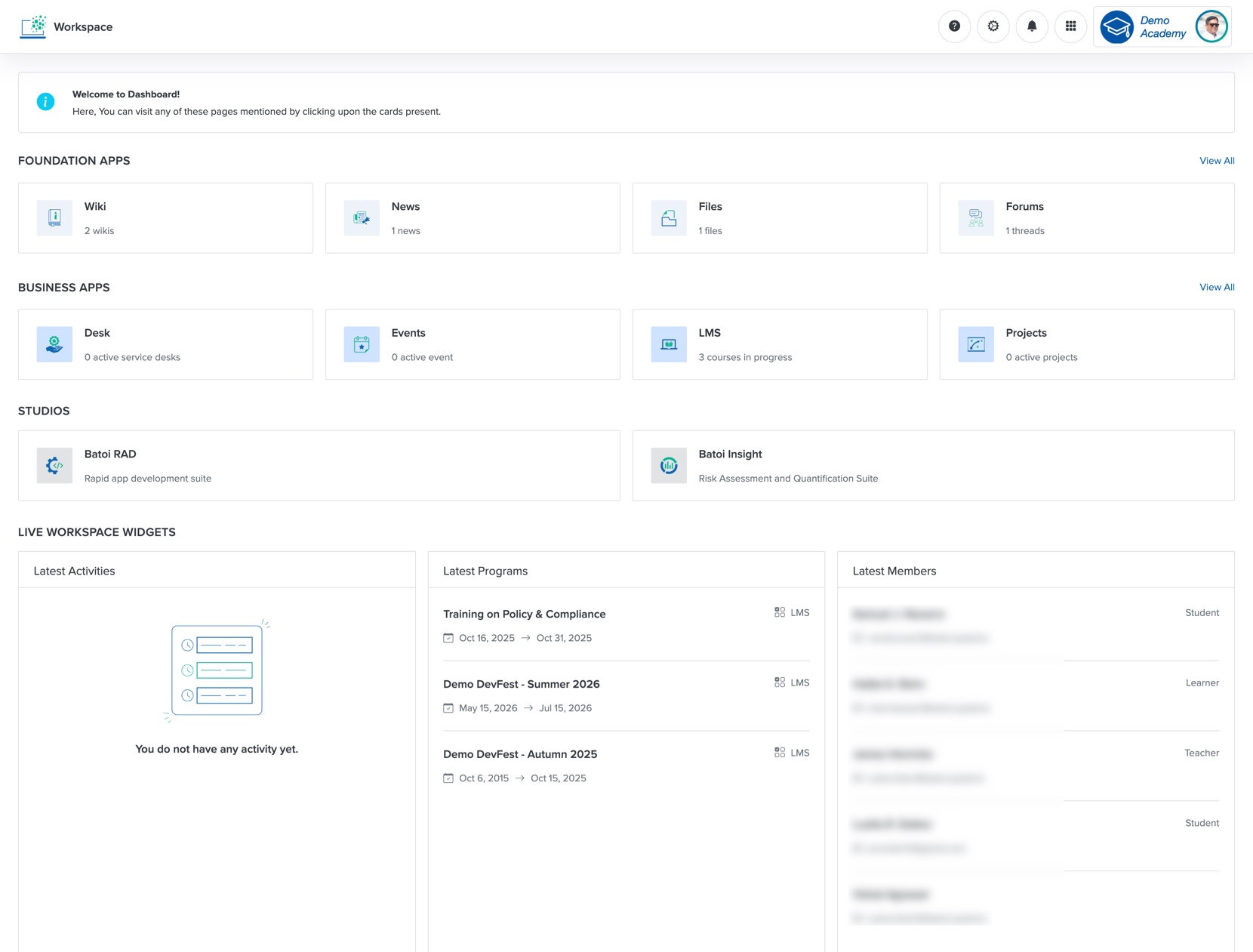
Workspace
Click the Workspace button as shown in Figure 3 above, and the Workspace opens, as shown in Figure 6 below.