
 Batoi CloudSpace
 - Create and Manage Your CloudSpace in Batoi
- Manage Category Settings in Batoi CloudSpace
- Manage Your Assets and Track Their Maintenance Details in Batoi CloudSpace
- Manage Organizational Contacts in Batoi CloudSpace
- Manage Your Opportunities with Batoi CloudSpace
- Manage Your Inventory with Batoi CloudSpace
- Manage Your Sales using Batoi CloudSpace
- Manage Your Vendors and Customers on Batoi CloudSpace
- Manage Business Unit
- Manage Your Business with ePoS on Batoi CloudSpace
- Manage Your Supply Chain with Batoi CloudSpace
- Manage Books of Accounts of Your Journal, Credit, and Debit in Batoi CloudSpace
- Create and Send Newsletters or Notices to Multiple Recipients Using Batoi CloudSpace
- Share and Track Your Files across Different Business Functions Using Batoi CloudSpace
- Communicate Securely within Team Using Batoi CloudSpace
- Record and Track Your Daily Office Operations with Batoi CloudSpace
- Manage Tasks, Issues and Discussions in Batoi CloudSpace
- Create and View Reports and Charts from Your Existing Dataset in Batoi CloudSpace
- Create and Manage Surveys with Team Members, Vendors and Customers
- Manage Calendar of Organizational Schedules in Batoi CloudSpace
- Manage Your Projects and Project Team in Batoi CloudSpace
Create and Manage Your CloudSpace in Batoi
Overview
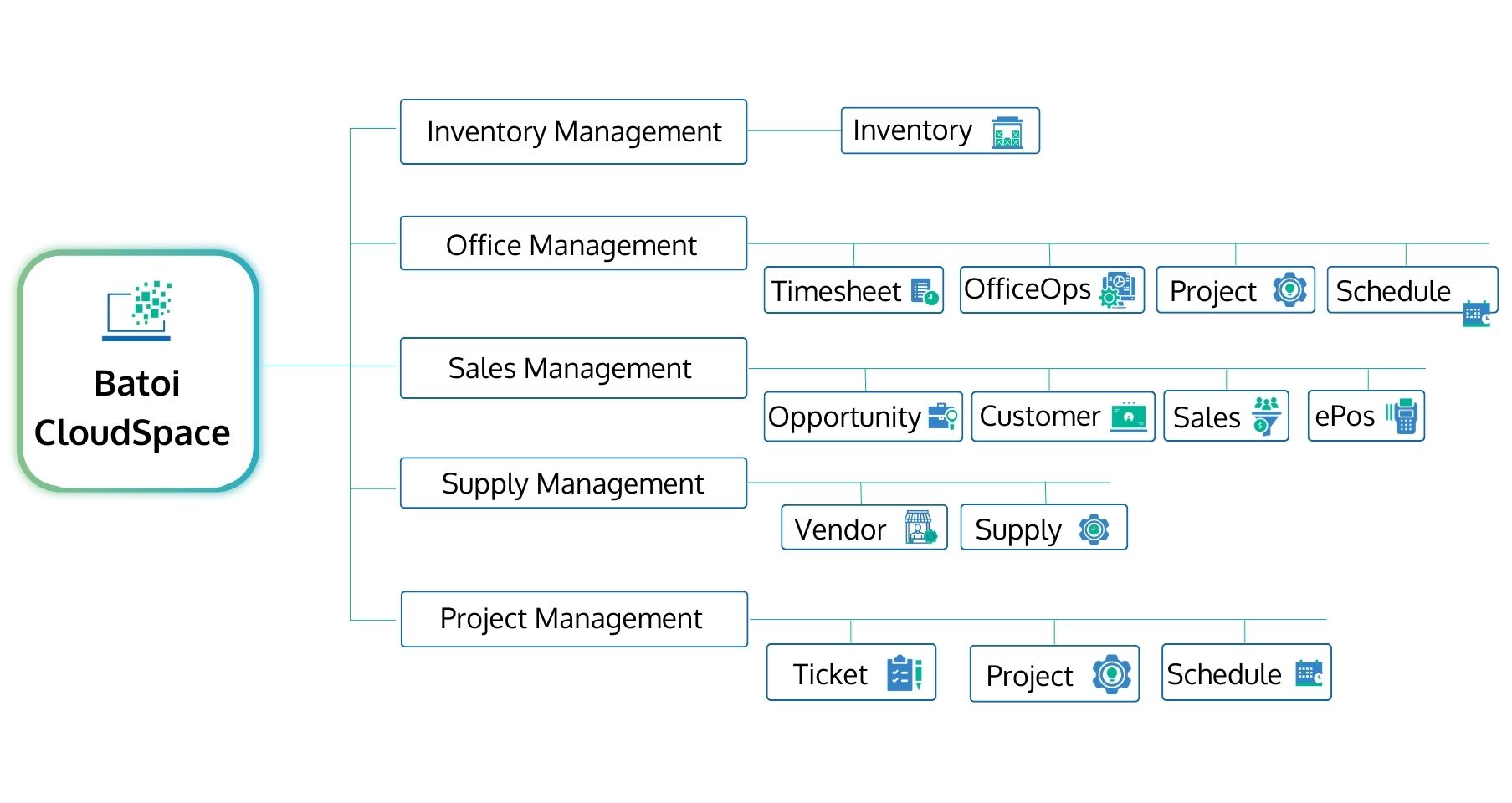
With more than twenty apps, we support your appetite for big digital transformations. Batoi CloudSpace allows real-time concurrent collaboration on a problem. The solutions will help you save operating costs and manage your business workflow on the cloud.
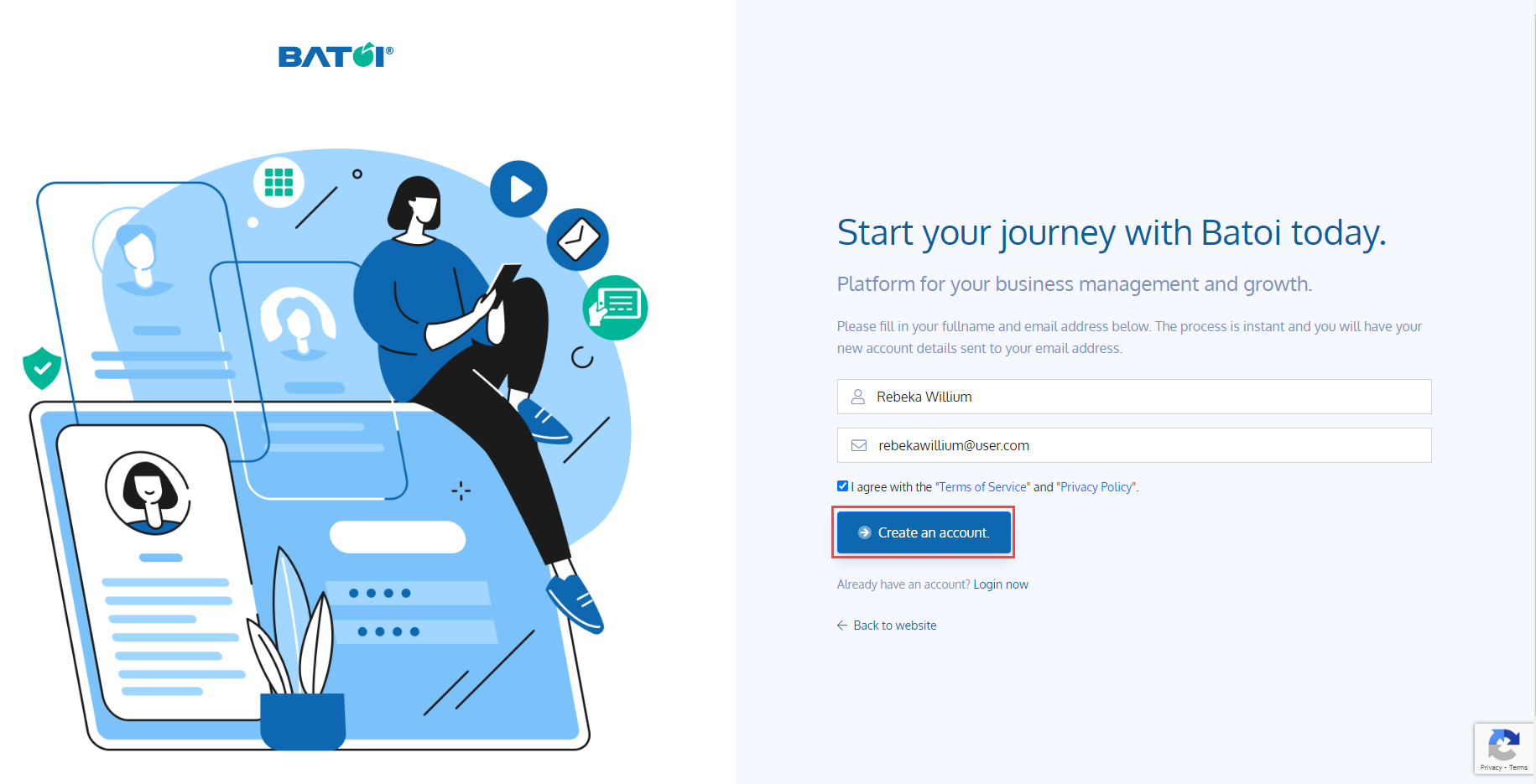
Go to batoi.com. Login if you already have an account or Create New Account by filling in your ‘Full Name’ and ‘Email Address’. The process is instant, and you will have your new account details sent to your email address.
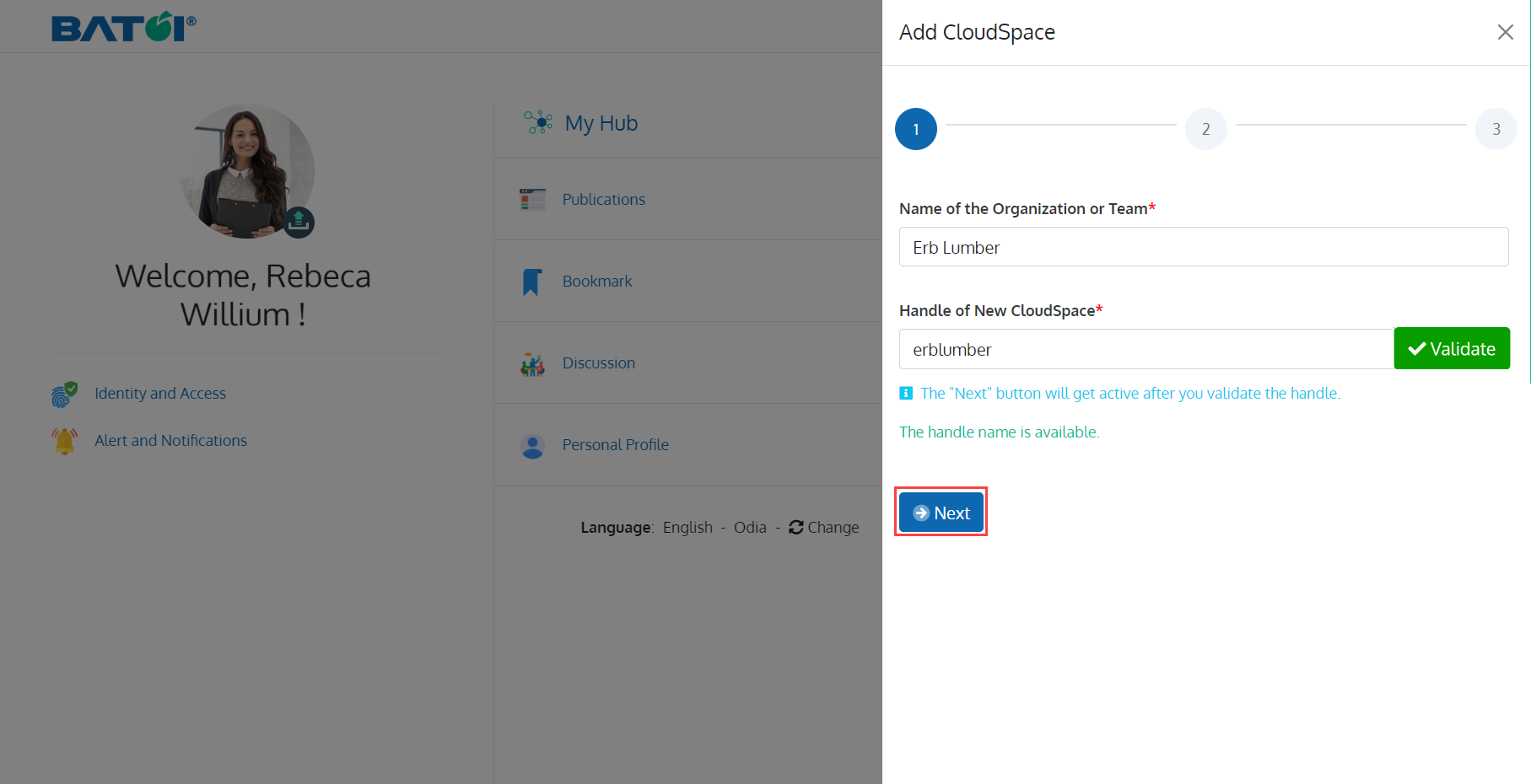
After logging in, create a CloudSpace by entering the ‘Name of the Organization or Team’ and ‘Handle of the New CloudSpace’ in Step One. It is primary to ‘Validate’ the Handle as it is utilised to create a one-of-a-kind digital profile for your CloudSpace.
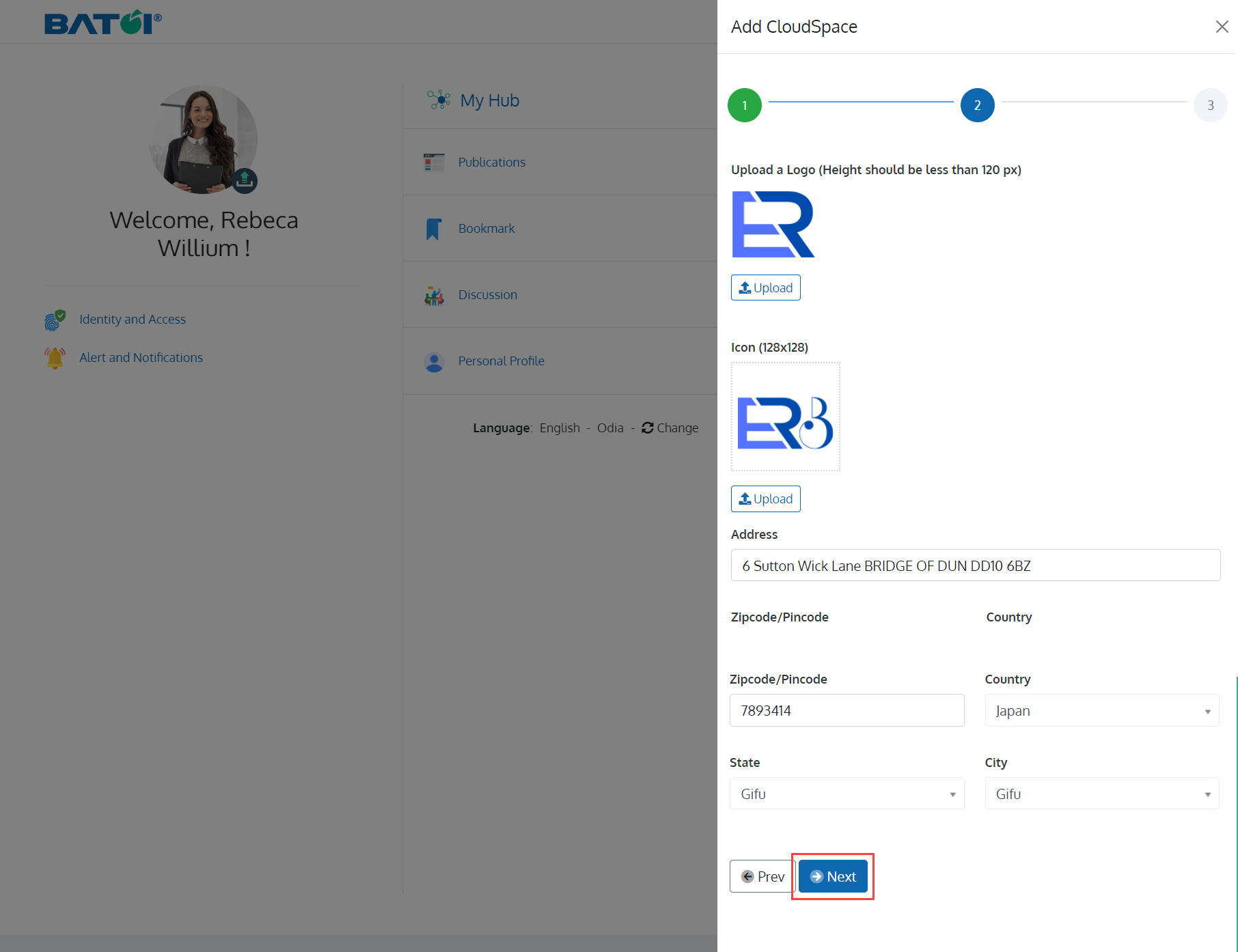
You cannot succeed online without a quality logo and icon. A decent logo and icon will help you stand out among the rest. It displays your gleaming business to the world and demonstrates your worth. ‘Upload a Logo and Icon’ followed by your organisation's address in Step Two.
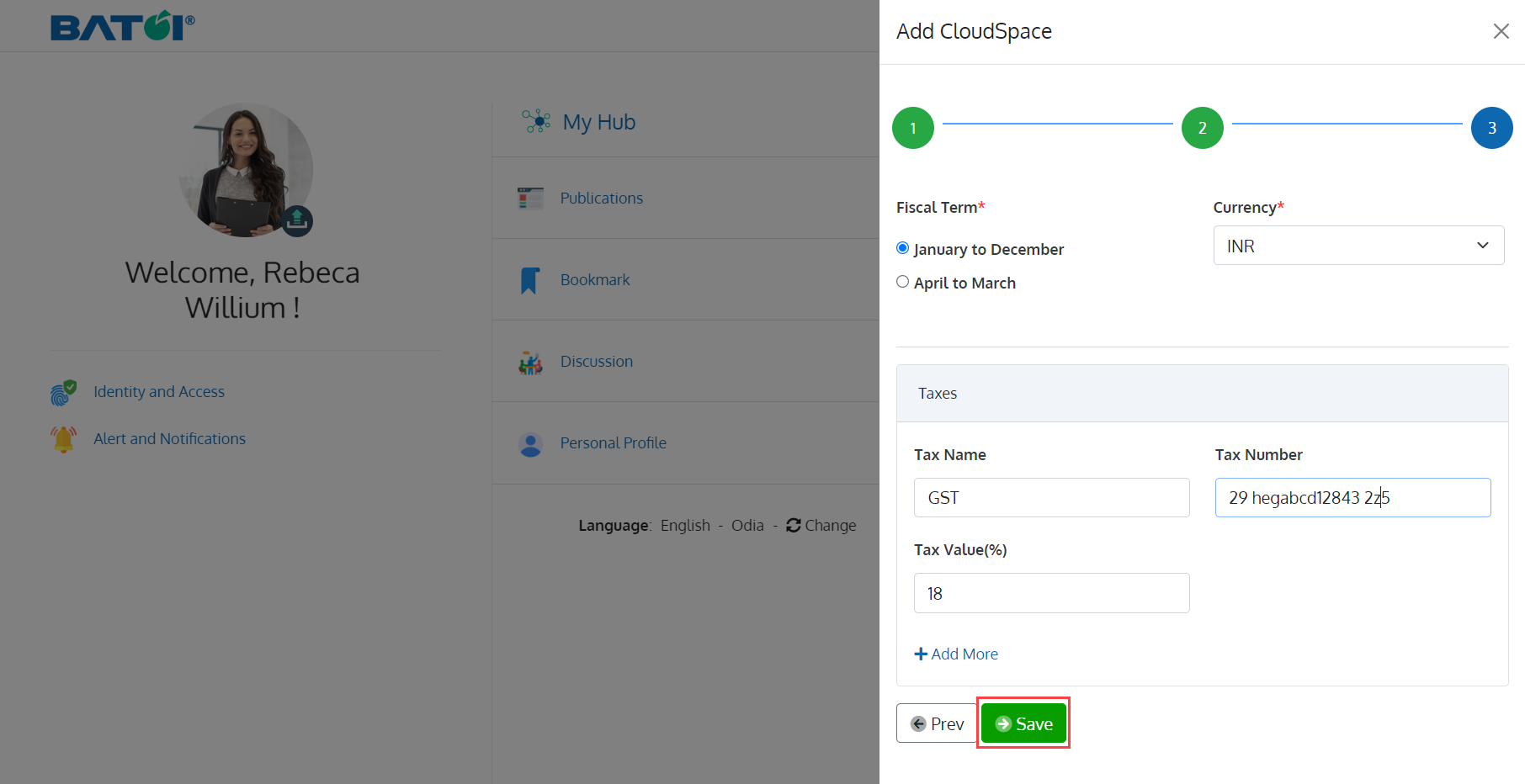
A fiscal year is your organisation's one-year accounting and financial statement preparation period. Select ‘Fiscal Term’ and ‘Currency’ followed by the Tax details. You can also add more applicable ‘Taxes’ to your CloudSpace.
Now you can see your CloudSpace in the list of CloudSpaces. You can configure your CloudSpace according to your needs in the ‘Settings' section. With over twenty apps, to mention a few like ‘Opportunity’, ‘Supply’, ‘Sales’, ‘ePos’, ‘Customer’, ‘Ledger’ and ‘Project’, each application performs a distinct role while being networked with each other. The applications will help you with everything from lead management to sales conversion. You may acquire, plan, and deliver items throughout the sales process. Use the Ticket app to keep track of all your 'Tasks,' 'Discussions,' and 'Issues.' By utilising the Analyzer app, you may access business from a single spot by creating reports and charts from current and imported datasets. You may also manage your staff with features such as 'Attendance,' 'Work Hours,' and 'Leaves' using the Timesheet. Create and send newsletters and notices using the Broadcast app and many more. Batoi Priority Support Team is available all around the year to guide you through. So what are you waiting for? ‘Get Started’ now or ‘Schedule a Demo’ with us.